
3Com Bigpicture Manuale utente

This manual covers installation and operating instructions for the following 3Com®BigpictureTM
products:
• Videophone Camera & Capture Card
3Com, the 3Com logo, and U.S. Robotics are registered trademarks; Bigpicture and the Bigpicture
logo are trademarks of 3Com Corporation or its subsidiaries. Windows and NetMeeting are
registered trademarks of Microsoft Corp. Kai’s Photo Soap Special Edition is a trademark of
MetaCreations. Digital Video Producer is a trademark of Asymetrix. VDOPhone, VDOLive, and
VDOMail are trademarks of VDOnet Corp. iVisit is a trademark of BoxTop Interactive. Any other
trademarks or service marks used in this manual are the property of their respective owners.
Copyright © 1997 3Com Corporation or its subsidiaries
7770 North Frontage Rd.
Skokie, IL 60077-2690

TABLE OF CONTENTS
ii
Introduction 1
Installation 2
Determining Your Version of Windows 95 2
Inserting the Video Capture Card into Your Computer 4
Connecting Your NTSC Camera to Your Video Capture Card 8
Connecting a Camcorder or Other NTSC Device to Your Video Capture Card 9
Installing the Video Capture Card’s Drivers 10
Software Installation 19
Bigpicture Software Summary 24
The Bigpicture Application Launcher 28
InternetSecurityIssues 30
TroubleshootingandOnlineHelpResources 35
IRQ Conflicts: Freeing an IRQ 37
IRQ Conflicts: Altering PCI BIOS Settings 39
System Locking: Readjusting the Video Capture Card’s Memory Address 40
If Plug and Play Does Not Detect Your Capture Card 41
Online Help Resources 42

TABLEOFCONTENTS
Glossary 45
Specifications 50
Video Capture Card 50
NTSC Camera 51
RegulatoryInformationandLimitedWarranty 53

INTRODUCTION
1
ongratulations! You have purchased a
powerful (and fun!) video communications
tool. 3Com is known worldwide for reliable
and easy-to-use networking and data
communications tools. Now you can count on
3Com for the same quality in digital video
applications.
3Com, the leader in networking, now puts
digital video right inside your PC. With the
simple, compact camera and standards-based
video capture card included in your
Bigpicturepackage, you can grab still
pictures, use Kai’s Photo Soap Special
Edition™to put finishing touches on images,
removing “red eye” or sunlight glare from
digital photos, or edit video footage into a real
mini-movie with Asymetrix Digital Video
Producer™.
With the addition of a modem, you can
conduct Internet and “point to point” H.324
video phone calls using VDONet’s
VDOPhone™. VDOMail™makes sending
video and audio to friends and family as easy
as sending regular text e-mail. BoxTop’s
iVisit™gives you further Internet video
capabilities. Microsoft’s NetMeeting™lets you
communicate with both audio and H.323
video, collaborate on virtually any Windows-
based application, exchange graphics on an
electronic whiteboard, and much more.
This manual will guide you through installation
of the hardware and software included in your
Bigpicture video package. Have fun!
C

INSTALLATION
2
You’ll need these items from your
BigpictureTM box:
NTSC camera video capture card
Bigpicture CD-ROM
Plus: screwdriver (not included)
This section will guide you through installation
of the hardware and software in your
Bigpicture Videophone package. The
hardware (video capture card and camera)
must be installed before the software.
Determining Your Version of
Windows 95
There are different versions of Windows 95
on the market. One of the primary ways these
versions differ is in the way they handle the
addition of new hardware. Follow these steps
to determine your version of Windows 95.
This information will be important during
installation.
1. Click the My Computer icon on your
desktop with the right mouse button.
2. Click Properties.

INSTALLATION
3
3. In the “System Properties” screen, look at
the system information under the General
tab (circled in the following screen image).
The number following the text “Microsoft
Windows 95” will end with “950”, “950a”,
or “950b”. This indicates your version of
Windows 95. Write this number on the
blank below for future reference. Then
click OK.
Windows 95 version _________________

INSTALLATION
4
Inserting the Video Capture
Card into Your Computer
NOTE: Before installing your
capture card, write down the card’s
serial number in this space:
________________________________
You will find the serial number
underneath the bar code on the white
sticker on the capture card and on your
Bigpicture package. If you ever need to
call our technical support department,
the technical support representative
will ask you for this serial number.
This number will help him or her
identify your capture card.
Your video capture card supports Plug and
Play installation, the fastest, easiest way to
add new hardware to your PC. Windows 95
should do all the work of detecting your new
hardware.
TIP: Before you unplug anything,
label the cords or make a sketch of how
things are connected. This can be
helpful when you plug things back in
later.
1. Turn off your computer and unplug it from
the electrical outlet.
2. Unplug any peripheral devices (printer,
monitor, keyboard, mouse, etc.) from the
computer.

INSTALLATION
5
CAUTION:To avoid risk of
electric shock, make sure your
computer and all peripheral devices are
turned off and unplugged from
electrical outlets.
3. Remove the screws from your computer’s
cover and then remove the cover. Your
computer may not resemble the computer
in the following diagrams, but the basic
principle for removing the cover should be
the same. Refer to your computer’s
documentation if you need further
instructions.
4. Touch an unpainted metal part of your
computer (the back panel, for example) to
discharge any static electricity you may be
carrying. Static electricity can damage
electronic components.

INSTALLATION
6
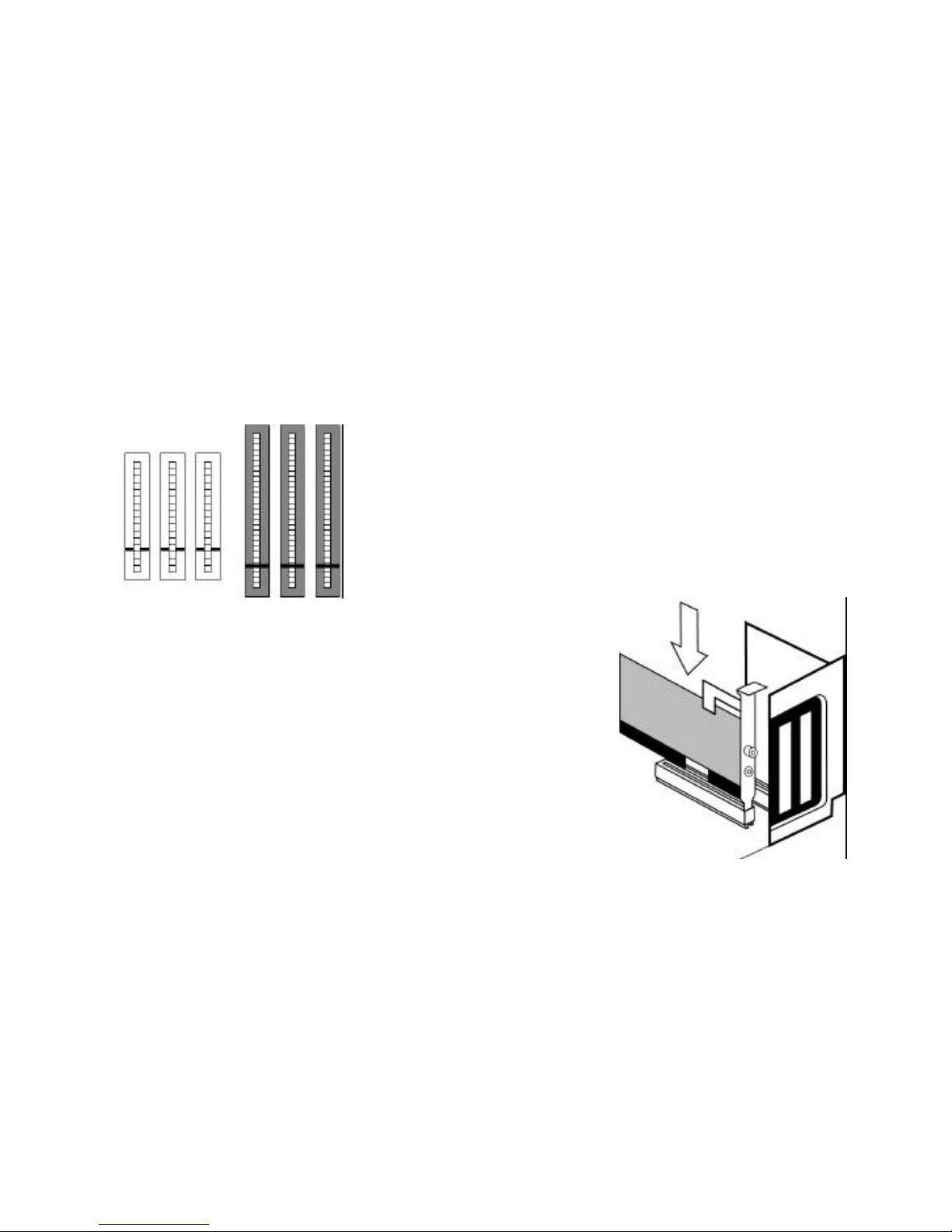
5. There should be two types of expansion
slot inside your computer, ISA and PCI
(see the following diagrams). Find an
empty PCI slot inside your computer. PCI
slots are usually white plastic grooves lined
with silver metal. ISA slots are usually
longer black plastic grooves lined with
silver metal.
INSTALLATION
7
PCI ISA
6. Unscrew and remove the expansion slot
cover (the long, narrow piece of metal that
keeps dust from entering through the
opening perpendicular to the slot). Be
careful not to drop the screw into the PC.
7. Holding the video capture card at each
corner, with the gold edge facing the slot,
push the card down as gently as possible
until it snaps into the expansion slot. You
will need to apply some pressure to
properly fit the capture card into the
expansion slot. A gentle back-and-forth
motion helps seat the card all the way into
the slot. If you feel resistance, do not force
the card into the slot. The card may not be
properly aligned with the slot. Remove the
card completely and try again.
Altri manuali per Bigpicture
1
Questo manuale è adatto per i seguenti modelli
1
Indice
Altri manuali 3Com Sistema di conferenza
Manuali Sistema di conferenza popolari di altre marche

Kramer
Kramer VIA GO Manuale utente

AVT
AVT MAGIC AC1 Go Manuale utente

ProSoft Technology
ProSoft Technology AN-X4-AB-DHRIO Manuale utente

Sony
Sony PCS-I150 Manuale utente

Middle Atlantic Products
Middle Atlantic Products VTC Series Manuale utente

Prentke Romich Company
Prentke Romich Company Vanguard Plus Guida


