3Com VCX V7000 Manuale utente

http://www.3com.com/
Part Number 900-0326-01 Rev AD
Published May 2006
VCX™Manager’s Telephone
Guide
VCX™V7000 IP Telephony Solution
System Release 7.0

3Com Corporation
350 Campus Drive
Marlborough, MA
01752-3064
Copyright © 2006 3Com Corporation. All Rights Reserved. No part of this documentation may be
reproduced in any form or by any means or used to make any derivative work (such as translation,
transformation, or adaptation) without written permission from 3Com Corporation.
3Com Corporation reserves the right to revise this documentation and to make changes in content from
time to time without obligation on the part of 3Com Corporation to provide notification of such revision
or change.
3Com Corporation provides this documentation without warranty, term, or condition of any kind, either
implied or expressed, including, but not limited to, the implied warranties, terms, or conditions of
merchantability, satisfactory quality, and fitness for a particular purpose. 3Com may make improvements
or changes in the product(s) and/or the program(s) described in this documentation at any time.
If there is any software on removable media described in this documentation, it is furnished under a
license agreement included with the product as a separate document, in the hardcopy documentation, or
on the removable media in a directory file named LICENSE.TXT or !LICENSE.TXT. If you are unable to
locate a copy, please contact 3Com and a copy will be provided to you.
UNITED STATES GOVERNMENT LEGENDS:
If you are a United States government agency, then this documentation and the software described herein
are provided to you subject to the following:
United States Government Legend: All technical data and computer software is commercial in nature
and developed solely at private expense. Software is delivered as Commercial Computer Software as
defined in DFARS 252.227-7014 (June 1995) or as a commercial item as defined in FAR 2.101(a) and as
such is provided with only such rights as are provided in 3Com’s standard commercial license for the
Software. Technical data is provided with limited rights only as provided in DFAR 252.227-7015 (Nov
1995) or FAR 52.227-14 (June 1987), whichever is applicable. You agree not to remove or deface any
portion of any legend provided on any licensed program or documentation contained in, or delivered to
you in conjunction with guide.
Unless otherwise indicated, 3Com registered trademarks are registered in the United States and may or
may not be registered in other countries.
3Com and the 3Com logo are registered trademarks of 3Com Corporation. VCX is a trademark of 3Com
Corporation.
Other brand and product names may be registered trademarks or trademarks of their respective holders.

CONTENTS
ABOUT THIS GUIDE
Conventions 8
Figures 8
Related Documentation 9
Comments 10
1GETTING STARTED
VCX Telephone Overview 12
Initial Voice Mailbox Setup 13
Configuration Options 14
Additional Information Sources 14
2VCX V7000 MANAGER’STELEPHONE — MODEL 3103
Telephone Buttons and Controls 16
Access Buttons 19
Status Lights for Access Buttons 20
Feature Options 20
Display Panel Contrast 23
3BASIC TELEPHONE OPERATION
Logging In to Your Telephone 26
Changing Your Password 27
Answering a Call 28
Answering a
Second Call 29
Making Calls 29
Making Internal Calls 29
Redialing a Call 30
Making External Calls 30
Making a Call to a Remote Office 30

4
Using Unique Extensions 30
Using Site Codes 31
Class of Service Override 31
Terminating Calls 32
Using the Telephone Display Panel 32
Controlling the Volume 34
Using the Hands Free Feature 35
Using a Headset 35
Returning to the Headset After a Long Delay 36
Putting a Call on Hold 36
Music on Hold 36
Dialing a New Call While on a Call 37
Answering a New Call While on a Call 37
Transferring a Call 37
Unattended Transfer 37
Attended Transfer 38
Serial Transfer 38
Mapped Button Method 38
Serial Transfer Feature Code Method 39
Muting Calls 39
Mute Ringer 39
Activating Do Not Disturb 40
4FEATURE CODES
Feature Code Overview 44
Feature Codes 44
5STANDARD FEATURES
Viewing the Call Logs 52
Viewing the User Directory 52
Controlling Caller ID 53
Using the Telephone User Interface 53
Using the VCX User Interface 54
Setting up a Conference Call 54
Unannounced Conference 55
Announced Conference 55
Dropping a conference recipient 55

5
Camping on a Busy Extension 55
Transferring Your Phone Settings to Another Phone 56
Forwarding Calls to Voice Mail 57
Transferring a Call to Another User’s Voice Mail 58
Call Waiting 58
Speed Dialing 58
Configuring Personal Speed Dial Numbers 59
Editing Personal Speed Dial Numbers 61
Dialing Personal Speed Dial Numbers 61
Dialing System Speed Dial Numbers 62
Call Forwarding 62
Call Forward No Answer 63
Call Forward Busy 63
Call Forward All 64
Call Park 64
Paging 65
Paging a Group 66
Call Pickup 66
Directed Call Pickup 67
Group Call Pickup 67
Call Pickup Interaction With Other Features 67
Silent Monitor and Barge In 68
Monitoring a Call 69
Barging In 70
Blocking Call Monitoring 70
Remote Call Forward 71
Hunt Groups 72
Hunt Group Types 74
Logging In to a Hunt Group 76
Hunt Group Interaction With Other Features 77
Viewing Hunt Group Membership and Status 78
6USING THE VCX USER INTERFACE
Accessing the VCX User Interface 80
VCX User Interface Overview 80
Enabling Call Forwarding 83
Configuring a Call Coverage Point 85

6
Assigning Access Button Functions Using the VCX User Interface 86
Enabling Bridged Extensions 86
Bridged Line Interaction with Other Features 88
Do Not Disturb and Bridged Line Calls 89
Hands Free and Bridged Line Calls 90
Call Forward, Forward to Voice Mail, and Bridged Line Calls 90
Call Transfer, Call Conferencing, and Bridged Line Calls 91
Call Park and Bridged Line Calls 91
Call Pickup and Bridged Line Calls 92
Attendant Console and Bridged Line Calls 92
Hunt Groups and Bridged Line Calls 92
Message Waiting Indication and Bridged Line Calls 92
Personal Speed Dial Access Buttons 93
Logging Out 93
7VCX ATTENDANT CONSOLES — MODEL 3105 AND
COMPLEMENT ATTENDANT
VCX Attendant Console 96
Access Buttons 96
Feature Buttons 96
Printing Labels 98
Attendant Console Status Lights 99
Complement Attendant Software 100
ATELEPHONE INSTALLATION AND MAINTENANCE
Connecting the Telephone 106
Attaching and Adjusting the Articulating Support Bracket 108
Opening the 3105 Attendant Console Label Cover 111
Moving Your Telephone 111
Swapping Telephones 111
Cleaning Your Telephone 112
Troubleshooting Problems 112
INDEX

ABOUT THIS GUIDE
This guide describes how to set up and use 3Com® VCX™ telephones
and consoles.
This guide is for users of the following VCX hardware and software:
■VCX 3103 Manager’s Telephone
■VCX3105 Attendant Console and PC-based Self-conscious
If release notes are shipped with your product and the information there
differs from the information in this guide, follow the instructions in the
release notes.
CAUTION: The 3Com telephone system operates over the Ethernet local
area network (LAN), not through a traditional telephone connection.
Your telephone is connected to the 3Com system through an RJ45
Ethernet connector instead of through an RJ11 telephone connection.
Your telephone will not work unless it is connected correctly.
For information about installing your telephone, see the packing sheet
that came in the box with your telephone. The model number is on the
underside of the telephone. Contact your administrator if you have
questions about your telephone connection.
For information about the voice mail system and features, see the IP
Messaging Module User Guide - 3Com Native Interface or the IP
Messaging Module User Guide - Traditional Interface, depending on the
Telephone User Interface (TUI) enabled for your phone.

8ABOUT THIS GUIDE
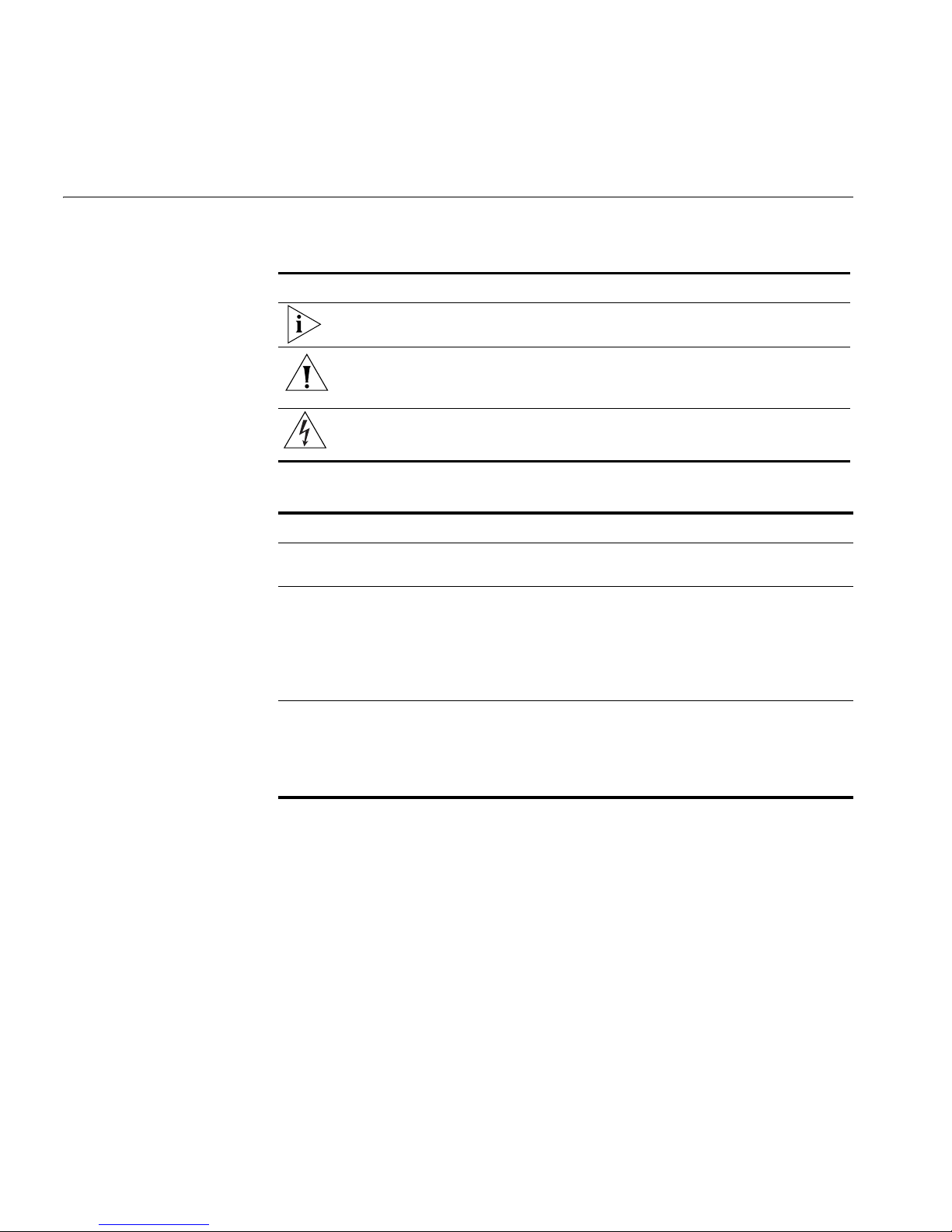
Conventions Table 1 and Table 2 list conventions that are used throughout this guide.
Table 1 Icons
Icon Type Description
Information note Information about important features or
instructions.
Caution Alerts you to potential loss of data or
potential damage to an application, system,
device, or network.
Warning Alerts you to potential personal injury.
Table 2 Text Conventions
Convention Description
Screen displays This typeface represents information as it appears on the
screen
Commands The word “command” means that you must enter the
command exactly as shown and then press Return or Enter.
Commands appear in bold. Example:
To remove the IP address, enter the following command:
SETDefault!0 -IP NETaddr = 0.0.0.0
Words in italics Italics are used to:
■Emphasize a point.
■Denote a new term at the place where it is defined in the
text.
Figures This guide provides figures and screen captures that contain sample data.
This data may vary from the data on an installed system.

Related Documentation 9
Related
Documentation These 3Com documents contain additional information about the
products in this release that are a part of or support the 3Com
Convergence Application Suite.
The following documents are a part of the VCX IP Telephony Module:
■VCX Installation and Maintenance Guide
■VCX Administration Guide
■VCX Basic Telephone Quick Reference Guide
■VCX Business Telephone Quick Reference Guide
■VCX Manager’s Telephone Quick Reference Guide
■VCX Feature Codes for Analog Telephones Quick Reference Guide
■VCX Basic Telephone Guide
■VCX Business Telephone Guide
■VCX Manager’s Telephone Guide
■VCX Security Guide
The following documents are a part of the IP Messaging Module:
■IP Messaging Module Product Overview
■IP Messaging Quick Reference Guide - 3Com Native Interface
■IP Messaging Module User Guide - 3Com Native Interface
■IP Messaging Quick Reference Guide - Traditional Interface
■IP Messaging Module User Guide - Traditional Interface
■IP Messaging Module Operations and System Administration Guide
■E-Mail Reader Application Quick Start Guide
The following documents are a part of the IP Conferencing Module:
■IP Conferencing Module Installation Guide
■IP Conferencing Module Administration Guide
■IP Conferencing Module User Guide
■Convergence Center Client User and Administration Guide

The following documents provide information on products that support
this release:
■Enterprise Management Suite User Guide
■Enterprise Management Suite Getting Started Guide
■VCX V7111 Fast Track Installation Guide, Version 4.4
■VCX V7111 VoIP SIP Gateways User Manual, Version 4.4
■VCX V7122 SIP VoIP Gateway Installation Guide, Version 4.4
■VCX V7122 VoIP SIP Gateways User Manual, Version 4.4
Comments Send e-mail comments about this guide or about any Voice product
documentation to:
VOICE_Techcomm_comments@3com.com
Include the following information with your comments:
■Document title
■Document part number (found on the front page)
■Page number
■Your name and organization (optional)
Example:
VCX Manager’s Telephone Guide
System Release 7.0
Part Number 900-0326-01 Rev AD
Page 25
Please address all questions regarding the 3Com software to your
authorized 3Com coordinator.
Questo manuale è adatto per i seguenti modelli
1
Indice
Altri manuali 3Com Telefono

3Com
3Com 3101 Manuale utente

3Com
3Com 3102 Manuale utente

3Com
3Com NBX NBX 1102 Manuale utente

3Com
3Com 3108 Manuale utente

3Com
3Com VCX Manuale utente

3Com
3Com 3101 Manuale utente

3Com
3Com NBX 100 Manuale utente

3Com
3Com NBX CHASSIS - APX30M/4 Manuale utente

3Com
3Com 3101 Manuale utente

3Com
3Com NBX 3101SP Manuale utente

3Com
3Com NBX 3101 Manuale utente

3Com
3Com 3C10399A Manuale utente

3Com
3Com NBX 100 Manuale utente

3Com
3Com NBX 100 Manuale utente

3Com
3Com VCX V7000 Manuale utente

3Com
3Com VCX Manuale utente

3Com
3Com NBX 1105 Manuale utente

3Com
3Com NBX V3000 Analog Manuale di istruzioni

3Com
3Com 3101 Manuale utente

3Com
3Com NBX Manuale utente