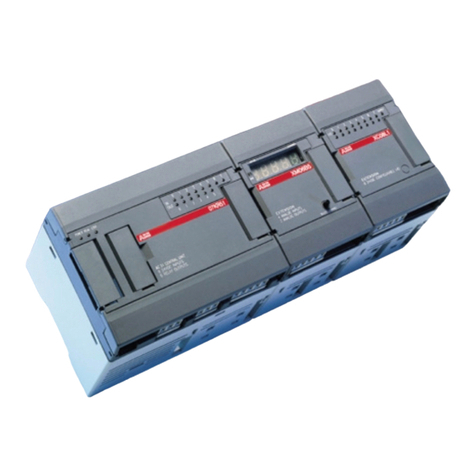
ABB AC500 Series Manuale

INSTALLATION AND CONFIGURATION MANUAL
Getting started
AC500 V3 products

—
Table of contents
1 Getting started with AC500 V3 products....................................................................................................... 3
1.1 Introduction................................................................................................................................................ 3
1.2 Engineering software Automation Builder................................................................................................. 3
1.2.1 Installing Automation Builder...................................................................................................... 3
1.2.2 Licensing procedure................................................................................................................... 4
1.2.3 Set-up communication parameters in windows.......................................................................... 7
1.3 Hardware AC500 V3................................................................................................................................. 9
1.3.1 Configuration for example projects............................................................................................ 9
1.3.2 System assembly, construction and connection....................................................................... 11
1.4 Example project for central I/O expansion.............................................................................................. 12
1.4.1 Preconditions........................................................................................................................... 12
1.4.2 Create, set-up and save your AC500 V3 project..................................................................... 12
1.4.3 Configure the I/O module......................................................................................................... 17
1.4.4 Programming and compiling.................................................................................................... 21
1.4.5 Set-up the communication gateway......................................................................................... 30
1.4.6 AC500 V3 firmware installation and update............................................................................. 33
1.4.7 Log-in to CPU and download the program............................................................................... 35
1.4.8 Test the program...................................................................................................................... 36
1.4.9 Set-up visualization.................................................................................................................. 38
1.4.10 Create visualization................................................................................................................ 42
1.4.11 Enable web visualization........................................................................................................ 50
1.4.12 Reset the CPU....................................................................................................................... 54
1.5 Example project for remote I/O expansion with PROFINET................................................................... 56
1.5.1 Preconditions........................................................................................................................... 56
1.5.2 Set-up PROFINET controller.................................................................................................... 56
1.5.3 Set-up PROFINET device........................................................................................................ 59
1.5.4 Add remote I/O expansion to project........................................................................................ 63
1.5.5 Test the program...................................................................................................................... 67
1.5.6 Reset the CPU......................................................................................................................... 68
1.6 Further information on our AC500 portfolio............................................................................................. 69
2 Index............................................................................................................................................................... 70
Table of contents
2021/05/143ADR010584, 2, en_US2

—
1 Getting started with AC500 V3 products
1.1 Introduction
This document gives an overview of the steps for the first use of a PLC with AC500 V3 CPU
and describes:
● installation of the engineering software
Ä
Chapter 1.2 “Engineering software Automation
Builder” on page 3
● hardware needed for example projects
Ä
Chapter 1.3 “Hardware AC500 V3” on page 9
● setting up a first, simple project for a stand-alone CPU with central I/O expansion, including
visualization and web visualization
Ä
Chapter 1.4 “Example project for central I/O expan-
sion” on page 12
● commissioning a project for remote I/O expansion with PROFINET
Ä
Chapter 1.5 “Example
project for remote I/O expansion with PROFINET” on page 56
NOTICE!
Read safety instructions first
Read the safety instructions before first use of the products.
https://to.abb/eER6E15m
1.2 Engineering software Automation Builder
For configuring and programming of any AC500 CPU you need the engineering software suite
Automation Builder. Automation Builder is available for download
Ä
Further information
on page 3.
1.2.1 Installing Automation Builder
You must have admininstrator rights on your PC to install Automation Builder.
In case of an update installation:
Create a project archive before updating Automation Builder. Project archives
contain all project data, including data that is not stored with a *.project file, e.g.
device description files for third party devices.
1. Go to abb.com/automationbuilder to access the homepage of Automation Builder.
2. In the “Downloads” section, select “Download Automation Builder”.
3. In the “Latest Automation Builder” section, select “Automation Builder x.x. Download” (x.x
= latest version). This downloads the installer on your PC.
4. Open the downloaded installer and follow the instructions of the installation manager.
Fig. 1: Safety
instructions
Preconditions
Installation
Getting started with AC500 V3 products
Introduction > Installing Automation Builder
2021/05/14 3ADR010584, 2, en_US 3

5. Keep the default type of installation to “Premium Edition”.
6. Select software packages to be installed:
Enable the check box “PLC - AC500 V3” to activate installation of all options for AC500
V3.
7. Click “Download and install” and follow the instructions of the setup.
1.2.2 Licensing procedure
When you start Automation Builder software for the first time, you will be asked to choose a
license option.
However, a basic license is enough for the example project for central I/O expansion, we recom-
mend to activate a trial license which is required for the example project for remote I/O expan-
sion. This way, you do not have to change licenses when programming the second example
project.
Table 1: Available editions and licenses for Automation Builder
Edition License PLC program-
ming
Fieldbus sup-
port
Engineering
productivity
tools
Basic Free license x -- --
Standard 30-day free trial,
then purchase
required
x x --
Premium 30-day free trial,
then purchase
required
x x x
Refer to our website to get details about the license model, the features of the editions and the
latest license information. new.abb.com/plc/automationbuilder/platform/software
Automation Builder software must be installed successfully.
Activate a
license
Getting started with AC500 V3 products
Engineering software Automation Builder > Licensing procedure
2021/05/143ADR010584, 2, en_US4

PC is connected to the internet.
1. Start Automation Builder.
ðA licensing wizard starts and guides you through the licensing procedure.
2. Enter user information.
In case of future support requests, your registration details enable ABB support team to
handle your questions quickly.
3. Select “OK”.
4. Enable the trial license.
5. Select “Next”.
Getting started with AC500 V3 products
Engineering software Automation Builder > Licensing procedure
2021/05/14 3ADR010584, 2, en_US 5

6. Enable the single PC license and select “Next”.
7. Enable online activation and select “Next”.
ðLicense activation procedure starts. A successfully ended licensing procedure ends
with a success message.
Getting started with AC500 V3 products
Engineering software Automation Builder > Licensing procedure
2021/05/143ADR010584, 2, en_US6

8. Select “OK” to end the wizard.
ðAutomation Builder license is activated and starts.
1.2.3 Set-up communication parameters in windows
To set-up the communication between the PC and the PLC, e.g., for downloading the compiled
program, you have to set-up the communication parameters.
The IP address of your PC must be in the same class as the IP address of the CPU.
The factory setting of the IP address of the CPU is 192.168.0.10.
The IP address of your PC should be 192.168.0.X. Avoid X = 10 in order to prevent an IP con-
flict with the CPU.
Subnet mask should be 255.255.255.0.
1. Open Windows Control Panel. Click “Network and Internet
è Network and Sharing Center”.
2. Click Change adapter settings.
If using existing network with several devices, please pay attention on
given network rules or contact your system administrator.
3. Right-click Local Area Connection (Ethernet) and select Properties.
Change the IP
address
Getting started with AC500 V3 products
Engineering software Automation Builder > Set-up communication parameters in windows
2021/05/14 3ADR010584, 2, en_US 7

4. Double-click Internet Protocol Version 4 (TCP/IPv4).
Getting started with AC500 V3 products
Engineering software Automation Builder > Set-up communication parameters in windows
2021/05/143ADR010584, 2, en_US8

5. Enter your desired IP address and subnet mask.
1.3 Hardware AC500 V3
1.3.1 Configuration for example projects
The example projects require a small PLC configuration with I/O devices, e.g., as available in
the training case TA5450-CASE. https://to.abb/AfO9-ftT
Table 2: Modules for example projects to get started with AC500 V3 PLC
Product name Type First project
Ä
Chapter 1.4
“Example project for
central I/O expan-
sion” on page 12
Second project
Ä
Chapter 1.5
“Example project for
remote I/O expan-
sion with
PROFINET”
on page 56
PM5630- 2ETH AC500 V3 CPU x x
TB5620-2ETH terminal base for CPU x x
DA501 analog/digital mixed
input/output (I/O)
module
x x
TU516-H terminal unit for I/O
module
x x
CM579-PNIO PROFINET communi-
cation module
-- x
Getting started with AC500 V3 products
Hardware AC500 V3 > Configuration for example projects
2021/05/14 3ADR010584, 2, en_US 9

Product name Type First project
Ä
Chapter 1.4
“Example project for
central I/O expan-
sion” on page 12
Second project
Ä
Chapter 1.5
“Example project for
remote I/O expan-
sion with
PROFINET”
on page 56
CI502-PNIO PROFINET communi-
cation interface
module
-- x
TU508-ETH terminal unit for com-
munication interface
module
-- x
TA524 blind cap for terminal
base
x x
Fig. 2: Training case TA5450
In the training case, the control panel CP6607 is included. A control panel is not
needed for the example projects.
For testing the example project some inputs require to be connected as follows:
Electrical con-
nection
Getting started with AC500 V3 products
Hardware AC500 V3 > Configuration for example projects
2021/05/143ADR010584, 2, en_US10
Altri manuali per AC500 Series
7
Indice
Altri manuali ABB Controllori

ABB
ABB PSTX1250 Manuale utente

ABB
ABB ACH550-UH HVAC Manuale utente

ABB
ABB IRC5 Compact Manuale utente

ABB
ABB AC 800F Manuale di installazione e funzionamento

ABB
ABB relion REF615 Istruzioni per l’uso

ABB
ABB C320 Manuale utente

ABB
ABB PSTX Series Manuale elenco delle parti

ABB
ABB ACS310 Manuale utente

ABB
ABB ACS580-04 Manuale utente

ABB
ABB MS132-32-HKF1-11 Manuale utente

ABB
ABB C310 Istruzioni operative

ABB
ABB 07CR41 Manuale utente

ABB
ABB PSTX470 Manuale utente

ABB
ABB M10 Series Manuale utente

ABB
ABB Bitric P Manuale utente

ABB
ABB 344 OEMO 1 G Manuale utente

ABB
ABB BSFC-02C Manuale utente

ABB
ABB TZIDC-110 Manuale utente

ABB
ABB ACH400 Series Manuale utente

ABB
ABB COM600 series Manuale utente