
Abus Eytron JPEG2000 Manuale utente

Eytron JPEG2000 Dual
Codec DVR
User manual
TV8931-TV8933
Version: 1.0, 03/2008

49
Contents
1. Preface ................................................................................................................ 50
2. Scope of delivery................................................................................................ 51
3. Features .............................................................................................................. 51
4. Precautions......................................................................................................... 52
5. System Design ................................................................................................... 53
5.1 Front Panel............................................................................................... 53
5.2 Rear Panel ............................................................................................... 55
5.3 Remote Controller.................................................................................... 56
6. Installation............................................................................................................. 57
6.1 Camera installation................................................................................... 57
6.2 Monitor and SPOT Monitor installation..................................................... 57
6.3 Sensor and Alarm installation................................................................... 58
6.4 PTZ camera installation............................................................................ 59
6.5 HDD installation........................................................................................ 60
6.6 Mouse installation..................................................................................... 60
6.7 Power plugging......................................................................................... 60
7. Operation ............................................................................................................ 61
7.1 Display...................................................................................................... 61
7.2 Channel selection..................................................................................... 62
7.3 PIP (Picture in Picture) view..................................................................... 63
7.4 Freeze view.............................................................................................. 63
7.5 View in sequence ..................................................................................... 63
7.6 Zoom in view............................................................................................ 64
7.7 Key lock.................................................................................................... 64
7.8 Playback................................................................................................... 64
7.9 Search...................................................................................................... 64
7.10 Mouse operation..................................................................................... 66
8. OSD (On-Screen-Display) Menu...................................................................... 68
8.1 LOG-IN..................................................................................................... 68
8.2 System menu ........................................................................................... 68
8.2.1 DISPLAY SETUP................................................................................... 69
8.2.2 CONFIGURATION................................................................................. 70
8.2.4 BACK-UP .............................................................................................. 81
8.2.5 EXTERNAL DEVICE............................................................................. 83
8.2.6 FACTORY DEFAULT............................................................................. 89
8.2.7 LANGUAGE .......................................................................................... 89
9. Software & DDNS Server.................................................................................. 89
10. Possible recording time................................................................................... 90
11. Specifications ................................................................................................... 91
12. FAQ (Frequently asked questions) ................................................................ 92

50
1. Preface
Dear Customer,
Thank you for purchasing this Eytron digital recorder. You made the right decision in
choosing this state-of-the-art technology. This product complies with the current standards
of domestic and European regulations. The CE has been proven and all related
certifications are available from the manufacturer (www.security-center.org) upon request.
To maintain this status and to guarantee safe operation, it is your obligation to observe
these operating instructions!
This digital recorder is used in combination with connected video signal sources (B/W and
colour cameras) and video output devices (monitors) for object surveillance. It can
simultaneously record signals from up to 16 connected video sources, depending on the
model. With the help of the built-in CD drive or use of the USB-Port, you can save image
data, transfer it to a PC and view and archive complete video sequences. Thanks to H.264
video compression for network streaming, the recorder can easily be accessed from any
point in the world.
Data storage is subject to local national data-protection guidelines. During installation, draw
your customers’ attention to the existence of these guidelines.
© Security-Center GmbH & Co. KG, March 2008
Every effort has been made to ensure that the contents of this manual are correct.
However, neither the authors nor Security-Center GmbH & Co. KG accept any liability for
loss or damage caused or alleged to be caused directly or indirectly by this manual. The
contents of this manual are subject to change without notice.

51
2. Scope of delivery
•Eytron JPEG2000 Dual Codec DVR
•Remote control
•Batteries
•Power supply
•Power cable
•Software CD
•Installation instructions
3. Features
This Eytron digital recorder has following functions:
•Dual Codec: JPEG2000 image recording + H.264 network streaming
•Simultaneous recording and display of up to 4/8/16 video signal sources
(B/W and colour cameras)
•High resolution display recording (720 x 288 pixels, PAL)
•Adjustable recording quality level
•Adjustable recording speed
•Manual, scheduled and event-controlled recording with integrated motion sensor
•Video signal loss display
•4/8/16 looped-through video inputs
•2 video outputs (Monitor and spot monitor)
•4/8/16 alarm inputs, 1 alarm output
•Adjustable display formats
•Ethernet port for LAN and WAN
•CD-R writer and USB-Port for image export
•SATA HDD support
•Multilingual on-screen menu
•RS-485 port for controlling speed-dome cameras

52
4. Precautions
The digital recorder and connected components must be kept free of moisture (cellars and
similar surroundings are to be strictly avoided). Use of this product for other than the
described purpose may lead to damage of the product. Other hazards such as short-
circuiting, fire, electric shock, etc., are also possible. The recorder is designed for operation
with a transformer for main electricity at 230 Volt AC / 50 Hz.
No part of the product may be changed or modified in any way. Connection to the public
power network is subject to country-specific regulations. Please be aware of applicable
regulations in advance.
To avoid fire and injury, please observe the following:
•Securely fasten the device at a dry location in the building.
•Make sure there is sufficient ventilation.
•Do not expose the device to temperatures less than 5°C or more than 40°C.
•The device is designed for indoor use only.
•The maximum humidity must not exceed 90% (non-condensing).
•Ensure that the voltage is disconnected when performing work on the device.
Please observe the following regulations to ensure trouble-free operation of your
device:
•The Eytron digital recorder is supplied by a 12V DC transformer. The device should be
connected via a separate fused line to the local 230V AC network.
•Connecting the device to the local mains network is subject to country-specific
regulations.
General:
Improper or careless installation work may lead to faults and poor image quality. The cause
of bad picture quality goes hand in hand with improper cabling. Ensure professional
installation and avoid passive video distributors. Always select the shortest distance
between the camera and the video unit. Therefore please read the instructions very
carefully and follow the installation instructions for lines and components precisely.
The manufacturer reserves the right to make technical modifications at any time.

53
5. System Design
5.1 Front Panel
Description of operating controls
(1) 1/ON - Press for a full screen picture of camera input 1
(2) 2/OFF - Press for a full screen picture of camera input 2
(3) 3/OPEN - Press for a full screen picture of camera input 3
- Open iris (for PTZ camera control only)
(4) 4/CLOSE - Press for a full screen picture of camera input 4
- Close iris (for PTZ camera control only)
(5) 5/NEAR - Press for near focus (for PTZ camera control only)
(6) 6/FAR - Press for distant focus (for PTZ camera control only)
(7) 7/WIDE - Press to enlarge view (for PTZ camera control only)
(8) 8/TELE - Press to reduce view (for PTZ camera control only)
(9) MODE - Press to select a display format
(10) SEQ - Press to enable/disable the sequencing function
(11) PIP - Press to enable/disable the picture-in-picture function
(12) ZOOM - Press to activate the digital zoom function
(13) PANIC REC - Press to start recording
(14) STOP - Press to end the current function and switch to standby mode
(15) + - During programming: press to increase a value
(16) - - During programming: press to reduce a value
(a) 9/SET - Press to define a preset position (for PTZ camera control only)
(b) 10/CLEAR - Press to clear a predefined preset position
(for PTZ camera control only)
(c) 11/GOTO - Press to call the previously saved preset positions
(for PTZ camera control only)
(d) 12/AUTO - Press to activate the auto-scan function (PTZ camera only)
(e) 13/F1 - Press to define user 1 (for PTZ cameras only).
Analogue to (e), press (f), (g) or (h) to define users (2), (3) or (4)
(i) K.LOCK - Press to activate/deactivate the key lock function
(j) PTZ - Press to activate the PTZ control
(k) NEXT - Press for a full screen picture of the next camera input
(l) FREEZE - Press to freeze a picture
(m) PLAY - Press to start playback
In playback mode: Press to change playback direction
(n) SEARCH - Press to search recordings for date, time and event.
(1) (2) (4)(3) (5) (6) (7)
(8) (10)(11)
(12) (13)
(14) (15)
(b)
(a) (c) (d) (e) (f) (g) (h) (i) (j) (k) (l) (m) (n) (o) (p)
(9) (16)

54
(o) MENU - Press to open the OSD menu
(p) J.SHUT - Press to activate the jog-shuttle.
Description of control keys and LEDs
(1) - In playback mode: Press to switch playback from forwards to reverse.
- In programming mode: Press to move the cursor to the left.
(2) - In playback mode: Press to increase playback speed.
- In programming mode: Press to move the cursor up.
(3) - In search mode: Start playback.
- In programming mode: Press to confirm your selection.
- In playback mode: Press to switch playback from reverse to forwards.
- In programming mode: Press to move the cursor to the right.
(5) - In playback mode: Press to increase playback speed.
- In programming mode: Press to move the cursor down
(6) - REC: The LED lights up red during recording.
(7) - FULL: The LED lights up red if the hard disk is full.
(8) - RUN: The LED lights up red when jog-shuttle is used.
(9) - PLAY: The LED lights up green during playback.
(10) - NET: The LED lights up yellow if a LAN connection is active.
(11) - ACTIVE: The LED lights up yellow if an option is activated
(PTZ control, search function, rotating wheel …).
(12) - CD-R Writer
(13) - USB Port for firmware upgrade.
(14) - USB Port USB backup
(15) - Hard disk housing

55
5.2 Rear Panel
Description of rear connectors
4-Channel
8-Channel
16-Channel
(1) - RS485 connection to PTZ cameras
- 4/8/16 sensor inputs and 1 relay output
(2) - Optional VGA output. Gets activated when inserting VGA module TV8934
(3) - Ethernet connection for LAN or Internet access
(4) - Not used
(5) - 4/8/16 BNC-Camera inputs
- 4/8/16 BNC-Camera outputs looped through
(6) - BNC-Monitor output
- BNC-Spot monitor output. This output will show every channel in sequence. If an
alarm is triggered the according camera will be shown.
(7) - DC 12V power input
(8) - Power Switch
(9) - PS/2 connector to connect a mouse

56
5.3 Remote Controller
(1) - Enter or exit Menu
(2) - Choose between different viewing modes
- The Audio button is disabled
(3) - Press to switch to a camera
- Use to enter password
(4) - Press FRZ to freeze live screen
- Press SEQ to start sequence viewing
- Press ZOOM to enlarge picture. Use the direction
buttons to move around.
(5) - Press MODE to select between different multi-screen
views
- Press P/T to control PTZ camera
(6) - Press SEARCH to start playback mode
- Press - / + to decrease or increase value
- Press NEXT to select next PTZ command or select
next camera channel or next spilt screen display
(7) - Press REC to activate emergency record. This
recording will always be at best resolution and in Super
Fine quality
(8) - Press STOP to stop emergency recording and return to
schedule recording or to stop playback and return to
Live mode
(9) - Press PLAY to playback the recording directly
- Press PAUSE to pause playback
- Press REW to fast rewind playback, press again to
adjust speed
- Press FW to fast forward playback, press again to
adjust speed
- Press STEP to show picture by picture during playback
- Press SLOW for slow motion playback, press again to
adjust speed
(10) - Press ENTER to select or adjust menu item
(11) - Press the direction buttons to navigate
57
6. Installation
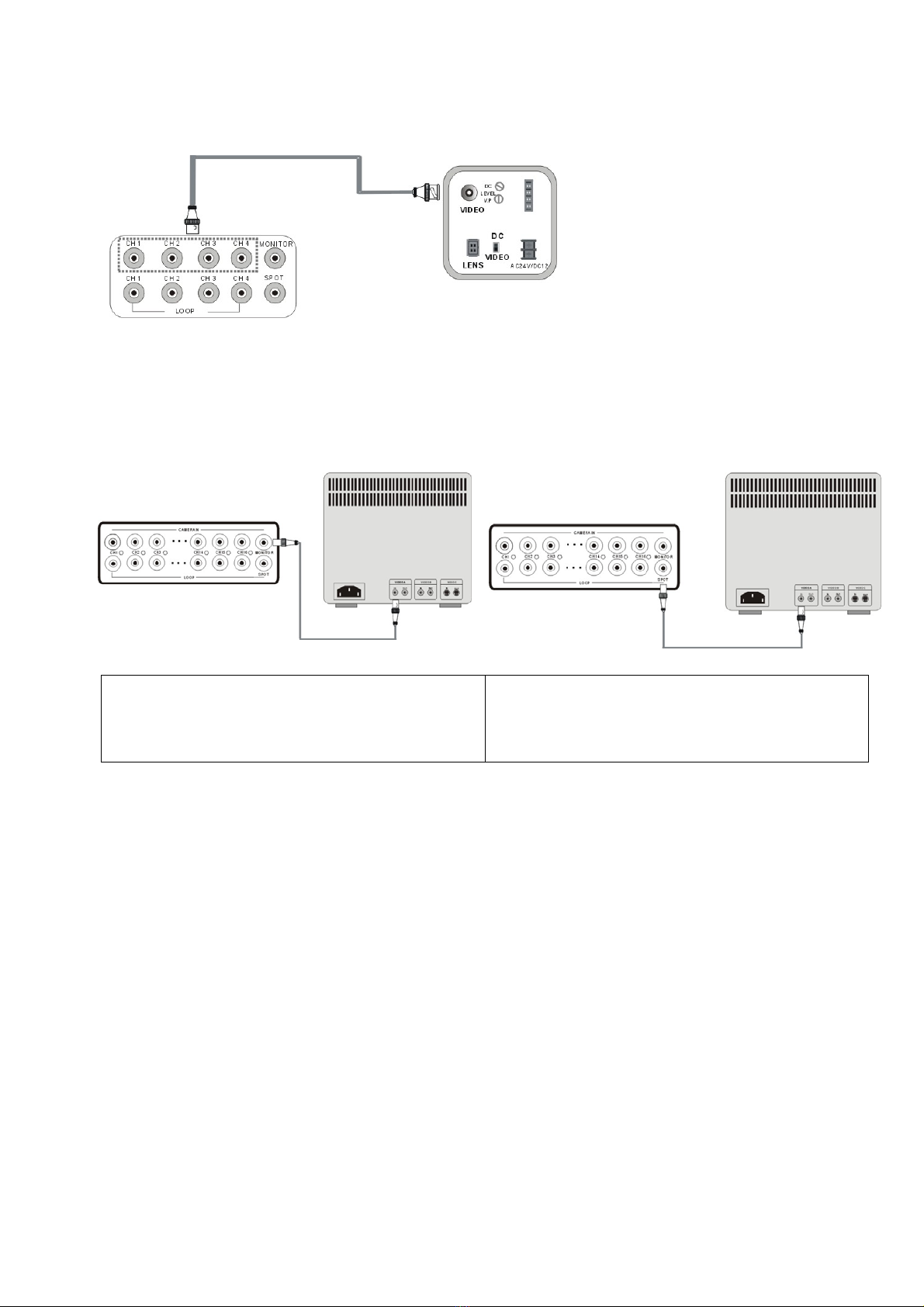
6.1 Camera installation
Connect the cameras to BNC-
Channels 1-16.
※Please do not start the DVR
before the camera installation
is done.
6.2 Monitor and SPOT Monitor installation
Connect the MONTIOR BNC-Output of the
DVR back panel to the “Video In” port of the
monitor.
Connect the Spot Monitor BNC-Output to a
second monitor. All camera channels will be
shown in sequence, if an alarm is triggered,
the channel will pop up.
Indice
Altri manuali Abus Registratore digitale

Abus
Abus NVR10010 Manuale utente

Abus
Abus eytron TV8901 Manuale utente

Abus
Abus TVVR20001 Manuale utente

Abus
Abus HDCC900 2 Series Manuale utente

Abus
Abus NVR10030P Manuale utente

Abus
Abus TVVR33049T Manuale utente

Abus
Abus HDCC90000 Manuale utente

Abus
Abus TVVR25000 Manuale utente

Abus
Abus TVHD800x0 Manuale utente

Abus
Abus TVVR30003 Manuale utente

Abus
Abus TVVR60011 Manuale utente

Abus
Abus TVVR36500 Manuale utente

Abus
Abus TV8239 Manuale utente

Abus
Abus TVVR50011 Manuale utente

Abus
Abus TVVR45021 Manuale utente

Abus
Abus Eytron TV8931 Manuale utente

Abus
Abus TVVR41200 Manuale utente

Abus
Abus TVVR45030 Manuale utente

Abus
Abus TVVR33004 Manuale utente

Abus
Abus NVR10020P Manuale utente


