Acer ezDock II Manuale utente

Acer ezDock II/II+
User's Guide

Changes may be made periodically to the information in this publication without obligation
to notify any person of such revisions or changes. Such changes will be incorporated in new
editions of this manual or supplementary documents and publications. This company makes
no representations or warranties, either expressed or implied, with respect to the contents
hereof and specifically disclaims the implied warranties of merchantability or fitness for a
particular purpose.
Record the model number, serial number, purchase date, and place of purchase information in
the space provided below. The serial number and model number are recorded on the label
affixed to your computer. All correspondence concerning your unit should include the serial
number, model number, and purchase information.
No part of this publication may be reproduced, stored in a retrieval system, or transmitted, in
any form or by any means, electronically, mechanically, by photocopy, recording, or otherwise,
without the prior written permission of Acer Incorporated.
Model number: _________________________________
Serial number: ___________________________________
Purchase date: ___________________________________
Place of purchase: ________________________________
Copyright © 2006 Acer Incorporated.
All Rights Reserved.
Acer ezDock II/II+ User's Guide
First issue: July, 2006
Acer ezDock II/II+
Acer and the Acer logo are registered trademarks of Acer Incorporated. Other companies
product names or trademarks are used herein for identification purposes only and belong to
their respective companies.

iii
Information for your safety and
comfort
Safety instructions
Read these instructions carefully. Keep this document for future reference.
Follow all warnings and instructions marked on the product.
Turning the product off before cleaning
Unplug this product from the wall outlet before cleaning. Do not use liquid
cleaners or aerosol cleaners. Use a damp cloth for cleaning.
CAUTION for plug as disconnecting device
Observe the following guidelines when connecting and disconnecting power to
the power supply unit:
Install the power supply unit before connecting the power cord to the AC
power outlet.
Unplug the power cord before removing the power supply unit from the
computerYYu/ e9 .
If the system has multiple sources of power, disconnect power from the system
by unplugging all power cords from the power supplies.
CAUTION for Accessibility
Be sure that the power outlet you plug the power cord into is easily accessible
and located as close to the equipment operator as possible. When you need to
disconnect power to the equipment, be sure to unplug the power cord from the
electrical outlet.
Warnings
•Do not use this product near water.
•Do not place this product on an unstable cart, stand or table. If the product
falls, it could be seriously damaged.
•To avoid damage of internal components and to prevent battery leakage,
do not place the product on a vibrating surface.
•Never use it under sporting, exercising, or any vibrating environment
which will probably cause unexpected short current or damage rotor
devices, HDD, Optical drive, and even exposure risk from lithium battery
pack.
Using electrical power
•This product should be operated from the type of power indicated on the
marking label. If you are not sure of the type of power available, consult
your dealer or local power company.

iv
•Do not allow anything to rest on the power cord. Do not locate this
product where people will walk on the cord.
•If an extension cord is used with this product, make sure that the total
ampere rating of the equipment plugged into the extension cord does not
exceed the extension cord ampere rating. Also, make sure that the total
rating of all products plugged into the wall outlet does not exceed the fuse
rating.
•Do not overload a power outlet, strip or receptacle by plugging in too
many devices. The overall system load must not exceed 80% of the branch
circuit rating. If power strips are used, the load should not exceed 80% of
the power strip's input rating.
•This product's AC adapter is equipped with a three-wire grounded plug.
The plug only fits in a grounded power outlet. Make sure the power outlet
is properly grounded before inserting the AC adapter plug. Do not insert
the plug into a non-grounded power outlet. Contact your electrician for
details.
Warning! The grounding pin is a safety feature. Using a power
outlet that is not properly grounded may result in electric shock
and/or injury.
Note: The grounding pin also provides good protection from
unexpected noise produced by other nearby electrical devices that
may interfere with the performance of this product.
•Use the product only with the supplied power supply cord set. If you need
to replace the power cord set, make sure that the new power cord meets
the following requirements: detachable type, UL listed/CSA certified, type
SPT-2, rated 7 A 125 V minimum, VDE approved or its equivalent, 4.6
meters (15 feet) maximum length.
Product servicing
Do not attempt to service this product yourself, as opening or removing covers
may expose you to dangerous voltage points or other risks. Refer all servicing to
qualified service personnel.
Unplug this product from the wall outlet and refer servicing to qualified service
personnel when:
•the power cord or plug is damaged, cut or frayed
•liquid was spilled into the product
•the product was exposed to rain or water
•the product has been dropped or the case has been damaged
•the product exhibits a distinct change in performance, indicating a need
for service
•the product does not operate normally after following the operating

v
instructions
Note: Adjust only those controls that are covered by the operating
instructions, since improper adjustment of other controls may
result in damage and will often require extensive work by a
qualified technician to restore the product to normal condition.
Telephone line safety
•Disconnect all telephone lines from the equipment when not in use and/or
before servicing.
•To avoid the remote risk of electric shock from lightning, do not connect
the telephone line to this equipment during lightning or thunderstorms.
Warning! For safety reasons, do not use non-compliant parts
when adding or changing components. Consult your reseller for
purchase options.
Additional safety information
Your device and its enhancements may contain small parts. Keep them out of
the reach of small children.
Disposal instructions
Do not throw this electronic device into the trash when discarding.
To minimize pollution and ensure utmost protection of the global environment,
please recycle. For more information on the Waste from Electrical and
Electronics Equipment (WEEE) regulations, visit
http://global.acer.com/about/sustainability.htm

1
English
First things first
We would like to thank you for making the Acer ezDock II/II+ your
choice. This User's Guide introduces you to the various features your
ezDock II/II+ can offer, and provides clear and concise information
about the product, so please read it thoroughly and retain it for future
reference.
Acer ezDock includes Acer ezDock II+ and Acer ezDock II, both of
which provide excellent total cost of ownership for you and your
corporation. For details of the features please check the table below.
Acer ezDock II/II+ comparison table
Functions Icon Acer ezDock II + Acer ezDock II
Keyboard port (PS/2) O O
Mouse port (PS/2) O O
Parallel port O O
Serial port O O
Kensington lock O O
DC-In jack O O
Audio jacks O O
SPDIF-out port SPDIF O O
VGA port O O
DVI-D port DVI-D O O
S-Video port O O
LAN port O O
1394a 4-pin port O O
1394a 6-pin port O O
USB 2.0 ports 6 6
Modem port O O
ExpressCard™ /54 slot ExpressCard/54 Ox
Acer MediaBay O x
AC Adapter O O

2
English
An Acer ezDock II/II+ tour
Note: Illustrations are for reference only. Actual product
specifications may vary.
After setting up your Acer ezDock II/II+ and the power supply as
illustrated, let us show you around your new Acer ezDock II/II+.
Top view
ezDockII+
ezDock II

3
English
Note: It’s not suggested to undock when the data is on
transmittion.
Item Description ezDock II+ ezDock II
Power
indicator
Indicates the computer and ezDock’s power
status.
Orange is for ezDock powering-on only.
Green is for computer docked powering-
on.
11
Dock
indicator
Indicates the ezDock’s status. Green is for
normal.
22
Charge
indicator
Indicates the status of the battery charging
in the ezDock media bay
3n/a
Power
button
Turns the docked computer on and off. 4 3
Guide
adjuster
Make sure that the adjuster is secured in
the proper position when attaching your
TravelMate computer to the ezDock. The
position of the adjuster depends on the
computer model and the type of battery
installed. Refer to the label attached to the
ezDock for details.
54
Center
alignment
To provide a reference when attaching the
TravelMate computer to the ezDock.
65
Docking
connector
The connector is where you attach your
TravelMate computer.
76
Undock
button
By pressing the undock button, you can
request the operating system to undock
the computer from the ezDock. The Dock
indicator is green when the computer is
attached to the ezDock.
87
Adjuster
release
button
Press to unlock the adjuster and release to
secure in the proper position. The position
of the adjuster depends on the computer
model and the type of the battery installed.
98
Cover To provide a solid look for connection. 10 n/a

4
English
Rear view
ezDock II+
ezDock II
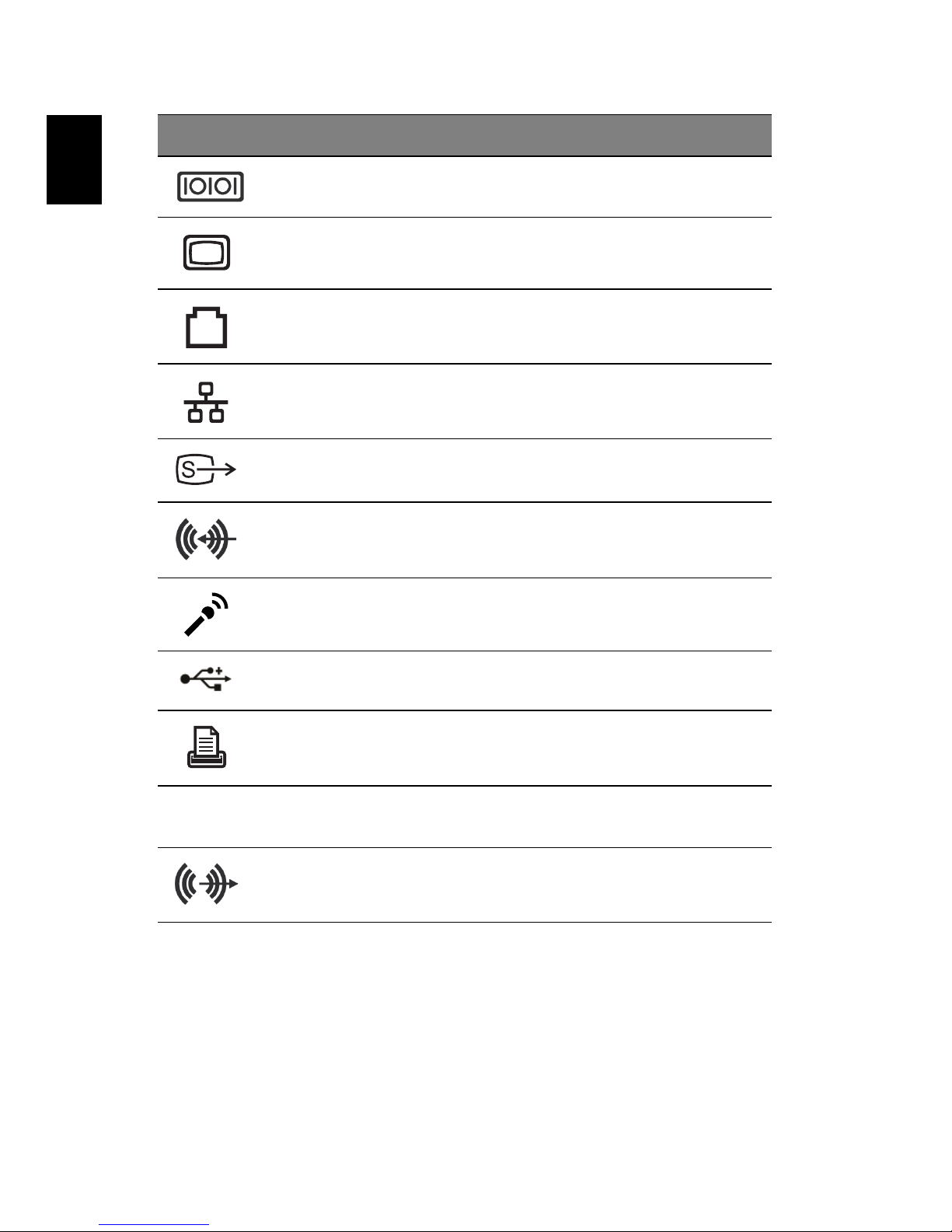
icon Item ezDock II+ ezDock II
Power connector 1 1
Universal PS/2 mouse connector 2 13
Universal PS/2 Keyboard connector 3 6
DVI-D Digital Visual Input - Digital (DVI-D)
Port
43

5
English
Serial port 5 7
External display port 6 8
Modem port 7 4
Ethernet port 8 5
S-video 9 9
Line in jack 10 10
Microphone in jack 11 11
USB 2.0 ports 12 2/12
Parallel port 13 14
SPDIF S/PDIF output jack (for digital audio
equipment)
14 15
Headphone / Line out jack (based on
system support)
15 16
icon Item ezDock II+ ezDock II
Questo manuale è adatto per i seguenti modelli
1
Indice
Altri manuali Acer Stazione di attracco

Acer
Acer Thunderbolt 4 Dock T701 Manuale utente

Acer
Acer ADK930 Manuale utente

Acer
Acer ProDock Manuale utente

Acer
Acer USB Type-C Dock II Manuale utente

Acer
Acer USB 3.0 Dock U301 Manuale utente

Acer
Acer USB Type-C Dock D501 Manuale utente

Acer
Acer Universal USB 2.0 Docking Station Manuale utente

Acer
Acer USB Type-C Gen1 Manuale utente

Acer
Acer ProDock Manuale utente

Acer
Acer Universal USB 3.0 Docking Station Manuale utente