Acoustic Research ARi3G Manuale utente


Introduction
Thank you for purchasing the ARi3G
universal remote control, the remote that
lets you streamline your home theater
experience. Your ARi3G remote offers the
following benets:
• Integrates media centers or docking
stations into home theater, allowing full
control with one remote
• Compatible with Apple® products
• Controls docking stations, TVs, and
audio devices
Contents
Introduction.................................................... 2
Getting Started .............................................. 3
Step 1: Unpack ............................................. 3
Step 2: Install Batteries ............................ 3
Step 3: Program the ARi3G ..................... 4
Tour of the Remote ...................................... 9
Advanced Operation .................................... 11
Using Learning ........................................... 11
Volume Lock ..............................................14
Input Lock ...................................................16
Using Master Power On/Off ................... 17
The Tilt Switch ...........................................18
Resetting Your Remote ...........................19
Pairing ...........................................................20
12 Month Limited Warranty.......................23

3
• Code Search
• Volume Lock
• Input Select
• Learning
• Backlighting
• Master Power
• Tilt-Switch
Backlight On/Off
Step 2: Install Batteries
1. Open the battery compartment cover
(located on the back of the remote).
2. Place the two AAA batteries provided in
the compartment and match the + and -
polarity symbols inside.
3. Replace the cover.
Getting Started
Step 1: Unpack
Your ARi3G remote package contains:
• The ARi3G Remote Control
• The ARi3G User Guide
• The ARi3G Code List
• 2 AAA Batteries
Note:Youmayneedtheguideandcode
bookagaininthefuture,sopleasebe
suretokeepthem.
Additional Features
Your ARi3G remote has other features,
described later in this manual:

4
Battery Use And Safety
• Use only fresh batteries of the required
size and recommended type.
• Do not mix old and new batteries,
different types of batteries (standard,
alkaline, or rechargeable), or rechargeable
batteries of different capacities.
• If you do not plan to use the remote for
an extended period, remove the battery.
It can leak chemicals that can destroy
electronic parts. WARNING: Dispose of old
batteries promptly and properly. Do not
burn or bury them.
Step 3: Program the ARi3G
IMPORTANT:Bydefault,theMEDIAkey
ontheARi3GissettocontrolanApple
TV®device.Ifthisisthedeviceyouwant
tocontrolwiththeMEDIAkey,youdon’t
needtoprogramthekey.If,however,you
wanttousetheMEDIAkeywithadifferent
device,followthedirectionsbelowto
programtheARi03Gtocontrolthat
device.
Direct Programming
To set up the ARi3G to control your device:
1. Find the code for your brand of device
in the accompanying code list. Codes
are listed by brand name. Make sure

5
that the device you want to control is
switched on (not in standby).
2. Press the device key for the device you
want to control (TV for a television, AUD
for an audio receiver, or MEDIA for a
docking station) to select the device.
3. Press and hold (mute) and Menu until
the device key (e.g., TV) blinks twice (it
will blink once then twice).
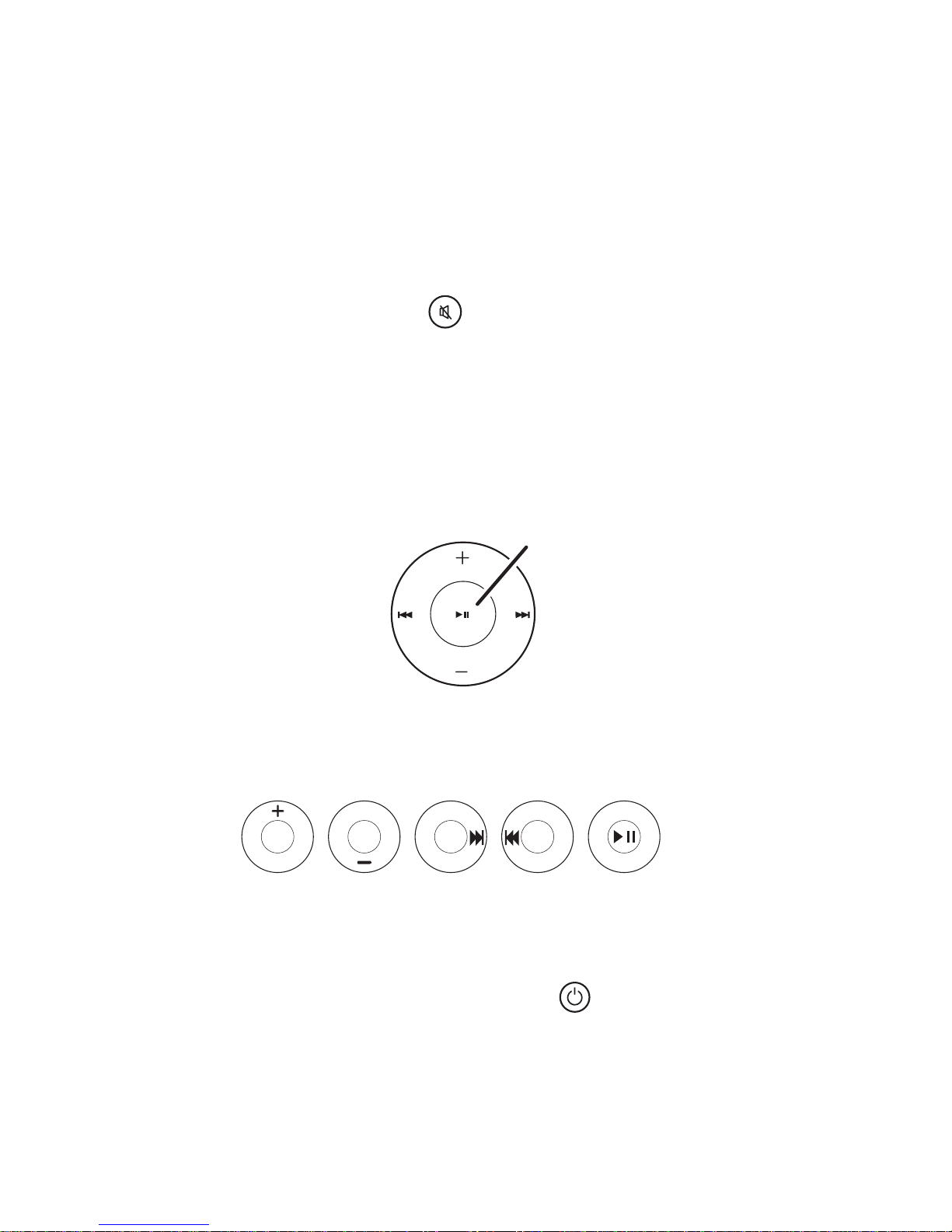
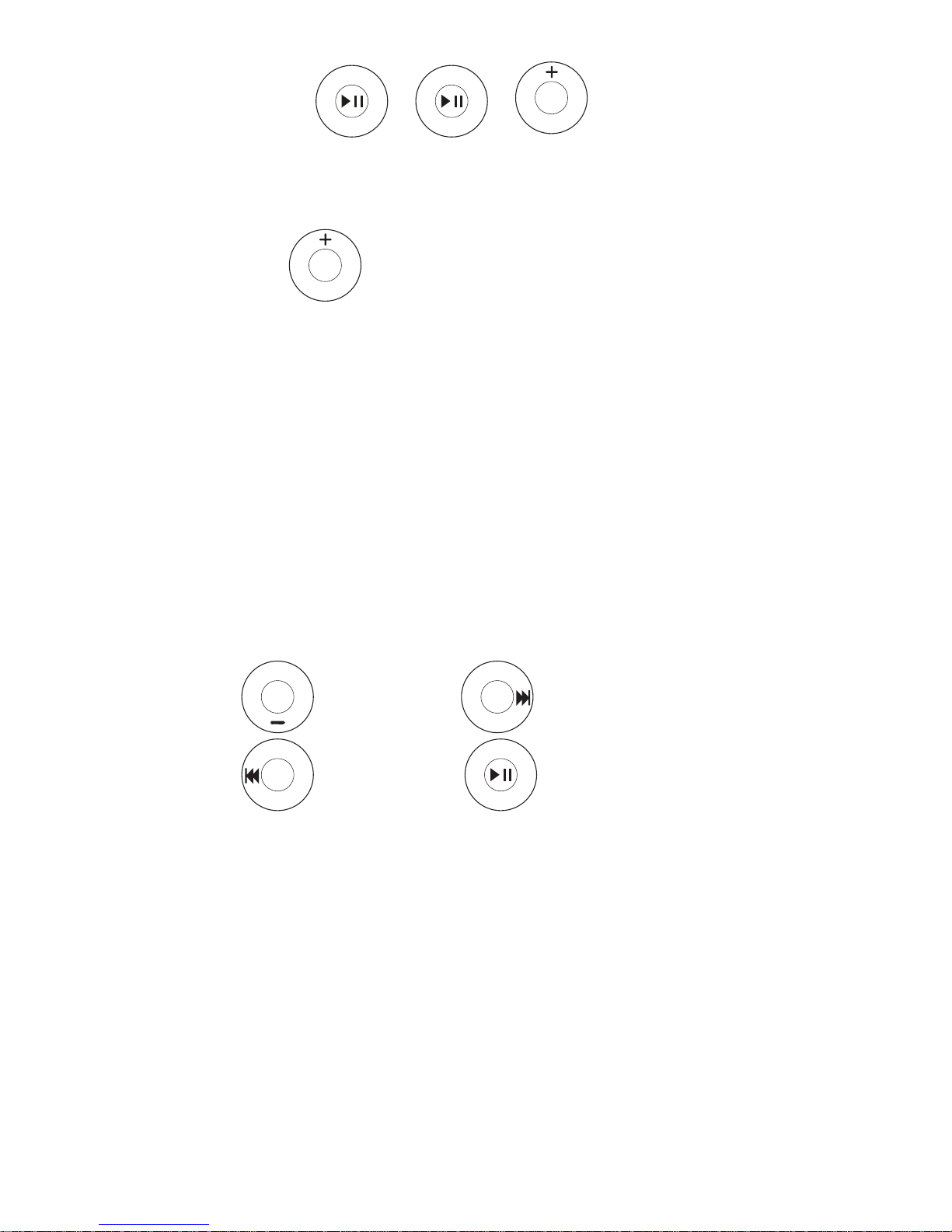
4. Use the transport keys to enter your
5-digit code:
For example, to enter 12345, press
5. The device key blinks twice.
6. Now, aim the remote at the device you
want to control and press (power).
If your device switches off, the remote
should be ready to operate your device.
1
2
34
5
continuesonnextpage...

6
7. Turn your device back on and try all the
remote’s functions to ensure they are
working properly.
If the functions work properly:
Congratulations! You’ve programmed
this key.
If the functions do not work properly:
Repeat steps 1-5 using another code
listed under your brand.
Searching for Your Code
If your device does not respond to the
remote after trying all codes listed for
your brand, or if your brand is not listed,
try searching for your code. Note: Because
it goes through the entire library of codes,
the code search may take a while.
1. Turn on the device you want to control.
2. Press a device key once (e.g., TV) to
select the device.
3. Press and hold (mute) and Menu until
the device key (e.g., TV) blinks twice (it
will blink once then twice).
4. Press .
5. Aim the remote at the device and press
the device key (e.g., TV), then press the
(power) key.

7
Did your device turn off?
Yes: Press and hold the Menu key until
the device key (e.g., TV) blinks twice.
This indicates that the code has been
saved.
No: Repeat step 5 again.
6. Try the following keys with your device:
, , (mute)
If these keys work your device, you’ve
nished programming this device key. If
they do not work the device, repeat the
code search from step 2.
7. To search for other device codes, repeat
steps 1 to 6.
Checking the Codes
If you have set up the remote using the
procedure in “Searching for Your Code”,
you may need to nd out which ve-digit
code is operating your equipment.
For example, to nd out which code is
assigned to your TV:
1. Press TV once.
2. Press and hold (mute) and Menu until
the device key (e.g., TV) blinks twice,
then release.

8
3. Press .
The device key blinks twice.
4. To see the code for the rst digit, press
the key.
Count the number of indicator blinks
(for example, three blinks = 3),
and write down the number in the
appropriate code listing at the top of
this column.
• NOTE: If a code digit is 0, the key
does not blink.
5. Repeat steps 3 and 4 for the four
remaining digits:
(2nd digit), (3rd digit),
(4th digit), (5th digit).
6. To check for other device codes, repeat
steps 1–5, substituting the device key you
want to check.

9
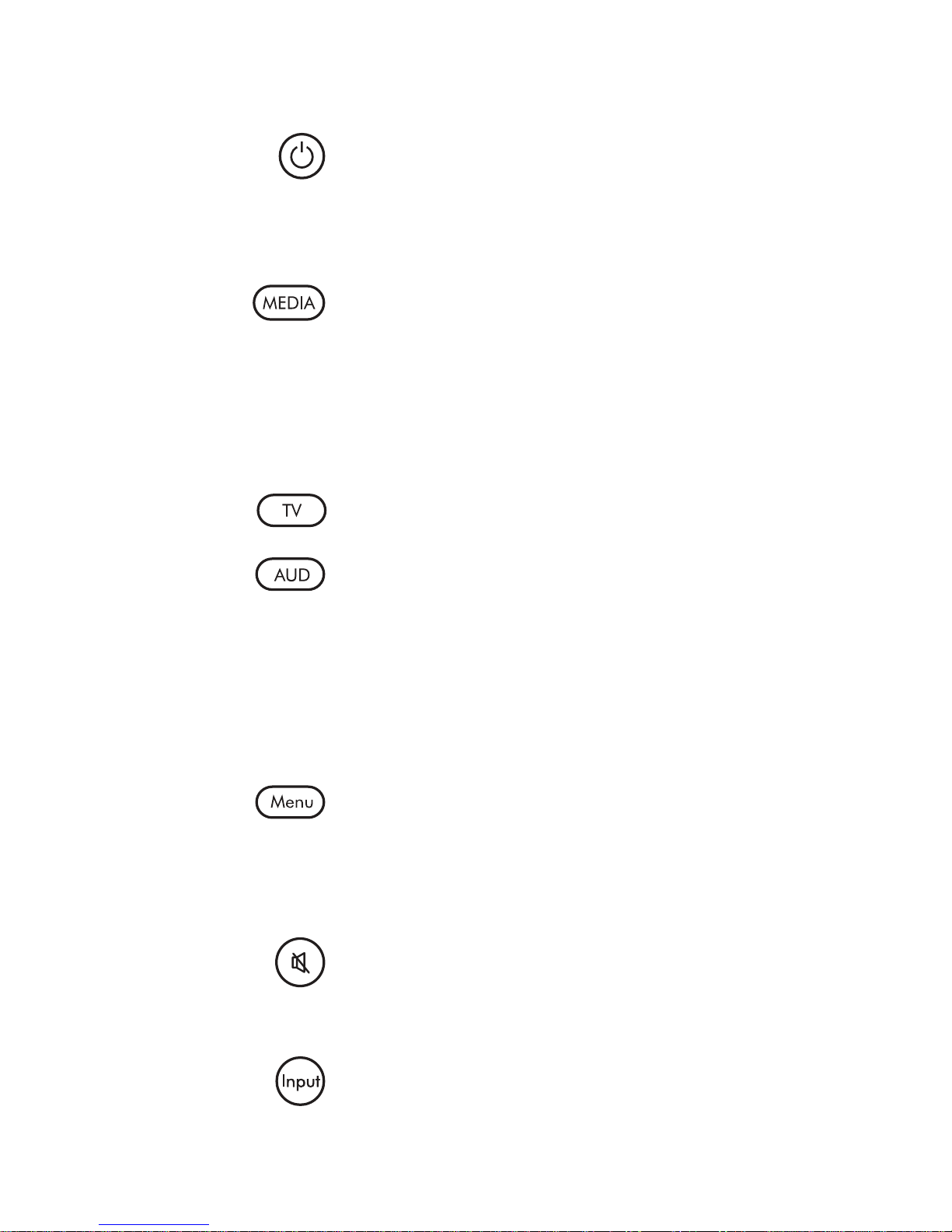
The Power key turns your
devices both on and off. The
Active Device Key ashes blue
to show the remote is working.
The MEDIA key allows the
remote to control a docking
station or Apple TV product.
This key is set by default to
control Apple TV or other Apple
remote-controlled products.
The TV and AUD keys select the
home entertainment device
to be controlled. Pressing the
TV key allows the remote to
control the functions of your
television. NOTE: The Volume
keys default to being locked to
the TV while in MEDIA mode.
When in MEDIA operation, the
Menu key controls the same
function as it did on your
original remote.
The Mute key operates the same
function it did on your original
remote.
The Input key operates the
same function it did on your
original remote.
Tour of the Remote

10
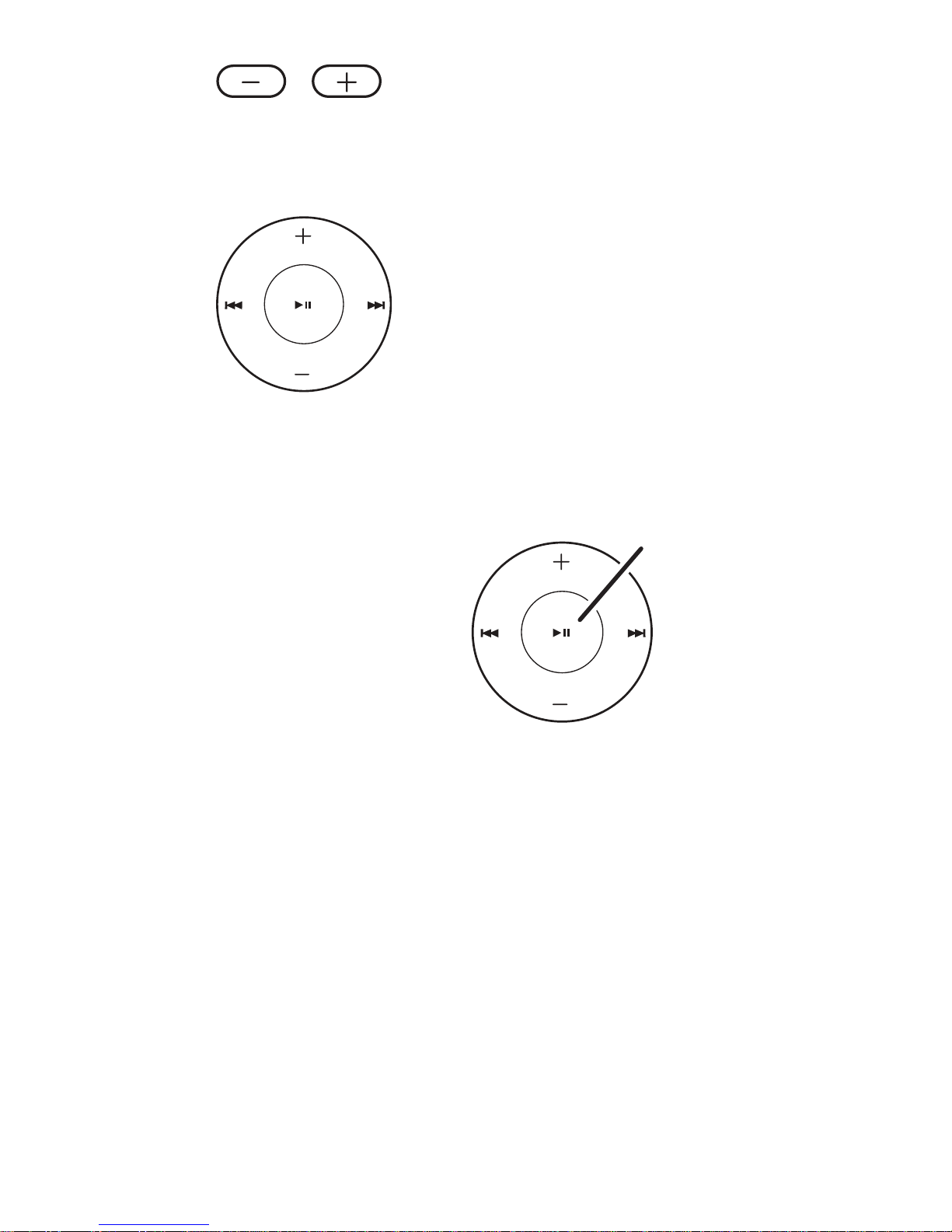
The Volume down and up
keys operate just as on
your original remote
control.
Track +, rewind, fast forward,
track –, stop, or play/pause
on the current disc or
media device.
The transport keys also
work as the number keys
on your remote:
1
2
34
5
Questo manuale è adatto per i seguenti modelli
1
Indice
Altri manuali Acoustic Research Telecomando universale