Adaptive Recognition Vidar Manuale utente


Page 2/89
VIDAR User Manual
Adaptive Recognition America
Adaptive Recognition Hungary
Adaptive Recognition Nordic
Adaptive Recognition Singapore
SENDINFO@ADAPTIVERECOGNITION.COM
WWW.ADAPTIVERECOGNITION.COM
VIDAR
USER MANUAL
Document version: 2021.12.16.
Table of Contents
VIDAR .......................................................................................................................................................................2
THE FCC DECLARATION OF CONFORMITY.....................................................................................................4
1. About this manual .....................................................................................................................................5
2. Accessing the camera ..............................................................................................................................6
3. WEB INTERFACE ....................................................................................................................................... 7
4. First Steps (Wizard)...................................................................................................................................9
5. System settings .......................................................................................................................................12
5.1. Network.............................................................................................................................................12
5.2. Date & Time......................................................................................................................................18
5.3. Users..................................................................................................................................................20
6. Image Setup..............................................................................................................................................23
6.1. imaging pipeline...............................................................................................................................23
6.2. Post-processing...............................................................................................................................27
6.3. Brightness Control ..........................................................................................................................31
6.4. Exposure Control.............................................................................................................................34
6.5. Optics.................................................................................................................................................35
6.6. Secondary Sensor ...........................................................................................................................37
6.7. Flash Control....................................................................................................................................38
Miscellaneous...............................................................................................................................................39
7. Events and ANPR.....................................................................................................................................41
7.1. Events................................................................................................................................................44
7.2. ANPR .................................................................................................................................................58
8. Maintenance.............................................................................................................................................77
8.1. System Info ......................................................................................................................................77
8.2. Sensors .............................................................................................................................................78

Page 3/89
VIDAR User Manual
Adaptive Recognition America
Adaptive Recognition Hungary
Adaptive Recognition Nordic
Adaptive Recognition Singapore
SENDINFO@ADAPTIVERECOGNITION.COM
WWW.ADAPTIVERECOGNITION.COM
8.3. Camera Log......................................................................................................................................79
8.4. Update/Auto update .......................................................................................................................80
8.5. Backup/restore ................................................................................................................................82
8.6. Factory reset ....................................................................................................................................84
8.7. RESTART & RECOVERY MODE.....................................................................................................85
RESTART & RECOVERY MODE .................................................................................................................85
CONTACT INFORMATION..................................................................................................................................89

Page 4/89
VIDAR User Manual
Adaptive Recognition America
Adaptive Recognition Hungary
Adaptive Recognition Nordic
Adaptive Recognition Singapore
SENDINFO@ADAPTIVERECOGNITION.COM
WWW.ADAPTIVERECOGNITION.COM
The FCC declaration of conformity
47 CFR PART 15 SUBPART B
VIDAR
FCC statement
This device complies with Part 15 of the FCC Rules. Operation is subject to the following two
conditions:
This device may not cause harmful interference, and
This device must accept any interference received, including interference that may cause undesired
operation.
Note: This equipment has been tested and found to comply with the limits for a Class A digital
device, pursuant to part 15 of the FCC Rules. These limits are designed to provide reasonable
protection against harmful interference when the equipment is operated in a commercial
environment. This equipment generates, uses, and can radiate radio frequency energy and, if not
installed and used in accordance with the instruction manual, may cause harmful interference to
radio communications. Operation of this equipment in a residential area is likely to cause harmful
interference in which case the user will be required to correct the interference at his own expense.
Changes or modifications not expressly approved by the manufacturer responsible for compliance
could void the user's authority to operate the equipment.
Warning: Where shielded interface cables or accessories have been provided with the product or
specified additional components or accessories elsewhere defined to be used with the installation of
the product, they must be used in order to ensure compliance with FCC. Changes or modifications to
product not expressly approved by Adaptive Recognition Hungary could void your right to use or
operate your product by the FCC.
Laser safety compliance:
All models of VIDAR ANPR camera which are equipped with a measuring laser module are Class 1
laser products according to the IEC 60825-1:2014 standard.

Page 5/89
VIDAR User Manual
Adaptive Recognition America
Adaptive Recognition Hungary
Adaptive Recognition Nordic
Adaptive Recognition Singapore
SENDINFO@ADAPTIVERECOGNITION.COM
WWW.ADAPTIVERECOGNITION.COM
1. ABOUT THIS MANUAL
The structure of this manual follows the approach of configuring a new camera for its first-time use.
•The camera provides access to all its features through a web interface, its entire
configuration control is available using a web browser. No external components need to be
installed.
•First, system settings are discussed, so that the device will be operational.
•Next, the user will be guided through the process of setting up the image capturing process,
so that the camera will provide good quality images both for internal use and for the video
feed streamed with the chosen encoding.
•In the third part, the manual will discuss how to capture events using internal or external
triggers, and depending on the model, read, store, and communicate the license plate
corresponding to the event.
•In the last section, the tools of camera maintenance (firmware update, logs, etc.) are
described.

Page 6/89
VIDAR User Manual
Adaptive Recognition America
Adaptive Recognition Hungary
Adaptive Recognition Nordic
Adaptive Recognition Singapore
SENDINFO@ADAPTIVERECOGNITION.COM
WWW.ADAPTIVERECOGNITION.COM
2. ACCESSING THE CAMERA
1. Connect the camera to a computer or a network switch using the Ethernet cable, then power
the camera on. Soon both status LEDs (at the camera front) turn on and stay lit while the
camera is booting. When the green status LED flashes two times and the red LED turns off
the camera is ready for operation.
2. Set your computer’s IP address as 192.0.2.x (with x other than 3 or 255, for example
192.0.2.54), with the subnet mask 255.255.255.0
3. Use the ping command to test network connection to the camera
Windows: c: \ping -t 192.0.2.3
Linux: [username@mylinux ~]$ ping 192.0.2.3
4. In a couple of second the ping echo package will be received, if not:
•check the Ethernet link LEDs at the computer or network switch for a physical link
•check the IP of the computer by pinging its own address (using the example at step #2:
ping 192.0.2.54)
Start a browser (Firefox, Chrome or Edge) and enter the default IP of the camera: http://192.0.2.3
into the address bar. If the web interface is not accessible, make sure that neither a proxy nor a
firewall is blocking access, and that the browser is not in offline mode.
Under recent versions of Firefox (v. 56.0) it might be necessary to disable the feature "Use
hardware acceleration when available" to avoid possible browser/machine hangs (Located at:
Preferences/Performance/Use Recommended Performance Settings).
In order to access the camera, power and network connectors have to be connected
appropriately. For more information see the Quick Install Guide. Follow the five steps below:

Page 7/89
VIDAR User Manual
Adaptive Recognition America
Adaptive Recognition Hungary
Adaptive Recognition Nordic
Adaptive Recognition Singapore
SENDINFO@ADAPTIVERECOGNITION.COM
WWW.ADAPTIVERECOGNITION.COM
3. WEB INTERFACE
Main areas of the camera interface:
Info bar
The information bar displays the menu and the current SW version.
•ARH logo
•Version number
•Camera type, menu points
Side menu
•Basic Setup, advanced Setup, ANPR, Maintenance, Help menu –click to open
•Access camera settings via the navigator. Menu is organized into a tree structure.
Workspace
•Use the workspace for settings. Save your changes, otherwise the previous settings remain
in effect.
Workspace
Sidemenu
Info bar

Page 8/89
VIDAR User Manual
Adaptive Recognition America
Adaptive Recognition Hungary
Adaptive Recognition Nordic
Adaptive Recognition Singapore
SENDINFO@ADAPTIVERECOGNITION.COM
WWW.ADAPTIVERECOGNITION.COM
Click the icon on the workspace to display Help on the page.
Using Internet Explorer, you may encounter problems with certain sections of the Web User
Interface. For best user experience use a recent edition of Google Chrome, Firefox or Edge.
Menu subpages can also be addressed via direct links, like http://192.0.2.3/#liveview/,
http://192.0.2.3/#eventman, etc.
Use the Save button to save settings. All settings will be lost if you leave the page without saving
settings. A popup window will remind you to save settings.
Workspace buttons have a popup help. Hover the mouse over the label of the setting to see the
tooltip. This function only available at few settings.

Page 9/89
VIDAR User Manual
Adaptive Recognition America
Adaptive Recognition Hungary
Adaptive Recognition Nordic
Adaptive Recognition Singapore
SENDINFO@ADAPTIVERECOGNITION.COM
WWW.ADAPTIVERECOGNITION.COM
4. FIRST STEPS (WIZARD)
WEB INTERFACE > BASIC SETUP > WIZARD
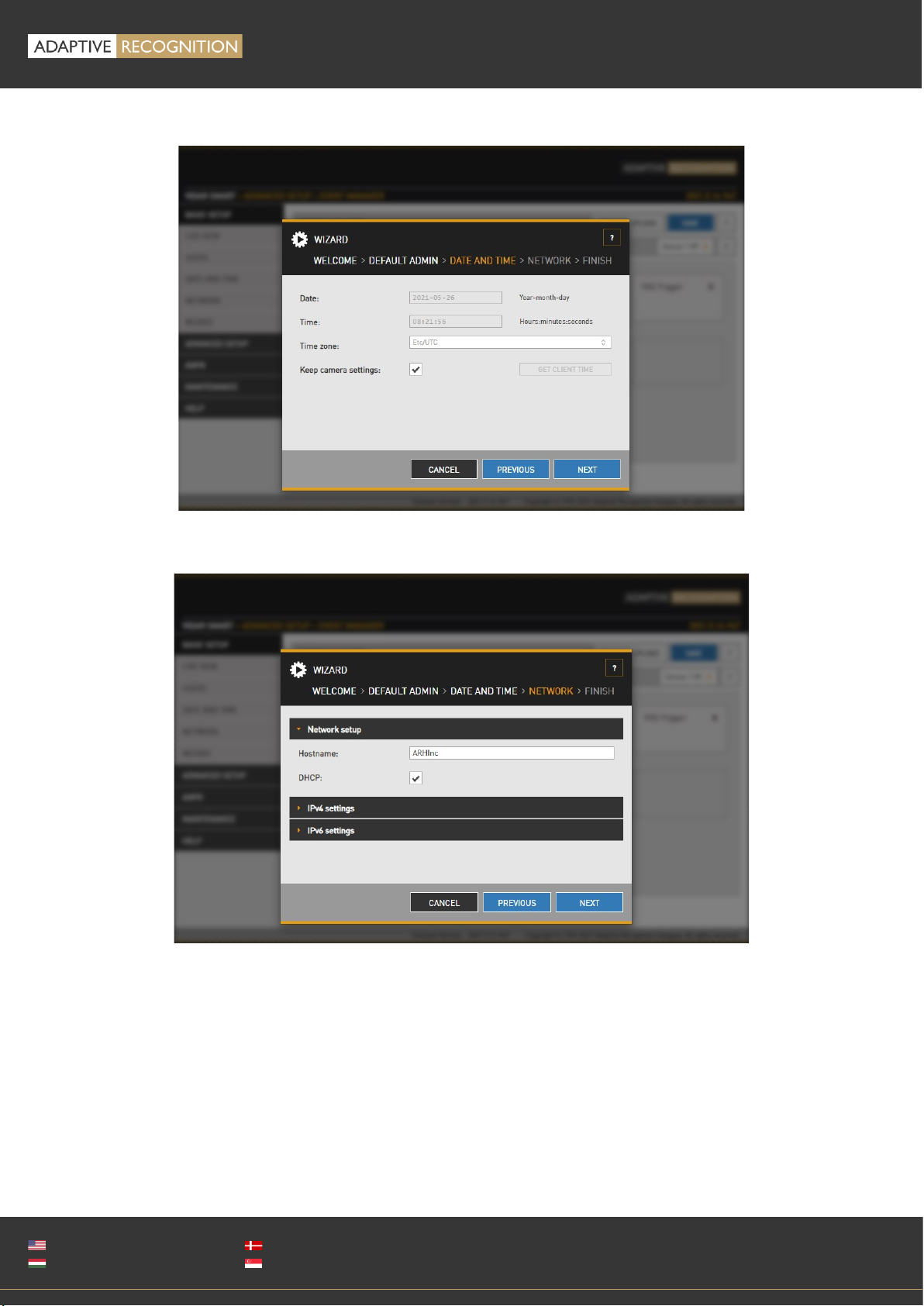
The Wizard will help with the initial configuration of the system settings of the camera. It will guide
you through few steps:
It will guide you through setting up an administrator user

Page 10/89
VIDAR User Manual
Adaptive Recognition America
Adaptive Recognition Hungary
Adaptive Recognition Nordic
Adaptive Recognition Singapore
SENDINFO@ADAPTIVERECOGNITION.COM
WWW.ADAPTIVERECOGNITION.COM
Set the current date & time
Set up the network
Altri manuali per Vidar
5
Indice
Altri manuali Adaptive Recognition Macchina fotografica digitale

Adaptive Recognition
Adaptive Recognition Einar Manuale utente

Adaptive Recognition
Adaptive Recognition Vidar Container Manuale utente

Adaptive Recognition
Adaptive Recognition Vidar Manuale utente

Adaptive Recognition
Adaptive Recognition Vidar Manuale utente

Adaptive Recognition
Adaptive Recognition Einar Manuale utente

Adaptive Recognition
Adaptive Recognition Vidar Speed Manuale utente

Adaptive Recognition
Adaptive Recognition Vidar Manuale utente

Adaptive Recognition
Adaptive Recognition Vidar Manuale utente

Adaptive Recognition
Adaptive Recognition S1 Manuale utente