
ADS Technologies PTV-305 Manuale di installazione

English
Watch and Record TV shows on CD or DVD
Hardware User's Guide
Instant TV Deluxe PCI
Instant TV Deluxe PCI
ADS Tech
website: www.adstech.com
Support: www.adstech.com/support/support.asp

page 3

page 3
Table of Contents
© 2004 ADS Technologies. All Rights Reserved
Revision 4 March 2004
Apple and Macintosh are registered trademarks of Apple Computer, Inc. Microsoft, Windows, & Windows 98 are registered trademarks of Microsoft
Corporation. IBM is a registered trademark of the International Business Machines, Inc.
ADS is a registered trademark of ADS Technologies Inc. ADS Technologies (ADS) makes no warranty of any kind with regard to this material, including but
not limited to, the implied warranties of merchantability and tness for a particular purpose. The information furnished within this written document is for
information purposes only and is subject to change without notice. ADS Technologies assumes no responsibility or liability for any errors or inaccuracies
that may appear herein. ADS makes no commitment to update or to keep current information contained within this document. (rtt)
Quick Installation Guide. . . . . . . . . . . . . . . . . . . . . . . . . . . . . . . . . . . . . . . . . . 4
Hardware Installation . . . . . . . . . . . . . . . . . . . . . . . . . . . . . . . . . . . . . . . . . . 5
Driver Installation . . . . . . . . . . . . . . . . . . . . . . . . . . . . . . . . . . . . . . . . . . . . . . 6
IR Blaster Installation . . . . . . . . . . . . . . . . . . . . . . . . . . . . . . . . . . . . . . . . . . . 8
Service and Warranty. . . . . . . . . . . . . . . . . . . . . . . . . . . . . . . . . . . . . . . . . . . 10
page 4
page 5
Instant TV Deluxe (PCI)
Quick Installation Guide:
This Quick Installation Guide should be used as a reference guide only. It is highly recommended
that you read the complete Instant TV Deluxe Manual before using this product to help ensure you
get the most of your Instant TV Deluxe.
Follow these instructions when using the Instant TV Deluxe for the rst time.
Instant TV Deluxe Hardware Installation:
1) Insert your Instant TV Deluxe into an open PCI slot on your motherboard.
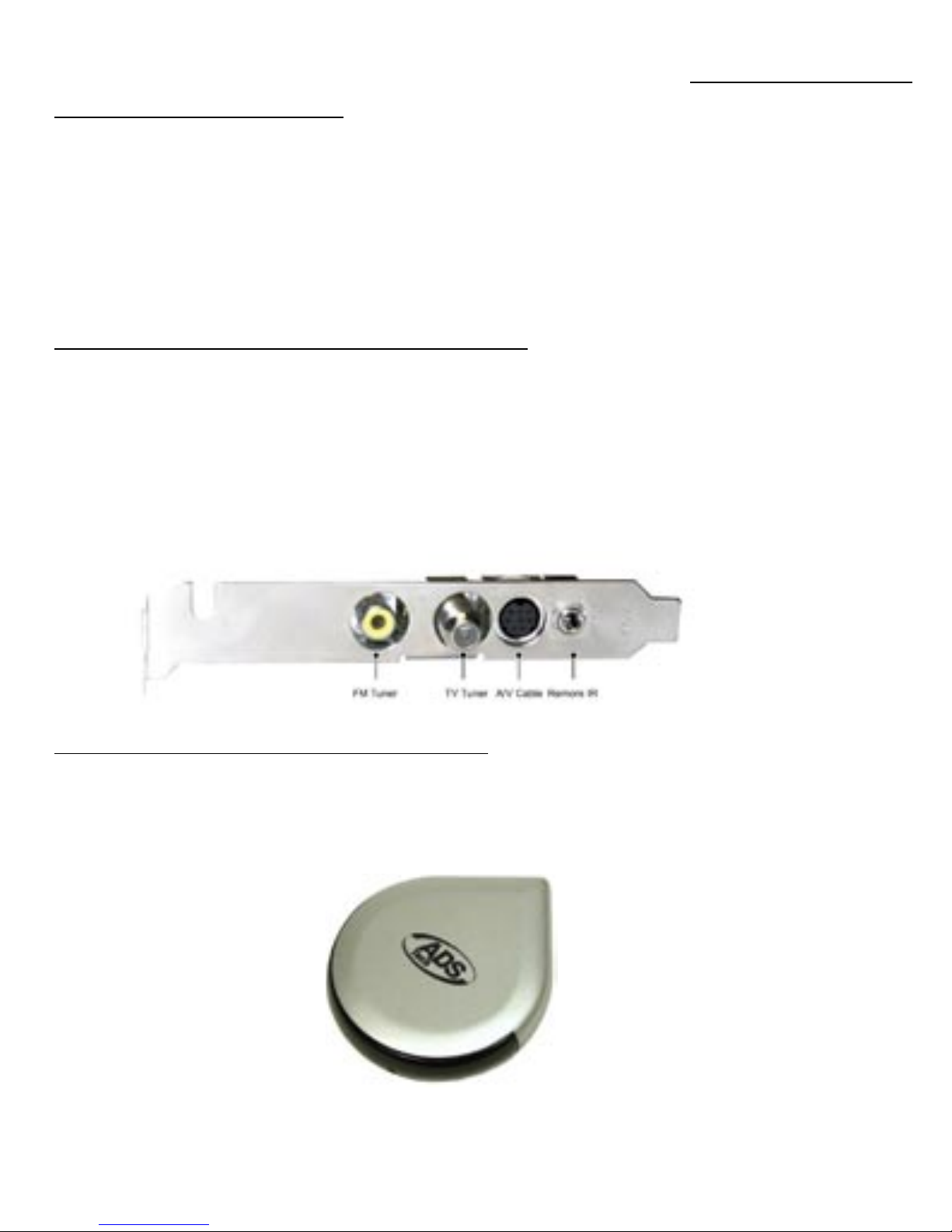
2) Connect the Coaxial cable or Audio/Video cables from your video source to the Instant TV Deluxe.
3) Insert the Instant TV Deluxe CD into your CD-ROM drive.
4) Wait for the Autorun window to appear and click on “Install Drivers” on the PCI portion. The drivers
will automatically install.
(Instant TV Deluxe PCI connection diagram image)
ADS IR Blaster Hardware Installation:
1) Insert the Instant TV Deluxe CD into your CD-ROM drive.
2) Connect the ADS IR Blaster into an open USB port on the back of your computer.
3) Drivers for the IR Blaster will be located on the Instant TV Deluxe CD. When prompted for drivers,
direct the driver installation to your CD-ROM drive.

page 4
page 5
4. Insert the Instant TV Deluxe PCI
into an open PCI slot on the
motherboard and screw in tightly.
5. Put the case of your computer
back on.
6. Press the power button to turn
the computer on to start the
installation of the drivers.
Step by Step Hardware Installation:
1. Turn your computer off.
2. Take the case off of your
computer to have access
to the PCI slot of your
motherboard.
3. Take the Instant TV Deluxe
PCI from the packaging.
TURN OFF
TURN ON

page 6
page 7
Step by Step Instant TV Deluxe (PCI) Driver Installation:
Step 1:
After you have intalled the Instant TV Deluxe PCI into an open PCI slot, turn on your computer.
Step 2:
Place the provided Instant TV Deluxe CD into your CD ROM drive and wait for the autorun screen
to come up.
Once the Autorun sceen has launched click “ Install Drivers” and follow the on-screen instructions.
Step 3:
Click “Start” to begin the installation of the drivers.
Step 4:
You have now nished installing the drivers for the Instant TV Deluxe PCI, Click “OK” to nish.
Step 5:
To verify that you have installed your hardware properly, check in the “Device Manager”:
a. Right-Click on “My Computer”
b. Left-Click on “Properties”
c. Click on the “Hardware Tab”
d. Click on “Device Manager
e. Then click on the (+) next to “Sound Video and Game Controllers”
* Note: Make sure that there are no Yellow (!) in the “Device Manager”

page 6
page 7
IR Blaster
The IR Blaster is an infra-red transmitter and receiver. As an IR Receiver the IR Blaster acts as a
receiver for the Instant TV Deluxe remote control. As an IR Blaster the device gives you the power
to control external TV receiver devices.
The IR Blaster is a very powerful addition to a TV Capture card. Today many people do not receive
TV signals over conventional analog cable systems. Many households today get TV content
delivered via digital cable or satellite TV receivers. Instant TV Deluxe, the IR Blaster and included
software allow you to schedule recordings of your favorite TV shows and capture those programs
to your computer hard drive, no matter how the TV signal is delivered to your home. The IR Blaster
communicates with these external tuning devices and allows you to record TV shows to your
computer via the RCA or S-Video cables instead of the cable ready tuner.
Important Note: The IR Blaster is a powerful IR transmitter/receiver device but please keep
in mind that Infra-red signals are a line of sight technology. IR signals cannot pass through walls.
The IR Blaster can control devices that are in the same room or proximity to the IR Blaster device.
IR Blaster as a Remote Control Receiver
The Remote control and IR Receiver function of the IR Blaster gives you complete navigation and
control of the Beyond TV and Quick DVD applications.
(See the Remote Control overview section for complete remote control review.)
Applications supported by IR Blaster receiver and Remote Control
- SnapStream Beyond TV 3.5 SE
- ArcSoft Quick DVD
- CapWiz – coming soon via a free internet download.
Note: Currently only the on-screen remote control is available for CapWiz. We will have a free
download patch that adds remote control to CapWiz in the near future.
IR Blaster as an IR Code Transmitter – Blaster function
The IR Blaster is also a transmitter. It has been designed to allow you to control external TV tuning
devices such as Cable Set Top boxes and Satellite receivers.
Applications supported by IR Blaster function:
- SnapStream Beyond TV 3.5 SE
When you run the Beyond TV Setup Wizard and choose Cable box or Satellite receiver as your TV
source the IR Blaster will send codes to your tuning device to change channels. The Beyond TV
setup Wizard lists several remotes in it’s database. If your device is not in the list you can “Teach”
the IR Blaster your remote control codes. The IR Blaster will learn your TV Remote TV tuning codes
so that the IR Blaster can change the channels on your Cable Set Top box or satellite receiver so
you can schedule recordings and automatically change channels to record the correct show.
(see instructions on Beyond TV Setup Wizard for complete setup instructions)

page 8
page 9
IR Blaster and the Instant TV Deluxe Remote
Once you have programmed the IR Blaster to send TV channel changing codes to your set top box,
you can use the Instant TV Remote in conjunction with the IR Blaster to control your set top box.
1) Point the Instant TV Deluxe remote at the IR Blaster – press 4 and Enter – the IR Blaster
will receive the code and then transmit the correct code to change to channel 4 on your
set top box.
2) Use the computer keyboard to change channels on your set top box – press 4 followed by
enter and the IR Blaster will send a code to change your set top box to channel 4.
Note: The Instant TV Deluxe Remote is not a learning remote. The IR Blaster is a learning IR Blaster
when used in conjunction with the Beyond TV software. The Instant TV Remote cannot directly
control your TV or set top box….the IR Blaster does.
IR Blaster Installation
NOTE: Make sure that you have the Instant TV Deluxe CD inserted into your CD-ROM drive when
plugging in your hardware.
The ADS IR Blaster is a plug ‘n’ play USB Device, so it’s easy to setup. Simply plug it into any PC
running Windows and you will automatically be prompted for the driver disk.
Step 1:
Plug the USB IR Blaster into an open USB port on the back of you computer; and a “Found
New Hardware Wizard” window will come up to start the driver install, click “Next” to
continue on.
Step 2:
The Windows Logo testing window will come up, to continue with the driver install click on
“Continue Anyways”.

page 8
page 9
Step 3:
You are now nished with the hardware driver install of the ADS IR Blaster, click “Finish”
to nalize the installation.
This USB device creates a wireless, infrared connection between your cable box or satellite receiver
and the PC running Beyond TV.
The USB IR Blaster,” allows any USB-equipped PC to exchange infrared signals with common
audio/video equipment. For Beyond TV users who receive their television signal via satellite or
cable boxes, the USB IR Blaster completes a critical link: it allows the PC running Beyond TV to
tune to the channels received on your receiver box so you can watch live TV and make recordings.
Best of all...the infrared signal means that the connection between PC and receiver box is wireless.
Additionally, this USB device does away with the hassles of similar devices that use a serial
connection.
ADS Instant FM
With the ADS Instant FM you can now listen to your favorite radio station straight from your
computer.You can also record your music from the radio to your computer with just a click of a button.
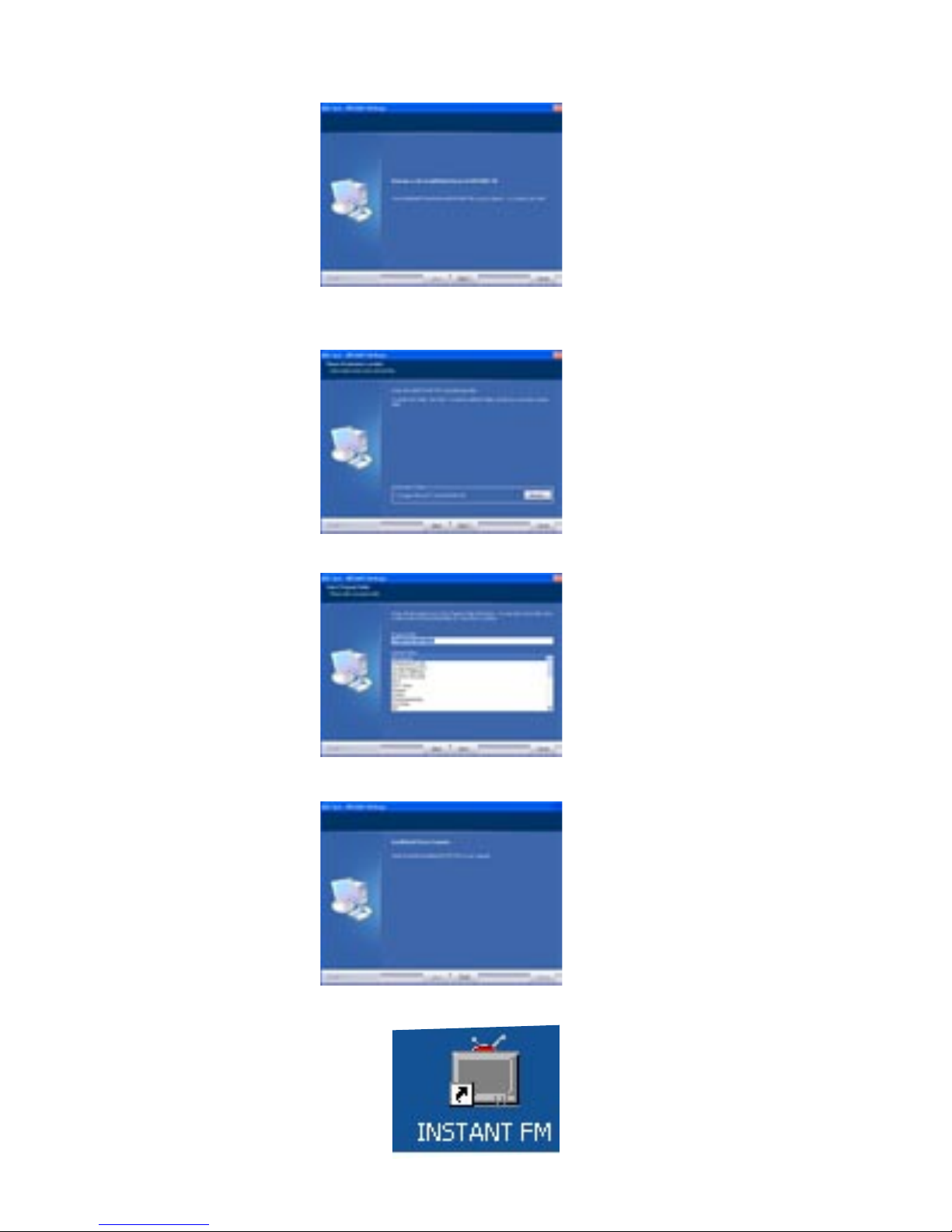
Step 1:
Insert the ADS Instant TV Deluxe CD into your CD ROM drive and wait for the Autorun screen to appear.
Then click on “Instant FM” to start the installation process of the FM module.
page 10
page 11
Step 2:
You will now see the Instant FM Setup screen, follow the installation instructions and hit “Next”.
Step 3:
Choose the destination where you want to install the software. To proceed with the installation click
“Next”.
Step 4:
The setup will now add program icons to the Program Folder, click “Next” to continue.
Step 5:
You are now nished with the Instant FM installation, click “Finish” to nalize the install.
Step 6:
To start the application, look on your desktop where you will see an icon named “INSTANT FM”
double-click that to open.
Altri manuali per PTV-305
3
Questo manuale è adatto per i seguenti modelli
1
Indice
Altri manuali ADS Technologies Scheda PCI

ADS Technologies
ADS Technologies Pyro ProDVD API-408 Manuale utente

ADS Technologies
ADS Technologies DLX-180 Manuale utente
ADS Technologies
ADS Technologies API-810 Manuale utente

ADS Technologies
ADS Technologies API-750 Manuale utente

ADS Technologies
ADS Technologies DLX-180 Manuale utente

ADS Technologies
ADS Technologies Instant Video PCI Manuale utente
ADS Technologies
ADS Technologies API-310 Manuale utente


