
ADT Pulse DBC835 Manuale utente

ADT Video Doorbell
Quick Installation Guide
ADT Pulse®Interactive Solutions
DBC835 Wireless HD Doorbell Camera
PropertyofADT,LLC.Informationaccurateasofpublisheddateandis
provided “as is” without warranty of any kind.
© 2017ADTLLC dba ADT Security Services. All rights reserved. ADT, the
ADT logo, 800 ADT.ASAP and the product/service names listed in this
document are marks and/or registered marks. Unauthorized use is strictly
prohibited.
AOWDG-DBC835

ADT Video Doorbell
Quick Installation Guide
INTRODUCTION
2
DBC835 Wireless Doorbell Camera Installation
1Introduction
This section provides information about the Doorbell Camera features,
components and capabilities.
Packaging Contents
The following items are included in the package.
1. Doorbell Camera x 1
2. Two Mounting Brackets (Small Slim & Gang Plate size)
3. Wedge Kit (15°, 30° Angles)
15°Wedge
30°Wedge
15°Tilt
ADT Video Doorbell
Quick Installation Guide
INTRODUCTION
3
DBC835 Wireless Doorbell Camera Installation
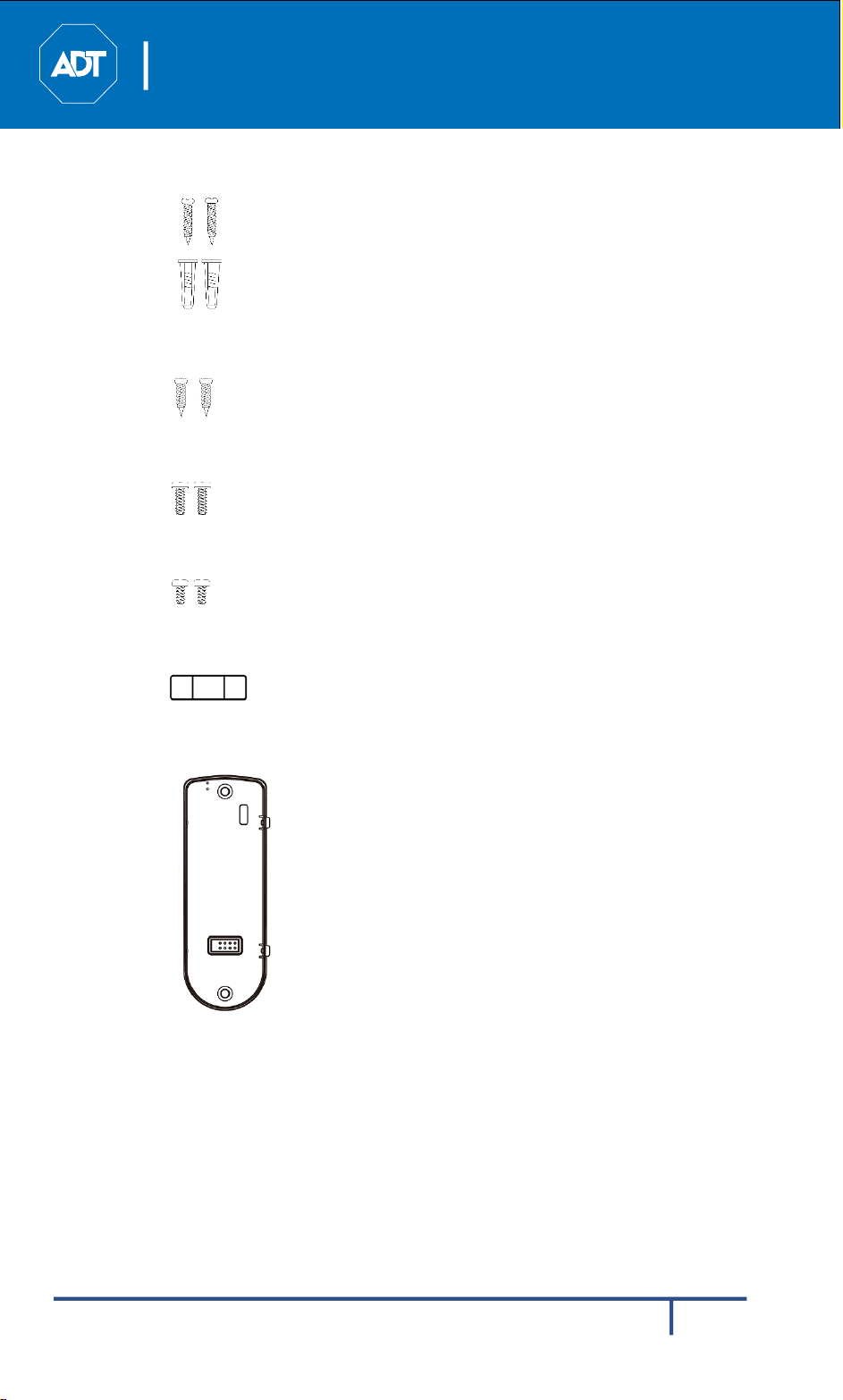
4. (No.1) Screw/Anchor x 2
5. (No.2) Screw x 2
6. (N0.3) Screw x 2
7. (No.4) Screw x 2
8. Bubble Level
9. Always On Bracket

ADT Video Doorbell
Quick Installation Guide
INTRODUCTION
4
DBC835 Wireless Doorbell Camera Installation
Physical Details
The DBC835 supports both analog and digital chimes within 8-24 AC voltage
range. The operation temperature is –4°F to 122°F. (–20°C to 50°C)
(The battery will not be charged when the temperature is < 32°F or discharge
when internal temperature is >138°F)
Figure 1-1 Front Panel
Figure 1-2 Rear Panel

ADT Video Doorbell
Quick Installation Guide
INTRODUCTION
5
DBC835 Wireless Doorbell Camera Installation
Overview
Doorbell/WPS Button has two functions:
WPS Pin Code Mode: When pressed and held 5 seconds, the doorbell camera will be
in WPS Pin Code Mode.
Note: When Wi-Fi connection is established, the WPS function is disabled.
Doorbell Mode: Press the button to ring the door chime.
LED Activity & Behavior:
Doorbell
Activity
LED
Color
LED
Intensity
LED
Behavior
Description
Power Up
Blue
Medium
Solid
When boot-up sequence starts, the LED will
be solid Blue.
WPS PIN
Mode
Green
Medium
Blinking
When doorbell button is held down 5
seconds, the LED will start flashing green
indicating doorbell camera is in WPS Pin
mode.
WPS Failure
Red
Medium
Triple Blink
If doorbell camera falls during WPS
enrollment, the LED will flash RED three
times.
Network
Connected
Blue
Medium
Solid
After connected to network, LED color will
change to Blue solid.
Network
Disconnected
Red
Medium
Blinking
When power-up sequence is completed, the
LED will flash RED until connected to
network.
FW Download
In-progress
Green
Medium
Spinning
LED spinning green indicates FW is being
downloaded. Once complete, update takes
place and doorbell reboots. LED then goes
into power-up mode.
A/C
Disconnected
Red
Dim/
Medium
Intermittent
Blinking
LED will blink in 5 second intervals when
A/C is not detected.
Standby
Blue
Dim
Solid
After power-up and connected to network.
Motion
Triggered
Blue
Dim
Solid
When PIR detects motion the LED will turn
dim blue.
Doorbell
Button Press
Blue
Dim-
Medium
Pulsating
Blue LED will pulse between dim and
medium intensity while the waiting for
interactive session.
Factory Reset
Red
Medium
Double
Blink
When the reset button is held down for 15
seconds and released, LED will blink red
twice indicating the start of reboot/factory
reset.
Bracket
Connected
Blue
Dim
Solid
After connected to the doorbell, LED color
will turn to dim blue.

ADT Video Doorbell
Quick Installation Guide
BASIC SETUP
6
DBC835 Wireless Doorbell Camera Installation
2Basic Setup
This section providesinformationonhowtoassembleand
configure the DBC835
Doorbell Camera for enrollment.
Installation
1. Power-Up and Check LED
Turn on the switch on the rear side of the doorbell camera and wait for 20
seconds until the LED turns to flashing red.
Note:The internal battery supports about 40 minutes of operation. If you
don’t see the camera powering up, please charge the doorbell camera via
Micro USB cable with USB charger for 45 min before installation.
Figure 2-1 Power LED
2. Enroll the Camera in ADT Pulse
This process is described in section
3 ADT Pulse
Enrollment.
3. Mounting the Doorbell Camera
Mount the camera in its final permanent location. Please refer to section
4
Hardware Installation
for more details.
ADT Video Doorbell
Quick Installation Guide
ADT PULSE
ENROLLMENT
7
DBC835 Wireless Doorbell Camera Installation
3ADT Pulse Enrollment
This section provides instructions for wirelessly enrolling the DBC835
Doorbell Camera into the ADT Pulse network. This process uses Wi-Fi
Protected Setup (WPS) with PIN method to wirelessly enroll the HD
Camera to gateway via the ADT Pulse portal or Installer App.
Using WPS with PIN
1.
Power up the camera and wait for the LED to turn flashing red, as
described in the previous chapter.
2.
Launch web browser and log into the Pulse portal or installer app.
3.
Enter the
Manage Devices
screen using one of the following methods.
For the Pulse portal, select the
System
tab and click
Manage
Devices
.
For Installer app, click the
Pulse Devices
link.
4.
In
Manage
Devices
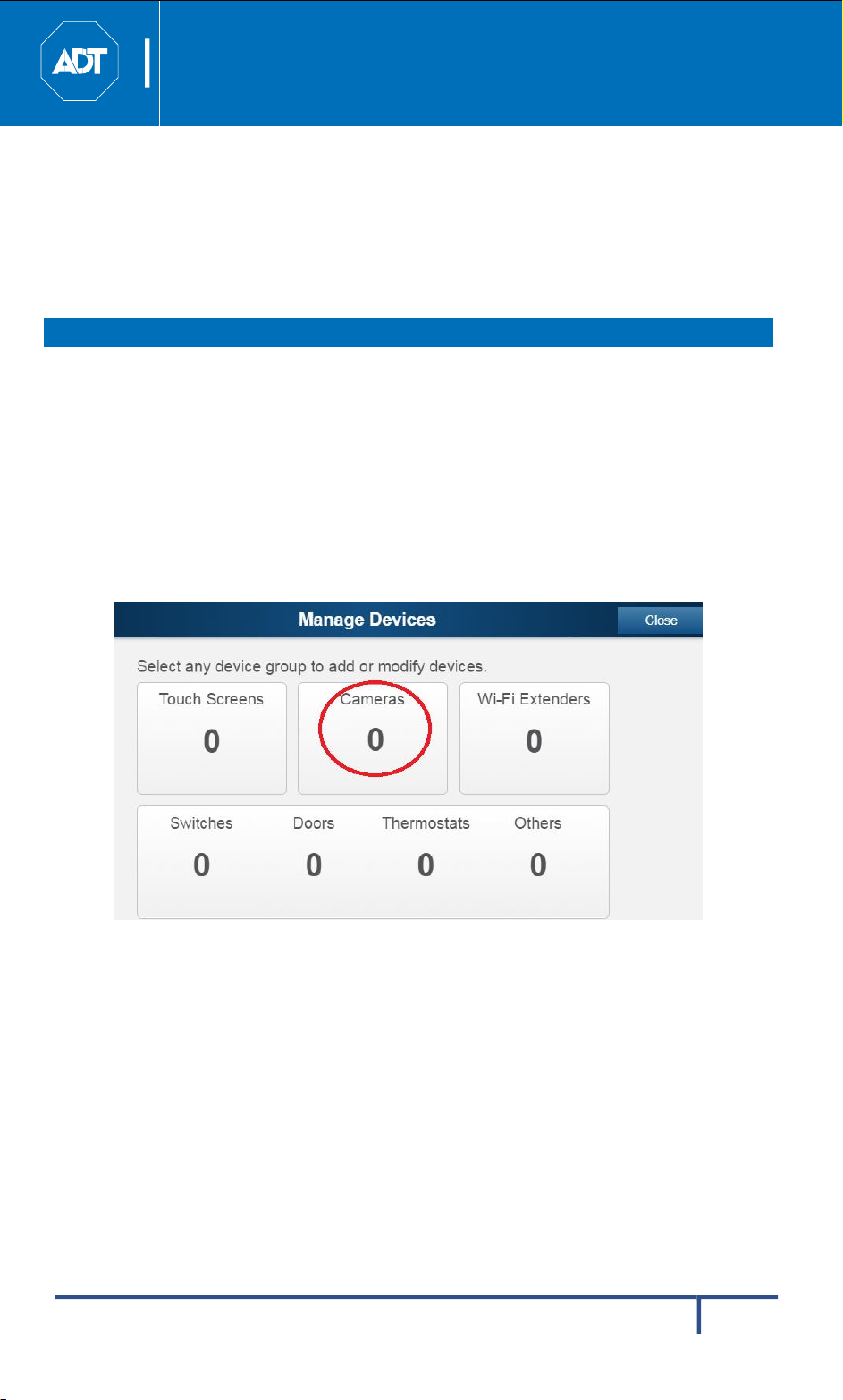
screen, click
Cameras
.
Figure 3-1 Clicking "Cameras" Button

ADT Video Doorbell
Quick Installation Guide
ADT PULSE
ENROLLAMENT
8
DBC835 Wireless Doorbell Camera Installation
5.
Click the
Add Using WPS
button at the bottom of screen as shown in Figure
3-2.
Figure 3-2 Clicking Add Using WPS Button
6.
Locate the camera PIN number on the label on the rear of the camera. Enter
the PIN number in the WPS PIN field as shown in Figure 3-3.
Figure 3-3 Entering the PIN

ADT Video Doorbell
Quick Installation Guide
ADT PULSE
ENROLLMENT
9
DBC835 Wireless Doorbell Camera Installation
7.
Click the Continue button to initiate the WPS process.
Figure 3-4 Clicking "Continue" Button
8.
Press the doorbell button, the LED will blink green during WPS process.
Note:This WPS process must be completed within 2 minutes or else it will
be timed out. The remaining time is displayed in the upper left portion of the
screen.
Figure 3-5 Add Camera Using WPS Screen

ADT Video Doorbell
Quick Installation Guide
ADT PULSE
ENROLLAMENT
10
DBC835 Wireless Doorbell Camera Installation
9.
Once the doorbell camera is enrolled, the Camera Details screen will be
displayed. Name the device and select the desired bandwidth & chime type.
Click
Save
after entering or change settings.
Figure 3-6 Saving Camera Details
10.
The newly added device will be shown in the Camera List, then click
Go Back
at the top left of the screen as shown in Figure 3-7.
Figure 3-7 Clicking Go Back Button
Altri manuali per Pulse DBC835
1
Indice
Altri manuali ADT Accessori


