
Afinia L501 Manuale utente

Afinia L301
Label Printer
User Manual
Version 1.0.3

Afinia Label
Copyright © 2016 Afinia. All rights reserved.
No part of this doc ment may be photocopied, reprod ced, or translated to another lang age witho t the prior written
permission of Afinia.
Trademarks
Firefox is a trademark of the Mozilla Fo ndation.
Intel and Intel Core are trademarks of Intel Corporation in the U.S. and/or other co ntries.
Java and Oracle are registered trademarks of Oracle and/or its affiliates.
Microsoft, Windows, Windows Vista, and Windows Server are registered trademarks of Microsoft Corporation in the U.S.A.
and/or other co ntries.
Edition
L301 Printer User G ide Edition 1.0. December 2016.
FCC
This device complies with Part 15 of the FCC r les. Operation is s bject to the following two conditions: (1) this device may not
ca se harmf l interference, and (2) this device m st accept any interference received, incl ding interference that may ca se
ndesired operation.

L301 Label Printer
3
Table of Contents
Setting p the Printer .................................................................................................................................... 5
In the Box .................................................................................................................................................. 5
Parts of the Printer .................................................................................................................................... 6
The Control Panel ...................................................................................................................................... 7
Unpacking, Set p, and Installation ........................................................................................................... 8
Remove Tape and Foam........................................................................................................................ 8
Connect Power ...................................................................................................................................... 8
Install Ink Cartridges ............................................................................................................................. 9
Install Standard Unwinder .................................................................................................................... 9
Install Printer Driver ............................................................................................................................ 10
Connect USB ........................................................................................................................................ 10
Using the Printer ......................................................................................................................................... 11
Choosing Label Media ............................................................................................................................. 11
Using the Unwinder ................................................................................................................................ 13
Loading Media ......................................................................................................................................... 14
Unloading Media ................................................................................................................................. 14
Home Screen ....................................................................................................................................... 15
Using the Control Panel .......................................................................................................................... 15
Check Ink Levels .................................................................................................................................. 15
Printing Labels ......................................................................................................................................... 15
Help Screen ......................................................................................................................................... 15
Set p Screen ....................................................................................................................................... 15
Printer Preferences ............................................................................................................................. 16
Adj sting Alignment for Printing ........................................................................................................ 17
Selecting Media Size ........................................................................................................................... 18
Creating C stom Media Sizes .............................................................................................................. 19
Selecting Media Type .......................................................................................................................... 19
Change Defa lt Settings in Printer Driver ........................................................................................... 19
Using the Man al C tter ......................................................................................................................... 20
Canceling a Print ..................................................................................................................................... 20
O t of Paper ............................................................................................................................................ 21
Wrong Media .......................................................................................................................................... 21
End of Roll ............................................................................................................................................... 21
Sh tting Down the Printer ...................................................................................................................... 22
Software Tools ........................................................................................................................................ 23
Afinia Toolbox ..................................................................................................................................... 23
Printer Maintenance ................................................................................................................................... 25
G idelines for Preventative Maintenance .............................................................................................. 25
General d st and debris removal ........................................................................................................ 25
C tter Maintenance ............................................................................................................................ 25
Media Path Roller Maintenance ......................................................................................................... 26
Sensor Maintenance ........................................................................................................................... 27
Pinch Roller Maintenance ................................................................................................................... 27
Replacing an Ink Cartridge ...................................................................................................................... 28
(continued…)

4 | Setting p the Printer
Tro bleshooting .......................................................................................................................................... 29
Control Panel LEDs .................................................................................................................................. 29
Poor Print Q ality or Incorrect Printo t ................................................................................................. 30
Clearing a Media Jam .............................................................................................................................. 32
Technical S pport ................................................................................................................................... 33

Afinia Label
5
Chapter 1
Setting p the Printer
In the Box
Power S pply and
Cord
USB Cable
Installation Disc
Afinia L301 Label Printer
Standard Unwinder
(incl des 2 th mbscrews)
Ink Cartridges
(Tricolor 26548,
Black 26562)
Q ick Set p G ide

Afinia Label
6 | Setting p the Printer
Parts of the Printer
Standard
Unwinder
(shown not
installed)
Ink Cartridge
Access Door
Control Panel
and Touchpad
Label Cutter
Label
utput
Front view
Label Guide
Power Connection
USB Connection
Rear view
Unwinder
Mounts
Paper Path
Release
Label Input
L301 Label Printer
Setting p the Printer | 7
Power Button
Touch Panel
Status LEDs
Unload Media
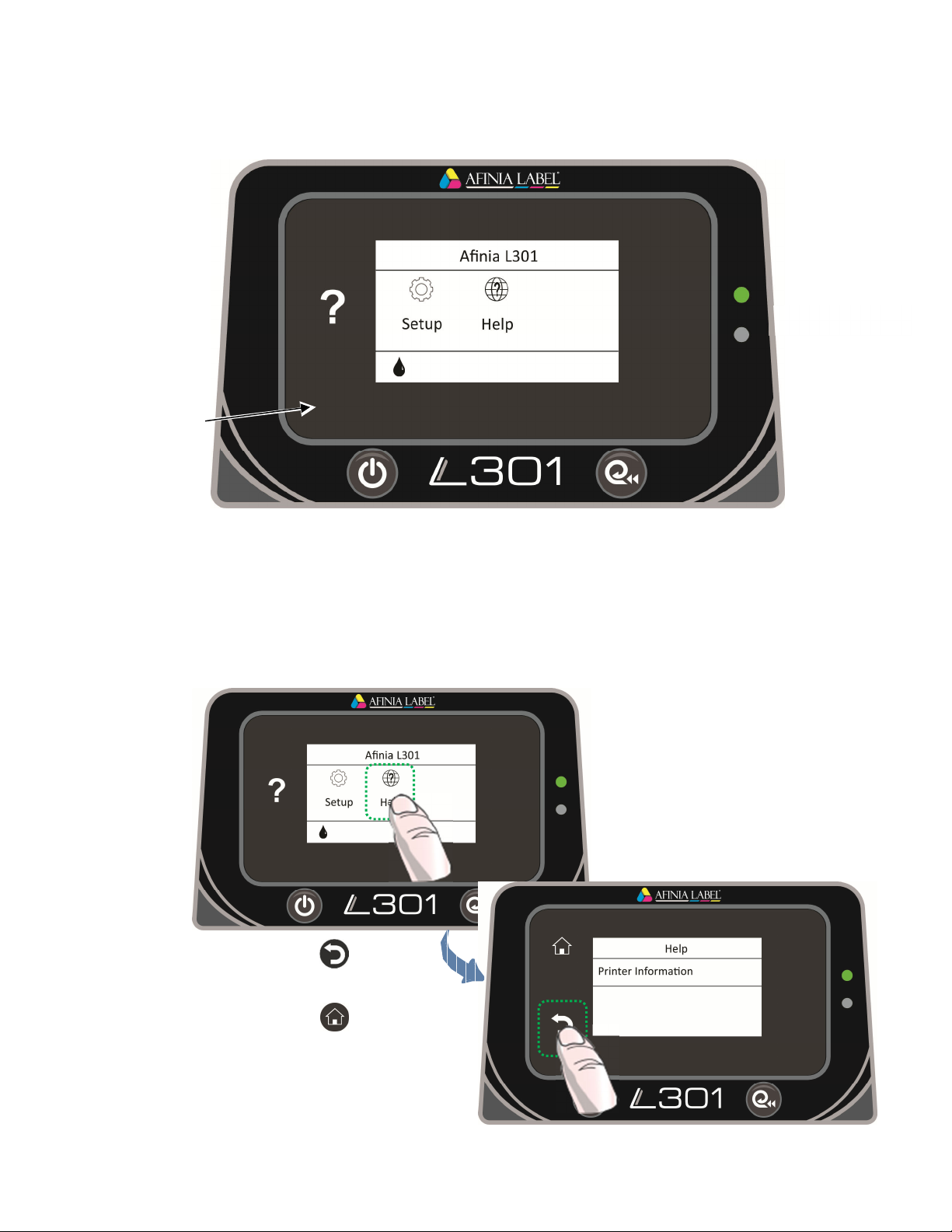
The Control Panel
The control panel incl des the Power b tton, the Unload Media b tton, the two Stat s
LEDs, and the To ch Panel incl ding vario s controls and f nctions. For example:
• Press Help on the To ch Panel.
• Press Printer Information to view the printer name, model, serial n mber, and
firmware version.
• Press to go back
one level, or
• Press to ret rn to the
Home screen.
• F ll list of to chpad
f nctions on page 15

Afinia Label
8 | Setting p the Printer
Unpacking, Set p, and Installation
Remove Tape and Foam
• Lift Printer and foam endcaps from the box
• Remove the foam endcaps from the printer and nwinder
• Remove the packaging tape from the printer cover (x2), label g ide (rear), and
c tter (front)
• Remove the packaging tape from the nwinder
Connect Power
Connect
the Power S pply to
the Printer
Rear of Printer, right side
Press Power b tton
on Control Panel

L301 Label Printer
Setting p the Printer | 9
Install Ink Cartridges
• Open the Ink Cartridge Access Door
o Carriage will move left to expose
both cartridges
• Remove plastic tape from cartridges sing p ll tab
• Lift the two cartridge latches after the carriage
moves to the left
• Insert the two cartridges into the carriage
o Tricolor: # 6548
o Black: # 656
o M st be Afinia ink cartridges!
Lower the cartridge latches ntil they click
• Close the Ink Cartridge Access Door
Install Standard Unwinder
Connect the Standard Unwinder to the mo nts on the rear of the printer sing the two
s pplied th mbscrews.
Unwinder
Mounts
Afinia Label
10 | Setting p the Printer
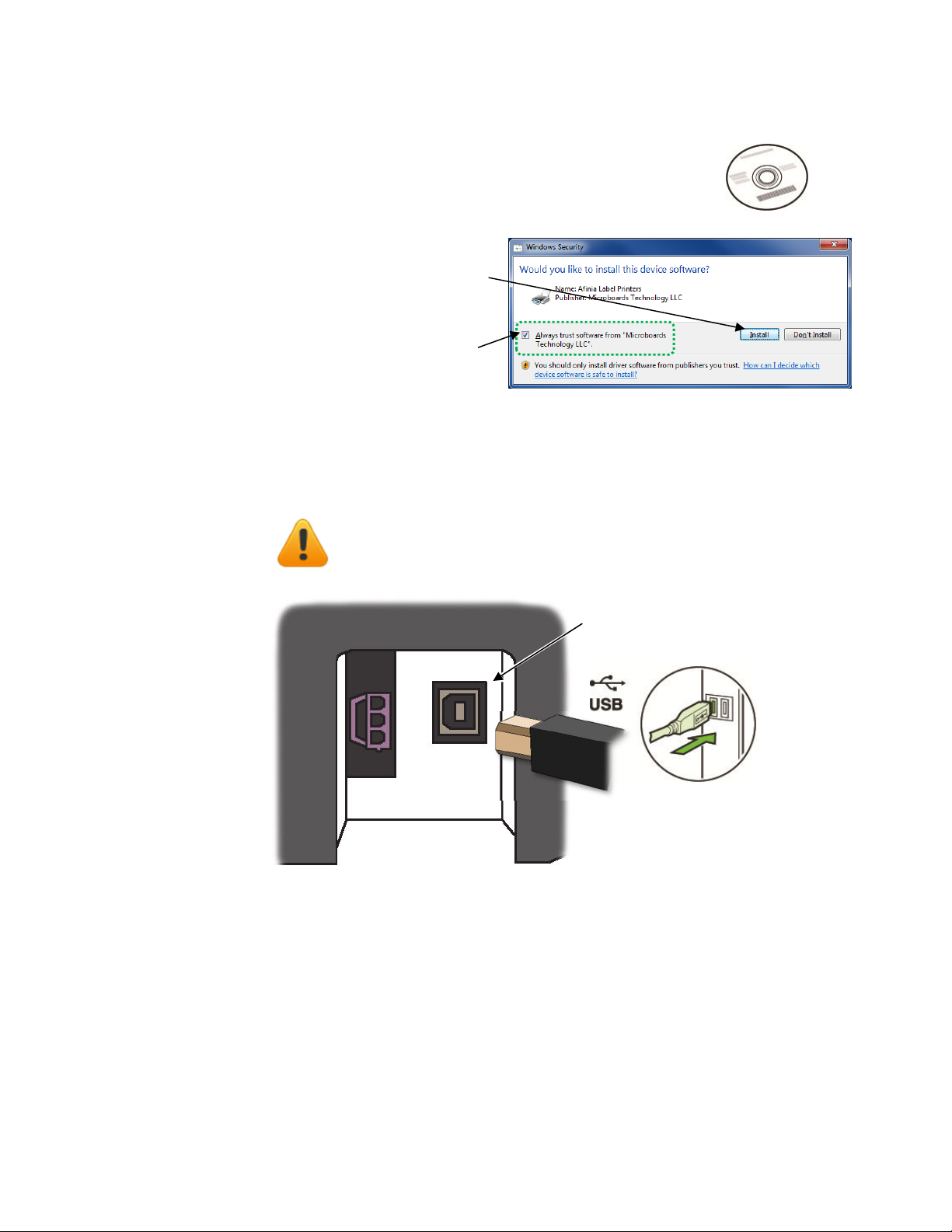
Install Printer Driver
R n Setup.exe from the incl ded software CD to install the drivers
and the Toolbox.
This sho ld be done before connecting the printer to a PC.
D ring installation, three windows
may appear asking for confirmation
before installing drivers. Click Install
on each.
Yo can avoid the last two windows by
checking the option to Always trust
software from Microboards
Technology LLC in the first window.
Connect USB
Connect the USB to
the Printer
and comp ter
Rear of Printer
(right side)
Install the Print Drivers and Toolbox
BEFORE
connecting to the computer
Indice
Altri manuali Afinia Etichettatrice


