AGI Security SYS-HD0460A Manuale utente

GENERIC V.1.2
Operation Manual
H.264 HIGH DEFINITION
Digital Video Recorder
About This User’s Guide
Before operating the unit, please read this user’s guide thoroughly and retain it for future reference.

2 | Page
Warning
Cautions
1. Read User Guide – After unpacking this product, please read the user guide carefully, and follow all the operating and
other instructions.
2. Power Sources – This product should be operated only from the type of power source indicated on the label. If not sure of
the type of power supply, consult with the product dealer.
3. Ventilation – Slots and openings on the unit are for ventilation and to ensure reliable operating of the product and to
protect it from overheating, and these openings must not be blocked or covered. The product is recommended to be
placed in a well ventilated area.
4. Heat – The product should be placed away from heat sources such as radiators, stoves, and other products that produce
heat.
5. Water and Moisture – Do not use this product near water. Do not exceed the humidity specifications for the product as
detailed in the user guide.
6. Cleaning – Unplug this product from the wall outlet before cleaning. Do not use liquid cleaners or aerosol cleaners. Use
only compressed air to clean the product.
7. Power Cord Protection – Power-supply cords should not be routed so that they are likely to be walked on or pinched by
items placed against them.
8. Overloading – DO not overload wall outlets; extension cords, or uninterruptible power supply.
9. Lighting – For added protection for this product during a storm, or when it is left unattended and unused for long periods
of time, unplug it from the wall outlet. This will prevent damage to the product due to lighting and power line surges.
10. Object and Liquid – Never insert foreign objects into the DVR, as it may touch dangerous voltage points or short-out
parts that could result in a fire or electrical shock. Never spill liquid of any kind on the product.
11. Accessories – Do not place this product on an unstable cart; stand, tripod, bracket, or table. The product may fall,
causing serious personal injury and serious damage to the product.
12. Disc Tray – Keep fingers well clear of the disc tray as it is closing. Neglecting to do so may cause serious personal injury
and serious damage to the product.
13. Burden – No not place any heavy objects on the product.
14. Disc – Do not use a cracked, deformed, or repaired disc. These discs can be easily broken and may cause serious
personal injury and cause product malfunction.
15. Replaceable Batteries – CAUTION: Risk of Explosion if the battery is replaced by an incorrect type. Dispose used
batteries according to the instructions.
16. Servicing – Do not attempt to service this product. Opening or removing covers may expose the user to dangerous
voltage or other hazards. Unauthorized substitutions may result in fire electric shock or other hazards. Serving should be
performed only by a qualified and experienced personnel.

3 | Page
Notes
Handling
•Please retain the original shipping carton and/or packing materials supplied with this
product. To ensure the integrity of this product when shipping or moving, repackage the unit
as it was originally received. Do not use liquids, such as aerosol spray, near this product.
Do not leave rubber or plastic objects in contact with this product for long periods of time.
The product may become warm after long periods of use.
Locating
•Place the unit on a level surface. Do not place the unit on a shaky or unstable surface such
as a wobbling table or an inclined stand. If the unit is placed next to a TV, radio, or VCR, the
playback picture may become poor and the sound may be distorted. If this happens, place
the unit away from the TV, radio, or VCR.
Maintenance
•This DVR is designed to last for long periods of time. To keep the DVR always operational,
we recommend regular inspection maintenance (Cleaning or replacement). For details,
contact the nearest dealer.

4 | Page
Table of Contents
1. Features .........................................................................................................................7
2. Preparation......................................................................................................................8
2-1. Booting the DVR and Basic Time Setting........................................................................................8
2-2. Setting Daylight Saving Time..........................................................................................................8
2-3. Setting NTP (Network Time Protocol).............................................................................................9
3. Setting up the DVR........................................................................................................11
3-1. Setup – Main screen and Menu Tree............................................................................................11
3-2. Setup – Display Mode ..................................................................................................................15
3-3. Setup – Record Mode...................................................................................................................16
3-3-1. Recording Schedules ................................................................................................................17
3-4. Setup – Device Mode...................................................................................................................18
3-4-1. ALARM-OUT.............................................................................................................................19
3-4-2. CONTROLLER & PTZ...............................................................................................................19
3-4-2-1. CONTROLLER Setup ............................................................................................................19
3-4-2-2. PTZ Setup..............................................................................................................................20
3-4-3. Motion Zone Setup....................................................................................................................21
3-4-4. Privacy Zone Setup...................................................................................................................22
3-4-5. Remote Controller ID.................................................................................................................22
3-5. Setup – Storage Mode..................................................................................................................23
3-6. Setup – System Mode..................................................................................................................25
3-7. Setup – Security Mode.................................................................................................................29
3-8. Setup – Network Mode.................................................................................................................31
3-8-1. DDNS........................................................................................................................................33
3-8-2. Network Ports............................................................................................................................34
3-8-3. Network Stream.........................................................................................................................34
3-9. Setup - CONFIG Mode.................................................................................................................35
3-10. Quick Setup................................................................................................................................37
4. Live, Search and Playback ............................................................................................38
4-1. Live Viewing Screen.....................................................................................................................38
4-2. SEARCH Screen..........................................................................................................................39
4-2-1. TIME-LINE Search....................................................................................................................40
4-2-2. Event Search.............................................................................................................................41
4-2-3. Go To First Time........................................................................................................................42
4-2-4. Go To Last Time........................................................................................................................42
4-2-5. Go To Specific Time...................................................................................................................43
4-2-6. Archive Search..........................................................................................................................43
4-2-7. Log Search................................................................................................................................44
4-3. Play Mode....................................................................................................................................45

5 | Page
5. PTZ Control ................................................................................................................46
6. Back Up.........................................................................................................................47
6-1. Still Image Backup onto USB Flash Drive.....................................................................................47
6-2. Video Backup onto USB Flash Drive ............................................................................................47
6-3. Transferring Still Images or Video from the ARCHIVE List............................................................48
6-4. Playback of Backup Video............................................................................................................49
7. Single Site Network Viewer............................................................................................51
7-1. PC Requirements.........................................................................................................................51
7-2. Installing the Network Viewer........................................................................................................51
7-3. Live Monitoring Mode and Functions............................................................................................53
7-4. Bi-directional Audio.......................................................................................................................55
7-5. Remote Search Mode and Functions ...........................................................................................55
7-6. PC System Configuration .............................................................................................................59
8. Multi-Sites Network Viewer............................................................................................62
8-1. Overview......................................................................................................................................62
8-3. Installation of the Program............................................................................................................62
8-4. Live Window.................................................................................................................................64
8-4-1. Main User Interface...................................................................................................................64
8-4-2. Control Buttons .........................................................................................................................64
8-5. Search and Playback Window......................................................................................................66
8-5-1. Main User Interface...................................................................................................................66
8-5-2. Main Control Panel....................................................................................................................66
8-6. Operation .....................................................................................................................................68
8-6-1. Addition, Delete, and Modify of DVR Sites.................................................................................68
8-6-2. Connect and Disconnect ...........................................................................................................70
8-6-3. Still-image Capture During Live.................................................................................................71
8-6-4. Recording Video on Local PC during Live .................................................................................72
8-6-5. Local Playback and Remote Playback.......................................................................................74
8-6-6. AVI Backup During Playback.....................................................................................................76
9. Web-Browser Viewer.....................................................................................................78
10. Remote Setup..............................................................................................................81
10-1. DISPLAY ....................................................................................................................................82
10-2. RECORD....................................................................................................................................83
10-3. DEVICE......................................................................................................................................84
10-4. STORAGE..................................................................................................................................85
10-5. SYSTEM ....................................................................................................................................86
10-6. SECURITY.................................................................................................................................88
10-7. NETWORK.................................................................................................................................89
10-8. REMOTE UPGRADE .................................................................................................................90
10-9. INFORMATION...........................................................................................................................90
11. Mobile Phone Viewer...................................................................................................91


6 | Page
11-1. Viewer for Android ......................................................................................................................91

11-1-1. Live..........................................................................................................................................91
11-1-2.PTZ Control..............................................................................................................................92
11-1-3. Playback..................................................................................................................................92
11-1-4. Screen Shot and Viewer..........................................................................................................93
11-2. Viewer for iPhone .......................................................................................................................94
11-2-1. Live..........................................................................................................................................94
11-2-2.PTZ Control..............................................................................................................................95
11-2-3. Playback..................................................................................................................................95
APPENDIX........................................................................................................................97
Network Setup...................................................................................................................97
Network Connection – Using Manufacturer’s DDNS..........................................................98
Network Connection – Using Public DDNS........................................................................99
Network Access via Internet Explorer ..............................................................................100
Network Access via Chrome, Firefox, or Safari................................................................102
How to backup Video.......................................................................................................104
How to playback a Proprietary Format video in PC..........................................................106

7 | Page
1. Features
H.264 Video Compression
HDMI 1080P Video Output
QUADPLEX: Simultaneous live or playback while recording, network transfer, and backup
USB 2.0 port for backup, firmware upgrade, configuration export/import, or USB mouse
Individual channel operation such as FPS, quality, recording mode, & detection zone
Various network access: Network client SW, web-viewer, smart phone APP, and CMS
Remote setup and remote upgrade
Remote access via PC, MAC®, or smart phones
Recording by schedule, continuous, alarm, motion, or continuous
Free DDNS server
Bandwidth control
E-mail event notification
NTP (Network Time Protocol)
Watermark
Synchronized audio
Bi-directional audio
Time stamp over backup data
Easy and various data backup via DVD, USB flash drive, USB external HDD, and network
HDD S.M.A.R.T status check and alert via e-mail or internal beep
USB mouse, IR remote control
Multi OSD Languages

8 | Page
2. Preparation
2-1. Booting the DVR and Basic Time Setting
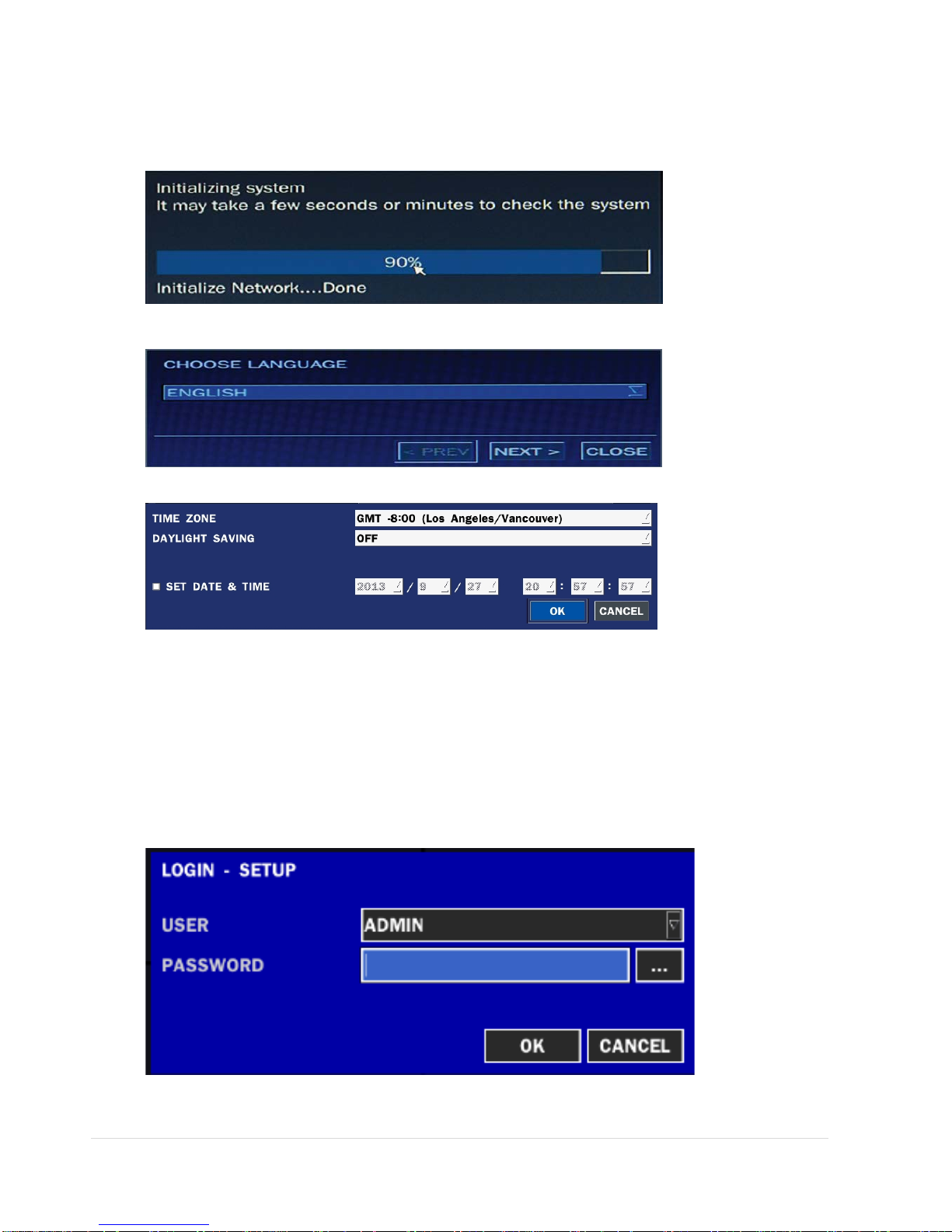
1. During the first start up, the following message will be displayed.
2. After the system initializing is completed, select the Language and set date and time as specified below.
3. Set the appropriate date and time as displayed below.
2-2. Setting Daylight Saving Time
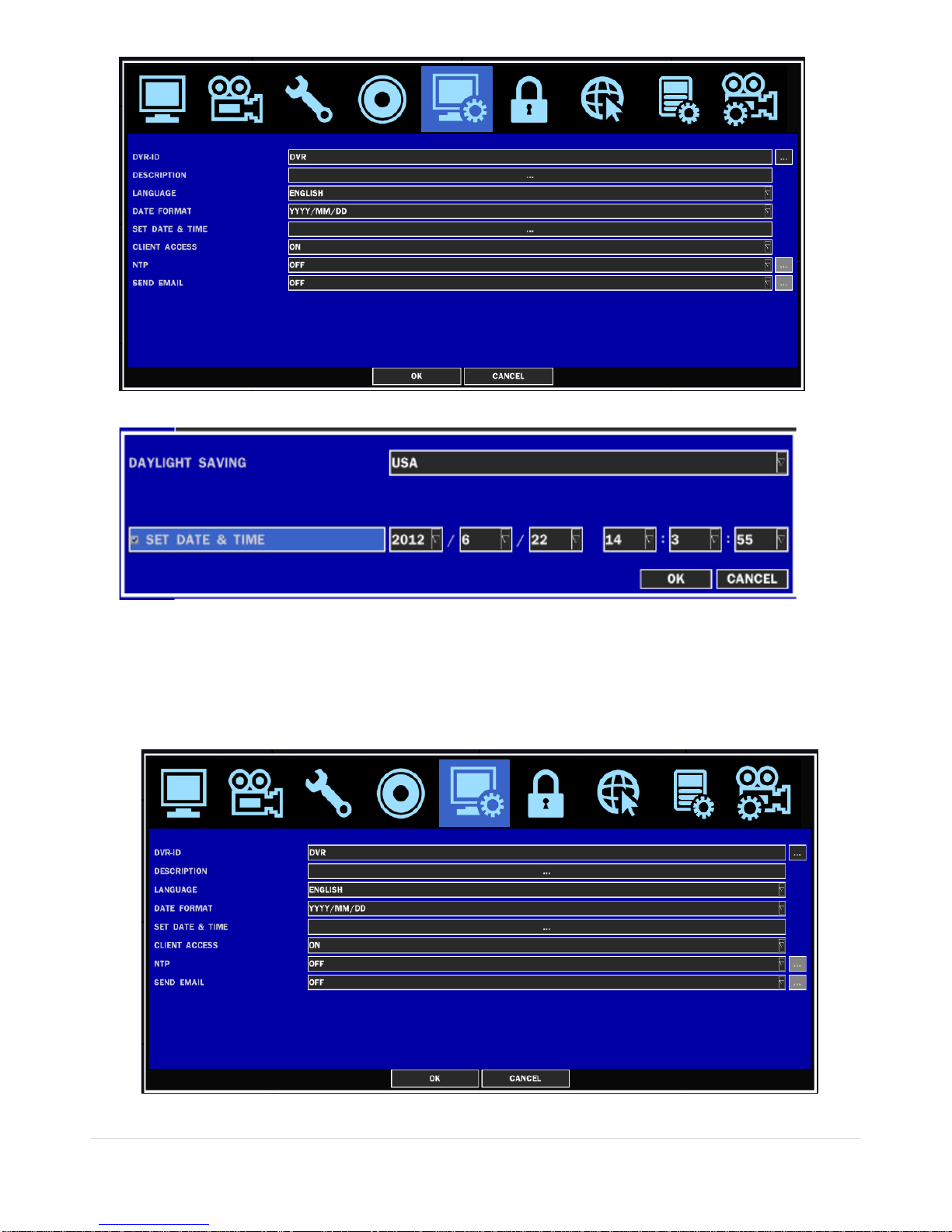
If the DVR is to be set Day Light Saving Time and be synchronized NTP (Network Time Protocol), take next steps.
1. Click a mouse-right button or SETUP button on the front panel of DVR to enter the SETUP mode.
The default Password is “1111”.
2. Go to SETUP>SYSTEM>SET DATE & TIME

9 | Page
3. Select DAYLIGHT SAVING.
2-3. Setting NTP (Network Time Protocol)
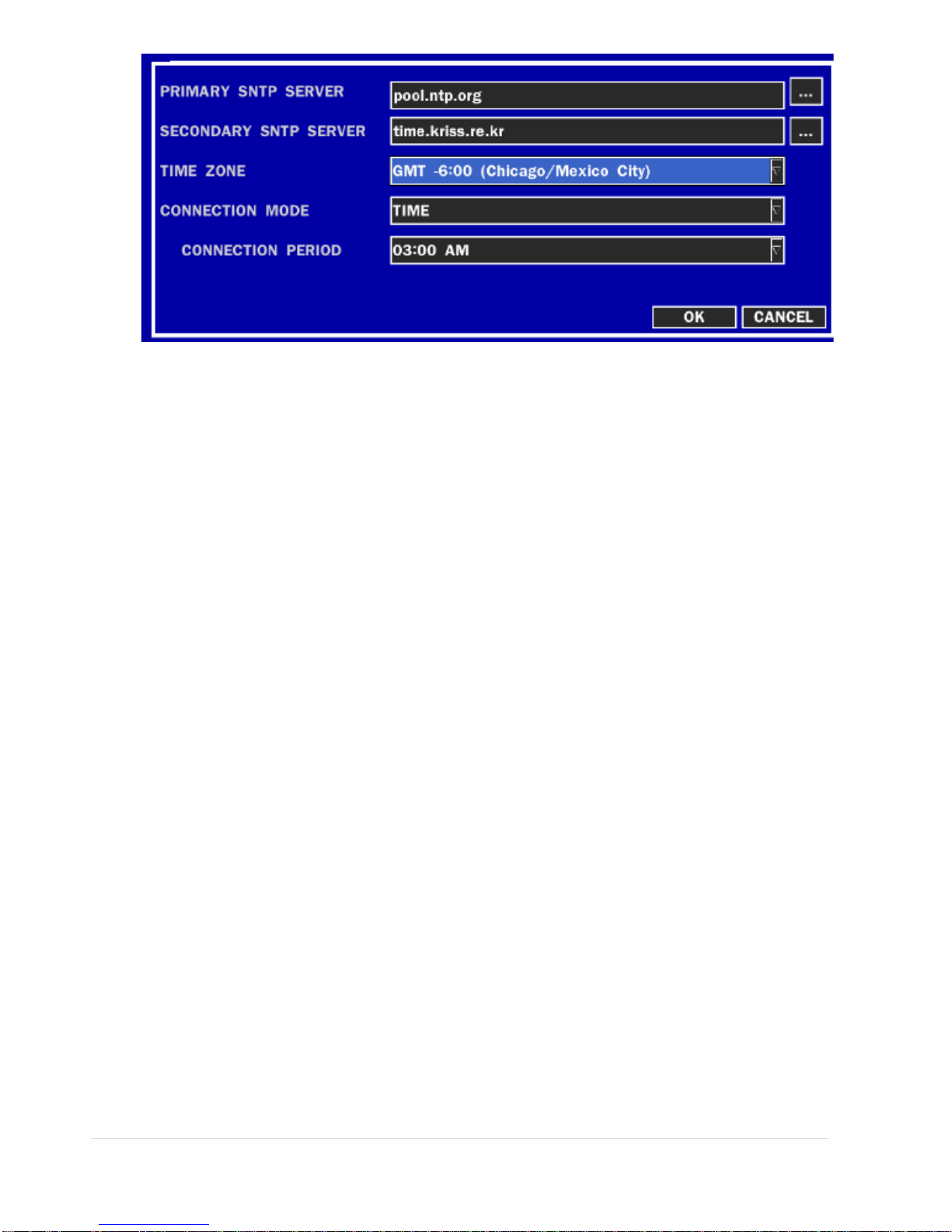
1. When the DVR is connected with internet and the DVR need to be syncronized with NTP (Network Time
Protocol), set SETUP>SYSTEM>NTP ON.
2. Select proper TIME ZONE time.

10 | Page
NOTE: If you want the unit to automatically synchronize the local time, the Time Zone must be
properly set according to your local Time Zone.
Indice
Altri manuali AGI Security Registratore digitale