
AHA Smart Pass FPS-1000R Manuale utente

•Before using the product, please read this manual carefully and keep it for later.
•Image drawings and notations in this document may slightly differ from the actual product.
•The contents of this document are subject to change without notice.
English
User’s Manual
Smart Pass
(AIoT Face Recognition & Temperature Measurement for Access Control System )
Copyright ©2020 AHA INC CO.,LTD. All Rights Reserved
www.ahatouch.com
Model :
Stand Assembly Manual
Rev.2.1
FPS-1000R
Desk stand
Floor stand
Wall bracket

1. Smart Pass Overview.………………………………………………………………………………..…...………...
1.1 Smart Pass Introduction..…………………………..……………………………..…...………...….
2. How to use Smart Pass...………………………………………………………………………………………….
2.1 How to run Smart Pass.……………………………………………………………………..............
2.2 How to use Smart Pass.……………………………………………………………………..............
3. Smart Pass screen description………………..……………………………………………............………...
3.1 Initial screen...………………………………………………………………………………………..……..
3.2 Main menu..………………………………….……………………………..……………………………….
3.3 Setting……………...…………………………………………………………….......................................
3.4 Registration of access information …………….……………….……………………………..
3.5 Device information………………………………………………………………………………………..
3.6 Access record……………….……………………………….……………………………………………...
3.7 List of registrants …………………………..…………………………………...................................
4. Countermeasure………………………………………………………………………………..................................
5. Product specification.…………………………………………………………..………….…………………........
6. Product diagram…………………………………………………………………….……………..………………….
7. Product description(display) …………….…………………………………………………………………….
8. Product description…….......................…..……………………………………………………………..……….
9. Product port description ..…………………………………………..………………………………………….
10. Maintenance ………………………………………………………..…………………………….………………
11. Installation Manual (Main unit + Stand) ………………………………………………………………….
3
3
3
3
4
5
5
5
7
18
19
20
21
22
24
25
26
27
28
29
30
2
Contents
1. Smart Pass Overview
1.1 Smart Pass Introduction
Smart Pass is an advanced AI (Artificial Intelligence) face recognition and heat check
access control system that accurately identifies a person and measures body
temperature even if the mask covers part of the face or wears glasses and a mask at
the same time with advanced deep learning technology.
2. How to use Smart Pass
2.1 How to run Smart Pass
1) When the power is connected, the device turns on. The app is installed on the
device, so there is no need for a separate installation process.
2) Turn on your device and wait for a while to launch the app and it takes about 30
seconds to use it.
3) In order to use a stable device, connect the power to the device and wait about
3 minutes before using it.
3
2.2 How to use Smart Pass
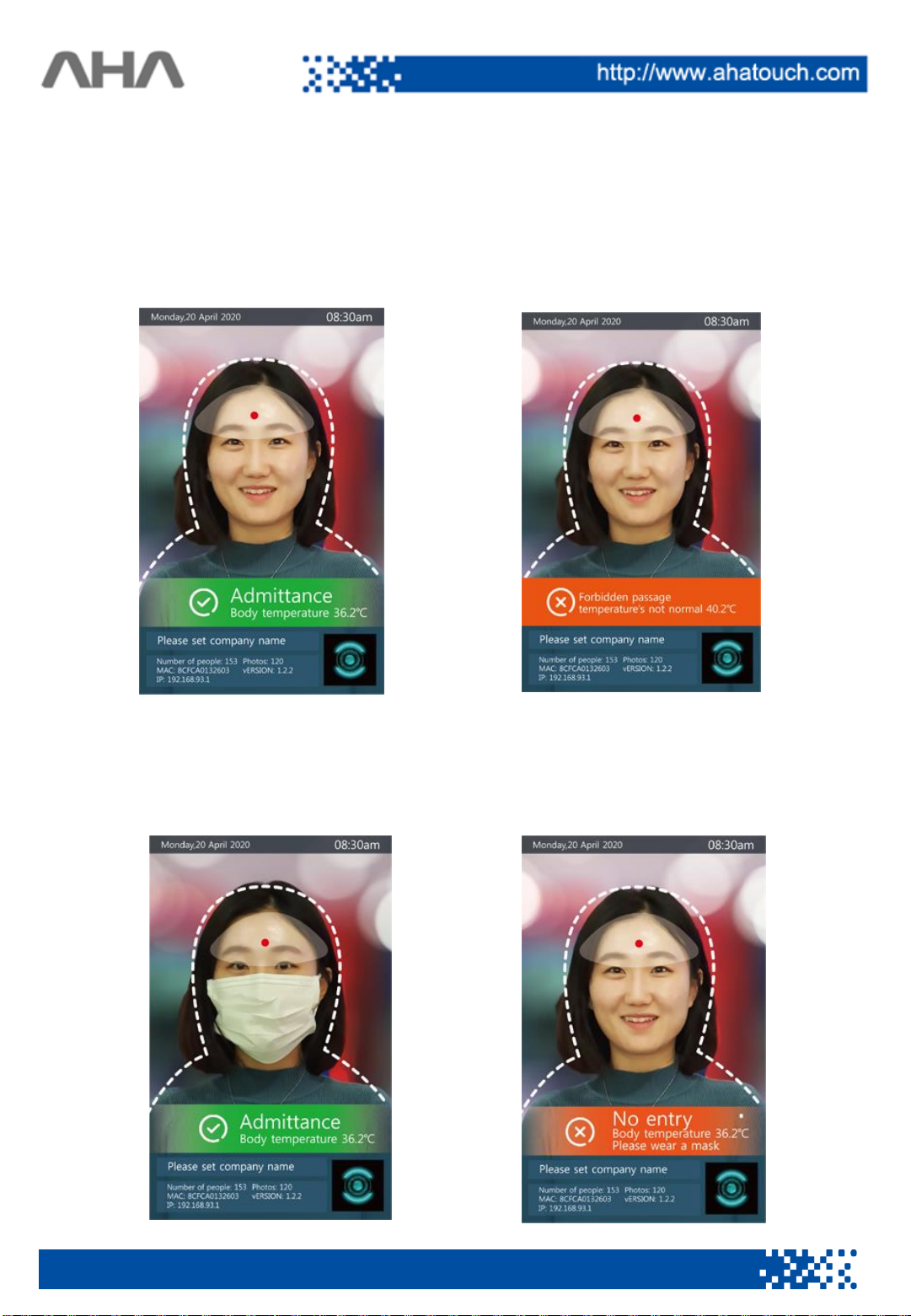
The camera recognizes a person by standing in front of the camera in line with
the line displayed on the screen. As soon as a person is recognized, the
temperature is measured and displayed on the screen. If your body temperature is
normal, you will be informed by voice. If the body temperature is high, a warning
tone is displayed and the entry is prohibited.
The mask detection function allows you to display the access only when you are
wearing a mask. If you are not wearing a mask, you will be asked to wear a mask,
and a warning sign will be displayed.
4
3. Smart Pass screen description
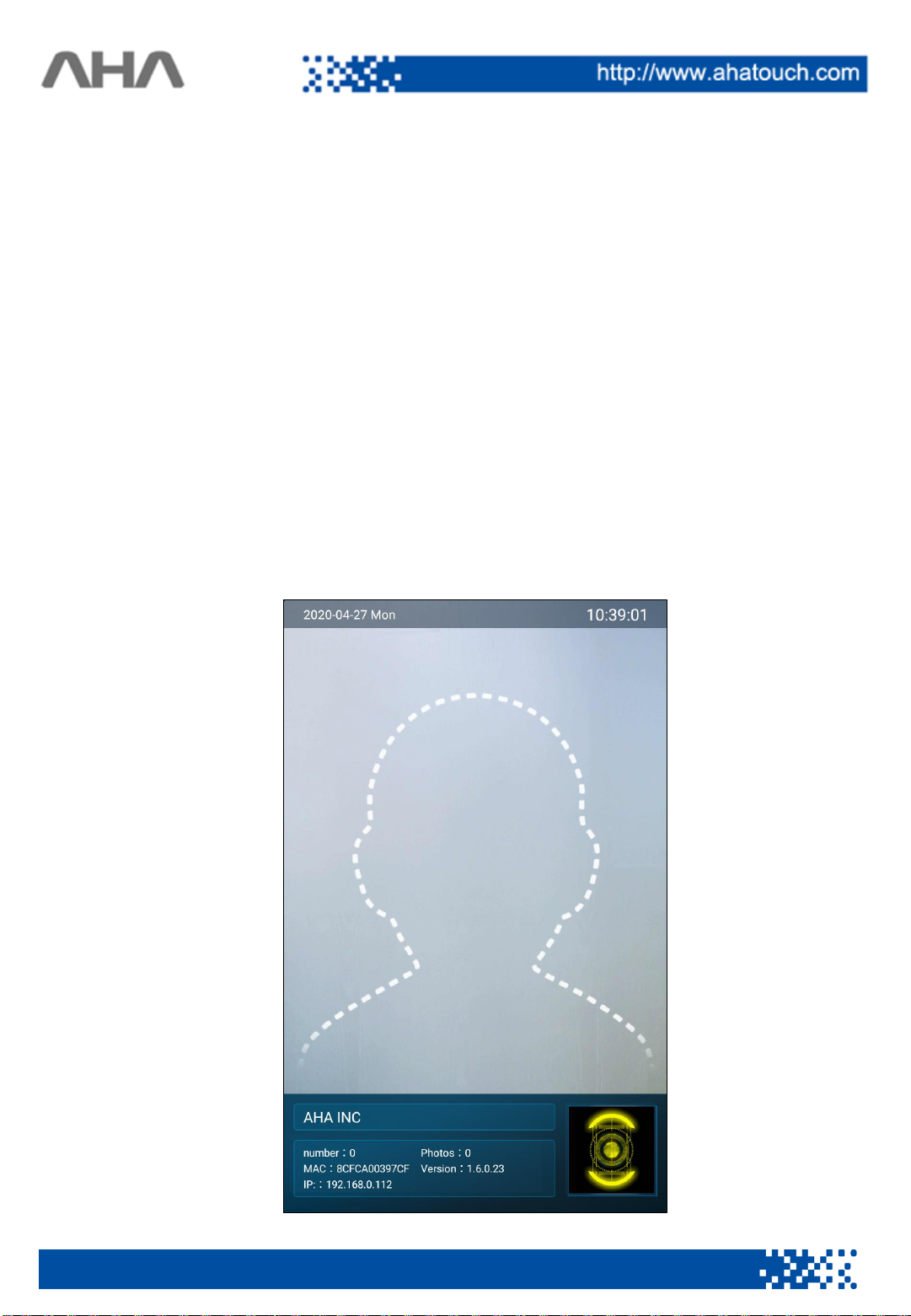
3.1 Initial screen
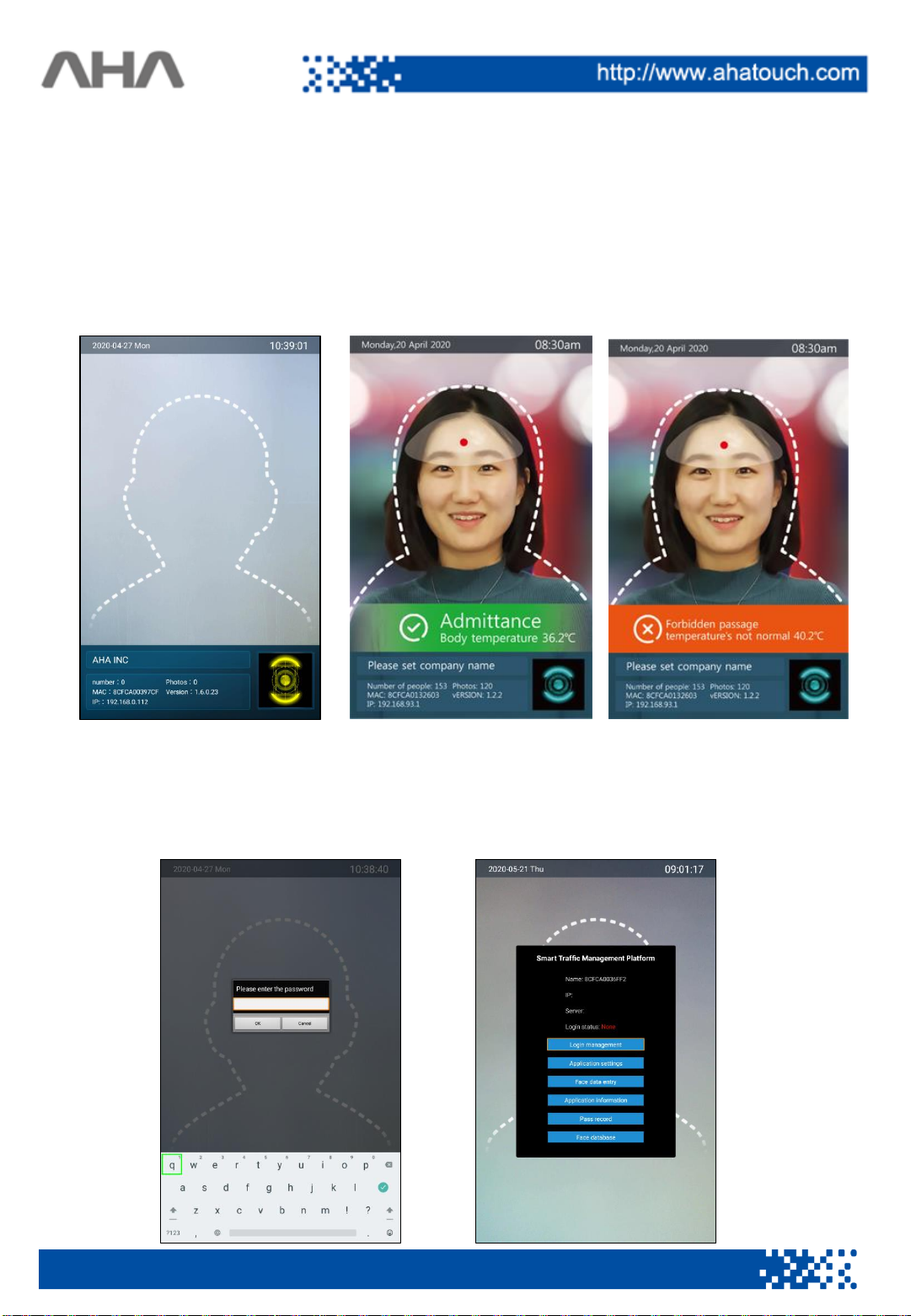
This is a screen for face recognition and body temperature measurement.
The current date & time are displayed at the top.
When a person is detected, contextual phrases or body temperature measurement
results are displayed. Depending on the setting, information such as IP, company
name, and version may be displayed at the bottom of the screen.
3.2 Main menu
When the mouse is connected and the wheel button is pressed, the password
input window appears, and when the correct password is entered, the main menu
is displayed on the screen. ※ The initial password is '123456'.
5

No. Name Description
1Status
information
The set device name, IP, user name, and login status
are displayed.
2Log In
Management
Used to connect the device to a network (not
currently supported)
3Application
settings Open the Smart Pass detailed settings menu.
4Face
registration
Capture a person's face and register it in the database.
5Application
information Check various information of the device.
6 Pass record Displays a list of people who have measured the
temperature.
7Face
database Shows a list of people registered in the database.
1
2
3
6
4
5
6
7
3.3 Setting
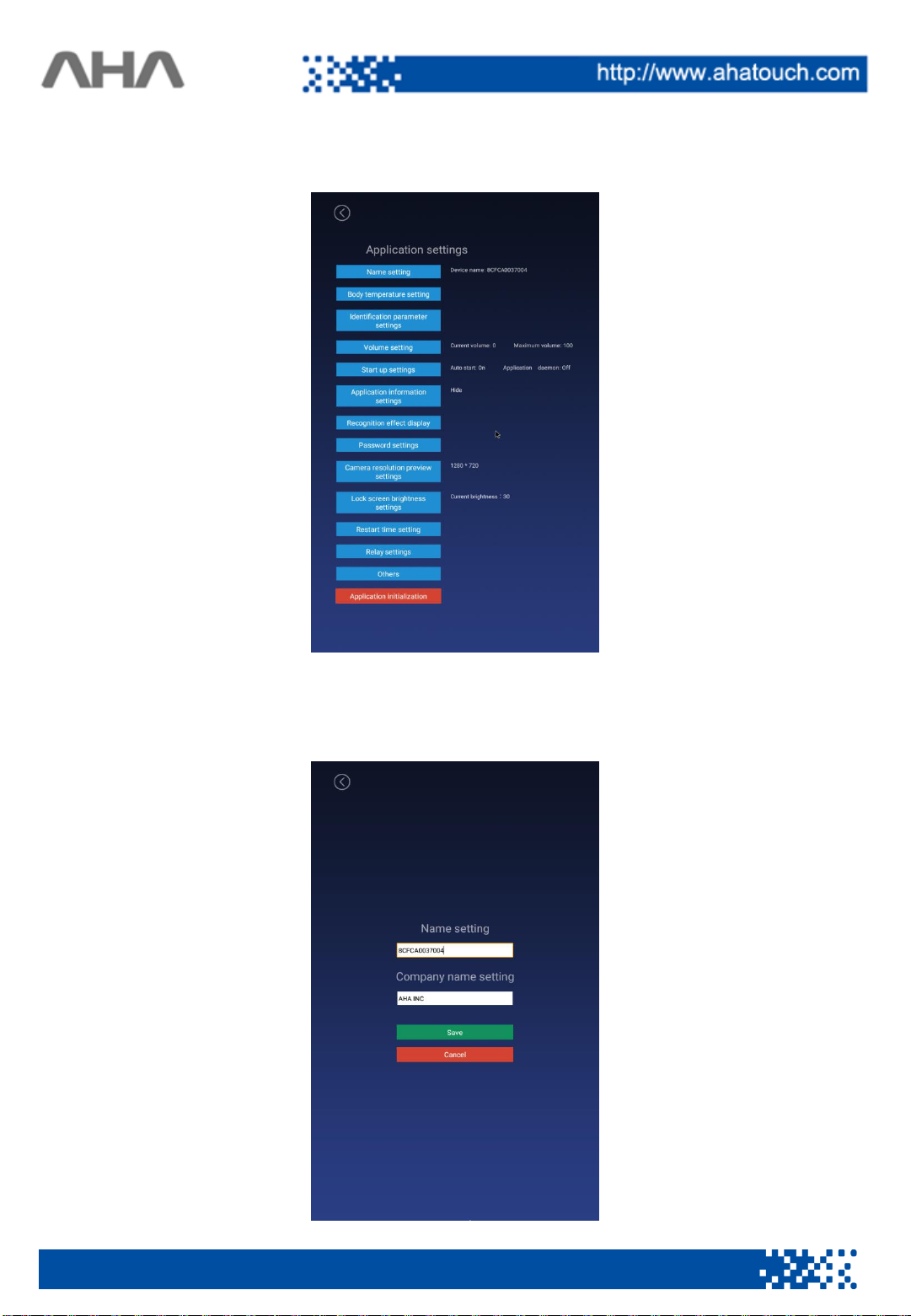
This is a detailed menu for setting up a Smart Pass.
(1) Name setting
Set the device name and company name.
7

(2) Inspection setting
This is a detailed setting menu related to face recognition and body temperature
measurement.
8
No. Name Description
1
Body temperature
test Turns the body temperature test function on or off.
2Temperature
compensation
It is used to calibrate the temperature when measured different
from the actual body temperature by the external temperature.
In case of manual setting, detailed input field appears. Input
value is between 0 ~ 1 ℃.
3 Scene selection Setting whether the device is installed indoors or
outdoors.
4 Alarm threshold
If the measured body temperature is higher than the entered
value, an alarm message is displayed.
When the body temperature alarm is on, a beep sounds.
5
Body temperature
alarm Enable or disable the Alarm.
6Temperature
display
Change the temperature display format to Celsius (℃) or
Fahrenheit (℉).
7 Fan It set the operation of the fan for heat dissipation.
8 Mask detection
Measure your body temperature and check whether wear a
mask or not. When a person without a mask is detected,
display a no-access sign and you can hear the voice.
9 Stranger mode When it detects a person who is not registered in the
database, it notifies them that it is a stranger.
10 Stranger record
When a stranger is detected, the captured picture is saved
separately.

(3) Detailed recognition setting
When checking whether it is a stranger or registered in the database, the accuracy
and the number of identifications are set.
1
2
3
9
No. Name Description
1 Test threshold
Determines the precision of comparison with photos in
the database. The lower the number, the more precise the
comparison. Input value is 10 ~ 20.
2Comparison
count
Compare and check the number of times entered. The
bigger the number of comparisons, the more accurately a
person can be judged. Up to 0~99 can be entered.
3
Facial Liveness
Detection(Face
Biometric
Authentication):
This is to detect if a person in front of camera is a real
person or manipulated image (photo) and stop spoofing
attempts. The default is off.
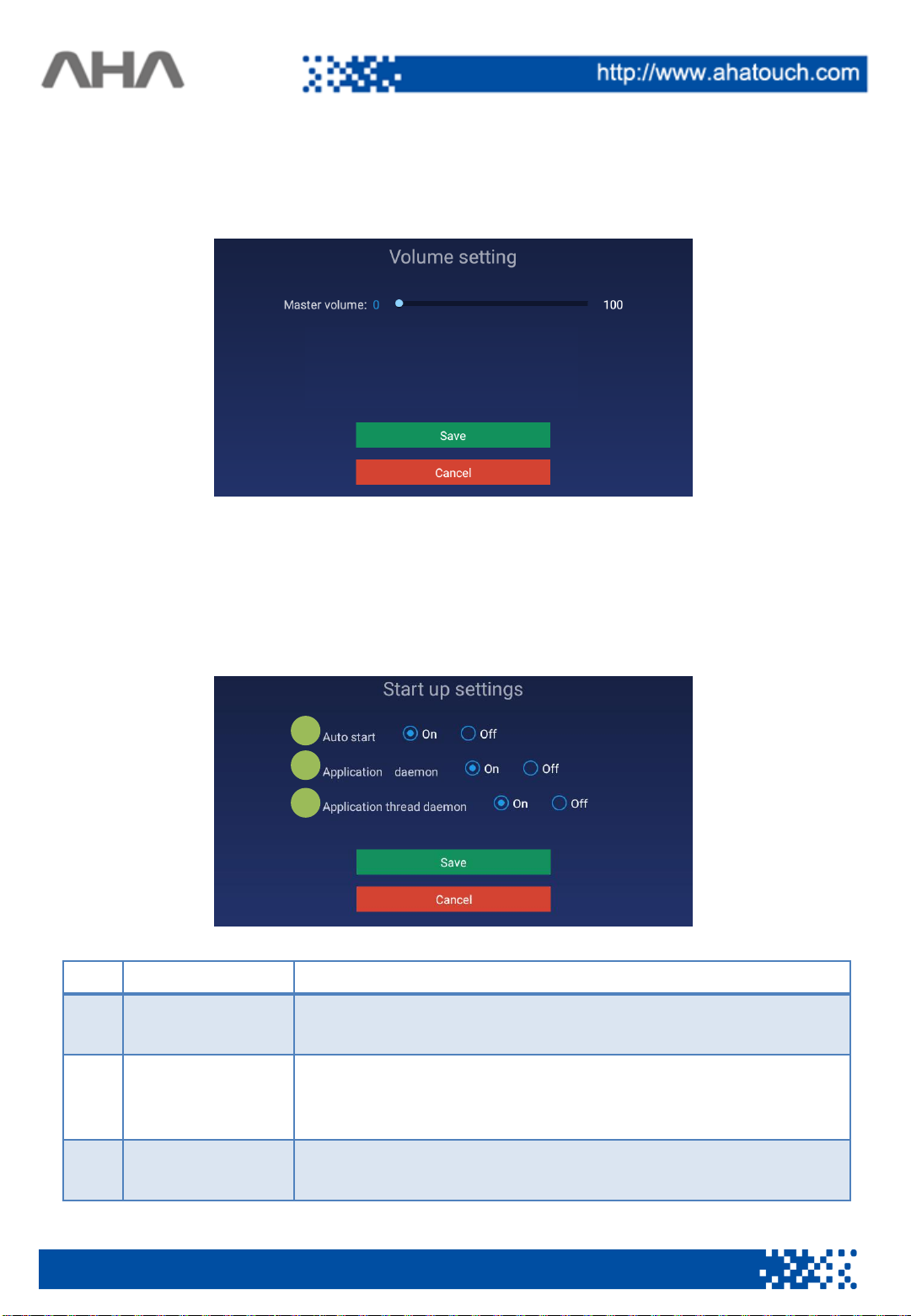
(4) Volume setting
Adjust the volume level for voice guidance and warning sounds.
(5) Startup setting
Change the behavior or program settings when the device is turned on.
No. Name Description
1 Auto start Set whether the app turns on automatically when the
device is turned on.
2Application
daemon
When the setting is on, the app will automatically
appear on the screen after 30 seconds even if the app is
not on the screen.
3Application
thread daemon
If the setting is on, the camera function will restart if an
error occurs while the camera is on.
1
2
3
10
Indice
Altri manuali AHA Controllori di accesso IP


