AJAX ReX 2 Manuale utente

ReX 2 User Manual
Updated November 19, 2021
ReX 2 is a radio signal range extender of a security system with support for alarm
photo verification. ReX 2 expands the radio communication range between the Ajax
devices and the hub up to 2 times. It is designed for indoor installation.
It has a built-in tamper for protection against tampering and is equipped with a
backup battery for 38 hours of battery life.
The range extender is compatible with and . Connection to other hubs, as
well as and integration modules, is not provided.
The device is added to the system and configured via iOS, Android, macOS, and
Windows . Users will know about ReX 2 events through push notifications,
SMS, and calls (if enabled).
Hub 2 Hub 2 Plus
uartBridge ocBridge Plus
apps

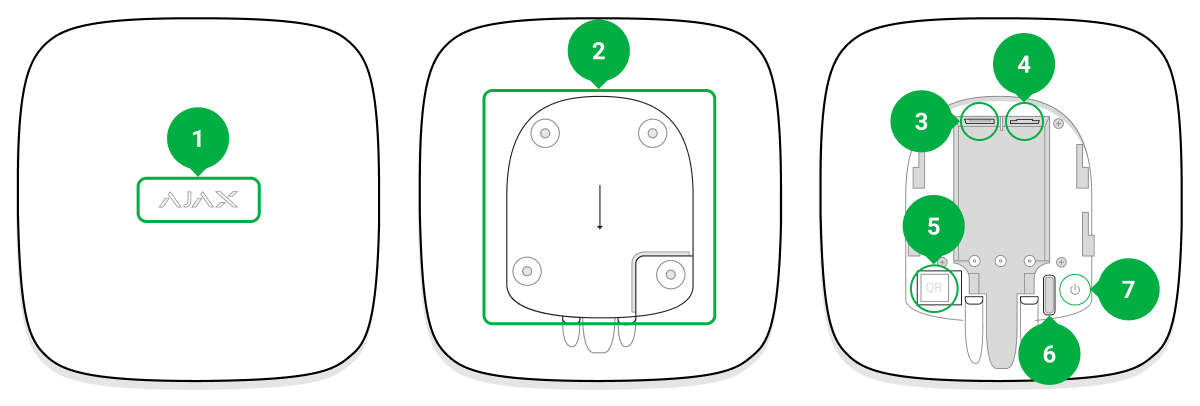
Functional elements
Operating principle
Buy ReX 2 radio signal range extender
1. Logo with an LED indicator.
2. SmartBracket mounting panel. Slide it down with force to open.
The perforated part is necessary for tamper triggering in case of any attempt to detach
the range extender from the surface. Do not break it off.
3. Power cable connector.
4. Ethernet cable socket.
5. QR code with the identifier (service number) of the range extender.
6. Tamper button.
7. Power button.

ReX 2 expands the radio communication range of the security system, allowing the
installation of Ajax devices at a greater distance away from the hub.
ReX 2 receives hub signals, transmits them to the connected devices, and sends
signals from devices to the hub. The hub polls range extender with the frequency of
12 to 300 seconds (depending on the settings, the default value is 36 seconds).
ReX 2 range extender polls all connected devices with the same frequency.
Regardless of the settings, all alarms are delivered in no more than 0.3 seconds.
The communication range between ReX 2 and the device is limited by the radio
signal range of the device. Radio signal range is indicated on the device page
and in the User Manual.
If the device loses communication with a range extender for some reason, it does
not automatically connect to another range extender or hub.
on
the website

Support of photo verification
ReX 2 radio signal range extender supports connection of detectors with photo
verification: and . ReX 2 range extender can
transmit not only events and alarms but also photo confirmations.
The time of delivery of a photo via a range extender depends on the type of
detector and the resolution of the images:
Detector Photo resolution Photo delivery time via range
extender
MotionCam
160 × 120 Up to 9 seconds
320 × 240 (default) Up to 19 seconds
640 × 480 Up to 36 seconds
MotionCam Outdoor
320 × 176 (default) Up to 13 seconds
640 × 352 Up to 30 seconds
* Values were calculated with a signal strength of 3 bars between ReX 2 and the detector or
between the hub and ReX 2. The hub works via Ethernet or 4G.
Number of connected range extenders and devices
Depending on the model, the following number of range extenders can be
connected to the hub:
Hub model ReX 2 quantity
Hub 2 5
Hub 2 Plus 5
It doesn’t matter exactly what type of range extender is used: ReX or ReX 2. They
can be connected to the system in any combination within the hub limitations.
MotionCam MotionCam Outdoor
Features of photo verification in the Ajax security system

ReX 2 connects to the hub only directly. Connection to another range extender is
not provided.
Please note that ReX 2 does not increase the number of devices connected to the
hub. The maximum number of devices connected to ReX 2 depends on the hub
model.
Hub model Number of connected devices
Hub 2 99
Hub 2 Plus 199
Sending events to the monitoring station
Ajax security system can connect to the CMS and transmit alarms and events in
SurGard (Contact ID), SIA (DC-09), and other proprietary protocol formats. A
complete list of supported protocols is .
The ReX 2 loop (zone) number can be found in the device states. In order to obtain
it:
The ReX 2 loop (zone) number is also available in the Groups menu (Ajax app
→
Devices
→
Hub
→
Settings
→
Groups).
In order to find out the loop (zone) number, select the group in which the range
extender is located. The Device Number corresponds to the loop (zone) number.
available here
Which CMSs can the Ajax security system be connected to
1. Sign in to the .Ajax app
2. Select the hub if you have several of them or if you are using a PRO app.
3. Go to the Devices menu.
4. Select ReX 2. The loop (zone) number is displayed at the very bottom of the
page.

Connection
The range extender is compatible with and . Connection to other hubs, as
well as and integration modules, is not provided.
Before connecting, make sure that:
In order to connect ReX 2 to the hub:
Hub 2 Hub 2 Plus
uartBridge ocBridge Plus
1. The is installed.Ajax app
2. An .account is created
3. The required hub has been added to the Ajax app.
4. This hub is enabled and at least one room has been created for it.
5. You have administrator rights for this hub.
6. The hub has internet access via at least one communication channel: Ethernet,
Wi-Fi, or a cellular connection. You can check this in the Ajax app or through
the hub logo on the faceplate. The logo should light up white or green.
7. The hub is disarmed and is not being updated. You can check this through the
status of the hub in the Ajax app.
1. Remove the SmartBracket mounting panel by sliding it down with force. Do not
damage the perforated portion as it is needed to trigger the tamper protecting
the range extender from dismantling.

2. Connect ReX 2 to external power.
3. Sign in to the Ajax app.
4. Select the hub if you have several of them or if you are using a PRO app.
5. Go to the Devices tab and click Add Device.
6. Name the range extender, scan or enter the QR code manually (indicated on the
device body and packaging), and select a room and a group (if the
is activated).
group mode
7. Click Add; the countdown will begin.
8. Turn on ReX 2 by holding the power button for 3 seconds.

To make sure ReX 2 is connected to the hub, the range extender must be located at the
same secured facility as the system (within the range of the hub’s radio network).
After connecting to the hub, the logo will change its colour from red to white within
30 seconds. The connected range extender will appear in the list of hub devices in
the Ajax app. The updating rate of the range extender states depends on the
Jeweller settings; the default value is 36 seconds.
If the connection fails, turn off ReX 2 and try again after 5 seconds. Suppose the
maximum number of devices has been added to the hub (depending on the
) when attempting to add the device. In that case, you will receive a
corresponding notification in the Ajax app.
Please note that ReX 2 only works with one hub. When connected to a new hub, the
range extender stops sending commands to the old one. Once added to a new hub,
ReX 2 is not removed from the list of devices of the old hub. This has to be done in
the Ajax app.
Malfunction badge
hub
model

When the range extender detects a malfunction (for example, there is no external
power supply), the Ajax app displays a badge with counter in the upper left corner
of the device icon.
All faults can be seen in the range extender states. Fields with faults will be
highlighted in red.
Icons

The icons display some of ReX 2 states. You can view them in the Devices tab
in the Ajax app.
Icon Meaning
Jeweller Signal Strength. Displays the signal strength between the hub and range extender.
The recommended value is 2-3 bars.
Battery charge level.
Malfunction detected. A list and description of malfunctions is available in the range
extender states.
ReX 2 is temporarily disabled.
ReX 2 has notifications about triggering of the tamper temporarily disabled.
States
Learn more
Learn more
Altri manuali per ReX 2
2
Indice
Altri manuali AJAX Estensione