
AllCall W1 Manuale utente

AllCall W1

Security Information
Dear customer, Thank you for choosing AllCall products, in order to ensure the best
performance of equipment and to avoid dangerous, please carefully check and follow all
safety information before use:
1. In the gas station, chemical plants and other electronic products prohibited places in
public, please comply with the products relevant provisions, keep off.
2. Radio waves generated by the equipment may affect the normal operation of the
implantable medical device or personal medical equipment. If you use these medical
equipment, consult your manufacturer for conditions of use of this equipment.
3. The radio waves generated by the electronic product may interfere with the safe flight
of the aircraft. Please follow the requirements of the airline to keep the product in a
shutdown state.
4. Use of an unapproved or incompatible power supply, charger, or battery may cause a
fire, explosion, or other hazard.
5. Use only accessories approved by the equipment manufacturer and with this model,
if used other types of accessories , may cause or cause a safety incident.
6. Please use the equipment in the range of 0 ℃-35 ℃, and in the temperature -20 ℃~
+45 ℃within the equipment storage and accessories. When the ambient
temperature is too high or too low, it may cause equipment failure.
7. Do not expose the device to extremely high temperatures or around hot equipment
such as sunshine, heaters, microwave ovens, ovens or water heaters. Excessive
battery may cause an explosion.
8. If the equipment is equipped with a non-removable built-in battery, do not replace the
battery yourself to avoid danger.
9. Before using this product, please use the matching parts full of electricity, after
repeated charge and discharge the battery after the battery shows more accurate.

Product configuration
category
Details
Model
AllCall W1
Size
56.5*Ø47*14 mm
System
Android 5.1
CPU
MTK6580MQuad-Core1.0GHz
RAM
2GB
ROM
16GB
Display
1.39”AMOLED
Touch
Incell (single touch)
Battery
400mAh
Speaker
Yes
MIC
Yes
USB Type
Pogo
Network
GSM: 850/900/1800/1900
WCDMA: 850/2100
4G: Not support
WIFI
802.11 b/g/n
Bluetooth
4.0
Sensor
G-sensor、Heart rate sensor, pedometer, special action trigger sensor
GPS
Yes
Card
Nano SIM Card

Power Key
Shortcut Key

Hardware instructions
Use of SIM card
This product supports NANO SIM card, does not support hot swap, before loading SIM
card, please ensure that the phone is turned off.
You need to manually remove the SIM card back cover on the back of the watch and
insert your SIM card.
WARNING: The SIM card slot position is prohibited from dust and water, so as not to
damage the product.
Power key / lock screen key / return key
Turn off the power button 3s boot.
In the standby mode, press the power button to lock the screen.
In the second menu interface, press the power button to return to the previous menu
function.
In standby mode, long press the power button 2s to adjust the multi-function menu.
When the phone crashes or system carton suddenly, long press the power button 8s can
be forced to restart.
Hot key
In the card state, tap the shortcut key to quickly switch the flight mode.
USB data cable
This product uses a dedicated pogo interface data cable, the data line with magnetic, in
the state of charge, the data line interface is strictly prohibited contact with other metal
products, so as to avoid short circuit risk.

System software instructions
Boot instructions
The first boot, the system background need to configure the appropriate parameter
information, boot time slightly longer.
Set the language to the appropriate language according to your country and region
Set your height, weight, daily exercise and other information.
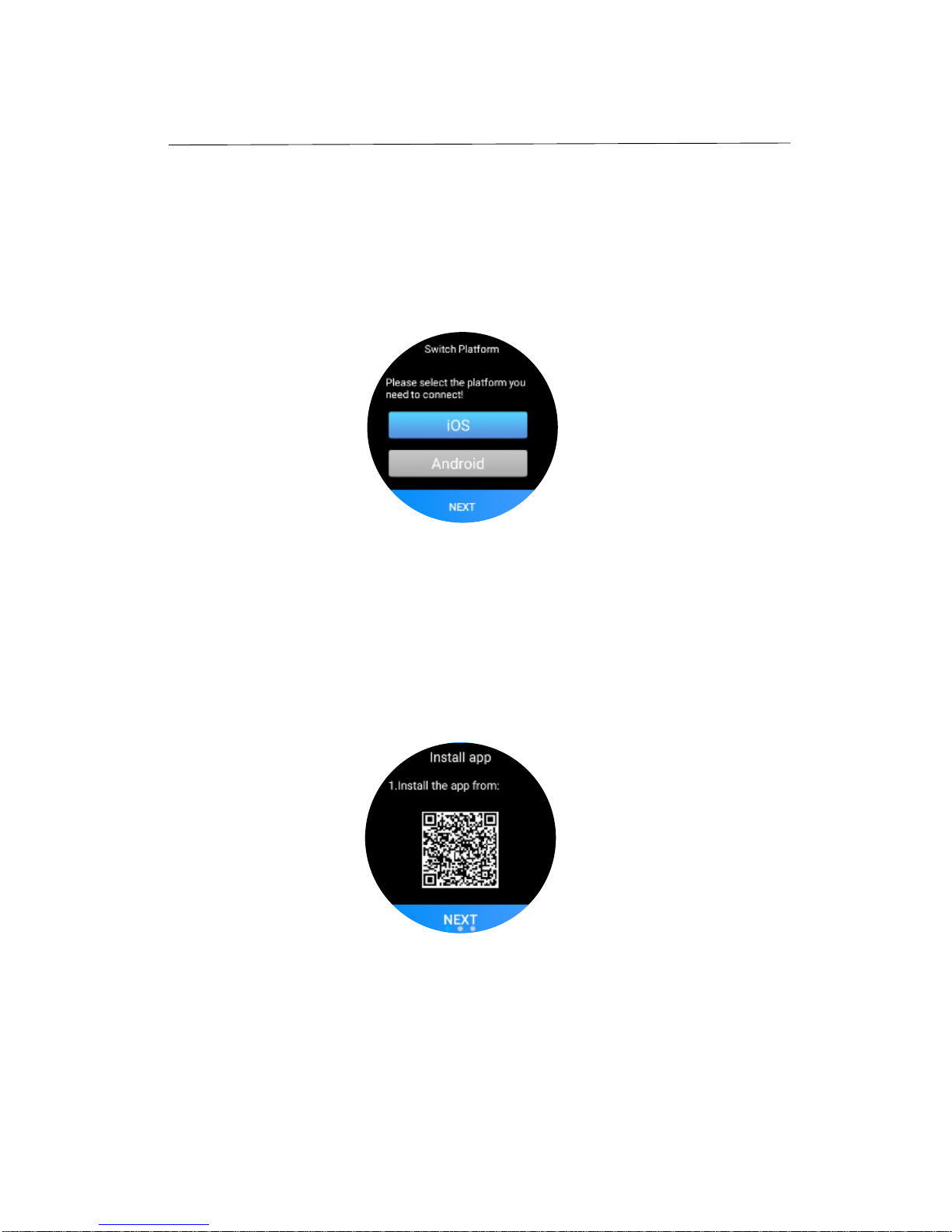
Depending on your smartphone system, select the system that needs to be connected
(IOS / Android).
Mobile phone scan two-dimensional code download Wiiwatch synchronization software.
The basic operation of the menu
The dial area is small, and during the operation, the sliding distance is more than half the
screen diameter Dial interface from right to left sliding into the main menu, you can select
the function.

System software instructions
Dial interface from left to right slide into the synchronization information interface, you
can read from the phone synchronization information, or the machine's prompt
information.
Dial interface from the “top slide” “ down slide “ to enter the local state shortcut menu.

System software instructions
The dial interface from the bottom up slide into the weather display interface, connect the
network to complete the update, click will show the day's weather information.
Any second menu interface from left to right slide, can achieve the return function.

System software instructions
Dial set
In the dial interface, press the screen, enter the switch to the other dial function,
according to their own needs to drag the left and right to change the dial display.
Dial to the right, click + to enter the server to get more dial.
Connect the Smartphone
Select IOS / Android phone system
In the first boot or in the system menu interface, select the phone system you need to
connect Then click Next.
Into the two-dimensional code interface, a mobile phone with two-dimensional code
scanning function of scanning the two-dimensional code on the watch (IOS users can
search the app storeWiiwatch download)to download andinstallWiiwatch synchronization
software.


