
Altronics X0705 Manuale utente

Digital Voice Recorder
Quick Start Guide
Model: X0705
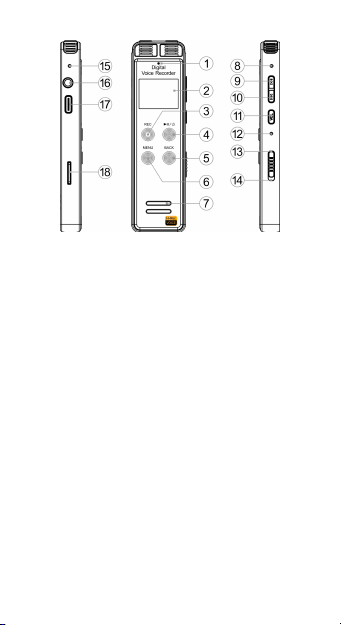
!2
!
1.REC LIGHT
3.REC BUTTON
5.BACK/REC
SAVED
7.SPEAKER
9. PREVIOUS
11. VOL
13. POWER ON
15. L-MIC
17. USB PORT
2.DISPLAY
4.ENTRY/PLAY/
PAUSE
6. MENU
8. R-MIC
10. NEXT
12. RESET
14.POWER OFF
16.EARPHONE JACK
18. EXTERNAL
EXPANSION CARD
SLOT

!3
Functional operation:
Descripti
on
Opera
tion
Functions
POWER
ON/OFF
Push
up
Power on and start up
Push
down
Direct power off and
shutdown
REC
BUTTO
N
Short
press
Short press REC after
starting up and quickly
enter the recording.
Short
press
Short press BACK to
stop recording and save
the file.

!4
PLAY/
PAUSE
Short
press
When playing or
recording, short press
the PAUSE to pause
playing or recording;
press PAUSE again to
resume playing or
recording.
MENU/
OK
Short
press
1. When the file is
playing, short press
MENU to enter the
secondary submenu
selection interface;
2. Short press PLAY to
confirm the entry/play/
pause.
PREVIO
US
Short
press
Go PREVIOUS; Short
press VOL when playing
and then press
PREVIOUS to increase
volume.
Long
press
When playing, long
press this Button for fast
rewinding.

!5
Note:
•Short press means to press once and
release; Long press means to press and
hold the Button for 2~3s before release.
•Do not directly turn off the power switch
while recording, because this may cause
failure to save the current recording; Do
not turn off the power switch directly when
setting up various tasks, because this may
cause failure to save the settings (Note:
the correct action is to press the OK
NEXT
Short
press
Go next; Short press
VOL when playing and
then press NEXT to
decrease volume.
Long
press
When playing, long
press this Button for fast
forwarding.

!6
Button for correct confirmation, and then
turn off the power normally)
•In the power-on but no-operation state, it
will automatically shut down for 3 minutes
by default for power saving; Long press
!to wake up the device.
• Multiply press !to go back to the
main menu.
• Music and recording files are supported
to play in the background. To pause or
turn off the sound, you may have to enter
the corresponding file playing interface,
and then press !Button.

!7
1.Music
Under the menu "Music", there is "All
Songs/Singers/Albums/Styles/Catalogue
List/Playlist/Update Playlist". Press the
PREVIOUS or NEXT for selection.
When music or recording files are in
the play/pause state, short press the
MENU to access the submenu, where you
could choose to delete files or play
settings.
File deletion:
In the play/pause or stop state, short
press MENU and select "Delete" or
"Delete All" from the submenu options. As
soon as the interface pops up "Yes/No",
you can press PREVIOUS/NEXT to move
and select, and press !Button for
confirmation. "Delete All" means to delete
all music files and recording files; Do not
forcibly turn off the power when deleting
files, otherwise the files will be damaged.

!8
Play settings:
In the play/pause or stop state, short
press the MENU, and there will be five
functions, "play mode/repeat setting/voice
setting/bookmark/add to playlist".
• Play mode: Repeat play and random
play.
•Repeat setting:
Long press and hold the MENU in the
playing state, and then the starting point A
will be displayed at the bottom left of the
screen (A does not flash, but B flashes on
LCD display). Long press and hold the
MENU again, and then set the end point B
(A–B will be displayed on LCD display),
thereby realizing the function of repeating
between A–B points. Short press and hold
PAUSE or long press and hold the MENU
to exit the A–B repeat mode.
•Repeat times: Set the repeat times
(1~10) (unit: times)

!9
•Repeat interval: Set the repeat interval
time (1~10) (unit: seconds)
•Sound setting: An equalizer may be
chosen: none, rock, funk, hip hop, jazz,
classical, electronic, custom, etc.
•Variable speed play:
0 is normal play mode, negative number is
slow play, positive number is fast play (the
larger the relative value is, the more
obvious it is).
• Volume adjust
In the state of playing music or recording
files, short press the VOL to arise the
volume value in the upper right corner of
the screen. At this time, press the NEXT to
decrease the volume and press the
PREVIOUS to increase the volume; The
volume value displayed on the screen will
also be increased and decreased
accordingly; After adjustment, short press
the VOL again to see the value turns

!10
white, indicating the exiting form volume
adjust mode.
2.Record
There is "Record Library/Record Settings"
under the "Record" interface of the main
menu. Press the NEXT/PREVIOUS to
select the record settings, and short press
OK to enter the record settings menu,
where you could select:
• Recording format
MP3 formats: 32kbps, 64kbps, 128kbps
and 192kbps;
WAV formats: 512kbps, 768kb p s ,
1024kbps and 1536kbps.
• Recording gain
Seven-level gain setting (test the
recording gain setting based on the
recording environment before recording.
The higher the level of recording gain is
set, the more significant the result of
remote recording will be)
• Record monitoring
Select "monitoring on" or "monitoring off";
Indice


