
Andatech BodyCam Manuale utente

USER MANUAL
HD body camera for law enforcement
BODYCAM
Andatech®

2
INTRODUCTION
Thank you for purchasing an Andatech® BodyCam.
The Andatech® BodyCam is a state-of-the-art body camera,
with functions for HD video recording, photography and
audio recording, designed to help law enforcement personnel
maintain a safe and secure chain of evidence. An integrated
LCD screen and speaker allow recordings to be instantly
reviewed.
Equipped with a 140˚ wide angle lens, 5 hours nonstop
recording, and even night recording, the Andatech® BodyCam
is ideal for law enforcement use, security ofcers, and any
personnel that require a secure and tamper-proof evidence
collecting solution.
PREPARATION
Charge the batteries for at least 3.5 hours before rst use.
CONTENTS
MAIN FEATURES
SPECIFICATIONS
DEVICE FUNCTIONS
FUNCTIONS OVERVIEW
OPERATING INSTRUCTIONS
SETTINGS
SOFTWARE INSTALLATION
TROUBLESHOOTING
WARRANTY DETAILS
WARRANTY REGISTRATION
.................................................3
................................................3
...........................................4
.....................................5
............................6
.............................................................8
..............................9
........................................11
........................................12
.............................14

3
MAIN FEATURES
• One touch recording
• Full HD 1080p video
• 140° eld of view
• Built-in LCD screen and speakers
• Night vision up to 10 meters with face detection
• Tamper-proof recordings
• Time- and date-stamped videos and photographs
• Automatically saved and sorted les
• Compatible with external cameras
• Pre-record and post-record function
• Instant playback
• LED light and audible alerts
• 24 hour standby
• Up to 5 hours continuous recording (with full battery
and no IR)
SPECIFICATIONS
• Frame rate: 30 Frame/s
• Bit rate: 2.5Mbit/s
• Video resolution: 1920x1080 / 1440x1080 / 1280x720 /
848x480 / 848x480PH
• Lens angle: 140°
• Illumination intensity: 24-hours (with IR)
• Battery capacity: 1950mAh x 2
• Storage capacity: 16GB & 32GB
• Size: 85 x 62x 31mm
• Weight: 163g
• Working temperature: 15~40°C
• Working relative humidity: 40%~80%
• Storage temperature: -20~50°C
• Storage relative humidity: 93%(40°C)

4
DEVICE FUNCTIONS

5
FUNCTIONS OVERVIEW
Talkback Port: Connect to a walkie talkie using a
compatible cable.
Video Recording: Turn on the unit and press the
Video Recording button to start recording. Press the
button again to stop recording. The video will be saved
automatically.
Take Picture: Turn on the unit and press the Picture
button to take a photo. Press the button again to stop
taking a photo. While video recording, press this button
to capture a photograph.
Audio Recording: Turn on the unit and press the Audio
button to record audio only. Press the button again to
stop recording.
IR/Laser: Turn on unit and press and hold the IR / Laser
button to activate night vision mode to take a picture in
the dark. Press the button to start the IR laser to x the
position of the picture.
Multi function interface: For connecting to walkie
talkies, external cameras, microphones, 3G etc.
HDMI / USB Ports: For connecting to a computer,
charger, high denition display, etc.
Playback: On standby mode, press the Playback button
to display the last video, picture or audio recorded. Press
the Return key to view and select others.
If unit is already switched on, press the Return button
to choose a video, audio, or picture le. Press the Up
and Down buttons to choose the ones you would like to
display or view.
Lock screen: Press the Power key to lock the screen.
Press again to unlock.
Lighting: Press and hold the Picture button for 2 to 3
seconds. The auxiliary light will brighten up. Press again
to turn off the light.

6
OPERATING INSTRUCTIONS
SWITCHING THE UNIT ON AND OFF
To turn the unit on: Press and hold the Power button for 2
seconds. The unit will enter Standby mode.
To turn the unit off: Press and hold the Power button again for
2 seconds.
RECORDING VIDEO
To record a video: Turn the unit on and then press the Video
button. The unit will vibrate twice, and the red Operating Light
on top of the unit will light up to indicate that it is recording.
To stop recording a video: Press the Video button again. The
unit will vibrate twice again and sound an alert. The recorded
video will be saved automatically.
To record a video while unit is switched off: Press and hold
the Video button for 2 seconds. The unit will turn on and enter
video recording mode. To end the recording, press and hold the
Power button for 2 seconds.
To record a video at night: Press the IR / Laser button. The IR
light will light up and the unit will enter night vision mode. The
colour of the recorded video will be in black and white.
RECORDING AUDIO
To record audio: Turn the unit on and press the Audio button
to start recording audio. The unit will vibrate and sound an
alert. The Operating Light will light up in yellow to indicate that
it is recording audio, and the LCD screen will display "Audio
Recording". Press the Audio button again to stop the audio
recording.
TAKING A PICTURE
To take a picture: Press the Picture button.
While recording a video: Press the Picture button to take a
photo while recording a video.
To take a picture at night: Press and hold the Auxiliary button
for 3 seconds to turn on the auxiliary light. Alternatively, use
Infrared Photography mode (see below).
INFRARED PHOTOGRAPHY MODE (NIGHT MODE?)
Turn the unit on and press the IR / Laser button. The Laser light
will light up.
Press and hold the IR light button for 3 seconds. The IR light

7
will light up and the unit will enter Infrared Photography mode.
(Then, press the Video button to record a video, or the Picture
button to take a picture in Night Mode). Pictures taken in this
mode will be in black and white.
TALKBACK FUNCTION
Connect to a walkie talkie using a compatible cable to enable
this function.
INSTANT PLAYBACK
After recording a video, audio or picture le, press the Playback
Button to review the last recorded le. After reviewing, press
the Menu button to exit.
PLAYBACK
Turn the unit on and press the Return button. Use the Up and
Down buttons to select Photo, Video, or Audio, then press the
Menu button to conrm your selection. The screen will display a
list of the relevant les. Use the Up and Down buttons to scroll
through the les, then press the Menu button to select a le.
Press the Menu button again to replay a video or audio le.
Image playback
Vide o playback
Audio playback
Photo Video Audio
Photo Video Audio
Photo Video Audio

8
SETTINGS
1. Turn on the unit and press the Menu button to enter the
Settings interface.
2. Press the Up and Down buttons to select a setting to
view or amend, then press the Menu button to conrm
your selection.
3. To change the selected setting, press the Up and Down
buttons to choose a parameter, then press Conrm to
save the change.
4. Repeat from Step 2 to change other settings.
5. Press the Return button to end.
Setting options available:
• Resolution
• Bit rate
• Photo size
• Burst mode
• Screen brightness
• Volume
• Night grade
• Video section
• Infrared switch
• Motion detection
• Pre-recording
• Post-recording
• Auto screen off
• Auto power off
• Loop recording - Select "ON" if internal storage is full.
The rst section of video recordings will be cut to save
on storage space.
• Auto power off
• Reset system
• Language
Resolution
Bitrate
Photo size
Burst mode
Screen brightness
Volume
Set up
1920X1080
Low
5M
Off
High
High

9
1. On your computer, go to Control Panel and then System
Information to nd out whether it is running a 32-bit or a
64-bit version of Windows.
2. Insert the included software CD into your computer's
CD-ROM drive and based on your system type from
Step 1, select either the 32-bit or the 64-bit version of
the le to install.
3. Follow the steps in the Installation Wizard and when
completed, click "Finish".
4. Connect the device to the computer using a USB cable,
and open the installed software on your computer.
5. When prompted, enter the default password 000000
then click "Linking" and then "Login".
SOFTWARE INSTALLATION
10
Note: Follow the next steps in the stated order, as you will be
unable to return to a previous step. To return to a previous step,
you will need to disconnect the device from the computer, and
restart from Step 4.
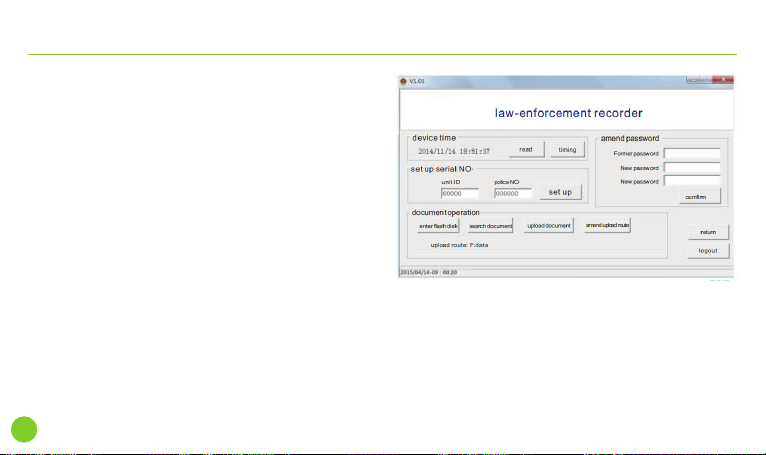
6. Click "Read" and click "Timing" to sync the time and
date on the device with the computer's.
7. Enter the device's ID number, Policeman number, and
click "Set Up".
8. Click "Flash Disk".
9. Click "Search Document"
10. Click "Upload Document"
11. To change Device number and Policeman number, enter
the new number, then click "Set Up".
Indice


