Andersson HDD 2.1 Manuale utente

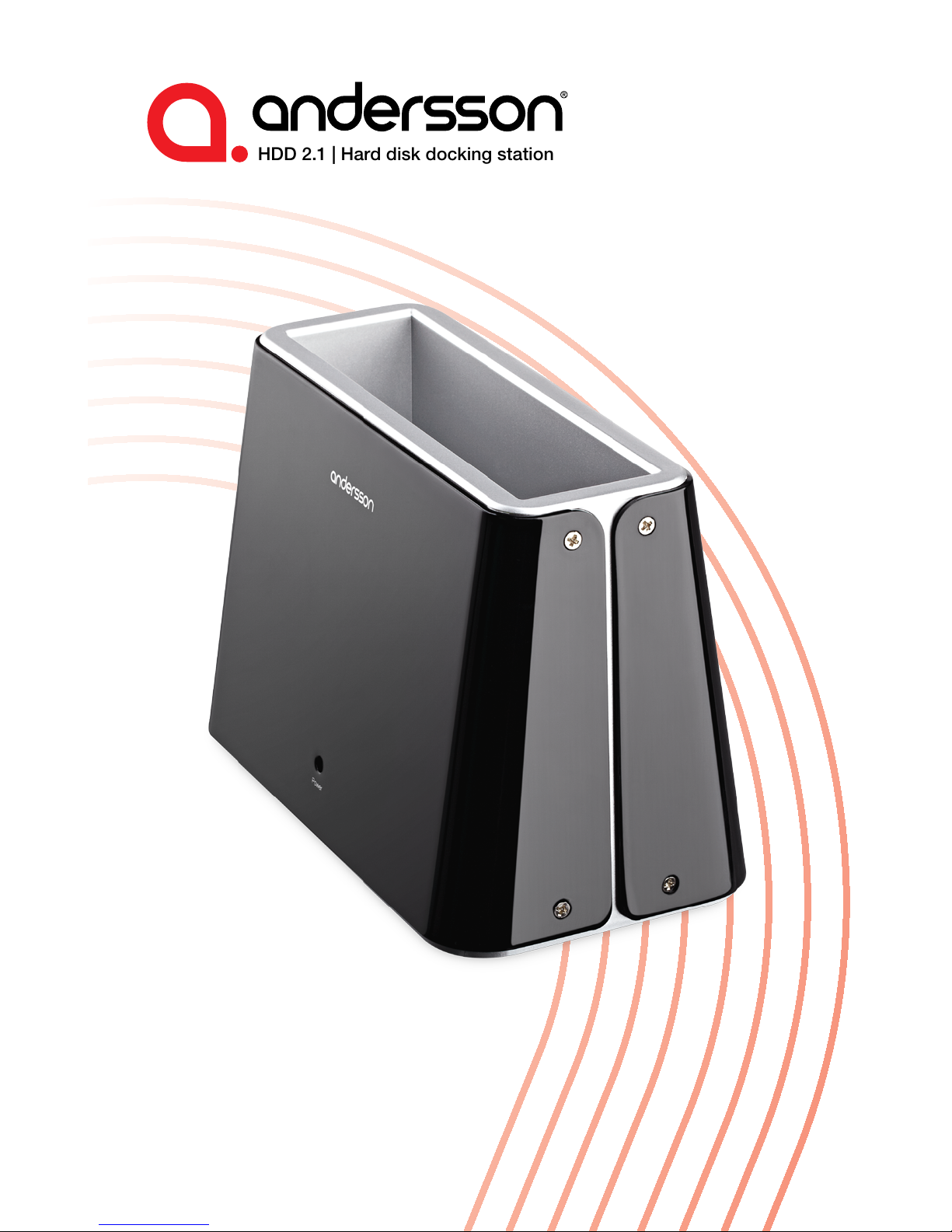
HDD 2.1 | Hard disk docking station
User manual
English | Svenska | Norsk

Copyright
This manual is the copyright of CI no 556520-4137. No part of this manual may
be revised, copied or transmitted in any way without written permission from CI
no 556520-4137.
Statement
This manual does not provide any warranty or related declarations. All information
in this manual including the product specification, pictures and literatures is just
for reference, CI no 556520-4137 reserves the rights to update contents of this
manual without further notice.
Copyright
Org.nr 556520-4137 äger upphovsrätten till den här handboken. Inga delar av
handboken får ändras, kopieras eller överföras utan skriftligt tillstånd från org.
nr 556520-4137.
Meddelande
Den här handboken innehåller inga garantier eller andra typer av utfästelser. All
information i handboken, inklusive tekniska data, bilder och texter, är endast ex-
empel och används i referenssyfte. Org.nr 556520-4137 förbehåller sig rätten att
upp-datera innehållet i handboken utan föregående meddelande.
Opphavsrett
Org.nr 556520-4137 har opphavsretten til denne håndboken. Ingen deler av denne
håndboken skal revideres, kopieres eller overføres på noen måte uten skriftlig sam-
tykke fra org.nr 556520-4137.
Erklæring
Denne håndboken gir ingen garanti eller tilhørende forsikringer. All informasjon
i denne håndboken, inklusiv produktspesifikasjon, bilder og tekst, er bare ment
som referanse. Org.nr 556520-4137 forbeholder seg retten til å oppdatere innhol-
det i denne håndboken uten forvarsel.

English
Introduction 4
System Requirements 4
Installation 4
Driver Installation 5
Preparing the Hard Drives for Use 6-10
Svenska
Inledning 11
Systemkrav 11
Installation 11
Installera drivrutiner 12
Förbered hårddiskar för användning 13-17
Norsk
Innledning 18
Systemkrav 18
Installasjon 18
Driverinstallasjon 19
Förbered hårddiskar för användning 20-24
Content / Innehållsförteckning / Register

English
4
Introduction
This unit allows you to install and access SATA drives quickly, and
without the need for an enclosure. Simply plug the hard drive into the
upright dock and connect it to a PC or notebook. The HDD 2.1 is a
perfect solution for data recovery, drive imaging, and testing centers,
or any environment requiring fast access to uninstalled/archived
drives.
Package Contents
1 x HDD 2.1
1 x Quick Installation Guide
1 x Power adapter
1 x USB Cable
System Requirements
PC Systems
´Intel Pentium-III 500MHz equivalent or faster
´CD-ROM Drive / 256MB (Minimum) / 500MB of free disk space
´SVGA (800x600) or higher resolution with at least 256 colors
´
This product works with Windows 2000,Windows XP, Windows
Vista, Windows 7, 8
Macintosh Systems
´PowerMac G5, MacBook Pro or Mac Pro
´MacOS X,10.4.8 (or later) / CD-ROM Drive

English
5
Installation
1.
Connect the attached power adapter to the HDD
2.1.
2.
Connect the USB-cable to the HDD 2.1 and
connect the other end to your computer.
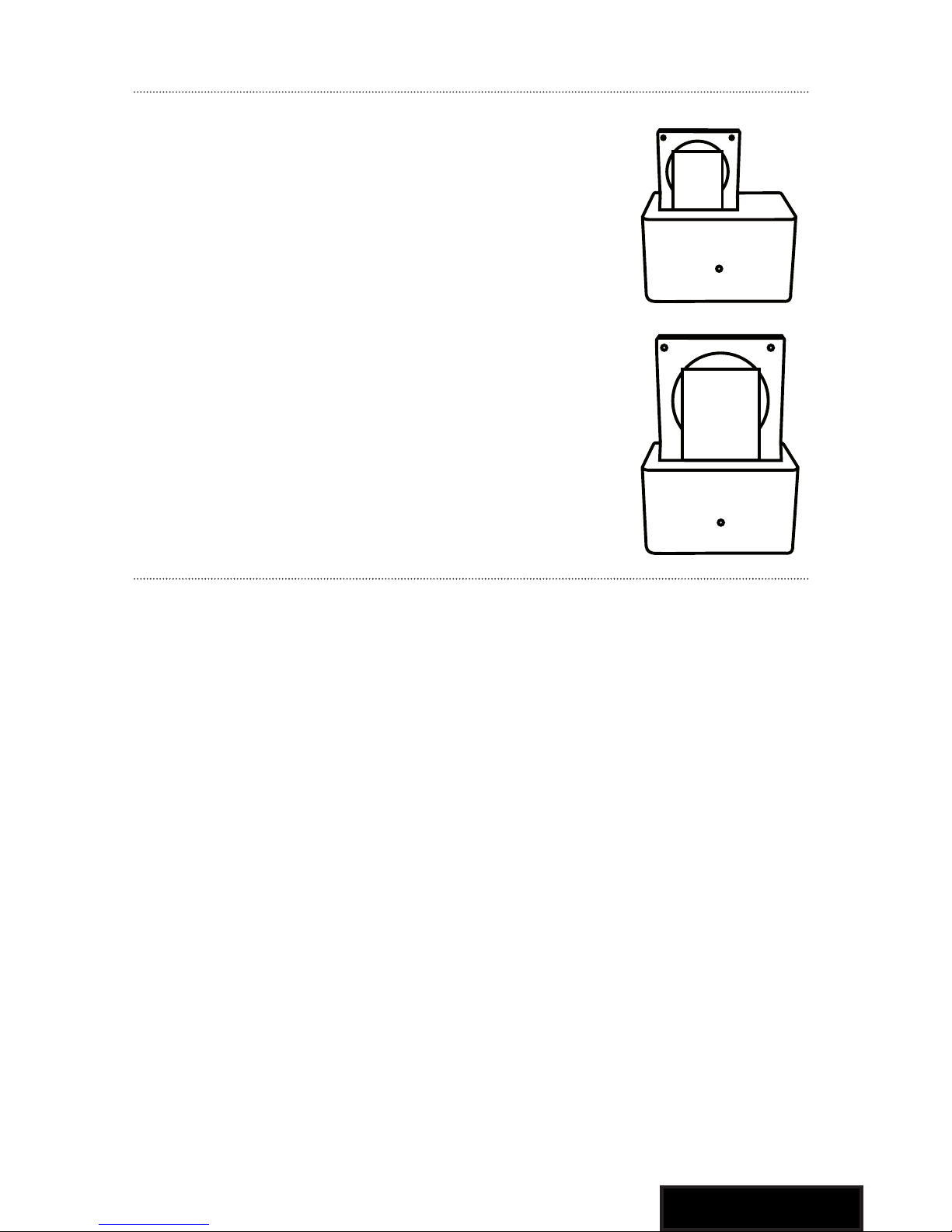
Insert 2.5” or 3.5” SATA Hard Drive into the slot Plug
in the HDD upright.
Removal
Warning: Please power down the HDD 2.1 by
pressing the power button to ensure safe removal
of the hard drive(s). Do not remove the hard drive(s)
when the disc is reading or writing
Driver Installation
Windows 2000/XP/VISTA/7/8
No drivers are necessary when using Windows 2000/XP/VISTA/7/8. If
the hard drive does not appear under My Computer, be sure to enter disc
management in your control panel to partition your hard drive.
Mac OS 9.0 or later
No drivers are necessary when using Mac OS 9.0 above. If the hard drive
does not appear on the desktop, be sure to partition your hard drive.
Mac OS 8.6
´Unplug the HDD 2.1 if you currently have it connected.
´USB Mass Storage Support 1.3.5 must be installed on your system.
If it is not, you can download the USB Mass Storage Support 1.3.5
from the Apple Software Updates website: http//www.apple.com/
support.
´Follow the direction associated with the USB Mass Storage Support
driver to install.
´Repeat the steps listed under “Connecting to your computer”.

English
6
Preparing the Hard Drives for Use
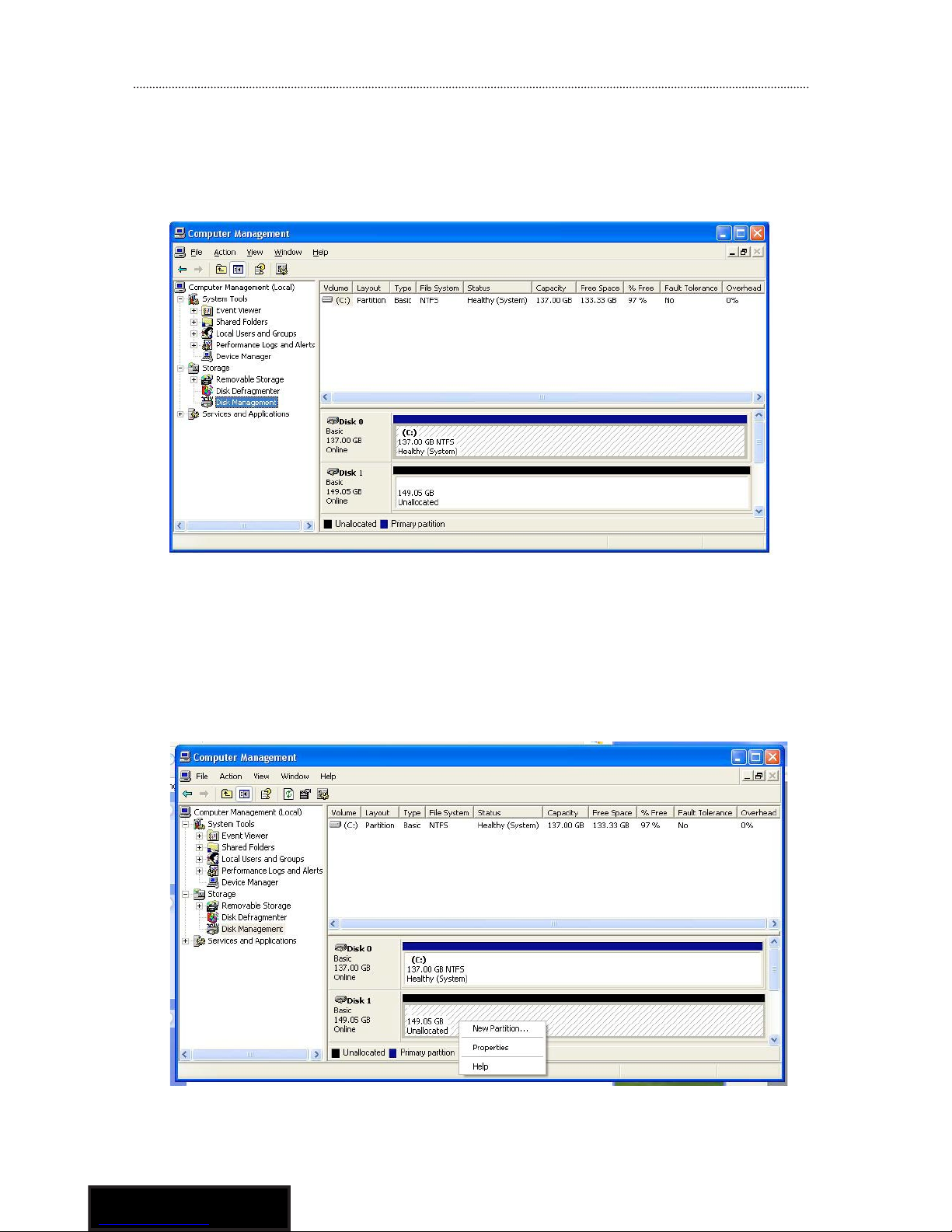
1. Right click on the My Computer icon and select Manage. In
the left pane of the Computer Management window, click Disk
Management.
2. In the bottom right pane of the Computer Management window,
you should see your drives listed as unallocated. Click on the
unallocated drive and select New Partition. The New Partition
Wizard will launch.

English
7
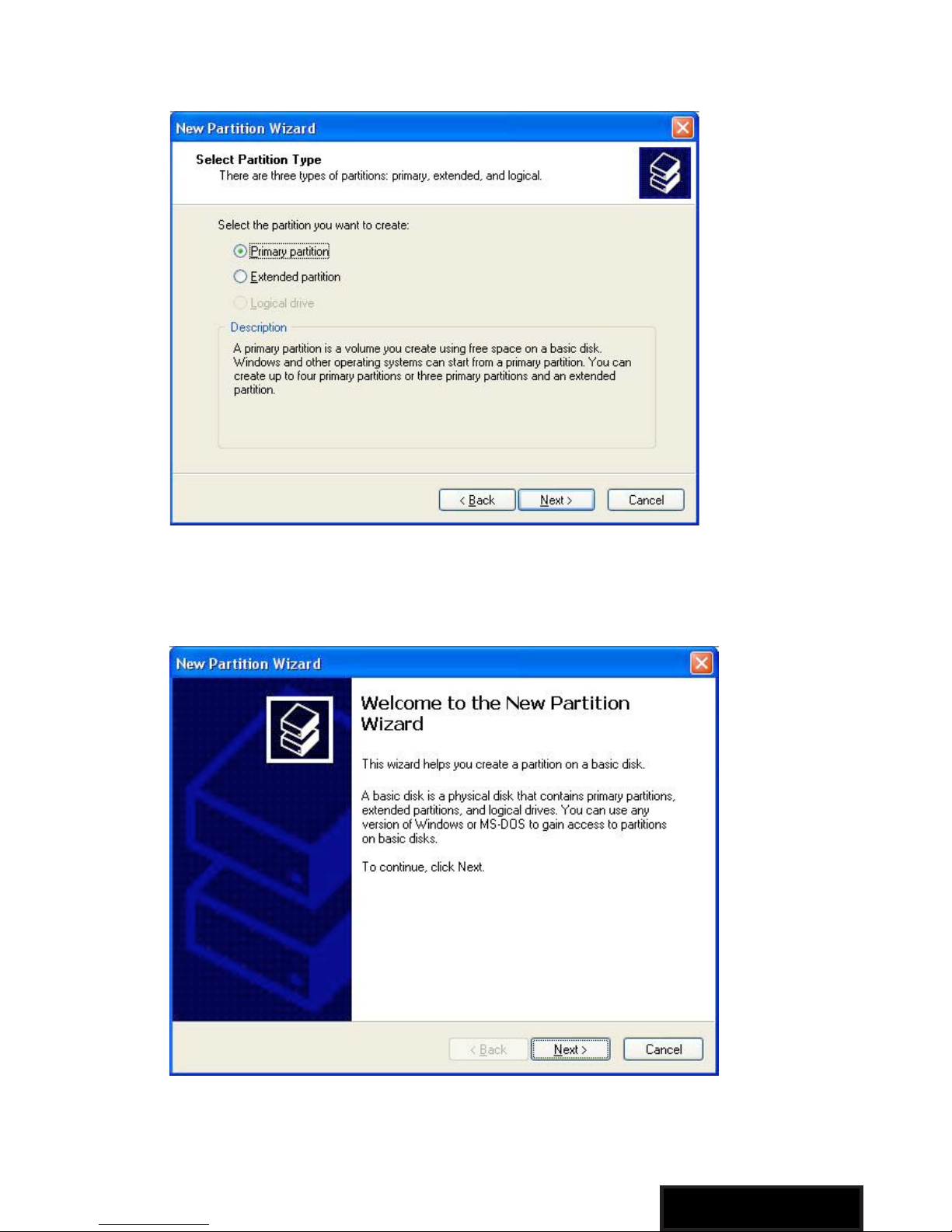
3. When the New Partition Wizard appears, click Next to continue.
4. Select the partition type you wish to create by clicking on Primary
or Extended, as appropriate. When you have made your selec-
tion, click Next to continue.

English
8
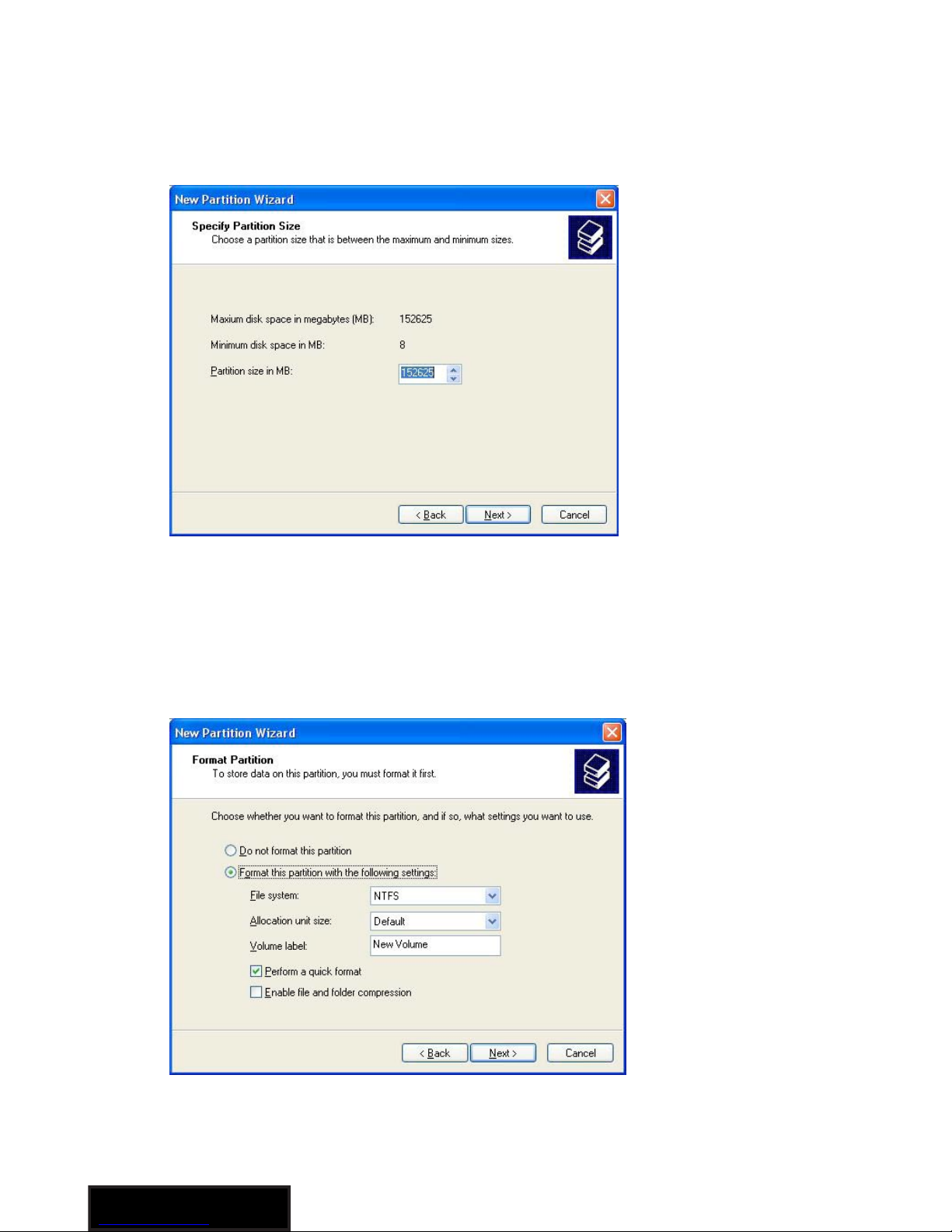
5. Specify the size of the partition you wish to create. You must
select a partition size that is between the maximum and minimum
sizes (typically the maximum disk space available). Once you
have done so, click Next to continue.
6. Select Format this partition with the following settings. Using the
drop down buttons, select the file system, allocation unit size, and
volume label you wish to use. Select Perform a Quick Format and
click Next to continue.

English
9
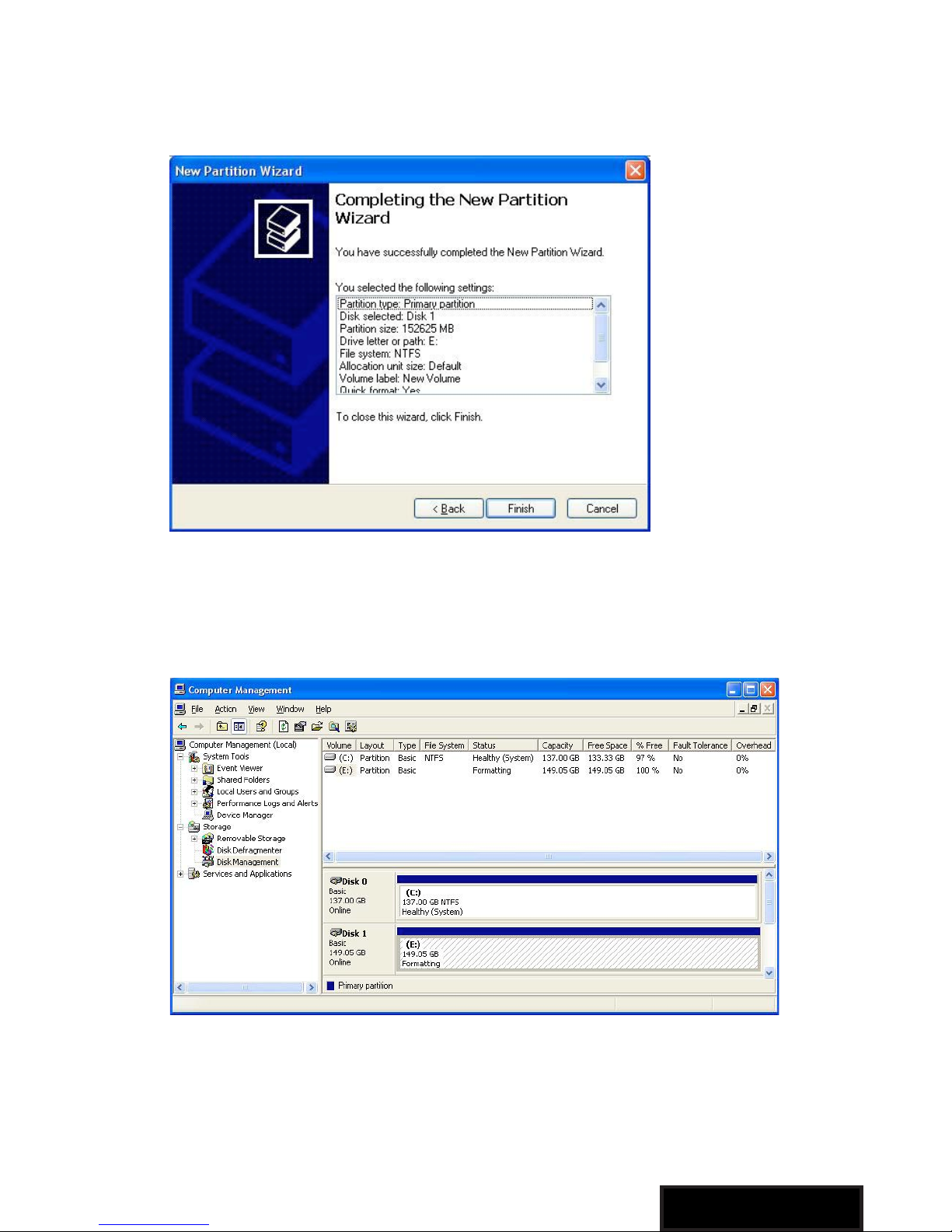
7. A notification window will appear indicating that you have
successfully completed the New Partition Wizard. Click Finish to
commence the formatting of the drive.
8. The status of the drive, as shown in the Computer Management
window, will be updated to reflect the selections you have made.
Please wait while the drive is being formatted.

English
10
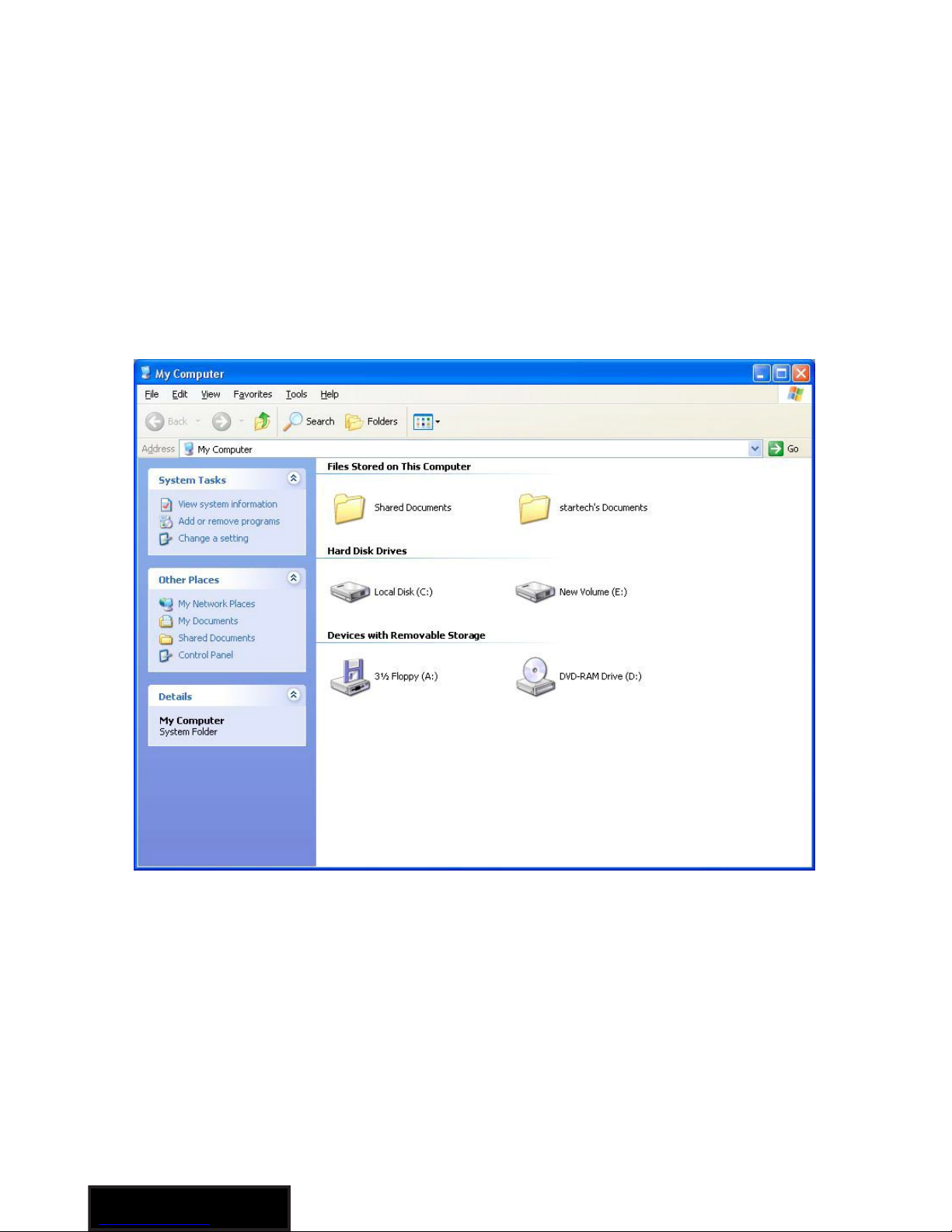
9. Once the drive has been successfully partitioned and formatted,
it will display as Healthy.
10. To access your newly partitioned drive(s), open My Computer.
Your drive(s) should be displayed below the heading Hard Disk
Drives.
Indice
Lingue:
Altri manuali Andersson Stazione di attracco