
Antelope ZEO Manuale utente
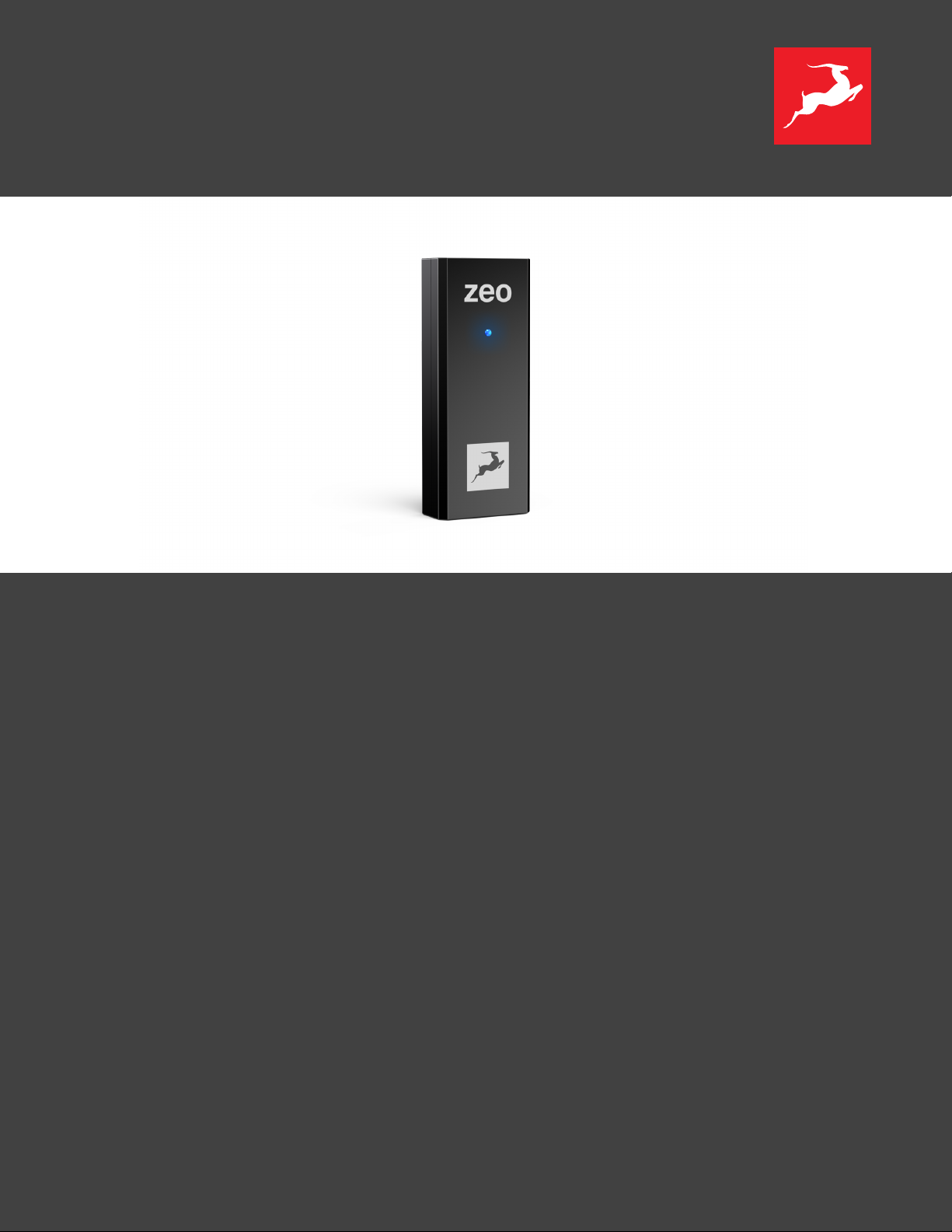
ZEO
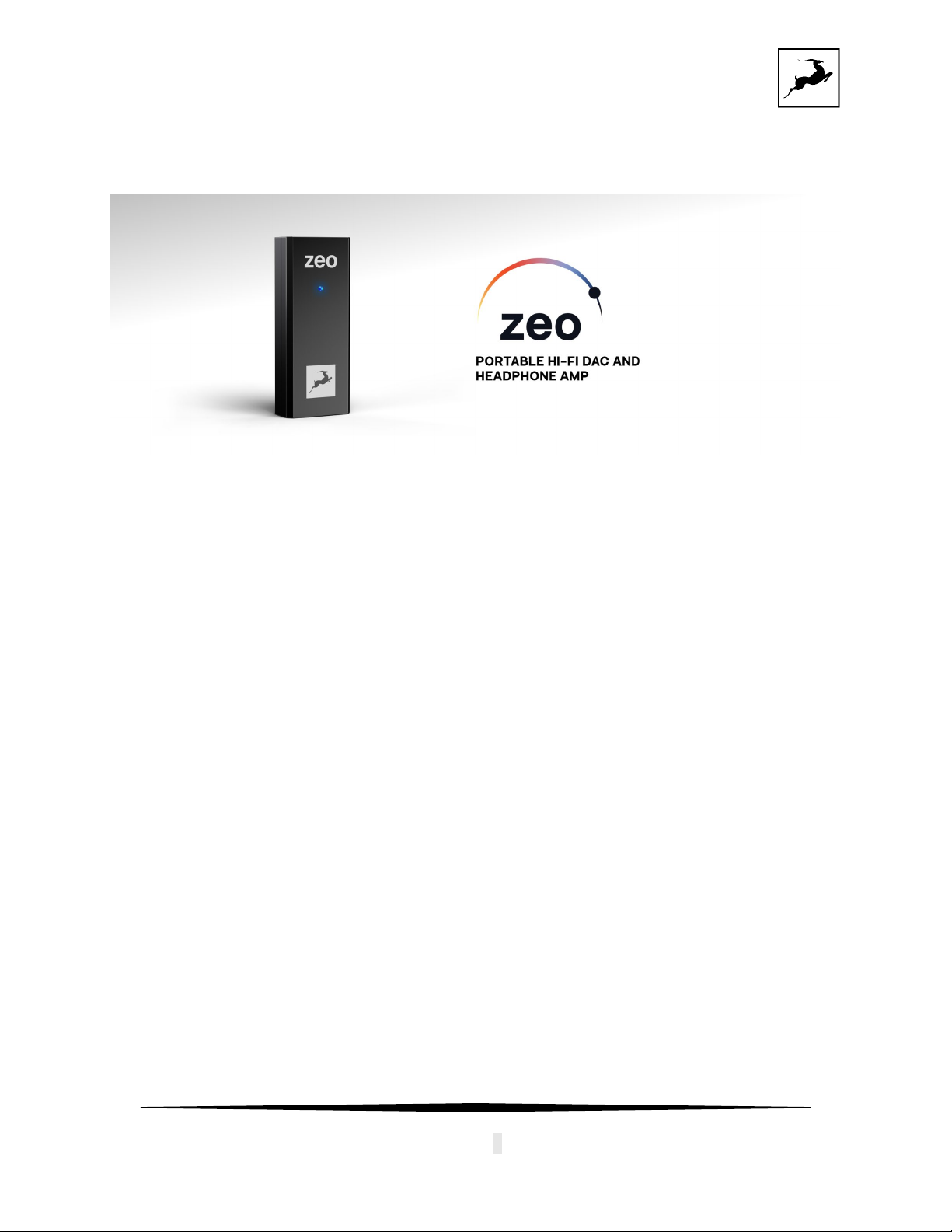
Portable Hi-Fi DAC & Headphone amp
User’s manual
Version 1.0 - 28.02.2023

CONTENTS
BEFORE YOU BEGIN ................................................................................................................................. 2
PRODUCT ACTIVATION ........................................................................................................................... 3
SYSTEM REQUIREMENTS........................................................................................................................ 6
CONNECTIVITY AND LED LIGHTS EXPLAINED................................................................................... 7
USING ZEO ON DIFFERENT SYSTEMS................................................................................................. 8
Windows PC............................................................................................................................................... 8
macOS........................................................................................................................................................ 9
WHAT’S IN THE BOX............................................................................................................................... 10
CUSTOMER SUPPORT INFORMATION................................................................................................ 11
MY ANTELOPE AUDIO PRODUCT ISN’T WORKING.......................................................................... 12
LIMITED WARRANTY POLICY................................................................................................................ 14
SAFETY NOTES ....................................................................................................................................... 20
TECHNICAL SPECIFICATIONS.............................................................................................................. 21
Antelope Audio ZEO User Manual
Page 2
BEFORE YOU BEGIN
Congratulations on your purchase! We would like to turn your attention to the following:
ZEO is a portable bus-powered DAC and headphone amplifier with pristine sound quality
achieved thanks to Antelope Audio’s proprietary technologies developed within the last 15
years.
ZEO is a Plug & Play device, it does not require any mandatory software installation, although
there is an available Antelope Launcher application which allows Firmware updates.
No drivers are required for playing audio on macOS or Windows operating systems. ZEO can
be used on mobile devices such as Android phones and tables as well as iOS products like
iPhone and iPad.
Should you ever find yourself struggling, do not hesitate to contact our Customer Support
team over phone, live chat and our ticket system.
We hope you will enjoy sound like never before with ZEO.
Best wishes,
Team Antelope

Antelope Audio ZEO User Manual
Page 3
PRODUCT ACTIVATION
Please note that the device activation procedure is not mandatory, but it is recommended.
It requires an active Internet connection on your computer.
This chapter contains the necessary instructions:
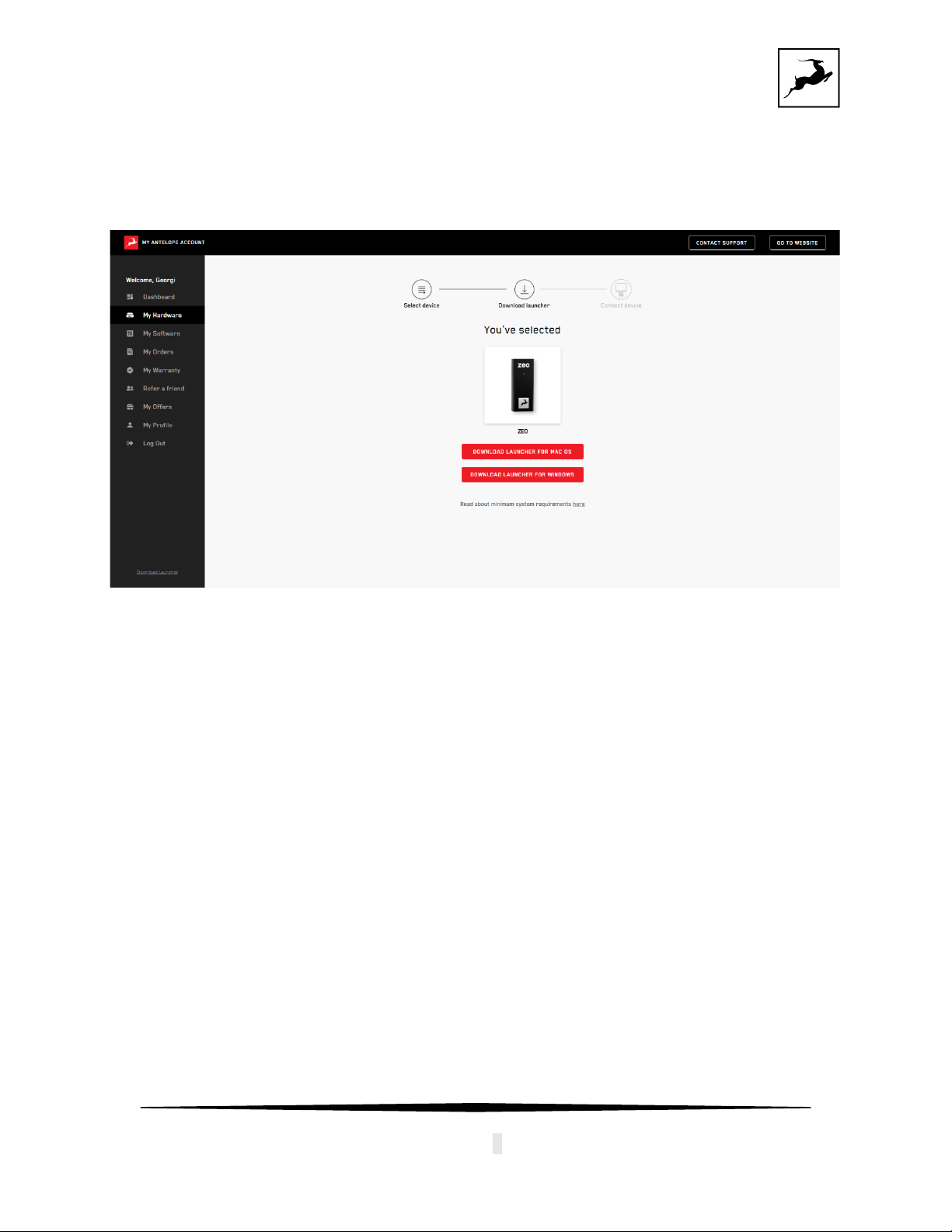
2. Open your internet browser and navigate to https://en.antelopeaudio.com/login/
3. Login to the Antelope Audio user area with your e-mail and password.
If you don't have an account, visit https://en.antelopeaudio.com/sign-up/ to create one.
4. Click on the 'Activate New Device' button.

Antelope Audio ZEO User Manual
Page 4
After selecting your device, enter the 13-digit serial number which you can find on a
small sticker in the base of your device or on the side of the box:
5. Click on “ZEO” from the device list.

Antelope Audio ZEO User Manual
Page 6
SYSTEM REQUIREMENTS
Mac:
•Apple Mac 2013 or newer with USB 2.0/3.0/3.1 port or Thunderbolt 3
•Minimum: Mac OS X 10.14 Mojave. Recommended: Mac OS X 11.02 Big Sur
•Available storage space (Minimum 4 GB)
•Memory (RAM): 4 GB minimum (8 GB or more recommended)
Windows:
•PC computer with USB 2.0/3.0/3.1 port
•Windows 10 (64-bit) with latest Microsoft Updates
•Available storage space (Minimum 4 GB)
•Memory (RAM): 4 GB minimum (8 GB or more recommended)
•CPU: Intel Core i3™ or AMD FX ( recommended)
Android:
•Android phones and tables with USB-C ports that are Host compliant
(providing 5V/ 500mA) and support Audio Device Class
iOS:
•iPhone 8 or newer
•Recommended iOS 16
Additional Information:
•Stable Internet connection is required to download the Antelope Launcher and update
the firmware of the device.
Antelope Audio ZEO User Manual
Page 7
CONNECTIVITY AND LED LIGHTS EXPLAINED
ZEO has the following hardware components:
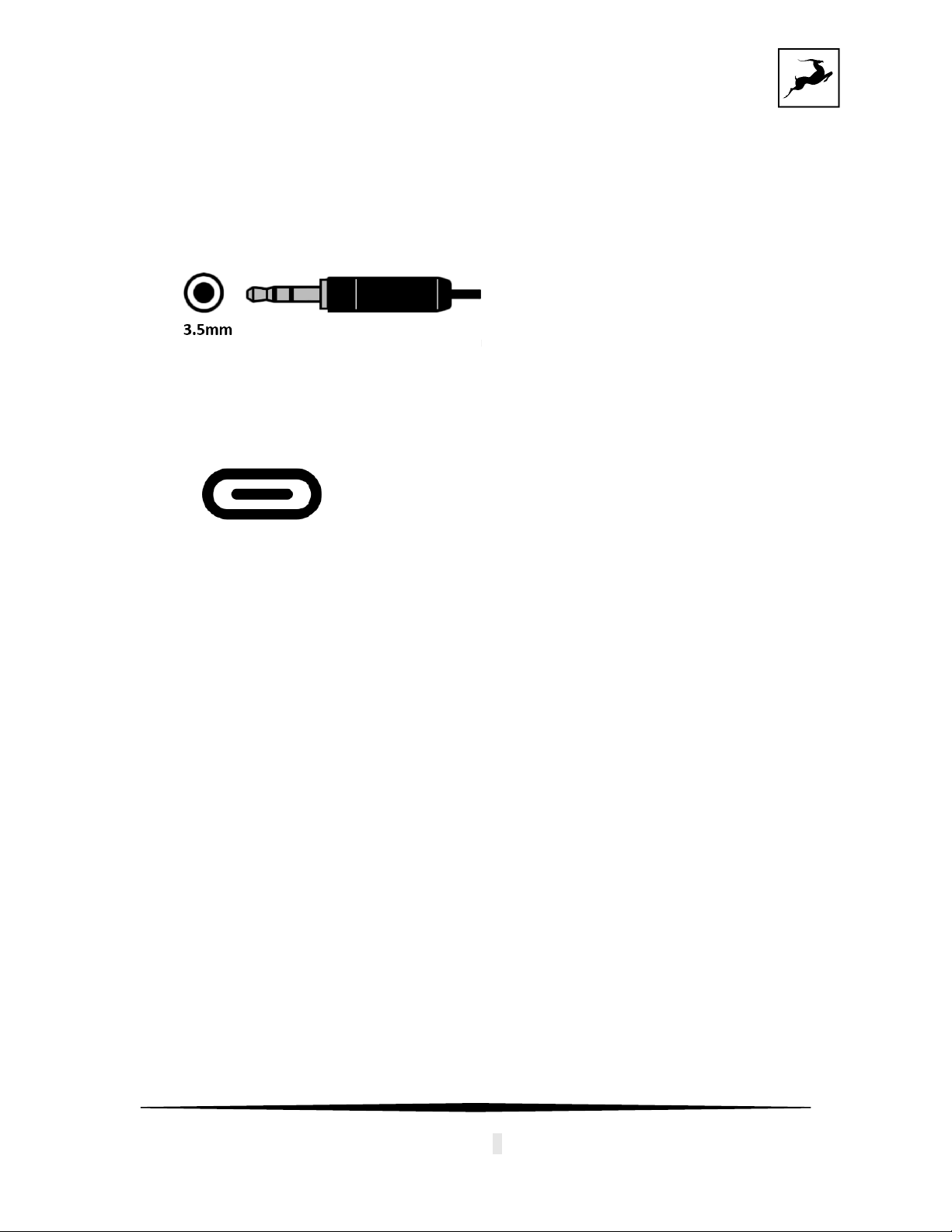
•1 x 3.5mm Headphone output
The оutput can send signal to different headphones and aux cables.
•1 x USB-C port for playback and power supply
The port can be connected to a USB-C port of a smartphone, tablet or computer with
the provided USB-C to USB-C cable or together with the USB-C to USB-A adapter
into a USB-A port.
•1 x LED light with 3 colors, showing the state of the device
Green: the device is powered on, but no audio is playing
Blue: the device is connected and playing Audio
Cyan: the device is connected and playing DSD DoP format
Headphones
Antelope Audio ZEO User Manual
Page 8
USING ZEO ON DIFFERENT SYSTEMS
Windows PC
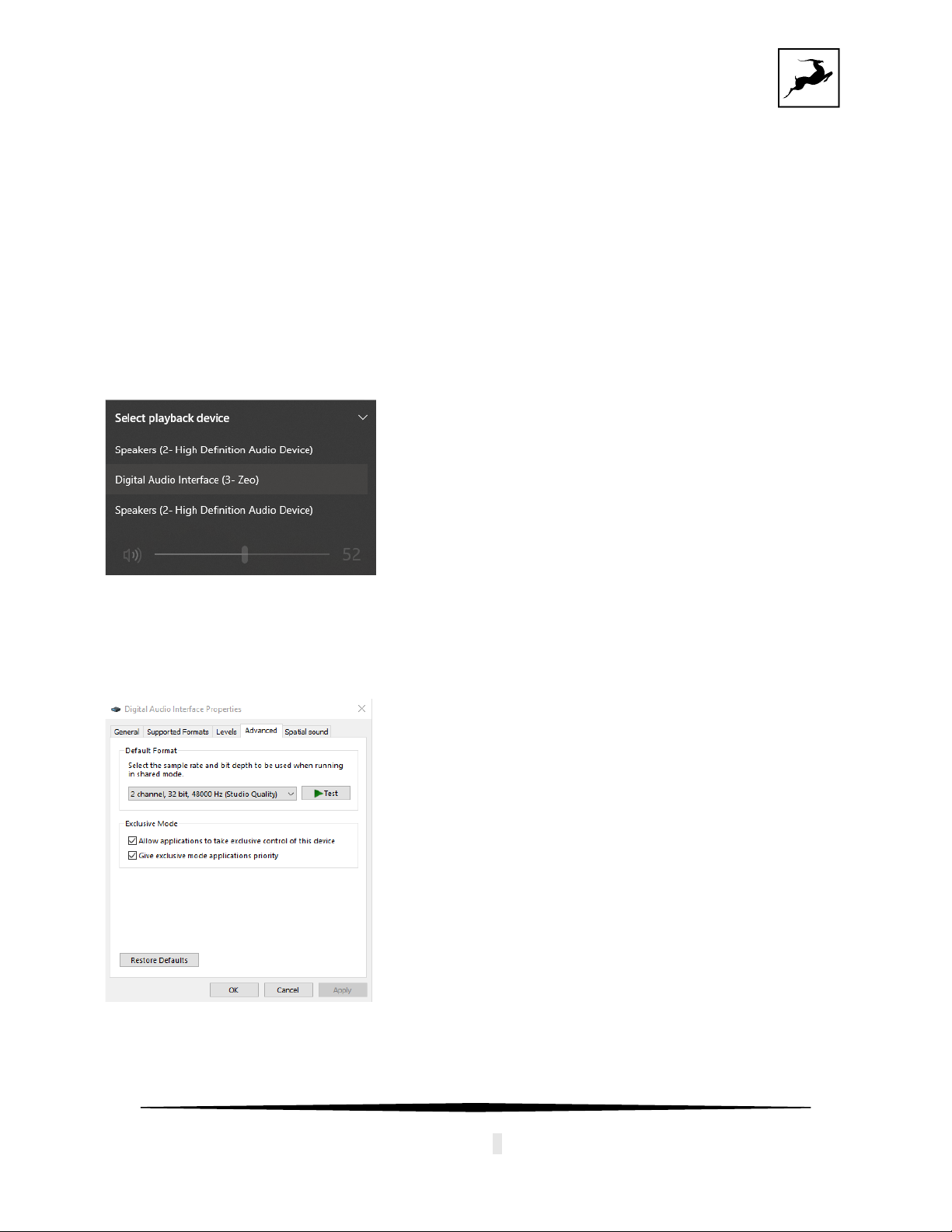
ZEO is natively compatible with Windows, and it does not require additional drivers to be
installed. Once the device is plugged, the computer will recognize it and it will show up in
“Sounds” tab:
Volume can be adjusted from the Windows volume slider.
In order to change the Sample Rate Enter the ‘Sounds’ options window from the Control Panel
or right-click the speaker icon in the system tray and choose ‘Open Sound settings’ and
navigate to “Advanced”:
If you are using ZEO with a DAW, it will automatically follow the Sample rate of the DAW
without the need to change it from “Windows Sound Settings”.
The device will appear as MME/DirectX driver in your DAW.
NOTE: To avoid hearing damage, turn down the volume of your system to its
minimum level before you put the headphones on!
Antelope Audio ZEO User Manual
Page 9
macOS
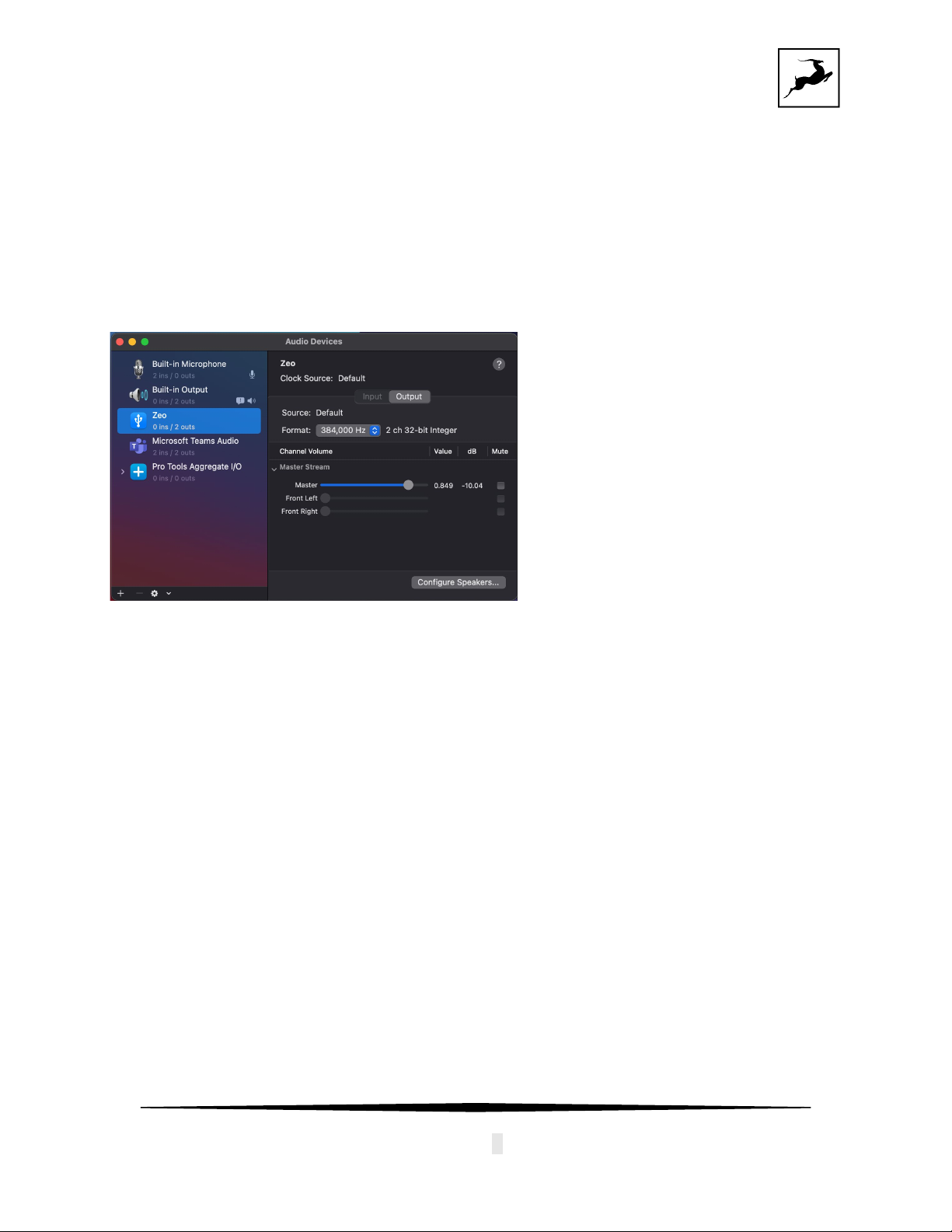
ZEO is natively compatible with macOS systems, and it does not require additional drivers to
be installed. Once the device is plugged, the computer will recognize it and it will show up in
“Audio MIDI Settings” and “Sounds” tab:
•Volume can be adjusted from the Volume Slider.
•Sample rate can be changed from the drop-down menu “Format”.
If you are using ZEO with a DAW, it will automatically follow the Sample rate of the DAW
without the need to change it from “Audio MIDI Settings”.
The device will appear as Core Audio driver in your DAW.
Indice
Altri manuali Antelope Amplificatore


