
apivio IP336PoE Manuale utente

User’s Manual

To use the phone correctly and safely and prevent an
accident, it is essential for you to heed the warning and
information provided. Keep the manual in an easily
accessible place after read it for future reference.
- Please avoid installing in excessively hot, cold, dusty or
humid place or in locations with strong vibrations or
exposed to direct sunlight.
- Because the phone generates heat when it operates,
please do not install it in locations where heat resistance or
durability is low.
- Please do not use a damaged cord or plug, or loose outlet
to prevent fire or electric shock hazard.
- Please do not touch power outlet with wet hands.
It can cause the electric shock.
- Please do not locate it on inclined places.
It may inflict injury or break down by dropping.
Precaution when installing
- Any damages due to unauthorized disassembly and
intentional damages by users are not covered by the warranty.
- Please do not pull the power plug and adaptor when you
unplug it.
- When the phone makes any strange noise, smell or smoke,
please unplug the adaptor and cable immediately and contact
with service center.
- Please do not use the phone in places with flammable
or explosive materials.
- Please do not touch the phone with wet hands.
- Please do not use the phone for any other purposes.
Precaution when using
- Please use dry and soft cloth when you clean the phone.
- Please do not use chemicals such as benzene, thinner or etc.
- Please wipe the power plug with dry cloth if it is wet or dusty.
It may cause the fire or electric shock hazard.
Precaution when cleaning
- It may result in some errors if you change specific settings
after the phone installed.
- Please give prior notice when you need to change the
settings.
Precaution when setting
USER PRECAUTION
Please read the instruction carefully to protect yourself and others from personal injury or damage to property.
2
PRECAUTION

3
CONTENTS
CONTENTS COMPONENTS
The components must be checked when the
package is opened. Please contact the store where
you purchased it if there are any missing items.
User Precaution
Components
About Phone
Product Assembly / Disassembly
LCD Status
Installation
Networks Setting
Service Setting
Setting via WEB
Trouble Shooting
Basic Functions
Setting BLF Keys
How to Function Menu
Treatment before Disposal
Warranty
Damage Compensation
Product Specification
02
03
04
06
07
09
11
12
13
15
16
22
23
24
25
26
27
...............................................
.....................................................
....................................................
...............
........................................................
.........................................................
.............................................
.................................................
...............................................
.............................................
...............................................
............................................
..................................
............................
............................................................
.................................
.....................................
IP336 –Phone Receiver with connecting cable
Lan cable
User
’
s manual
Phone stand Power adaptor User’s manual

4
Front
ABOUT PHONE
ABOUT PHONE
LCD screen
Message
CFA
DND
Handset
Numbers /
Characters
Call Log/Enter
Volume ▲/▼
Pickup
3 way call
Transfer
Redial
Menu / Hold
Silent / Delete
Headset
Speaker phone
1
2
3
4
6
8
9
10
11
12
13
14
15
16
17
19
Indicate status for network, message and etc.
Start message menu.
Directly forward incoming calls to the typed phone number.
Do Not Disturb.
5
Phone book /
Cancel
Search saved phone numbers. /
Cancel settings.
Call with handset.
7
Memory
dial keys
Call to the registered phone numbers at each button.
(provide 6 memory dial keys)
Enter the numbers to call and character to send message.
18
Microphone
Transmit voice via microphone when you call through
speaker phone.
Search recent call histories. / Confirm selected item.
Adjust the volume.
Allow to answer another ringing phone in the extensions.
Join 3 different people and call together at once.
Transfer a phone call to another telephone.
Call to the latest dialed number.
Enter to setting menu. / Turn to hold mode during call.
Set the silent mode to mute your voice. / Delete typed contents.
Call with headset.
Call with speaker phone.
1
23 4 56
78
9
10
11
12
13
18
19
14
15
16 17

5
ABOUT PHONE
Side Back
ABOUT PHONE
Headset jack
Microphone jack
Handset
connecting jack
1
2
3
Connect and use headset to call.
Connect and use microphone to call.
Connect and use handset to call.
12
3
※Please use 3.5㎜plug type of headset and microphone jack.

Please assemble phone stand on the back side of product as shown the picture below.
(Please do not press too hard while inserting the stand. It may damage the product.)
6
Product Assembly
Please follow the steps above with backward order.
Product Disassembly
2
ABOUT PHONE
Product Assembly / Disassembly
1

7
LCD STATUS
LCD STATUS CASES
LCD screen
Case 1 “No Service”
In this case, phone does not properly communicate with IP-PBX.
- Causes 1) Network connection failure
2) Blocked by firewall(security equipment) port
3) Non registered account information
Case 2 “Check the account”
In this case, phone information of IP-PBX is incorrect.
- Causes In this case, phone settings and IP-PBXs are different.
Contact server manager to solve the problem.
PM 10:15
03/11/Fri
1
2
3
4
5
1
2
3
4
5
Indicate the connection status
between LAN and PC network.
Not available.
Indicate current time.
Indicate if the phone is available to use.
(Service is not available when the icon
is flickering)
Service
status
Alarm
Time
Network
connecting
status
Message
alert
If the icon is shown on the LCD,
new message is received.
StatusNo Explanation
PM 10:15
03/11/Fri
No Service
PM 10:15
03/11/Fri
Check the
account

8
CASES
LCD STATUS
Case 3 “IP address is duplicated”
In this case, there is same IP address with other PC
or phone.
- Solution Check and properly change IP settings.
If there are any inquiries, please contact with
network manager.
Case 4 “Network connection problems”
In this case, that cable line is not connected with LAN port.
- Solution 1) Check if the internet line is connected well
with LAN port.
2) Check if the router or switch is connected well
Case 5 “Starting”
In this case, system does not start for more than
1 minute due to IP setting problem.
- Solution Press menu button and check IP setting.
Case 6 “IP is being allocated”
IP is not allocated for more than 1 minute at dynamic IP setting.
- Solution 1) Check the router setting if you use router.
2) Contact with the network manager.
PM 10:15
03/11/Fri
Duplicated Addr
PM 10:15
03/11/Fri
apivio
Staring…
PM 10:15
03/11/Fri
LAN Disconnected
PM 10:15
03/11/Fri
Searching DHCP

9
INSTALLATION
Connecting cables (Back)
How to install phone according to
internet using environment
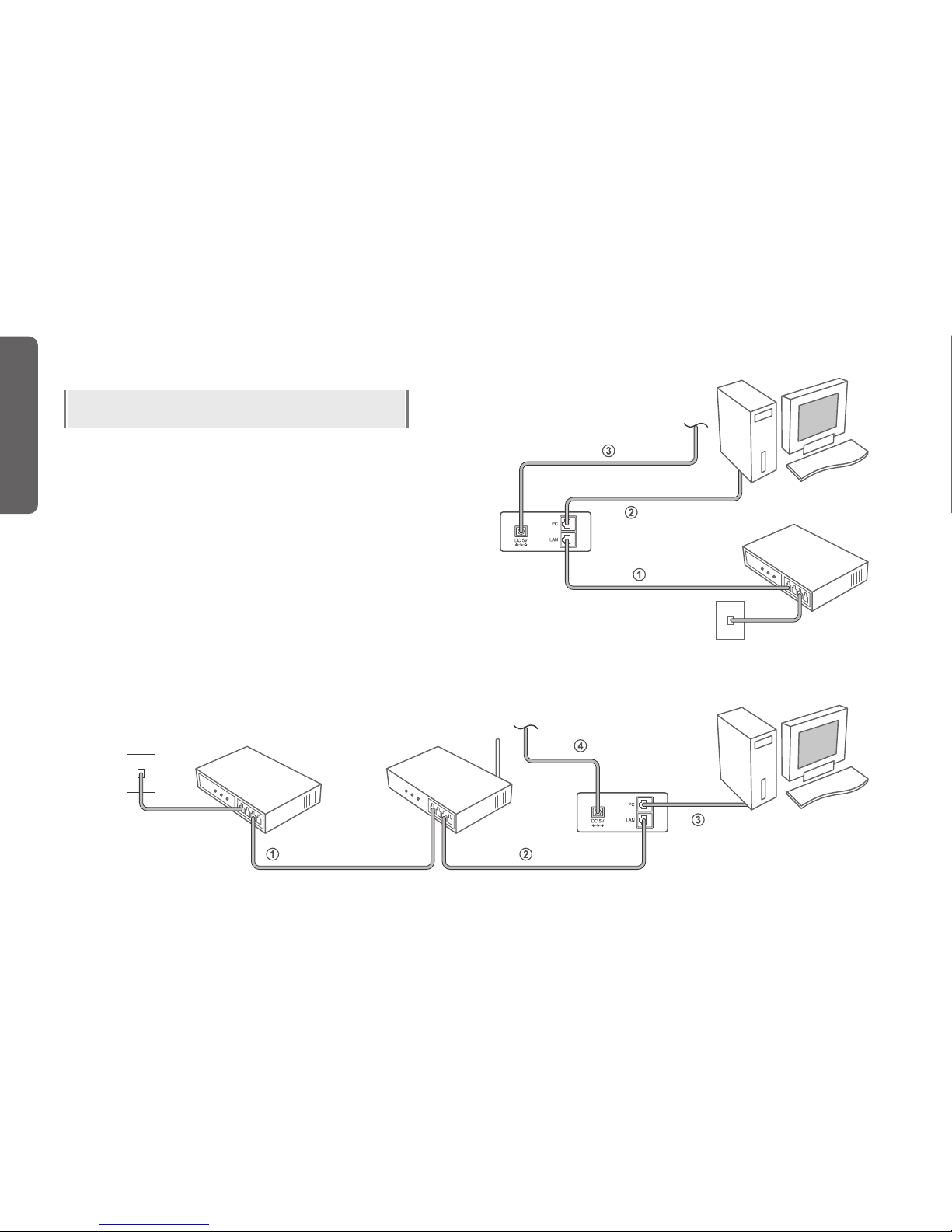
A. Customers who use directly connected optic fiber LAN.
1. Connect internet line of optic fiber LAN to LAN port.
2. Connect computer line to PC port.
3. Connect power adaptor.
A-1. How to connect optic fiber LAN to router.
1. Connect internet line of optic fiber LAN to WAB port of router.
2. Connect LAN port of router to LAN port of phone.
3. Connect computer line to PC port.
4. Connect power adaptor.
INSTALLATION
1
2
3
PC port
LAN port
Power adaptor port
100Mbps Ethernet interface(RJ45)
100Mbps Ethernet interface(RJ45)
5V / 2A adaptor
Power adaptor port
3
PC connecting port RJ45
1
LAN connecting port RJ45
2
LAN internet line
PC computer line
DC 5V Power
optic fiber LAN(internet) line
WAN port LAN internet line
PC Computer line
DC 5V Power
wire/wireless
router
10
INSTALLATION
How to install phone according to
internet using environment
B. Customers who use ADSL, VDSL or cable modem
1. Connect internet line to LAN ports of modem and Phone
2. Connect computer line to PC port
3. Connect power adaptor
* PPPoE setting is needed when ADSL is used.
B-1. Customers who use router with ADSL, VDSL, or cable modem
1. Connect WAN port and LAN port of modem
2. Connect LAN port of phone and router
Connect computer line to PC port.
Connect power adaptor.
* PPPoE setting is needed when ADSL is used.
INSTALLATION
LAN internet line
PC computer line
DC 5V Power
ADSL, VDSL,
Cable modem
wire/wireless router
PC computer line
DC 5V Power
ADSL, VDSL, Cable modem
optic fiber LAN(internet) line LAN internet line
Indice
Altri manuali apivio Telefono IP


