
Apperson Datalink 3000 Manuale utente

Users Manual
800.827.9219 • apperson.com

1
About the DataLink 3000 Scanner ...................................................... 1
About the DataLink Connect Software ................................................ 1
Quick Start - Setting Up Your Scanner ................................................ 2
Installing the Ink Cartridges............................................... 2
Installing DataLink Connect on your Computer ................................... 3
Test Scoring and Reporting Using DataLink Connect ......................... 4
Data Collection and Exporting Using DataLink Connect ..................... 5
Additional DataLink Connect Features ............................................... 5
Test Scoring in Stand-Alone Mode ...................................................... 6
How To................................................................................................. 7
Prepare A Key ................................................................... 8
Calibrate Your Scanner ..................................................... 9
Clean Your Scanner .......................................................... 9
Summary Display .............................................................. 9
Troubleshooting................................................................................... 9
Your answer sheets are not feeding into the scanner ..... 10
Inconsistent scoring or marks are not detected............... 11
Poor Print Quality ............................................................ 11
Ordering Supplies...............................................................................12
FCC Compliance ................................................................................12
Industry Canada Regulations ............................................................12
Table of Contents
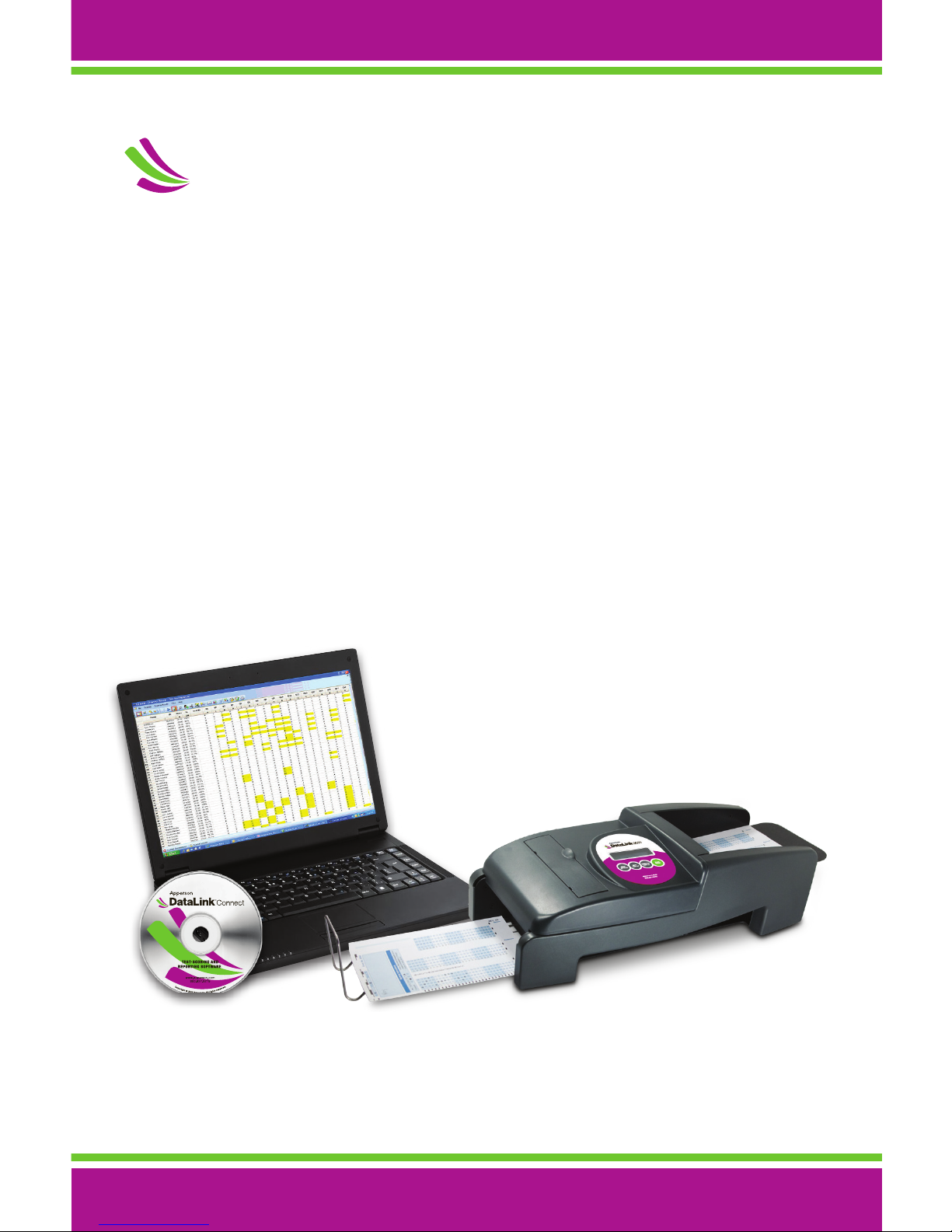
The DataLink 3000 was designed specically for large-scale assessments. With
the benet of automatic feed, the DataLink 3000 scores exams of up to 150
questions at over 3000 pages per hour. It is simple to operate as a stand-alone
scanner but when connected to a computer, it is capable of advanced data
collection and analysis, and has the ability to process barcoded answer sheets.
About DataLink Connect Software:
DataLink Connect is software that comes included with every DataLink 3000
scanner. You do not have to install DataLink Connect to use your scanner, but
it should be installed for users who want electronic access to their test results,
as well as a variety of reporting (including detailed item analysis) and exporting
options. DataLink Connect is available as a site license, therefore it can be
installed on as many computers at your school as you would like.
About the DataLink 3000:
1

3
2
Installing the Ink Cartridges:
1. To the left of the scanner label, there is a rectangular cut out with a nger tab.
Lift this tab. Note, this can be fully removed or hinged upward in place
(gure 1).
2. Pivot the locking arm in the downward position. Insert print cartridge in front
of cartridge harness and slide backward into the harness (gures 2 and 3).
3. Lift the locking arm and press it rmly into place (gure 4).
4. Make sure the locking arm is pressed rmly downward.
5. Repeat for other two cartridges and close the printer cover.
Figure 1 Figure 2
Figure 3 Figure 4
Quick Start - Setting Up Your Scanner:

DataLink Connect can be installed on computers with:
• Windows computers: A PC running Windows 2000 or newer.
• Macintosh computers: A Macintosh running OSX 10.4 or newer.
• A USB cable or serial cable input.
Insert the CD in your CD drive and select “Install DataLink Connect” from the
list of options when the install window appears. DataLink Connect requires the
Microsoft.net runtime libraries; if these are not installed on your computer they will
be installed during setup.
The minimum scanner rmware version required is 1.0. The most current rmware
release and USB drivers can also be found on our support page at www.apperson.com
Next Steps:
1. Plug the supplied power cable into your scanner and into a power source.
The display should read “Ready (ofine) Test Scoring.”
2. Calibrate the scanner by placing the calibration sheet face up in the scanner
and pushing the “scan/pause” button. Once the calibration sheet has been
properly scanned, the display should read “calibrated”. Press the reset
button and proceed to the next step.
3. To allow your scanner to communicate with your computer, connect the USB
cable from your scanner to your computer.
4. Launch DataLink Connect and begin scanning. For instructions on how to
use DataLink Connect go to page 5, or for more detailed instructions, please
refer to your DataLink Connect Help Menu within the program.
3
2
Installing DataLink Connect on your Computer:

5
When connected to DataLink Connect, your scanner can score the answer sheets
and the results will be collected electronically for detailed item analysis, reports,
and data export.
1. The default scanning mode in DataLink Connect is Test Scoring. Alternatively,
sheets can be scanned in Data Collection Mode (described on page 5).
2. Click on the Test Scoring icon to verify you are in Test Scoring Mode.
3. Insert a Key for your test. The key must be face up with the top edge of the
key leading into the scanning channel. To prepare your own key, refer to
section titled “Prepare A Key” on page 7.
4. Either press the “Scan/Pause” button on the scanner, or click on the Scan
icon to feed the key.
5. The keyed questions will be displayed in the scanner results window and
marked on the sheet by the scanner.
6. Place the stack of completed answer sheets in the input tray in the same
orientation the key was placed. Press the “Scan/Pause” button to score the
answer sheets.
7. After you have completed scanning your answer sheets, the DataLink
Connect reports can be printed or results can be exported into a native
Microsoft Excel format. The reports can be accessed from the View selection
on the menu bar or data can be exported in a variety of formats compatible
with select third party or gradebook applications. See DataLink Connect’s
Help Menu for more on export options.
4
Test Scoring and Reporting Using DataLink
Connect:

When connected to DataLink Connect, test scoring can be disabled and the
results can be collected in Data Collection Mode and exported in several format
options.
1. Click on the Data Collection icon to verify you are in this scanning mode.
An answer key is not necessary in this mode.
2. Place the stack of answer sheets in the input tray face up with the top
edge of the stack leading into the scanning channel. Press the “Scan/Pause”
button to scan the answer sheets.
3. After the answer sheets have completed scanning, the results can be
exported into a native Microsoft®Excel®format or data can be exported into
a variety of third party or grade book applications. See DataLink Connect’s
Help Menu for more on export options.
Additional DataLink Connect Features:
• Keys can be stored and edited electronically as well as downloaded directly
to the scanner.
• Using Preferences, you can reset many of the default options, including
launching in Data Collection mode versus Test Scoring mode. You can also
set your primary export format options.
• Your student database can be imported using an Excel le which includes
student ID, rst and last name.
• ID verication can be enabled to verify whether an ID number is included in
the student database. ID verication enables the scanner to reject answer
sheets with ID numbers that are not found in the student database. Rejected
sheets will be routed to the bottom exit tray.
• A batch and sequence number can be printed at the bottom of each sheet
during scanning. The batch number will be saved with the exported data for
ease of retrieval of the hard copy answer sheet at a later date.
Continued on page 6
5
4

76
• Using the Pause on Rollover option, the scanner will pause at pre-
determined intervals to facilitate saving data les of specic record sizes.
• Student, Class, School and Test identication elds have been preset
and can be populated from the answer sheet using ID grids or a barcode.
These elds can be displayed in the results grid window during scanning.
Test Scoring in Stand-Alone Mode:
Insert your answer key into the paper tray. The key must be placed face up with
the top edge of the key leading into the scanning channel. To prepare a key,
refer to section titled “Prepare A Key” on page 7.
1. Press the “Scan/Pause” button to feed the key.
2. Examine the key and you will notice the scanner has printed the answer next
to each question for verication. The number of questions keyed is displayed
and also printed on the answer sheet after the last question.
3. Place the stack of answer sheets in the input tray in the same orientation the
key was placed. Press the “Scan/Pause” button to score the answer sheets.
4. Press the “Summary Display” button to obtain the class average.

Prepare A Key
To designate an answer sheet as a key, mark the Key bubble [K] in the keyline as
shown below.
When the Verify [V] option is marked on the keyline, correct answers are printed
on individual student answer sheets. If the Verify [V] bubble is not marked, a dash
(-) prints next to incorrect responses.
Mark the Rescore [R] bubble in the keyline to rescore a previously scored test.
Rescoring a test automatically enables the verify option.
After marking the keyline, ll in the correct answer for each question on the test.
Multiple marks may be keyed as the correct answer for a question. Questions
keyed with multiple marks will be indicated with an ‘X’ printed next to the question
for verication purposes.
How To:
76
9
8
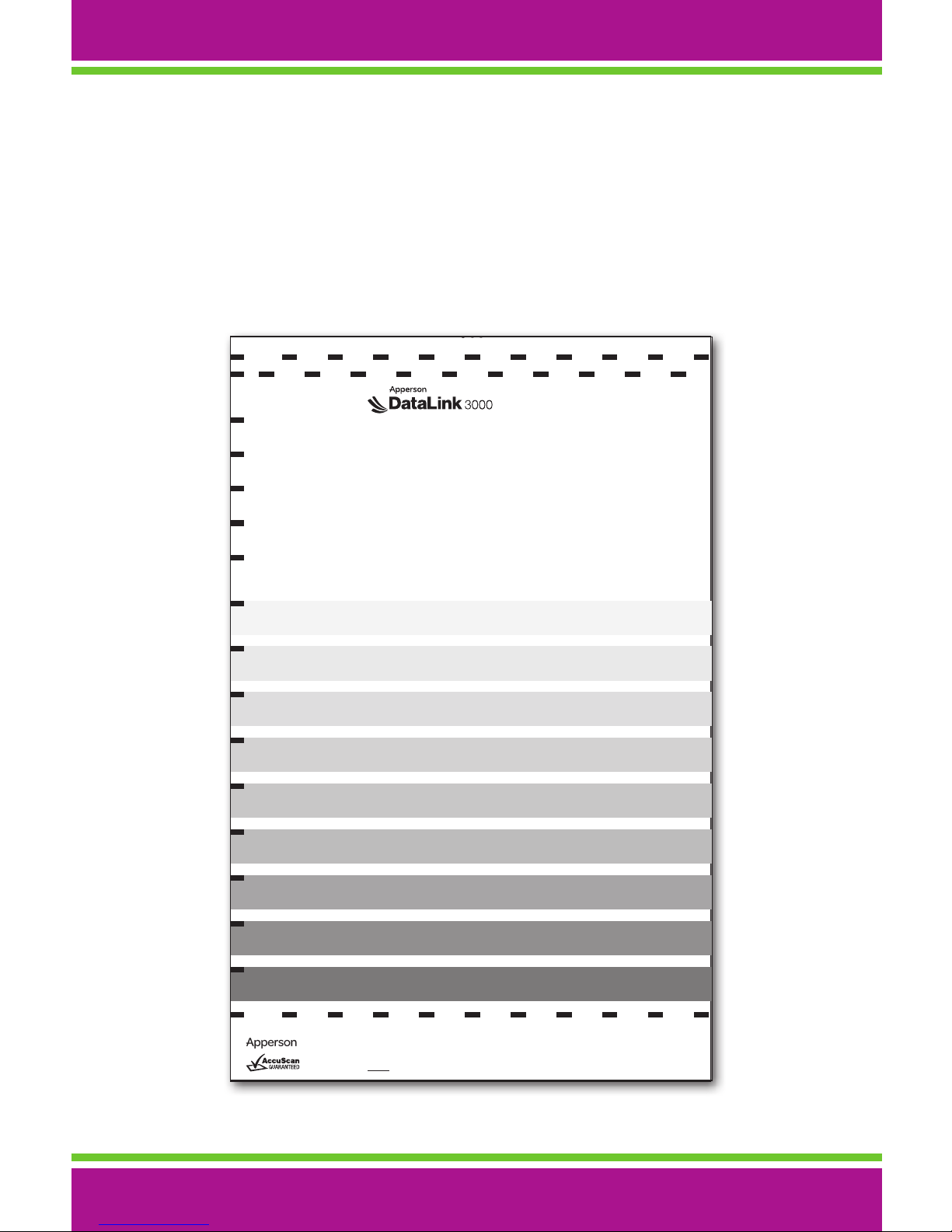
Calibrate My Scanner
Calibrate the scanner by placing the calibration sheet face up in the
scanner and pushing the “scan/pause” button. Once the calibration sheet has
been properly scanned, the display should read “calibrated.”
How To…
aa
aaaba
aaaba
aba
aaaba
aaaba
aaaba
aaaba
aaaba
aaaba
aaaba
0%
5%
10%
15%
20%
25%
30%
40%
50%
60%
#28820-RR 02/11 A0788
Technical Support (800) 827-9219
Form # 28820 (rev 02/11)
Calibration Sheet
1) Insert calibration sheet into the input tray. The calibration sheet should be the
only form in the tray.
2) Press the Scan/Pause button to feed the sheet.
3) Remove calibration sheet from the exit tray and insert back into it’s protective
clear sleeve. Save for future use.
If the calibration sheet is reverse fed into the rejection tray below
the input tray then the calibration processed failed.
You will need to repeat the process.
(Formerly BenchMark)
Indice
Altri manuali Apperson Scanner


