
Aqila Securehub Manuale utente
Aqila Home
Security System,
Protects
your Family
Anytime
Anywhere
Smart Security Kit
User Guide

Untuk versi
bahasa Indonesia silahkan
unduh pada website,
www.getaqila.com/download

3
www.getaqila.com
Product List
Feature
Aqila Securehub™ Device
LED Light Indicator
QUICK START GUIDE
Aqila Securehub™ Installation
ACCESSORIES INCLUDED
Motion Sensor
Door/ Window Sensor
SETTINGS
Aqila Smart App Setting
Add Device
Quick Alarm Operation
Electrical Facility Control
Alarm Notification
Add/ Delete Sensor
Zone Settings via App
Device Settings
AQILA SMART APP
Other App Settings
Connecting Wired Sensor &
Electronic Facilities
SMS Message Operations
Aqila Securehub™ Specification
Q&A
5
6
7
8
9
12
15
17
18
20
21
21
24
24
25
29
31
32
33
36
Table of Contents

5
www.getaqila.com
With a dual network (WIFI & GSM), Aqila Smart Home
Security System was created to provide comfort and
a sense of security, enable you to do real-time and
direct monitoring on all security aspects of your home.
Protects your house 24/7. The Aqila SecurehubTM
Control Panel is the main device of your Aqila security
system, with the main functions as a communication
center with all wireless sensors installed in your house
and send alarm notifications.
If there is an event that triggers an alarm such as a
door/ window being opened or an intruder enters the
house whenever the alarm is activated, then Aqila
SecurehubTM will forward the information regarding
the alarm directly either via App Notification, SMS or
Phone Calls.
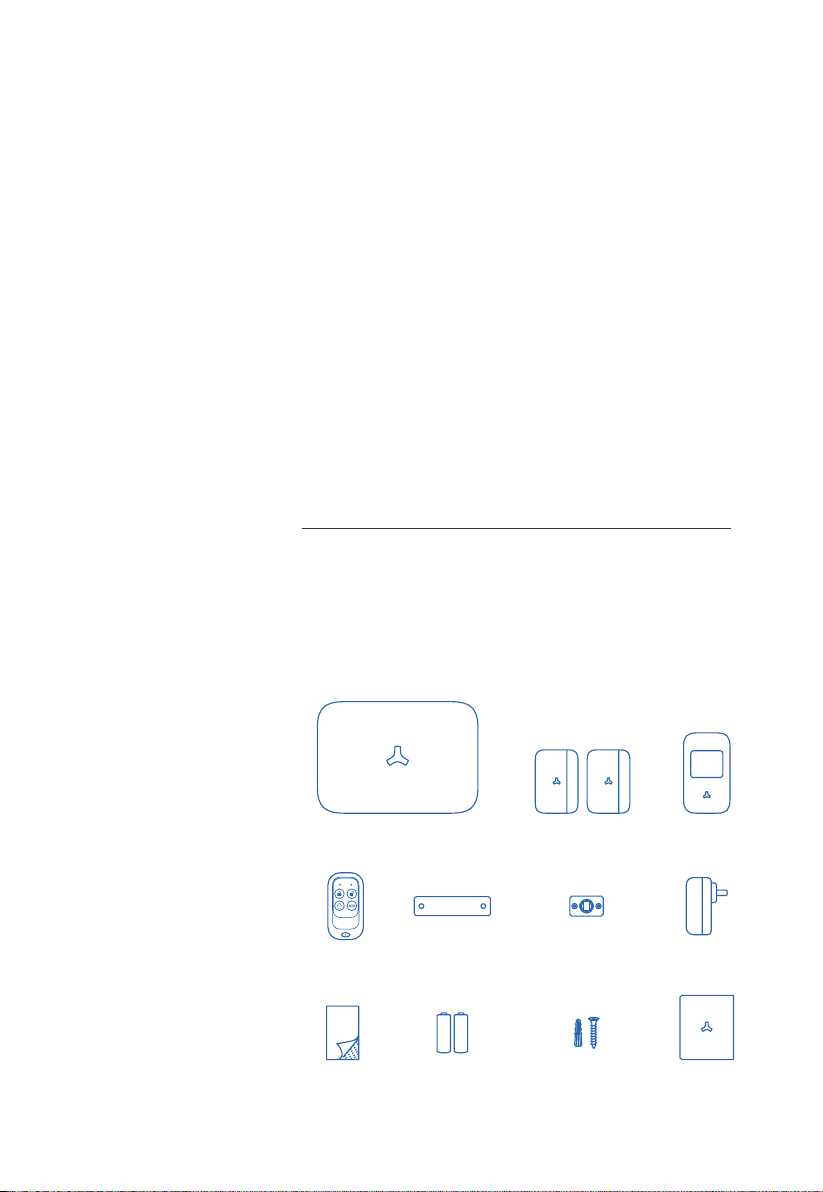
Take out a devices from Aqila Smart Home Security
Kit package. If you received incomplete device or
sensors, please contact us or the nearest distributor.
AQILA
Home
Security
System
Product
List
Aqila Securehub™
(Control Panel)
2 Door/ Window
Sensors
Motion
Sensor
Remote
Control
Double-tape
Wall Bracket
Batteries
Motion Sensor
Bracket
Fischer and
Screw
Electrical
Adapter
User Guide
6Smart Security
PANDUAN
PENGGUNA
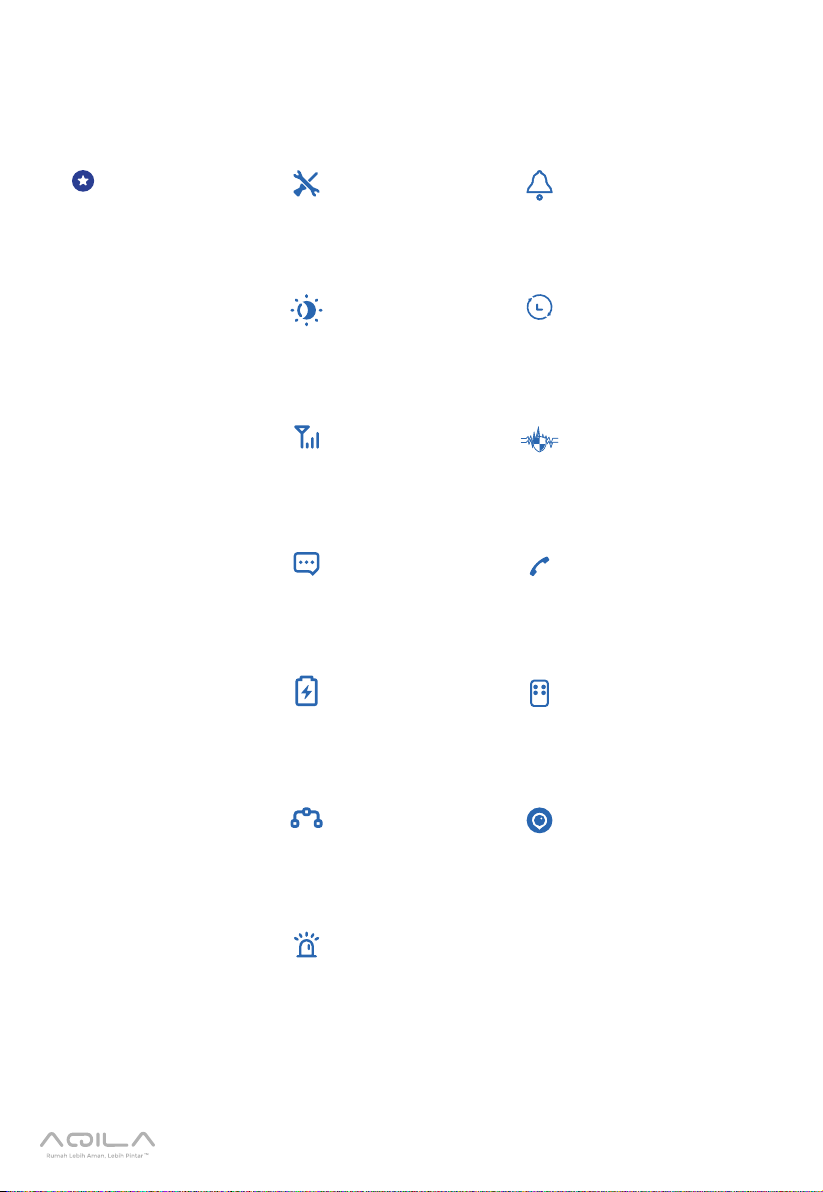
Features Wireless
Technology, DIY
Installation
105dB Siren
24 Hours
Protection
Entry/ Exit Delay
Dual Network
Wi-Fi + GSM
FHSS, Frequency
Hopping Spread
Spectrum
1000mA Battery
Backup
Connects up to
10 Remote Control
Connects up
to 50 sensors
iOS & Android
App
50 Zone
Name
Instant
Notification
3 Groups of SMS,
5 Groups of
Phone Call
7
www.getaqila.com
AQILA
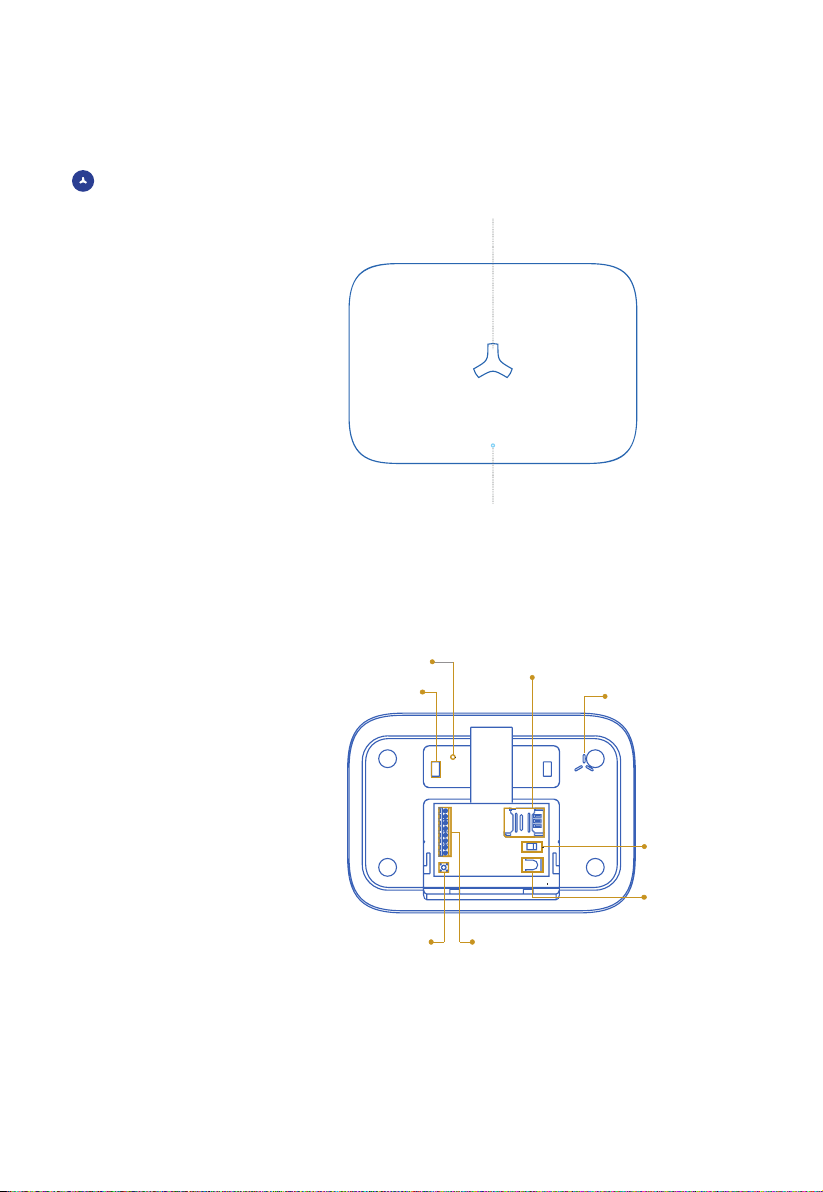
Securehub™
Device
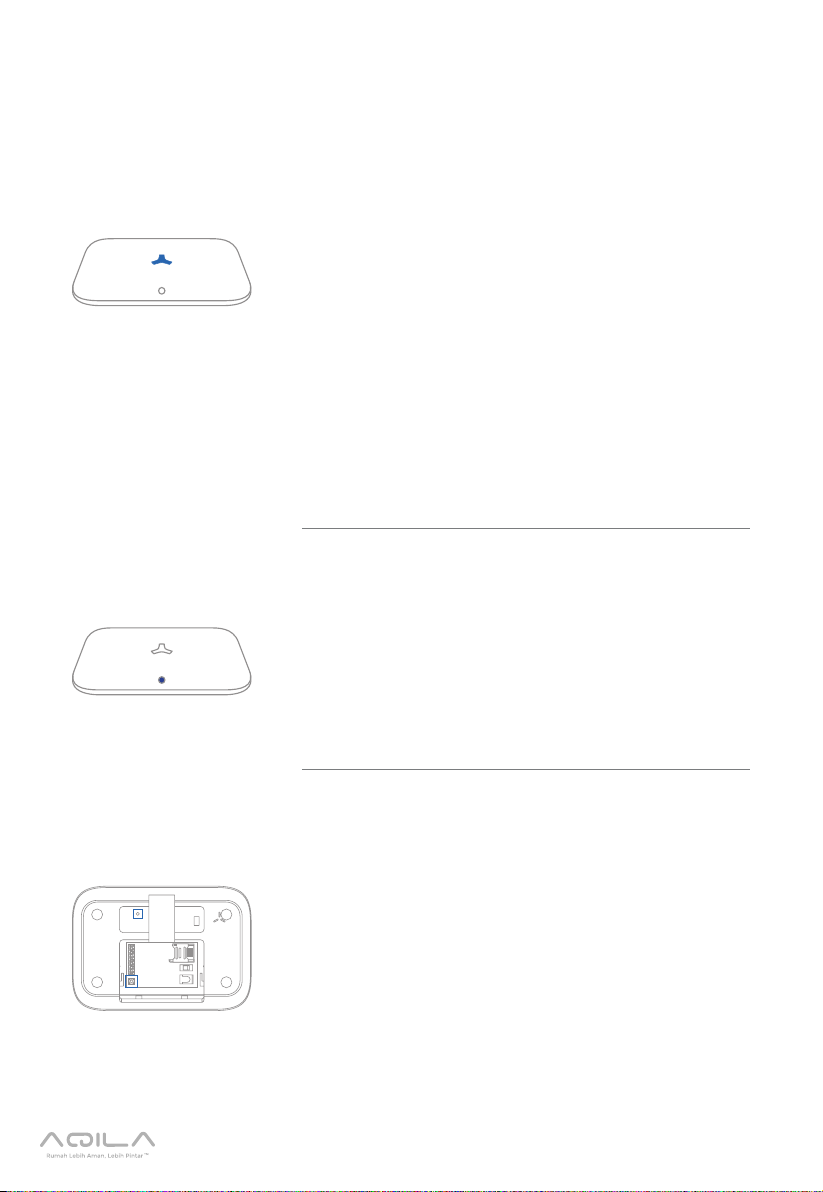
White LED: Arming (Aktif) / Disarming
Red LED: Aqila Securehub™ Status
Green LED: AC Power
LED Yellow/ Red: GSM Signal Indicator
Temper Switch
Power Switch
SIM Card Slot
Bracket Hole Loudspeaker
Connection Button Wired Accessories
Interface
Adapter Interface
8Smart Security
PANDUAN
PENGGUNA
Feature
Function
Status LED Indicator
(Large LED)
Signal/ Power LED
Indicator (Small LED)
Button
(Tamper Switch,
Connection Button)
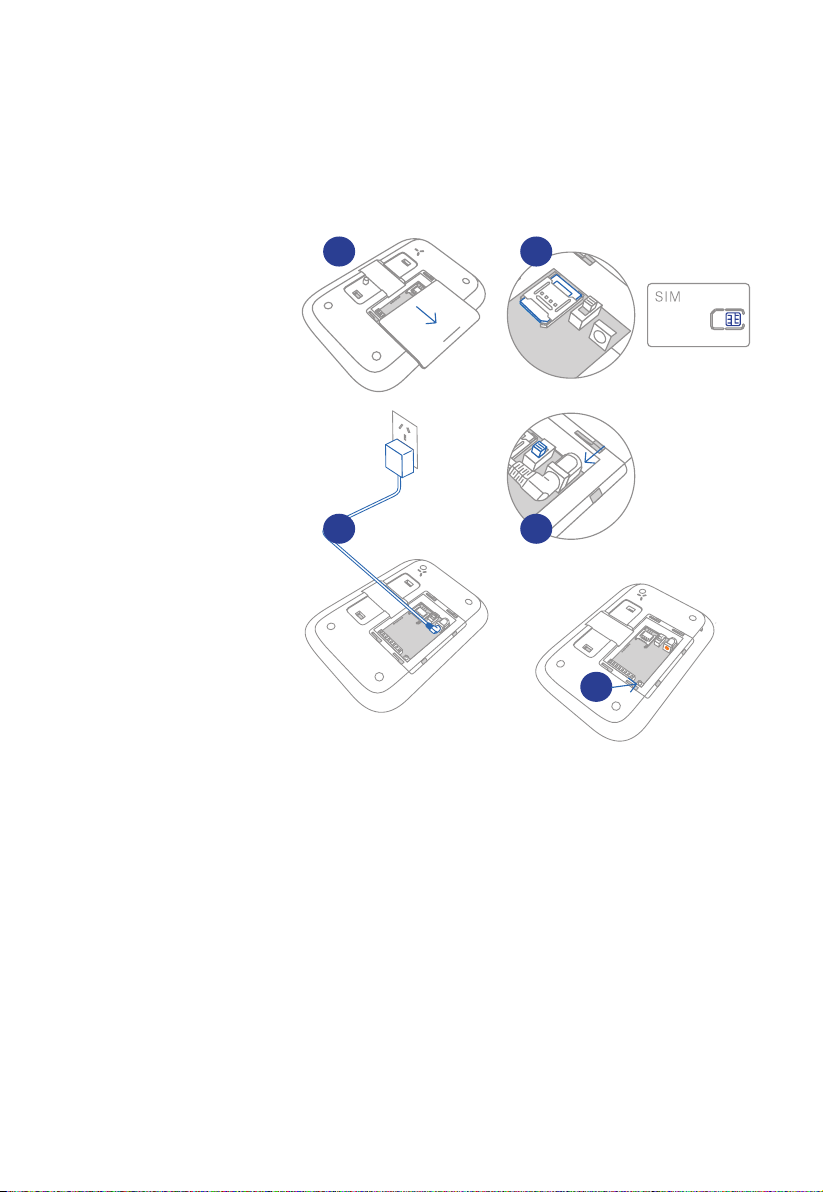
RED LED
On: In connecting Status
Flashing rapidly: Sending SMS or ready to connect to
WiFi network in Smart Mode
Flash once in every second: Warning/ Alarm
Flash once in every 2 seconds: Connecticng to network
WiFi in AP Mode
Green LED
On: Power On
Mati: Power O
Tamper Switch
Press Once: Trigger Tamper Alarm
Connection Button:
Press once: Initiates sensors connections
Press and hold for 5 seconds until one beep sounds:
Start setting on Aqila Smart App
Press 7 times: Clears all connected sensors
Press 5 times: Restores the system to default settings.
Restoring the settings will not delete the connected
sensors.
WHITE LED
On: System armed in Away Arm mode
O: System in Disarm mode
Slowly flashing: System is in protected mode “Stay Arm”
Berkedip cepat: WiFi Connection Lost
Orange LED:
Flashing rapidly: Searching for GSM network
Flashing normally: GSM network found
9
www.getaqila.com
Quick Start
Guide
Installing Aqila
Securehub™
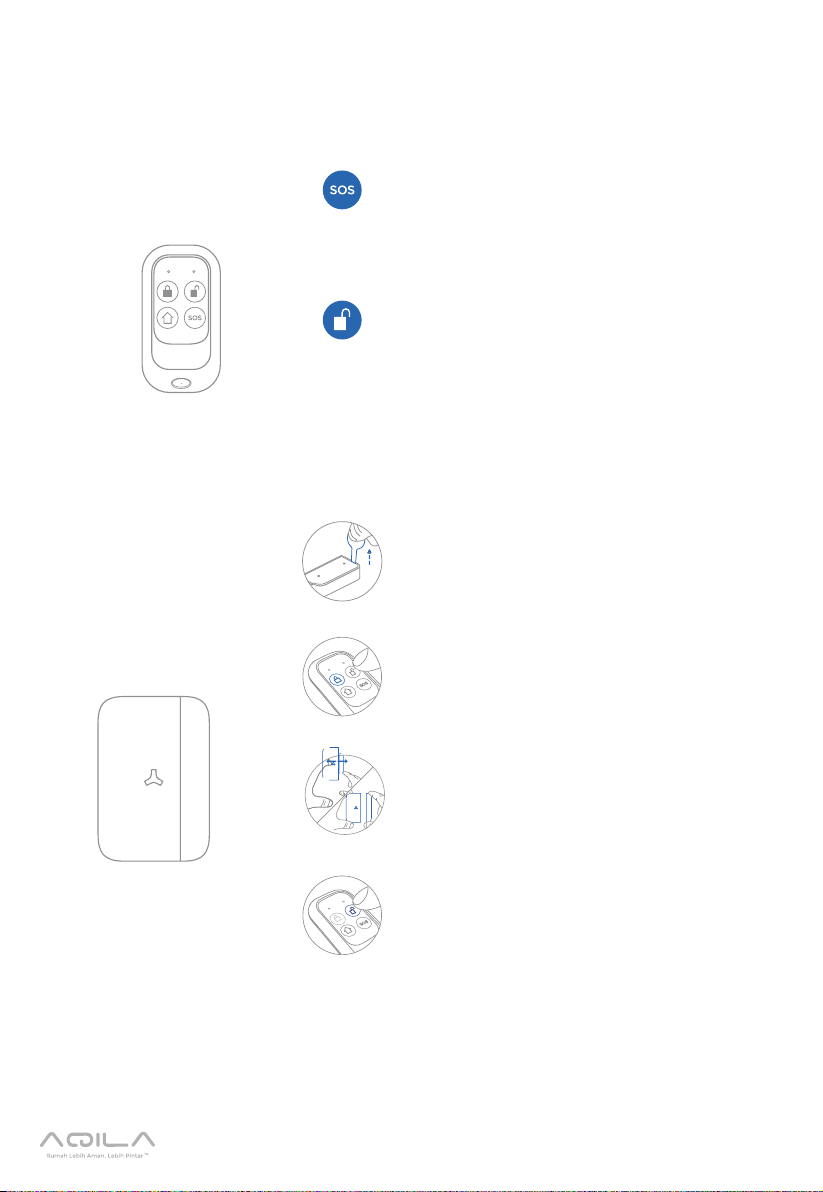
1. Open the battery
cover.
2. Insert the SIM Card
(Note! Make sure that
your SIM card has
been activated).
3. Plug the power
adapter cable to
adapter interface and
connects it to power
source.
4. Slide the power
switch into ON
position.
5. Test sensor
connections by
pressing the
connection button.
Important:
The SIM card that you purchased may not ask for a
PIN number. However, if your SIM card required a
pin number, please first deactivate the PINT on your
mobile phone and then re-insert the SIM card in Aqila
Securehub™.
1
3
2
4
5
10 Smart Security
PANDUAN
PENGGUNA
Remote Control Usage
and Testing
Door/ Window
Sensor Usage and
Testing
Press the SOS button. The small LED on
the remote will light up. Then alarm tone
will immediately sound and the large LED
light on the Aqila Securehub™ will flash red.
Turn o the alarm by pressing the “Disarm”
(image of an open padlock) on your
remote control. Congratulations! Your
AQILA Remote Control is working properly!
Pull out the insulating paper/ Protector.
Activate the alarm system by pressing the
“Awal Arm” button (closed padlock) on
your remote control.
Turn o the alarm by pressing the “Disarm”
(image of an open padlock) on your
remote control. Congratulations! Your
AQILA Door/ Window Sensor is working
properly!
Move the two sensor parts of apart at
least 5 cm away from one another.
Indice
Altri manuali Aqila Domotica


