
Archos GamePad Manuale utente

1
ENEN
Table of contents
For more information, please consult the FAQs of your product on www.archos.com.
Make sure to read them before considering any product return.
Package Contents...................................................................................................................................
Getting started........................................................................................................................................
Description of the device....................................................................................................................
Connecting to a WiFi network...........................................................................................................
ARCHOS mapping tool.........................................................................................................................
The AndroidTM interface......................................................................................................................
Getting familiar with AndroidTM.......................................................................................................
Troubleshooting....................................................................................................................................
2
3
4
6
8
14
18
20
ARCHOS Gamepad book.indd 1 14/08/2013 18:05:42
2
Warranty
Warranty
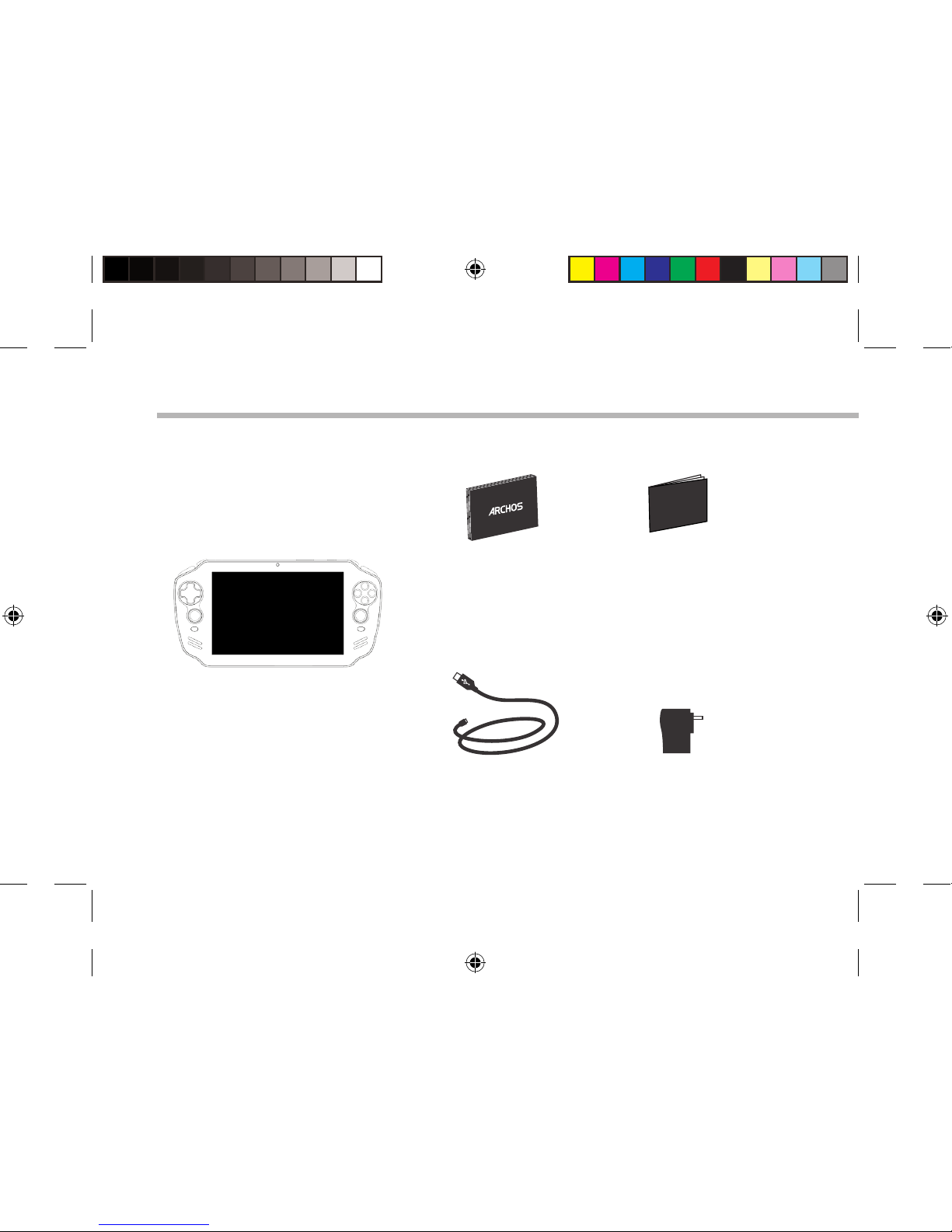
Package Contents
USB cable Charger
QSG booklet Warranty,
legal & safety booklet
ARCHOS GAMEPAD 2
ARCHOS Gamepad book.indd 2 14/08/2013 18:05:43

3
EN
Getting Started
Charging
TIPS:
To receive more complete service, please register your product.
From a computer, go to www.archos.com/register.
1. Charge your device by plugging your power cable into the
micro-USB port. The GamePad will start charging.
2. Press the Power button to turn on the device.
The charging indicator light is on when the battery is charging.
-You can use your GamePad whilst it charges.
-Let your device charge completely the rst time you use it.
-Use only the supplied charger.
When your device is completely decharged, you need to charge
it for at least 10 minutes before the charging battery icon can
be displayed.
ARCHOS Gamepad book.indd 3 14/08/2013 18:05:43

4
13
15
16
18
14
15
17
18
6
2
1
10 12
8
45 7
A70GT_BACK VIEW_scale: 1/2
19
_ A70GP2
Silkscreening on the back surface of the front lens
_ A70GP2
Silkscreening on the back surface of the front lens
3
911
Description of the GamePad
ARCHOS Gamepad book.indd 4 14/08/2013 18:05:45

5
1
122
13
3
144
5
6
717
16
15
8
11
Y
B
A
X
18
919
10
EN
* With optional Mini-HDMI to HDMI cable.
Micro-USB port R2 button
Headphone jack R1 button
Mini-HDMI video output* Directional pad
Microphone A, B, Y, X buttons
Volume buttons Analog sticks
Charging indicator SELECT button
ON/OFF button START button
L1 button Loudspeakers
L2 button Micro-SD card slot
Camera
ARCHOS Gamepad book.indd 5 14/08/2013 18:05:45

6
1
2
3
4
5
Connecting to a WiFi Network
CAUTION: Make sure that you are in a WiFi zone.
Touch and hold the time & battery icons to
reveal the status bar. A blue line is displayed.
Pull the blue line down to display the status
dashboard.
Slide the WiFi switch to "ON" positon.
The GamePad will scan for Wi networks in
range. Touch the name of network you want
to connect to.
Touch "WiFi o" in the status dashboard. The
WiFi page will be displayed.
ARCHOS Gamepad book.indd 6 14/08/2013 18:05:46

7
EN
TIPS:
-When entering a WiFi password, we recommend that you select “Show password” so you can see
the characters you are typing. To get the correct WiFi password (or settings) for the network, contact
the WiFi network provider. If your WiFi is on and you are in range of a network that you previously
connected to, your GamePad will automatically attempt to connect to it.
-To keep your WiFi connection ON when the device is on sleep, select the Menu icon in the “WiFi”
page. Then, select Advanced > Keep WiFi on during sleep > Always.
Private networks are shown with a lock
icon and will require you to enter your
password.
ARCHOS Gamepad book.indd 7 14/08/2013 18:05:46

8
ARCHOS mapping tool
Tip 2:
Whenever you launch a game whose virtual
controls are mapped, the right mapping profile
will automatically be selected.
Tip 1:
Within ARCHOS mapping tool, there are already
mapping profiles for over 100 games. Also, many
games function automatically with physical
buttons.
ARCHOS mapping tool is an application installed in your GamePad. It allows you to link the
virtual controls of games to the physical controls of the GamePad by using mapping controls.
a
physical
control
a
mapping
control
a
virtual
control
ARCHOS Gamepad book.indd 8 14/08/2013 18:05:47

9
EN
Starting ARCHOS mapping tool
1. Launch a game.
When you reach the starting screen, the virtual controls are displayed.
2. Select the ARCHOS mapping tool icon from the system bar.
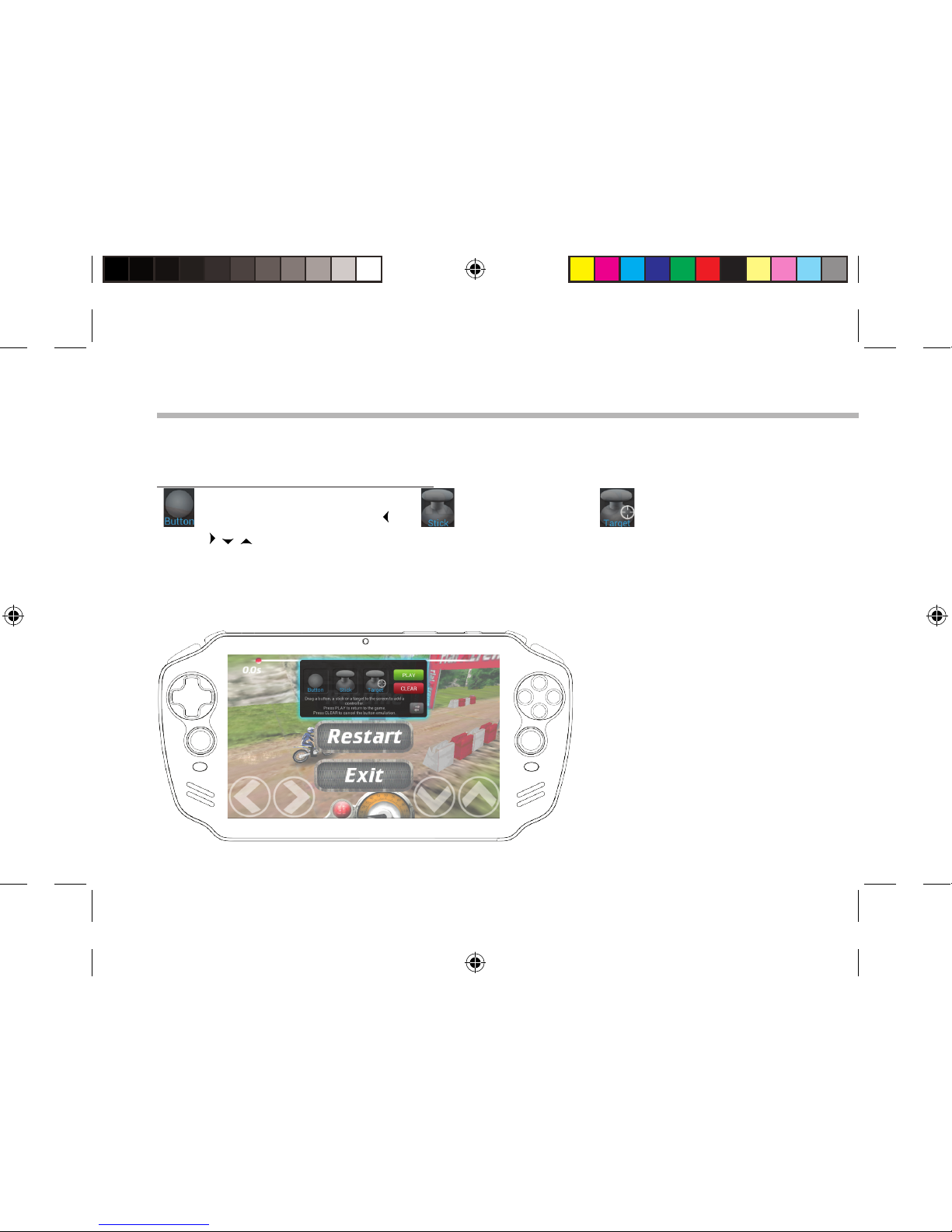
The mapping overlay is displayed with the mapping tool interface.
ARCHOS mapping tool interface
ARCHOS mapping tool icon
ARCHOS Gamepad book.indd 9 14/08/2013 18:05:48
10
Positioning a mapping control
Hold and drag a type of mapping control to the desired virtual button.
Button
It is for the directional pad
, , , , the X, Y, B, A, buttons
and the L1, R1, L2, R2, Start,
Select buttons.
Stick
It is for the analog
directional sticks.
Target
It is for analog stick
targetting. It is placed
normally in the central
area of the screen on
shooting games.
There are three types of mapping control
ARCHOS mapping tool
ARCHOS Gamepad book.indd 10 14/08/2013 18:05:49
Altri manuali per GamePad
2
Questo manuale è adatto per i seguenti modelli
1
Indice
Lingue:
Altri manuali Archos Controller per videogiochi


