
Arcom ZyWAN Manuale utente
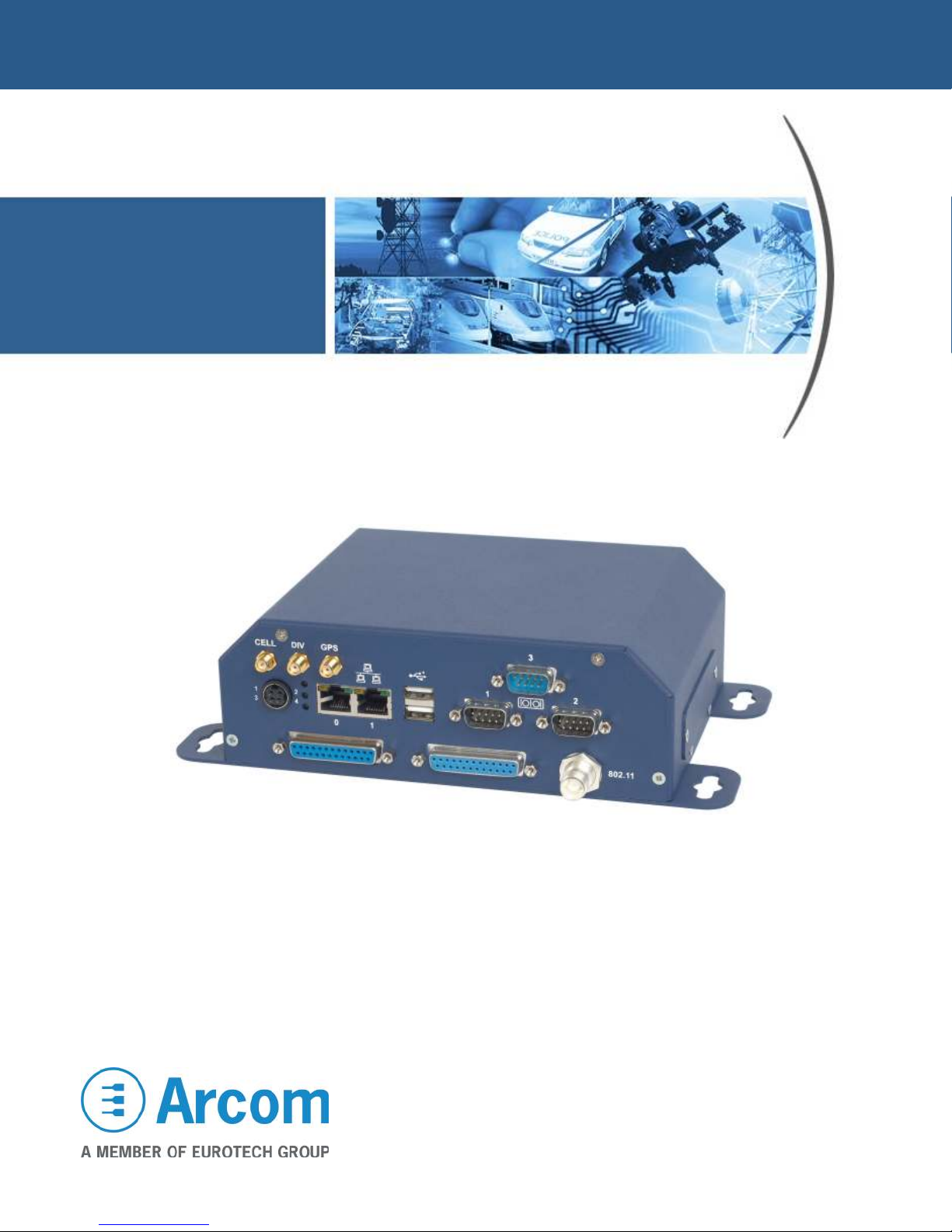
ZyWAN
User Manual

Definitions
Arcom is the trading name for Arcom Control Systems Inc.
Disclaimer
The information in this manual has been carefully checked and is believed to be accurate. Arcom assumes no responsibility
for any infringements of patents or other rights of third parties, which may result from its use.
Arcom assumes no responsibility for any inaccuracies that may be contained in this document. Arcom makes no commitment
to update or keep current the information contained in this manual.
Arcom reserves the right to make improvements to this document and/or product at any time and without notice.
Warranty
This product is supplied with a year limited warranty. The product warranty covers failure of any Arcom manufactured
product caused by manufacturing defects. The warranty on all third party manufactured products utilized by Arcom is limited
to 1 year. Arcom will make all reasonable effort to repair the product or replace it with an identical variant. Arcom reserves the
right to replace the returned product with an alternative variant or an equivalent fit, form and functional product. Delivery
charges will apply to all returned products. Please check www.arcom.com/support for information about Product Return Forms.
Trademarks
Windows XP, Windows 2000, Internet Explorer, are trademarks of the Microsoft Corporation.
Linux is a registered trademark of Linus Torvalds.
All other trademarks recognized.
Revision History
Manual Date Comments
Issue A June 2007 First full release of User Manual
Issue B October 2007 Minor updates
Issue C October 2007 Updates for ZyWAN release 1.4.
Issue D February 2008 Updates for ZyWAN release 1.5.
© 2008 Arcom Control Systems Inc.
For contact details, see page 110.

ZyWAN User Manual Contents
© 2008 Arcom Issue D 3
Contents
About this manual ..............................................................................................................................6
Symbols............................................................................................................................6
Safety and regulatory information ......................................................................................................7
Product handling and environmental guidelines ....................................................................7
Anti-static handling ...........................................................................................................7
Batteries ...........................................................................................................................7
Packaging.........................................................................................................................8
RoHS Compliance............................................................................................................8
Radio frequency requirements...............................................................................................8
Electromagnetic Compatibility (EMC)...............................................................................8
Radio frequency standards for ZyWAN-GPRS (GR64)....................................................9
Radio frequency standards for ZyWAN-IDEN ..................................................................9
Radio frequency standards for ZyWAN-EVDO (MC5725)................................................9
Radio frequency standards for ZyWAN with 802.11 (PN18) ............................................9
Introduction ......................................................................................................................................11
Features...............................................................................................................................11
ZyWAN model numbers .......................................................................................................12
Accessories..........................................................................................................................12
Getting started with your ZyWAN.....................................................................................................1
What you will need...............................................................................................................1
Hardware requirements..................................................................................................1
Software requirements of configuration computer..........................................................14
Network requirements ....................................................................................................14
Optional equipment ........................................................................................................14
Additional documentation ...............................................................................................15
Ports, LEDs, and connectors ...............................................................................................16
LED indicators ................................................................................................................17
Power connection...........................................................................................................18
Ethernet LAN connection ...............................................................................................18
Serial connections ..........................................................................................................19
RS-485 / RS-422 wiring diagrams..................................................................................20
USB connections............................................................................................................21
Installing a SIM card (GPRS / G / IDEN) ...........................................................................22
Understanding Interfaces.....................................................................................................2
Initial configuration with a single PC ....................................................................................24
Connect the configuration PC ........................................................................................24
Apply power....................................................................................................................24
Set up computer’s network.............................................................................................25
Browse ZyWAN configuration page................................................................................27
Initial configuration over a network ......................................................................................28
Connect ZyWAN to the network .....................................................................................28
Apply power....................................................................................................................29
Determine ZyWAN network address (DHCP).................................................................29
Browse ZyWAN configuration page................................................................................ 1

ZyWAN User Manual Contents
© 2008 Arcom Issue D 4
Troubleshooting connection problems ................................................................................. 2
Ping the ZyWAN............................................................................................................. 2
Check the PC’s network configuration ........................................................................... 2
Log into ZyWAN COM1 for diagnostics..........................................................................
Check with network administrator ..................................................................................
Configuring the ZyWAN ................................................................................................................... 4
Log into Web page............................................................................................................... 4
Clearing the Browser Cache .......................................................................................... 6
Changing a configuration ..................................................................................................... 8
Use of Default Gateway, DHCP and DNS on ZyWAN .........................................................40
Configuration Options.....................................................................................................40
Default Route .................................................................................................................40
DHCP Server and NAT...................................................................................................41
DNS Server ....................................................................................................................41
Status ...................................................................................................................................42
Cellular configuration ...........................................................................................................44
ZyWAN-GPRS options ...................................................................................................45
ZyWAN- G options.........................................................................................................47
ZyWAN-IDEN options.....................................................................................................49
ZyWAN-EVDO options ...................................................................................................50
Ethernet configuration..........................................................................................................57
WiFi configuration ................................................................................................................60
Networking configuration .....................................................................................................64
Open Ports .....................................................................................................................64
Enable Port Forwarding..................................................................................................66
Enable NAT ....................................................................................................................68
Time Synchronization.....................................................................................................69
GPS configuration................................................................................................................72
Forward GPS to Physical COM Port ..............................................................................7
Enable GPS Terminal Server .........................................................................................75
GPS UDP Message Format ...........................................................................................77
Arcom format for GPS messages (UDP)........................................................................79
Terminal Clients ...................................................................................................................81
Terminal Servers ..................................................................................................................87
Update .................................................................................................................................9
Security ................................................................................................................................94
Configuration Examples...................................................................................................................96
Configuration example 1: Network Router ...........................................................................96
Cellular setup .................................................................................................................97
Ethernet setup ................................................................................................................97
WiFi setup ......................................................................................................................98
Networking setup............................................................................................................98
Checking the operation ................................................................................................100
Configuration example 2: WiFi Client.................................................................................101
WiFi setup ....................................................................................................................102
Configuration example : Terminal Server.........................................................................10

ZyWAN User Manual Contents
© 2008 Arcom Issue D 5
Terminal Server setup ..................................................................................................104
Networking setup..........................................................................................................104
Configuration example 4: GPS interface............................................................................105
Cellular setup ...............................................................................................................105
GPS setup ....................................................................................................................106
Networking setup..........................................................................................................107
Appendix A – Contacting Arcom.....................................................................................................108
Appendix B - Technical specifications............................................................................................109
ZyWAN base unit ...............................................................................................................109
General.........................................................................................................................109
Power ...........................................................................................................................109
Environmental ..............................................................................................................109
Mechanical Diagrams...................................................................................................110
Index ..............................................................................................................................................112
ZyWAN User Manual About this manual
© 2008 Arcom Issue D 6
About this manual
This manual provides detailed information about the ZyWAN Cellular Routing Modem.
Symbols
The following symbols are used in this guide:
Symbol Explanation
Information that requires your attention.
A handy hint that may provide a useful alternative or
save time.
Proceeding with a course of action may damage your
equipment or result in loss of data.
ZyWAN User Manual Safety and regulatory information
© 2008 Arcom Issue D
Safety and re ulatory information
Users must observe the safety precautions and regulatory guidelines outlined in this
manual, as well as good technical judgment, whenever this product is installed or used.
Product handlin and environmental uidelines
Electric current from power and communication cables is hazardous. To avoid
shock hazard when connecting or disconnecting cables, follow appropriate
safety precautions. Ensure that the correct operating voltage is used when
powering the device.
Do not open the equipment to perform any adjustments, measurements, or
maintenance until all power supplies have been disconnected.
The ZyWAN is equipped wit
h a certain level of protection against power surges.
However, to ensure maximum protection, or when using in areas susceptible to
electrical disturbances and lightning, use of an external surge suppressor is
strongly recommended.
Anti-static handling
The ZyWAN includes a circuit board which contains CMOS devices that could be
damaged in the event of static electricity discharged through them. At all times, please
observe anti-static precautions when handling the product.
Batteries
The ZyWAN contains a coin-type replaceable Lithium battery to maintain its real-time
clock when input power is removed. During shipment the battery is disconnected and
should be connected before using the board, or else the real-time clock will be reset on
loss of power. Please refer to the link section of this manual for details.
To avoid possible injury or death:
• Do not short circuit the batteries or place in water or on a metal surface
where the battery terminals could be shorted. Do not incinerate or heat to
more than 100 °C (212 °F). Do not crush or otherwise disassemble the
battery, or attempt to repair the battery.
• Do not recharge. The batteries are non-rechargeable. There is a danger of
explosion if a lithium battery is recharged or incorrectly replaced.
• Dispose of used batteries according to the manufacturer’s instructions and
local ordinances.

ZyWAN User Manual Safety and regulatory information
© 2008 Arcom Issue D 8
Packaging
Should a product need to be returned to Arcom, please ensure that it is adequately
packed, preferably in the original packing material. If the original packing material is not
available, return the product in an anti-static bag contained within a box that provides
suitable physical protection.
RoHS Compliance
The European RoHS Directive (Restriction on the Use of Certain Hazardous
Substances - Directive 2002/95/EC) limits the amount of six specific substances within
the composition of the product. The ZyWAN and associated accessory products are
available as RoHS-6 compliant. A full RoHS Compliance Materials Declaration Form is
available upon request. Further information about RoHS compliance is available on the
Arcom Web site at www.arcom.com/RoHS_and_WEEE.
Radio frequency requirements
This device complies with Part 15 of FCC Rules. Operation is subject to the following
conditions:
1 This device may not cause harmful interference.
2 This device must accept any interference received, including interference that
may cause undesired operation.
3 To comply with RF safety requirements, you must maintain a distance of 20 cm
from the antenna when operating the device.
4 Each antenna of this device must not be co-located with (within 20 cm of) any
other antenna or transmitter. Antenna requirements are listed in the FCC grant
information for each module, below.
Changes or modifications to the product not expressly approved by Arcom could void
the user’s authority to operate the equipment.
Electromagnetic Compatibility (EMC)
The ZyWAN is classified as a component with regard to the European Community EMC
regulations and it is the user’s responsibility to ensure that systems using the product
are compliant with the appropriate EMC standards.
This equipment has been tested and found to comply with the limits for a Class B digital
device, pursuant to Part 15 of the FCC Rules and European Community EMC
regulations. These limits are designed to provide reasonable protection against harmful
interference in a residential installation. This equipment generates, uses and can
radiate radio frequency energy and, if not installed and used in accordance with the
instructions, may cause harmful interference to radio communications. However, there
is no guarantee that interference will not occur in a particular installation. If this
equipment does cause harmful interference to radio or television reception, which can

ZyWAN User Manual Safety and regulatory information
© 2008 Arcom Issue D 9
be determined by turning the equipment off and on, the user is encouraged to try to
correct the interference by one of the following measures:
1 Reorient or relocate the receiving antenna.
2 Use shielded RJ-45 cables for the Ethernet connections.
3 Increase the separation between the equipment and receiver.
4 Connect the equipment into an outlet on a circuit different from that to which the
receiver is connected.
5 Consult the dealer or an experienced radio/TV technician for help.
Radio requency standards or ZyWAN-GPRS (GR64)
FCC ID: UFNZEUSGR64
FCC grant information: This device is approved for mobile RF exposure conditions.
Approved for use with antenna(s) as listed in this filing. The antenna(s) used for this
transmitter must be installed to provide a separation distance of at least 20 cm from all
persons and must not be co-located or operating in conjunction with any other antenna
or transmitter.
Radio requency standards or ZyWAN-IDEN
FCC ID: UFNZEUSIO270
FCC grant information: Products operating with this OEM module must not
exceed 2.54 W EIRP total system output with antenna gain not exceeding 7. dBi. The
antenna must operate at 20 cm or more from persons. This module is not approved for
use in any products operating as a portable transmitter with respect to 2.109 or other
mobile operating conditions that do not meet categorical exclusion requirements of
2.1091, which requires separate approval.
Radio requency standards or ZyWAN-EVDO (MC5725)
FCC ID: UFNZEUSMC5725
FCC grant information: Modular Approval for use as a module in mobile-only
exposure conditions, antenna gain including cable loss must not exceed 5.1dBi in
cellular band and 4.15dBi in PCS band, for purposes of 2.104 and 2.1091. The
antenna(s) used for this transmitter must be installed to provide a separation distance
of at least 20 cm from all persons. The antenna(s) used for this transmitter must not be
co-located or operating in conjunction with any other antenna or transmitter within a
host device.
Radio requency standards or ZyWAN with 802.11 (PN18)
FCC ID: UFNZEUSPN18
FCC grant information: Modular Approval for mobile RF exposure conditions,
the antenna(s) used for this transmitter must be installed to provide a separation

ZyWAN User Manual Safety and regulatory information
© 2008 Arcom Issue D 10
distance of at least 20 cm from all persons and must not be co-located or operating in
conjunction with any other antenna or transmitter. The only antennas approved for use
with this module are those documented in the filings under this FCC ID.
Indice


