
Aspire 1650 Series Manuale utente

Aspire 1650 Series
User's Guide
http:\\www.direcTutor.com

Changes may be made periodically to the information in this publication without obligation
to notify any person of such revisions or changes. Such changes will be incorporated in new
editions of this manual or supplementary documents and publications. This company makes
no representations or warranties, either expressed or implied, with respect to the contents
hereof and specifically disclaims the implied warranties of merchantability or fitness for a
particular purpose.
Record the model number, serial number, purchase date and place of purchase information in
the space provided below. The serial number and model number are recorded on the label
affixed to your computer. All correspondence concerning your unit should include the serial
number, model number and purchase information.
No part of this publication may be reproduced, stored in a retrieval system, or transmitted, in
any form or by any means, electronically, mechanically, by photocopy, recording or otherwise,
without the prior written permission of Acer Incorporated.
Model number: __________________________________
Serial number: ___________________________________
Date of purchase: ________________________________
Place of purchase: ________________________________
Copyright © 2005. Acer Incorporated.
All Rights Reserved.
Aspire 1650 Series User's Guide
Original Issue: Nov 2005
Aspire 1650 Series Notebook PC
Acer and the Acer logo are registered trademarks of Acer Incorporated. Other companies'
product names or trademarks are used herein for identification purposes only and belong to
their respective companies.
http:\\www.direcTutor.com
iv
First things first
We would like to thank you for making the Aspire series of notebook PC your
choice for meeting your mobile computing needs.
Your guides
To help you use your Aspire, we have designed a set of guides:
Basic care and tips for using your computer
Turning your computer on and off
To turn on the computer, simply press and release the power button below the
LCD screen beside the easy-launch buttons. See "Front view" on page 11 for the
location of the power button.
First off, the Just for Starters... poster helps you get started with
setting up your computer.
The printed User's Guide introduces you to the basic features and
functions of your new computer. For more on how your computer
can help you to be more productive, please refer to the
AcerSystem User's Guide. This guide contains detailed
information on such subjects as system utilities, data recovery,
expansion options and troubleshooting. In addition it contains
warranty information and the general regulations and safety
notices for your notebook. It is available in Portable Document
Format (PDF) and comes preloaded on your notebook. Follow
these steps to access it:
1 Click on Start, All Programs, AcerSystem.
2 Click on AcerSystem User's Guide.
Note: Viewing the file requires Adobe Reader. If Adobe Reader is
not installed on your computer, clicking on AcerSystem User's
Guide will run the Adobe Reader setup program first. Follow the
instructions on the screen to complete the installation. For
instructions on how to use Adobe Reader, access the Help and
Support menu.
http:\\www.direcTutor.com

vi
Taking care of your battery pack
Here are some ways to take care of your battery pack:
•Use only batteries of the same kind as replacements. Turn the power off
before removing or replacing batteries.
•Do not tamper with batteries. Keep them away from children.
•Dispose of used batteries according to local regulations. Recycle if possible.
Cleaning and servicing
When cleaning the computer, follow these steps:
1 Turn off the computer and remove the battery pack.
2 Disconnect the AC adapter.
3 Use a soft, moist cloth. Do not use liquid or aerosol cleaners.
If either of the following occurs:
•the computer has been dropped or the body has been damaged;
•the computer does not operate normally
please refer to "Frequently asked questions" on page 32.
Caution
Changes or modifications not expressly approved by the manufacturer could
void the user's authority, which is granted by the Federal Communications
Commission, to operate this computer.
Operation conditions
This device complies with Part 15 of the FCC Rules. Operation is subject to the
following two conditions: (1) This device may not cause harmful interference,
and (2) This device must accept any interference received, including
interference that may cause undesired operation.
Users are requested to follow the RF safety instructions for wireless option
devices that are included in the user's manual of each RF option device.
An improper installation or unauthorized use may cause harmful interference
to radio communications. Also, any tampering of the internal antenna will void
the FCC certification and your warranty.
To prevent radio interference to the licensed service, this device is intended to
be operated indoors, and installation outdoors is subject to licensing.
For more information about our products, services, and support information,
please visit our website: http://global.acer.com.
http:\\www.direcTutor.com

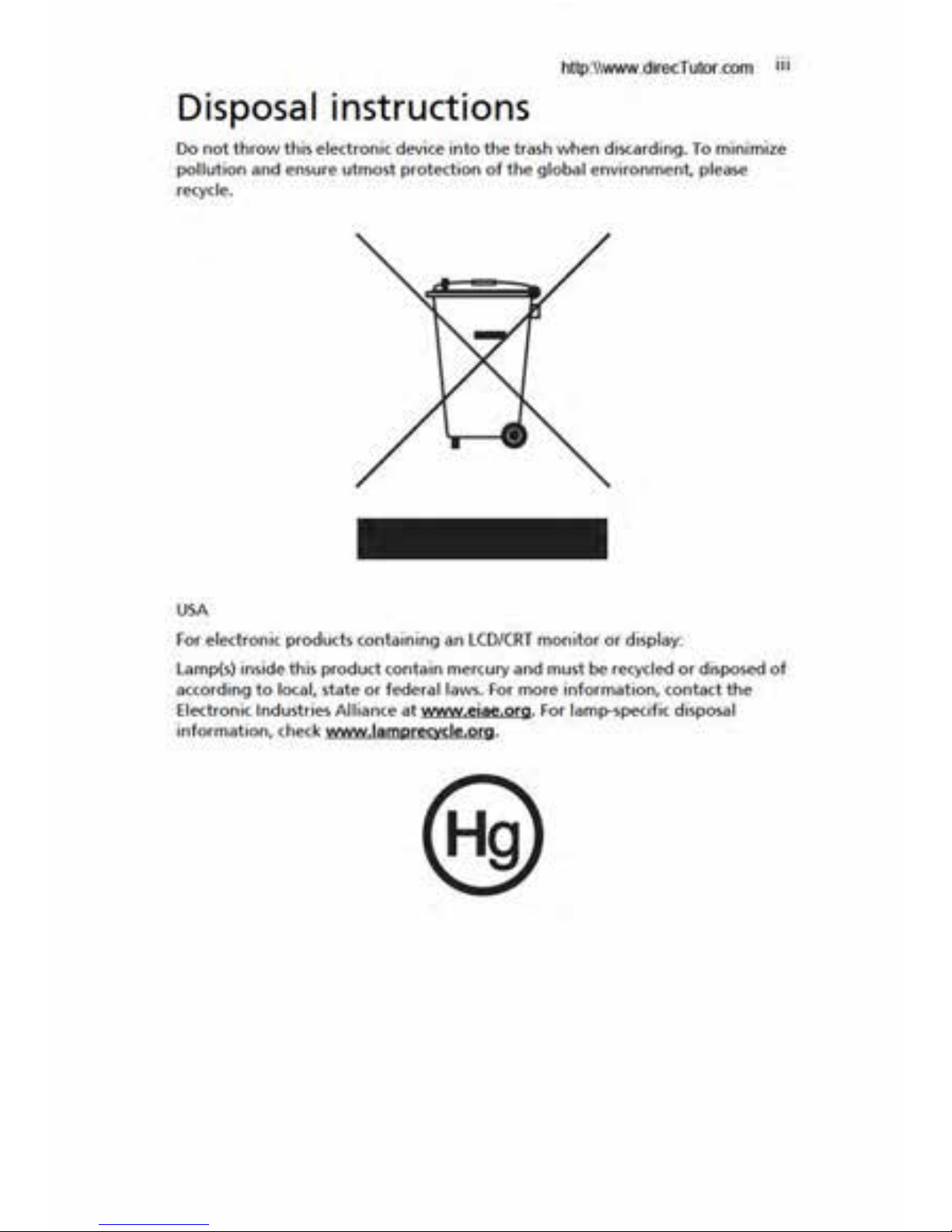
Disposal instructions iii
First things first iv
Your guides iv
Basic care and tips for using your computer iv
Turning your computer on and off iv
Taking care of your computer v
Taking care of your AC adapter v
Taking care of your battery pack vi
Cleaning and servicing vi
Acer Empowering Technology 1
Acer eDataSecurity Management 2
Acer eLock Management 3
Acer ePerformance Management 4
Acer eRecovery Management 5
Acer eSettings Management 6
Acer eNet Management 6
Acer ePower Management 8
Acer ePresentation Management 9
An Aspire tour 11
Front view 11
Closed front view 12
Left view 13
Right view 14
Rear view 14
Base view 15
Features 16
Indicators 19
Easy-launch buttons 20
Touchpad 21
Touchpad basics 21
Using the keyboard 23
Lock keys and embedded numeric keypad 23
Windows keys 24
Hotkeys 24
Special keys 26
Ejecting the optical (CD or DVD) drive tray 27
Using a computer security lock 27
Audio 28
Adjusting the volume 28
Contents
http:\\www.direcTutor.com

Using the system utilities 29
Acer GridVista (dual-display compatible) 29
Launch Manager 30
Norton AntiVirus 31
Frequently asked questions 32
Requesting service 35
International Travelers Warranty (ITW) 35
Before you call 35
Acer Arcade (for selected models) 36
Arcade hotkeys 37
Finding and playing content 38
Settings 38
Arcade controls 38
Navigation controls 39
Player controls 39
Cinema 39
DVD settings 40
Album 41
Slideshow settings 42
Video 42
Playing a video file 42
Video authoring 43
Music 43
Burner 44
Copy — Back up your CD/DVD collection 44
Audio — Create your own greatest hits CDs 44
Data — Store files simply and easily 44
Video — Your world in pictures 44
Taking your notebook PC with you 45
Disconnecting from the desktop 45
Moving around 45
Preparing the computer 45
What to bring to meetings 46
Taking the computer home 46
Preparing the computer 46
What to take with you 46
Special considerations 47
Setting up a home office 47
Traveling with the computer 47
http:\\www.direcTutor.com

Preparing the computer 47
What to take with you 47
Special considerations 48
Traveling internationally with the computer 48
Preparing the computer 48
What to bring with you 48
Special considerations 48
Securing your computer 49
Using a computer security lock 49
Using passwords 49
Entering passwords 50
Setting passwords 50
Expanding through options 51
Connectivity options 51
Fax/data modem 51
Built-in network feature 52
Universal Serial Bus (USB) 52
PC Card slot 53
Installing memory 54
BIOS utility 54
Boot sequence 54
Enable disk-to-disk recovery 55
Password 55
Using software 55
Playing DVD movies 55
Power management 56
Acer eRecovery Management 56
Create backup 57
Restore from backup 57
Create factory default image CD 57
Re-install bundled software without CD 58
Change password 58
Troubleshooting 60
Troubleshooting tips 60
Error messages 60
Regulations and safety notices 61
ENERGY STAR guidelines compliance 61
FCC notice 61
Modem notices 62
http:\\www.direcTutor.com

Important safety instructions 65
Laser compliance statement 67
LCD pixel statement 67
Radio device regulatory notice 67
General 67
European Union (EU) 68
The FCC RF safety requirement 69
Canada — Low-power license-exempt radio
communication devices (RSS-210) 70
Federal Communications Comission
Declaration of Conformity 71
Declaration of Conformity for CE Marking 72
Index 73
http:\\www.direcTutor.com
Indice
Altri manuali Aspire Computer portatile

Aspire
Aspire 3618AWLMi - Aspire - Pentium M 1.7 GHz Manuale utente

Aspire
Aspire 3020 Series Manuale utente

Aspire
Aspire TravelMate 3620 Series Manuale utente

Aspire
Aspire E 14 Series Manuale utente

Aspire
Aspire 8930 series Manuale utente

Aspire
Aspire switch 10e Manuale utente

Aspire
Aspire E1-451G Manuale utente

Aspire
Aspire 5739 Series Manuale utente

Aspire
Aspire 4937 series Manuale utente

Aspire
Aspire R5-431T Manuale utente


