Asus 1008HA - Eee PC Seashell Manuale utente

Eee PC
User Manual
Windows®XP Edition
Eee PC 1008HA
E4729
15G06Q132002

ii
Table of Contents
Table of Contents
Table of Contents ...................................................................................................................... ii
About This User’s Manual ......................................................................................................iv
Notes for This Manual .............................................................................................................iv
Safety Precautions.....................................................................................................................v
Transportation Precautions ...................................................................................vi
Charging Your Batteries..........................................................................................vii
Airplane Precautions...............................................................................................vii
Knowing the Parts
Top Side ....................................................................................................................................1-2
Bottom Side.............................................................................................................................1-5
Right Side .................................................................................................................................1-6
Left Side ....................................................................................................................................1-7
Rear Side...................................................................................................................................1-8
Keyboard Usage.....................................................................................................................1-9
Touchpad Usage..................................................................................................................1-11
Getting Started
Powering on your Eee PC ...................................................................................................2-2
First-time Startup ..................................................................................................................2-3
Desktop.....................................................................................................................................2-4
ASUS EeePC Tray Utility.......................................................................................................2-5
Enabling and Disabling Devices .......................................................................2-5
Adjusting the display resolution.......................................................................2-5
Network Connection............................................................................................................2-6
Configuring a wireless network connection.................................................2-6
Local Area Network................................................................................................2-7
Browsing web pages...........................................................................................2-10
Using the Eee PC
ASUS Update...........................................................................................................................3-2
Updating the BIOS through the Internet.......................................................3-2
Updating the BIOS through a BIOS file...........................................................3-3

ASUS Eee PC
iii
Bluetooth Connection.........................................................................................................3-4
Super Hybrid Engine............................................................................................................3-6
Super Hybrid Engine Modes...............................................................................3-6
Microsoft®Office Trial...........................................................................................................3-7
Support DVD & System Recovery
Support DVD information..................................................................................................4-2
Running the support DVD...................................................................................4-2
Drivers menu............................................................................................................4-3
Utilities menu...........................................................................................................4-3
Contact.......................................................................................................................4-3
Other information ..................................................................................................4-3
System Recovery....................................................................................................................4-4
Using the Support DVD........................................................................................4-4
Using Recovery Partition .....................................................................................4-5
Boot Booster............................................................................................................................4-6
Appendix
Declarations and Safety Statements ..............................................................................A-2
Federal Communications Commission Statement.....................................A-2
FCC Radio Frequency (RF) Exposure Caution Statement.........................A-3
Declaration of Conformity(R&TTE directive 1999/5/EC)...........................A-4
CE Mark Warning ....................................................................................................A-4
IC Radiation Exposure Statement for Canada..............................................A-4
Wireless Operation Channel for Different Domains ..................................A-6
France Restricted Wireless Frequency Bands ...............................................A-6
UL Safety Notices....................................................................................................A-7
REACH Notice...........................................................................................................A-8
Power Safety Requirement .................................................................................A-8
Nordic Lithium Cautions (for lithium-ion batteries)...................................A-9
Copyright Information......................................................................................................A-11
Limitation of Liability ........................................................................................................A-12
Service and Support..........................................................................................................A-12

iv
Table of Contents
About This User’s Manual
You are reading the Eee PC User’s Manual.This User’s Manual provides
information regarding the various components in the Eee PC and how to
use them.The following are major sections of this User’s Manual:
1. Knowing the Parts
Provides information on the Eee PC’s components.
2. Getting Started
Provides information on getting started with the Eee PC.
3. Using the Eee PC
Provides information on using the Eee PC’s utilities.
4. Support DVD and System Recovery
Gives you information on support DVD contents and system
recovery.
5. Appendix
Gives you safety statements.
The actual bundled applications differ by models and territories.
There may be differences between your Eee PC and the pictures
shown in this manual. Please accept your Eee PC as being correct.
Notes for This Manual
A few notes and warnings are used throughout this guide, allowing you
to complete certain tasks safely and effectively.These notes have different
degrees of importance as follows:
WARNING! Important information that must be followed for safe
operation.
IMPORTANT! Vital information that must be followed to prevent
damage to data, components, or persons.
TIP: Tips for completing tasks.
NOTE: Information for special situations.

ASUS Eee PC
v
Safety Precautions
The following safety precautions will increase the life of the Eee PC. Follow
all precautions and instructions. Except as described in this manual, refer
all servicing to qualified personnel. Do not use damaged power cords,
accessories, or other peripherals. Do not use strong solvents such as
thinners, benzene, or other chemicals on or near the surface.
Disconnect the AC power before cleaning.Wipe the Eee PC using a
clean cellulose sponge or chamois cloth dampened with a solution
of nonabrasive detergent and a few drops of warm water and
remove any extra moisture with a dry cloth.
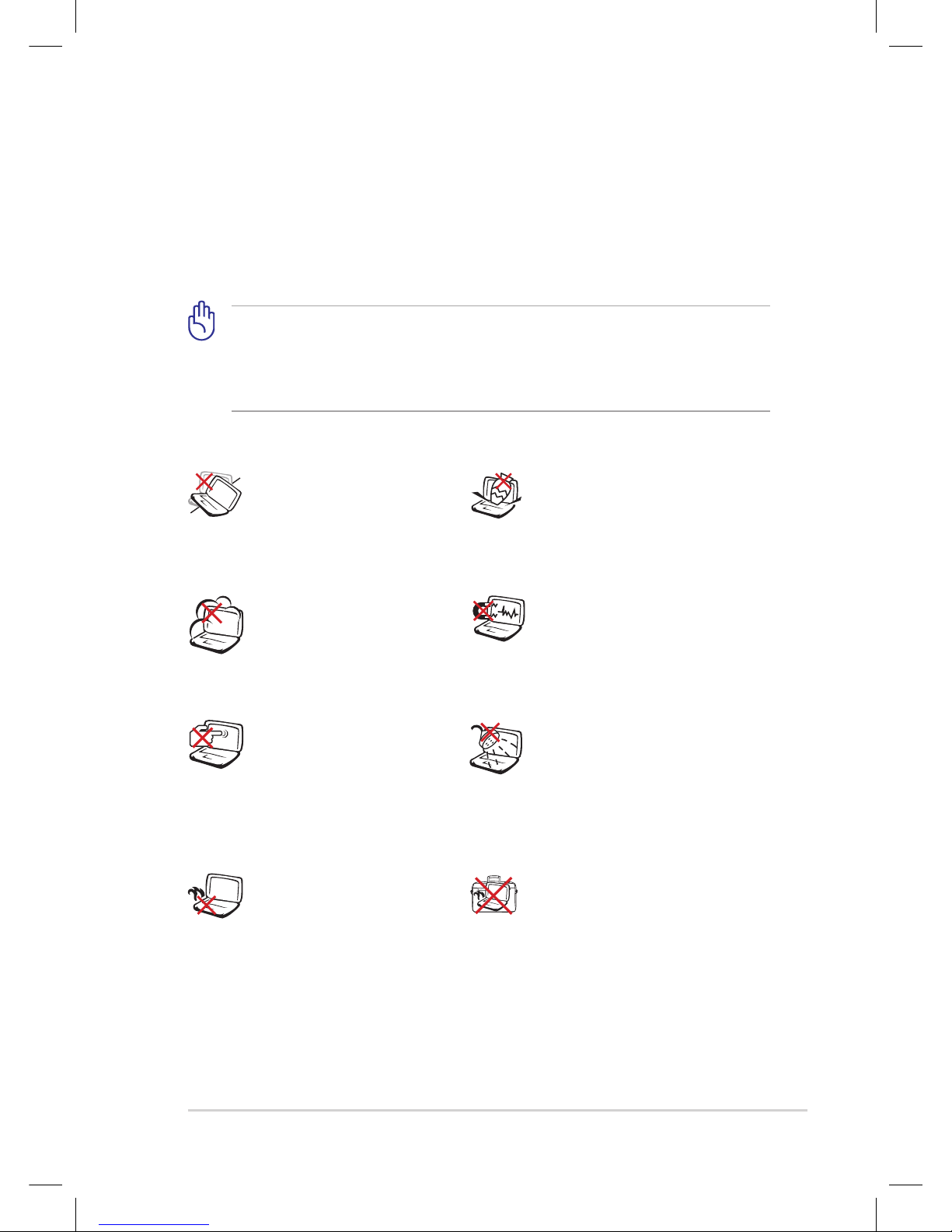
DO NOT leave the Eee PC
on your lap or any part
of the body to prevent
discomfort or injury from
heat exposure.
DO NOT expose to dirty or
dusty environments. DO
NOT operate during a gas
leak.
DO NOT expose to strong
magnetic or electrical fields.
DO NOT expose to or use near
liquids, rain, or moisture. DO
NOT use the modem during
electrical storms.
DO NOT press or touch the
display panel. Do not place
together with small items
that may scratch or enter
the Eee PC.
DO NOT place on uneven
or unstable work surfaces.
Seek servicing if the casing
has been damaged.
DO NOT place or drop objects
on top and do not shove any
foreign objects into the Eee
PC.
DO NOT carry or cover a
Eee PC that is powered
ON with any materials that
will reduce air circulation
such as a carrying bag.

vi
Table of Contents
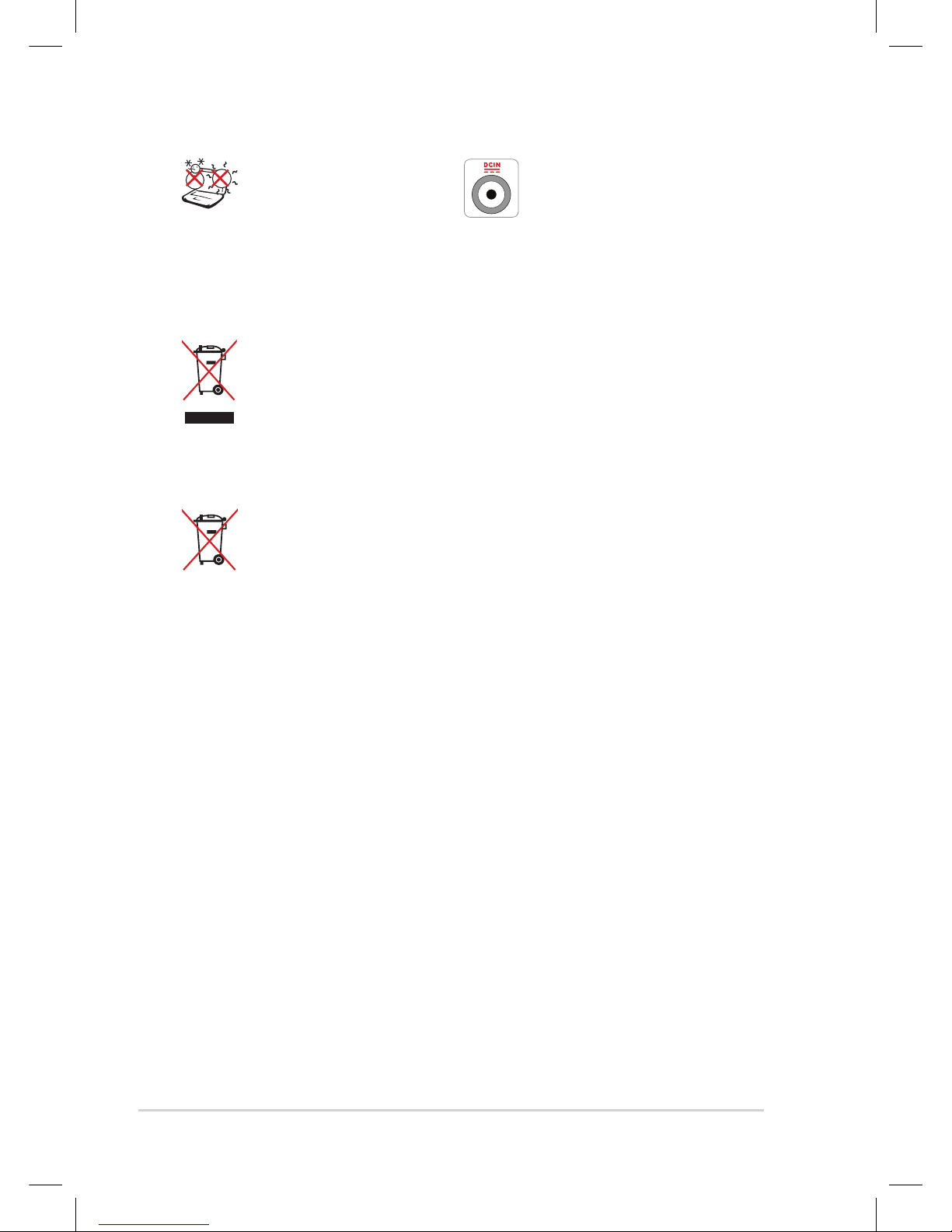
SAFE TEMP:This Eee PC
should only be used
in environments with
ambient temperatures
between 5°C (41°F) and
35°C (95°F)
INPUT RATING: Refer to the
rating label on the bottom
of the Eee PC and be sure
that your power adapter
complies with the rating.
DO NOT throw the Eee PC in municipal waste.This product has
been designed to enable proper reuse of parts and recycling.The
symbol of the crossed out wheeled bin indicates that the product
(electrical, electronic equipment and mercury-containing button
cell battery) should not be placed in municipal waste. Check local
regulations for disposal of electronic products.
DO NOT throw the battery in municipal waste.The symbol of the
crossed out wheeled bin indicates that the battery should not be
placed in municipal waste.
Transportation Precautions
To prepare your Eee PC for transport, you should turn it OFF and
disconnect all external peripherals to prevent damage to the
connectors.The hard disk drive’s head retracts when the power is turned
OFF to prevent scratching of the hard disk surface during transport.
Therefore, you should not transport your Eee PC while the power
is still ON. Close the display panel to protect the keyboard and display
panel.
The Eee PC’s surface is easily dulled if not properly cared for. Be careful
not to rub or scrape surfaces when transporting your Eee PC.You can put
your Eee PC in a carrying case for protection from dirt, water, shock, and
scratches.

ASUS Eee PC
vii
Charging Your Batteries
If you intend to use battery power, be sure to fully charge your battery
pack before going on long trips. Remember that the power adapter
charges the battery pack as long as it is plugged into the computer and an
AC power source. Be aware that it takes much longer to charge the battery
pack when the Eee PC is in use.
Remember to fully charge the battery (8 hours or more) before first use
and whenever it is depleted to prolong battery life.The battery reaches its
maximmum capacity after a few full charging and discharging cycles.
Airplane Precautions
Contact your airline if you want to use the Eee PC on the airplane. Most
airlines have restrictions for using electronic devices. Most airlines allow
electronic use only between and not during takeoffs and landings.
There are three main types of airport security devices: X-ray
machines (used on items placed on conveyor belts), magnetic
detectors (used on people walking through security checks), and
magnetic wands (hand-held devices used on people or individual
items).You can send your Eee PC and diskettes through airport X-ray
machines. However, it is recommended that you do not send your
Eee PC or diskettes through airport magnetic detectors or expose
them to magnetic wands.

viii
Table of Contents

Top Side
Bottom Side
Right Side
Left Side
Rear Side
Keyboard Usage
Touchpad Usage
1
Knowing the Parts

Chapter 1: Knowing the Parts
1-2
ESC
Tab
Q W E R T Y U I
O
P
LK
Alt
Alt
Ctrl
Ctrl
Fn
JHGFDSA
BV M
<
>
..
,
?
N
C
X
Z
Caps Lock
{
[
:
;
}
]
F1 F2 F3 F4 F5 F6 F7 F8 F9 F10 F11 F12
Pause
Break
Prt Sc
Insert
Delete
Enter
Backspace
=
)
0
(
9
87
789
4 5 6
1
0
23
5
%
4
$
3
2
!&
Shift
Shift
16
Num LK
Home
PgUp
PgDn
End
Scr LK
#
@
~
SysRq
4
5
6
7
8
3
2
1
Top Side
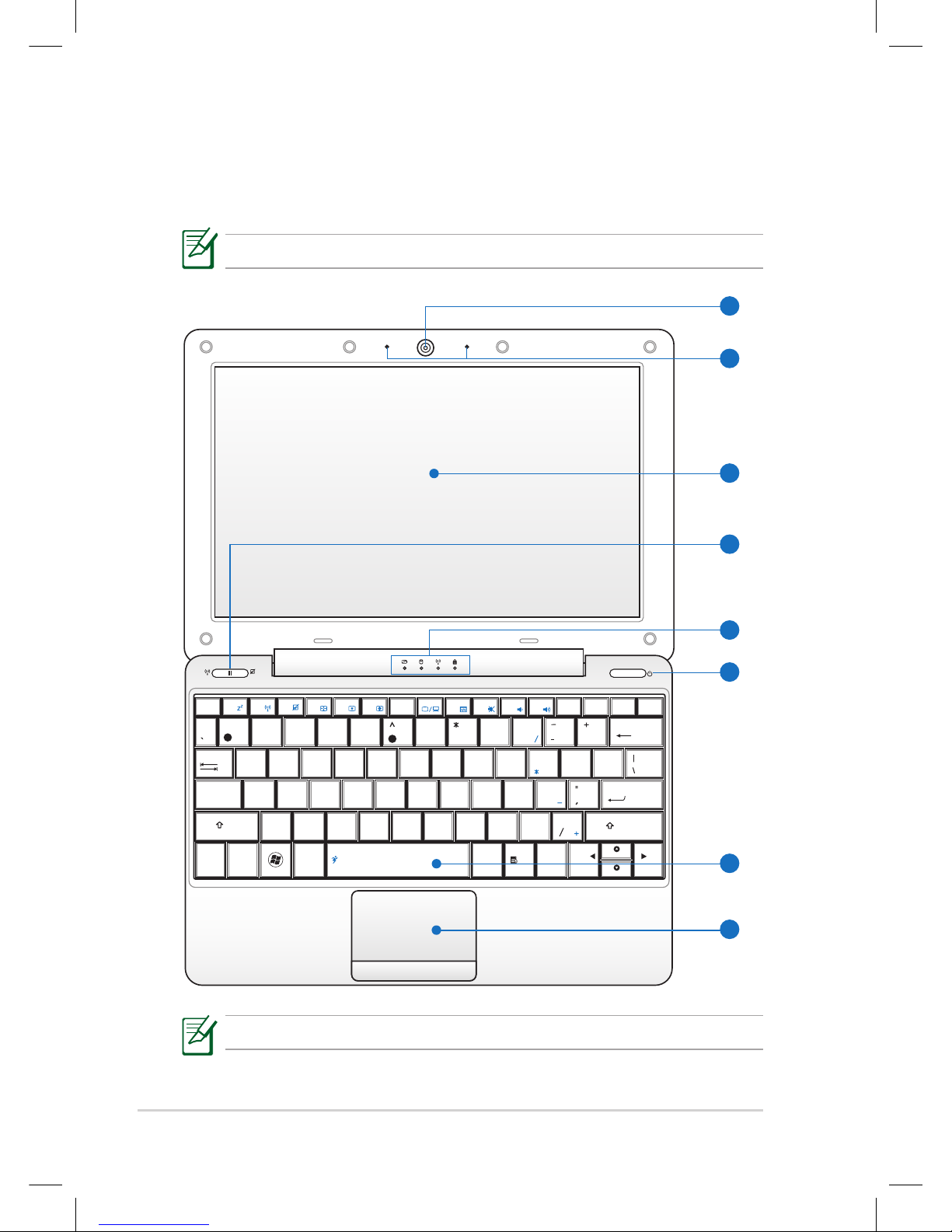
Refer to the illustration below to identify the components on this side of
the Eee PC.
The top side may vary in appearance depending on model.
The keyboard differs for each territory.
Altri manuali per 1008HA - Eee PC Seashell
1
Questo manuale è adatto per i seguenti modelli
4
Indice
Altri manuali Asus Computer portatile

Asus
Asus Eee PC 1002HA Manuale utente

Asus
Asus A7Db Istruzioni per l’uso

Asus
Asus L1B Guida rapida

Asus
Asus S7F Manuale utente

Asus
Asus Eee PC 900AX Manuale utente

Asus
Asus F2F Istruzioni per l’uso

Asus
Asus Eee PC 2G Series Manuale operativo

Asus
Asus A53TK Manuale utente

Asus
Asus Eee PC X101CH Manuale utente

Asus
Asus T12Ug Istruzioni di montaggio