Asus DX201 Manuale utente

DT LCD Monitor
DX201
User Guide

2ASUS DX201
ENGLISH
Copyright © 2014 ASUSTeK Computer Inc. All Rights Reserved.
No part of this manual, including the products and software described in it, may be reproduced, transmitted,
transcribed, stored in a retrieval system, or translated into any language in any form or by any means, except
documentation kept by the purchaser for backup purposes, without the express written permission of ASUSTeK
Computer Inc. (“ASUS”).
Product warranty or service will not be extended if: (1) the product is repaired, modied or altered, unless such
repair, modication of alteration is authorized in writing by ASUS; or (2) the serial number of the product is
defaced or missing.
ASUS PROVIDES THIS MANUAL “AS IS”WITHOUT WARRANTY OF ANY KIND, EITHER EXPRESS OR IMPLIED,
INCLUDING BUT NOT LIMITED TO THE IMPLIED WARRANTIES OR CONDITIONS OF MERCHANTABILITY OR FITNESS
FOR A PARTICULAR PURPOSE. IN NO EVENT SHALL ASUS, ITS DIRECTORS, OFFICERS, EMPLOYEES OR AGENTS BE
LIABLE FOR ANY INDIRECT, SPECIAL, INCIDENTAL, OR CONSEQUENTIAL DAMAGES (INCLUDING DAMAGES FOR
LOSS OF PROFITS, LOSS OF BUSINESS, LOSS OF USE OR DATA, INTERRUPTION OF BUSINESS AND THE LIKE), EVEN IF
ASUS HAS BEEN ADVISED OF THE POSSIBILITY OF SUCH DAMAGES ARISING FROM ANY DEFECT OR ERROR IN THIS
MANUAL OR PRODUCT.
SPECIFICATIONS AND INFORMATION CONTAINED IN THIS MANUAL ARE FURNISHED FOR INFORMATIONAL USE
ONLY, AND ARE SUBJECT TO CHANGE AT ANY TIME WITHOUT NOTICE, AND SHOULD NOT BE CONSTRUED AS A
COMMITMENT BY ASUS. ASUS ASSUMES NO RESPONSIBILITY OR LIABILITY FOR ANY ERRORS OR INACCURACIES
THAT MAY APPEAR IN THIS MANUAL, INCLUDING THE PRODUCTS AND SOFTWARE DESCRIBED IN IT.
Products and corporate names appearing in this manual may or may not be registered trademarks or copyrights
of their respective companies, and are used only for identication or explanation and to the owners’benet,
without intent to infringe.
E9013
Revised Edition V2
February 2014

ASUS DX201 3
ENGLISH
Contents
Notices ................................................................................................................................................ 4
Safety and maintenance information....................................................................................... 5
Safety instructions .......................................................................................................... 5
Monitor placement......................................................................................................... 6
Cleaning instructions..................................................................................................... 6
LCD monitor behavior ................................................................................................... 6
Conventions used in this guide...................................................................................................7
Where to nd more information................................................................................................. 7
Specications summary................................................................................................................. 8
Package contents ............................................................................................................................. 9
Chapter 1: Getting started 10
Welcome!...........................................................................................................................................10
Getting to know your computer...............................................................................................10
Front panel.......................................................................................................................10
Rear panel ........................................................................................................................12
Chapter 2: Setting up your monitor 13
Attaching/removing your monitor to/from its base..........................................................13
Attaching your monitor to its base.........................................................................13
Removing your monitor from its base...................................................................14
Connecting to your desktop PC via the VGA port..............................................................15
Powering your monitor................................................................................................................15
Adjusting your monitor................................................................................................................16
Chapter 3: Using the Onscreen Display (OSD) menu 17
Conguring the OSD menu........................................................................................................17
Using the OSD functions .............................................................................................................18
Splendid .........................................................................................................................18
Color .........................................................................................................................19
Image .........................................................................................................................20
Input Select ....................................................................................................................21
System Setup .................................................................................................................22
ASUS contact information...........................................................................................................24

4ASUS DX201
ENGLISH
As an Energy Star®Partner, ASUS has determined that this product meets the
Energy Star®guidelines for energy eciency.
Notices
ASUS Recycling/Takeback Services
ASUS recycling and takeback programs come from our commitment to the highest standards for
protecting our environment. We believe in providing solutions for you to be able to responsibly
recycle our products, batteries, other components, as well as the packaging materials. Please go to
http://csr.asus.com/english/Takeback.htm for the detailed recycling information in dierent regions.
REACH
Complying with the REACH (Registration, Evaluation, Authorisation, and Restriction of Chemicals)
regulatory framework, we published the chemical substances in our products at ASUS REACH
website at http://csr.asus.com/english/REACH.htm
Federal Communications Commission Statement
This device complies with Part 15 of the FCC Rules. Operation is subject to the following two
conditions:
• Thisdevicemaynotcauseharmfulinterference;and
• Thisdevicemustacceptanyinterferencereceivedincludinginterferencethatmaycause
undesired operation.
This equipment has been tested and found to comply with the limits for a Class B digital device,
pursuant to Part 15 of the FCC Rules. These limits are designed to provide reasonable protection
against harmful interference in a residential installation. This equipment generates, uses and can
radiate radio frequency energy and, if not installed and used in accordance with manufacturer’s
instructions, may cause harmful interference to radio communications. However, there is no
guarantee that interference will not occur in a particular installation. If this equipment does cause
harmful interference to radio or television reception, which can be determined by turning the
equipment o and on, the user is encouraged to try to correct the interference by one or more of
the following measures:
• Reorientorrelocatethereceivingantenna.
• Increasetheseparationbetweentheequipmentandreceiver.
• Connecttheequipmenttoanoutletonacircuitdierentfromthattowhichthereceiveris
connected.
• Consultthedealeroranexperiencedradio/TVtechnicianforhelp.
This prolduct implements power management functionality. In case of no signal input after 10
seconds, the product automatically goes to sleep/standby mode.
Canadian Department of Communications Statement
This digital apparatus does not exceed the Class B limits for radio noise emissions from digital
apparatus set out in the Radio Interference Regulations of the Canadian Department of
Communications.
This class B digital apparatus complies with Canadian ICES-003.

ASUS DX201 5
ENGLISH
Safety and maintenance information
Your ASUS LCD Monitor is designed and tested to meet the latest standards of safety for information
technology equipment. However, to ensure your safety, it is important that you read the following
safety and maintenance instructions.
Safety instructions
• Beforesettingupthemonitor,carefullyreadallthedocumentationthatcamewiththe
package.
• Topreventreorshockhazard,neverexposethemonitortorainormoisture.
• Nevertrytodisassemblethemonitor.Thedangeroushighvoltagesinsidethemonitormay
result in serious physical injury.
• Ifthepowersupplyisbroken,donottrytoxitbyyourself.Contactaqualiedservice
technician or your retailer.
• Beforeusingtheproduct,ensurethatallcablesarecorrectlyconnectedandthepowercables
are not damaged. If you detect any damage, contact your dealer immediately.
• Slotsandopeningsonthebackortopofthemonitorareprovidedforventilation.Donot
block these slots. Never place this product near or over a radiator or heat source unless proper
ventilation is provided.
• Plugthemonitor’spoweradaptertothecorrectpowerratingbasedonthelabelorlocalpower
regulations.
• Donotoverloadpowerstripsandextentioncords.Overloadingcanresultinreorelectric
shock.
• Avoiddust,humidity,andextremetemperature.Donotplacethemonitorinanyareawhereit
may become wet. Place the monitor on a stable surface.
• Unplugtheunitduringalightningstormorifitwillnotbeusedforalongperiodoftime.This
will protect the monitor from damage due to power surges.
• Neverpushobjectsorspillliquidofanykindintotheslotsofthemonitor.
• Ifyouencountertechnicalproblemswiththemonitor,contactaqualiedservicetechnicianor
your retailer.
This symbol of the crossed out wheeled bin indicates that the product (electrical, electronic
equipment, and mercury-containing button cell battery) should not be placed in municipal waste.
Please check local regulations for disposal of electronic products.

6ASUS DX201
ENGLISH
Monitor placement
1. Turn your desktop PC and your monitor o.
2. Disconnect the power and signal cables.
3. Firmly hold both sides to lift and carry your monitor. Do not lift your monitor by the stand.
Cleaning instructions
1. Turn your desktop PC and your monitor o.
2. Disconnect the power and signal cables.
3. Clean the monitor screen with a lint-free, non-abrasive cloth. Stubborn stains may be removed
with a cloth dampened with a mild cleaner.
• UseacleanerthatisintendedforusewithanLCDmonitor.
• Donotuseacleanercontainingalcoholoracetone.
• Donotspraythecleanerdirectlyonthescreenasitmaydripinsidethemonitorandcausean
electric shock.
LCD monitor behavior
• Themonitorscreenmayickerwhenyouuseitforthersttime.Turnyourmonitoro,then
turnitonagaintoensurethatyourmonitorstopsickering.
• Themonitorscreenmayappearunevenlybrightdependingonthedesktoppatternthatyou
use. Congure the screen to your preferred settings.
• Whenyouencounterablackorashingscreen,contactyourdealerortheASUSServiceCenter.
Do not try to x your monitor by yourself.

ASUS DX201 7
ENGLISH
Conventions used in this guide
To ensure that you perform certain tasks properly, take note of the following symbols used
throughout this manual.
DANGER/WARNING: Information to prevent injury to yourself when trying to
complete a task.
CAUTION: Information to prevent damage to the components when trying to
complete a task.
IMPORTANT: Instructions that you MUST follow to complete a task.
NOTE: Tips and additional information to help you complete a task.
Where to nd more information
Refer to the following sources for additional information and for product and software updates.
ASUS websites
The ASUS website provides updated information on ASUS hardware and software products.
Refer to the ASUS website www.asus.com.
ASUS Local Technical Support
Visit ASUS website at http://support.asus.com/contact for the contact information of local
Technical Support Engineer.

8ASUS DX201
ENGLISH
Specications summary
Panel size 495.3 mm (19.5 inches)
Active area (HxV) 433.92x236.34mm
Pixels (HxV) 1600 (x3) x 900
Pixel pitch 0.2712 x 0.2626 um
Pixel arrangement RGB
Display mode TN Mode, Normal White
White luminance (Center) 250 cd/m2(Typ.)
Contrast radio 1000 (Typ.)
Optical response time 5ms (Typ. on/o)
Nominal Input Voltage VDD +5.0V (Typ.)
Power consumption
(VDD Line + LED Line)
LED Line: PBLU (typ.) - 8.32 W (TBC)
VDD Line: PDD (typ.) , TBD
Electrical interface Dual-channel LVDS
Support color 16.7M colors (RGB 6-bit + Hi_FRC)
Surface treatment Anti-glare, 3H
Temperature range 0 ~ +40oC
Operating storagge -20 ~ +60oC
RoHS compliance RoHS compliance
TCO compliance TCO 6.0 compliance
Specications are subject to change without prior notice.

ASUS DX201 9
ENGLISH
Package contents
• Ifanyoftheaboveitemsisdamagedormissing,contactyourretailer.
• Theillustrateditemsaboveareforreferenceonly.Actualproductspecicationsmayvarywith
dierent models.
ASUS LCD Monitor DC cable x 1 (optional)
Power adapter x1 (optional) VGA cable x1
Quick Start Guide
Quick Start Guide x1 warranty card
Warranty card

10 ASUS DX201
ENGLISH
Welcome!
Thank you for purchasing the ASUS LCD Monitor!
The latest widescreen ASUS LCD monitor provides a crisper, broader, and brighter display, plus a
host of features that enhance your viewing experience.
With these features, you can enjoy the convenience and delightful visual experience that the
monitor brings to you.
Getting to know your computer
Illustrations are for reference only. The ports and their locations, and size of the LCD monitor vary
with dierent models.
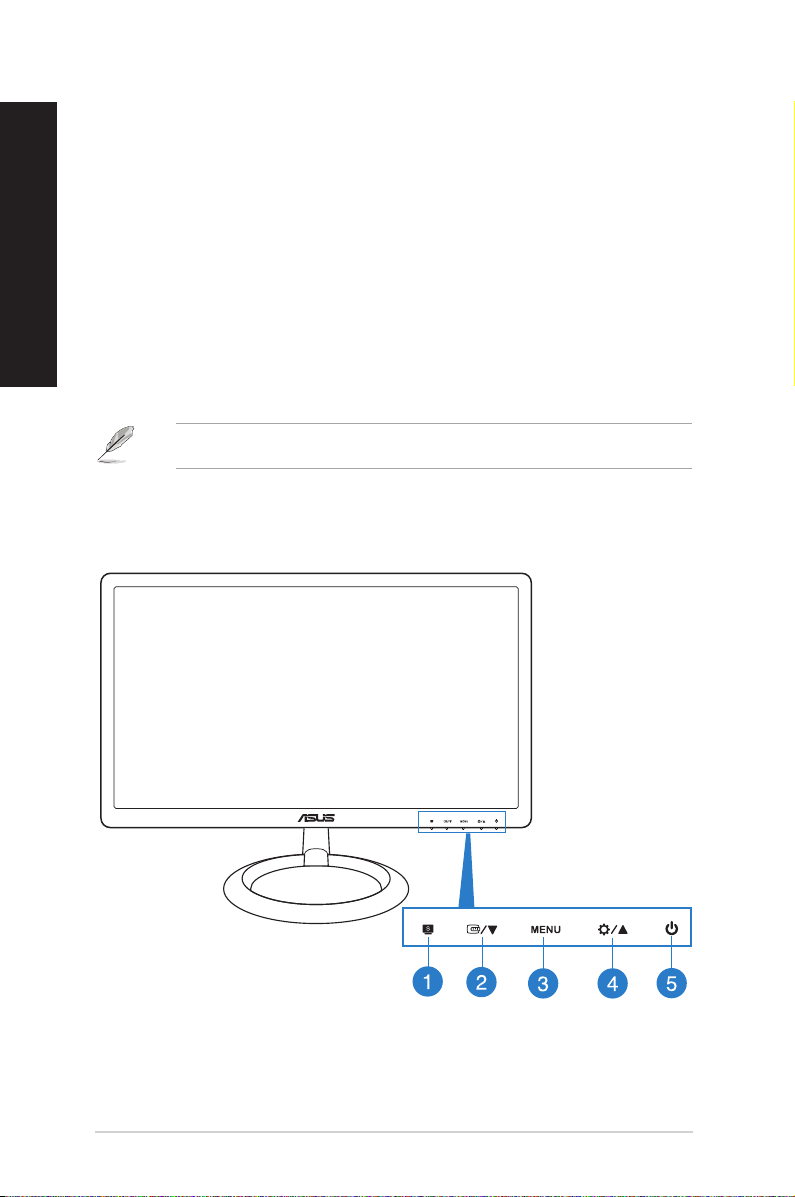
Front panel
Chapter 1: Getting started
Indice
Altri manuali Asus Monitor

Asus
Asus VG278QR Manuale utente

Asus
Asus VZ239 Series Manuale utente

Asus
Asus VZ22E Series Manuale utente

Asus
Asus PB278Q Manuale utente

Asus
Asus LS201 Manuale utente

Asus
Asus MZ279HL Series Manuale utente

Asus
Asus VA24EHEY Manuale utente

Asus
Asus VA229NR Manuale utente

Asus
Asus BE239 Series Manuale utente

Asus
Asus PA329CV Series Manuale utente

Asus
Asus VW199T Manuale utente

Asus
Asus PG27AQ series Manuale utente

Asus
Asus VX228D Manuale utente

Asus
Asus VG2491R Series Manuale utente

Asus
Asus ZenScreen MQ13AH Manuale utente

Asus
Asus VK192S-B Manuale utente

Asus
Asus VY279HF Series Manuale utente

Asus
Asus VG248QE Manuale utente

Asus
Asus MT276 Series Manuale utente

Asus
Asus VA279HAE Manuale utente