
Asus ZS550KL Manuale utente
ZS550KL
User Guide

2
Care and safety
Guidelines
Road safety comes first. We strongly recommend not to use your device when
driving or operating any type of vehicle.
This device should only be used in environments with ambient temperatures
between 0°C (32°F) and 35°C (95°F).
Turn off your device in restricted areas where the use of mobile devices is prohibited.
Always obey rules and regulations when in restricted areas, such as, in aircraft, movie
theater, in hospitals or near medical equipment, near gas or fuel, construction sites,
blasting sites and other areas.
Use only AC adapters and cables approved by ASUS for use with this device. Refer to
the rating label on the bottom of your device and ensure that your power adapter
complies with this rating.
Do not use damaged power cables, accessories, and other peripherals with your
device.
Keep your device dry. Do not use or expose your device near liquids, rain, or
moisture.
You can put your device through x-ray machines (such as those used in conveyor
belts for airport security), but do not expose the device to magnetic detectors and
wands.
The device screen is made of glass. If the glass gets broken, stop using the device
and do not touch the broken glass parts. Immediately send device for repair to
ASUS-qualified service personnel.
Do not listen at high volume levels for long periods to prevent possible hearing
damage.
Disconnect the AC power before cleaning your device. Use only a clean cellulose
sponge or chamois cloth when cleaning your device screen.
Send device for repair to ASUS-qualified service personnel only.
E11691
August 2016
First Edition

3
Proper disposal
Risk of explosion if battery is replaced by an incorrect type. Dispose of used batteries
according to the instructions.
DO NOT throw the battery in municipal waste. The symbol of the crossed out
wheeled bin indicates that the battery should not be placed in municipal waste.
DO NOT throw this product in municipal waste. This product has been designed to
enable proper reuse of parts and recycling. The symbol of the crossed out wheeled
bin indicates that the product (electrical, electronic equipment and mercury-
containing button cell battery) should not be placed in municipal waste. Check local
regulations for disposal of electronic products.
DO NOT throw this product in fire. DO NOT short circuit the contacts. DO NOT
disassemble this product.
ZenTalk Fans Forum
(http://www.asus.com/zentalk/global_forward.php)
California Proposition 65
WARNING! This product may contain chemicals known to the State of California to cause cancer, birth
defects, or other reproductive harm. Wash hands after handling.

4
1 Basics
Welcome! ................................................................................................................... 7
Get your ASUS Phone ready!............................................................................................................. 8
Starting for the first time ..................................................................................................................19
Using the touchscreen.......................................................................................................................21
2 There’s no place like Home
Zen Home features .....................................................................................................24
Home screen............................................................................................................24
Quick settings.......................................................................................................................................26
System notifications...........................................................................................................................27
Personalizing your Home screen...............................................................................28
App & Widgets .........................................................................................................28
Wallpapers...............................................................................................................29
Easy Mode..............................................................................................................................................30
Setting up the date and time..........................................................................................................33
Setting up your ringtone and alert sounds................................................................................33
Lock Screen .................................................................................................................34
Customizing your lock screen.........................................................................................................34
Customizing the quick access buttons........................................................................................35
Fingerprint ID sensor..................................................................................................36
Starting your ASUS phone for the first time ..............................................................................36
Setting up fingerprint ID from Settings ......................................................................................37
3 Work hard, play harder
Chrome ........................................................................................................................39
Launching Chrome .............................................................................................................................39
Sharing pages.......................................................................................................................................40
Bookmarking pages ...........................................................................................................................40
Clearing the browsing data .............................................................................................................40
Gmail............................................................................................................................41
Google Calendar .........................................................................................................42
Creating events ....................................................................................................................................42
Editing or removing events .............................................................................................................42
Creating reminders.............................................................................................................................43
Editing or removing reminders ......................................................................................................43
Do It Later....................................................................................................................44
Calling later .............................................................................................................44
Messaging later.......................................................................................................44
Adding to-do tasks .................................................................................................44
Deleting to-do tasks ...............................................................................................45
File Manager................................................................................................................45
The Cloud ....................................................................................................................46
ASUS WebStorage...................................................................................................46
ZenFone Care ..............................................................................................................47
Contents

5
4 Keeping in touch
Call in style ..................................................................................................................48
Dual SIM feature .....................................................................................................48
Making calls...........................................................................................................................................50
Receiving calls.........................................................................................................52
Other call options................................................................................................................................53
Managing multiple calls....................................................................................................................54
Recording calls .....................................................................................................................................54
Managing contacts .....................................................................................................55
Contacts Settings ................................................................................................................................55
Setting up your profile ......................................................................................................................55
Adding contacts...................................................................................................................................56
Setting up your VIPs ...........................................................................................................................57
Marking your favorite contacts ......................................................................................................59
Importing contacts .................................................................................................59
Exporting contacts .................................................................................................60
Social networking with your contacts.........................................................................................61
Send messages and more ..........................................................................................62
Google Messenger..............................................................................................................................62
5 Fun and entertainment
Using a headset...........................................................................................................63
Connecting the audio jack...............................................................................................................63
Google Play Music ......................................................................................................64
6 Your precious moments
Capture moments .......................................................................................................65
Launching the Camera app .............................................................................................................65
Using Camera for the first time.......................................................................................................65
Advanced camera features ..............................................................................................................69
Using the Gallery ........................................................................................................74
Viewing files from your social network or cloud storage......................................................74
Viewing the photo location.............................................................................................................75
Sharing files from the Gallery..........................................................................................................76
Deleting files from the Gallery........................................................................................................76
Editing images......................................................................................................................................76
Using MiniMovie..................................................................................................................................78
PhotoCollage...............................................................................................................80
7 Staying connected
Mobile network...........................................................................................................81
Enabling the mobile network ................................................................................81
Wi-Fi .............................................................................................................................81
Enabling Wi-Fi .........................................................................................................81
Connecting to a Wi-Fi network ..............................................................................82
Disabling Wi-Fi ........................................................................................................82
Bluetooth®....................................................................................................................82
Enabling Bluetooth®...............................................................................................82

6
Pairing your ASUS Phone to a Bluetooth® device....................................................................83
Unpairing your ASUS Phone from the Bluetooth® device....................................................83
Tethering .....................................................................................................................84
Wi-Fi Hotspot ........................................................................................................................................84
Bluetooth Tethering............................................................................................................................85
8 Travel and Maps
Weather .......................................................................................................................86
Launching the Weather app............................................................................................................86
Weather home screen........................................................................................................................87
Clock ............................................................................................................................88
World Clock............................................................................................................................................88
Alarm clock ............................................................................................................................................89
Stopwatch..............................................................................................................................................89
Timer........................................................................................................................................................90
9 ZenLink
Knowing ZenLink........................................................................................................91
Share Link...............................................................................................................................................91
10 Zen Everywhere
Special Zen Tools.........................................................................................................93
Flashlight................................................................................................................................................93
Calculator ...............................................................................................................................................95
Quick memo..........................................................................................................................................96
Sound Recorder ...................................................................................................................................98
Splendid............................................................................................................................................... 100
Mobile Manager................................................................................................................................ 102
11 Maintain your Zen
Keeping your device up-to-date..............................................................................103
Updating your system .................................................................................................................... 103
Storage ..................................................................................................................103
Backup and reset ..................................................................................................103
Securing your ASUS Phone........................................................................................................... 104
Appendix
Notices.......................................................................................................................107
Index

7
Chapter 1: Basics
Basics 1
1 Basics
Welcome!
Explore the intuitive simplicity of ASUS Zen UI!
ASUS Zen UI is a charming and intuitive interface exclusively for ASUS Phones. It provides you with
special apps, which are integrated in or with other apps, to fit your unique individual needs and
make your life easier while letting you have fun with your ASUS Phone.
ZenFone Care
Find answers from FAQs (Frequently Asked Questions) or provide your feedbacks in the
user forum.
Camera
With PixelMaster technology, capture those precious moments in vivid and high-quality
photos and videos.
Do It Later
Get hold and act on your important emails, SMS messages, interesting websites, or other
important tasks when it is more convenient for you to do so.
Share Link
Quickly share and receive files, apps, or media contents with other Android devices or
PCs.
PhotoCollage
Spice up your photo with stickers, or get creative with effects, using this free collage
maker.
NOTE: Availability of ASUS Zen UI apps vary per region and ASUS Phone model. Tap from your
Home screen to check the apps available on your ASUS Phone.
8
Chapter 1: Basics
Get your ASUS Phone ready!
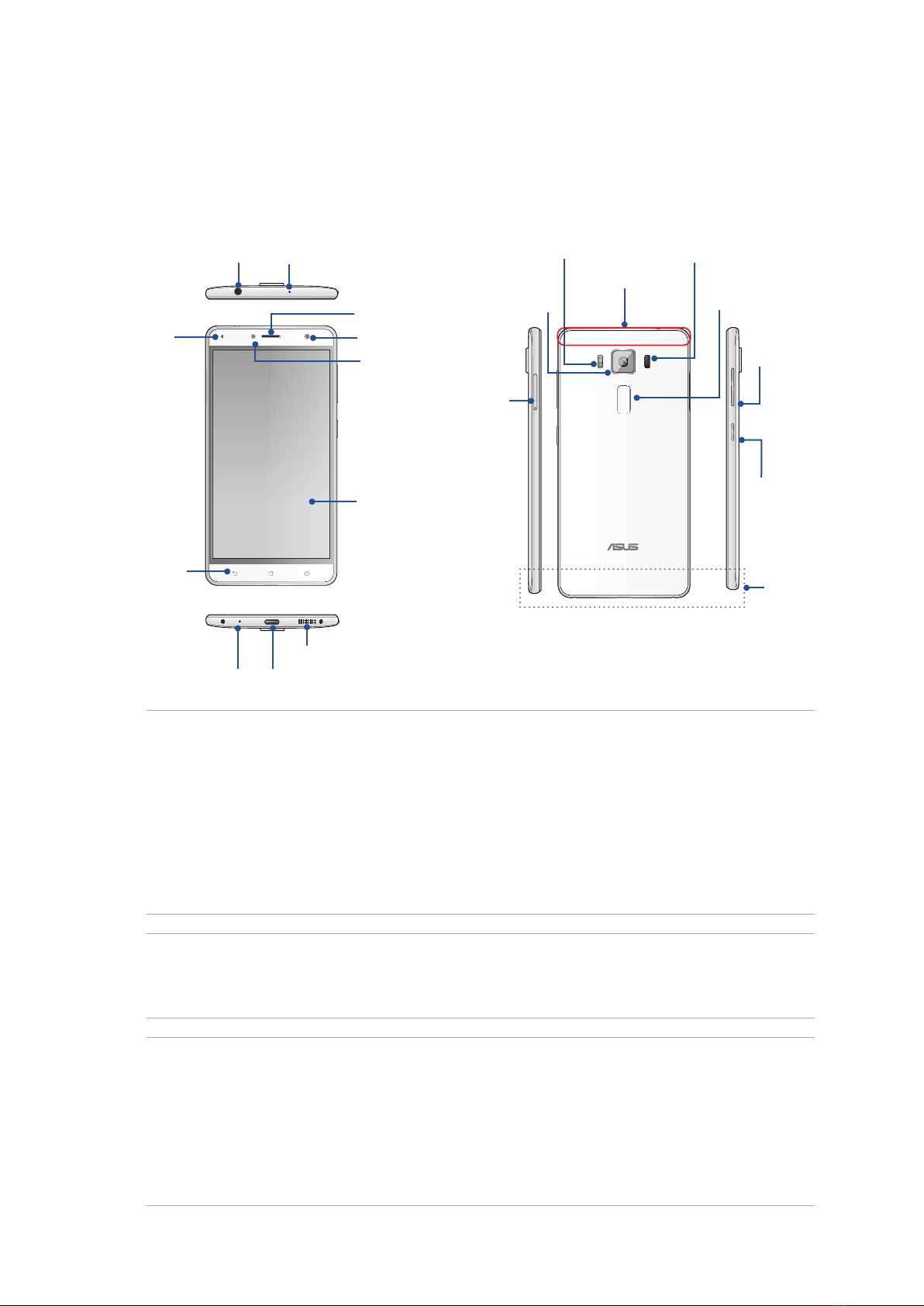
Parts and features
Take a hold of your device and have it running in a jiffy.
USB Type C port
Speaker
LED indicator
Touch screen
display
Front camera
Touch keys
Audio jack
Receiver
Power key
Volume key
Rear camera
Laser focus
Fingerprint
sensor
Micro SIM,
Nano SIM/
MicroSD
combo
card slot
Proximity
Sensor and
light sensor
Camera flash / RGB sensor
WARNING!
• Toavoidnetworkconnectionandbatteryissues:
• DONOTplaceametallicstickerontheantennaarea.
• DONOTuseametallicprotectiveframe/caseonyourASUSPhone.
• DONOTcovertheantennaareawithyourhandsorotherobjectswhileusingsomefunctionssuch
as making calls or using the mobile data connection.
• WerecommendthatyouuseASUS-compatiblescreenprotectors.Usingnon-ASUS-compatible
screen protectors may cause your ASUS Phone's sensor to malfunction.
NOTES:
• TheMicroSIM/NanoSIMcardslotssupportLTE,WCDMA,andGSM/EDGEnetworkbands.
• ThemicroSDcardslotsupportsmicroSDandmicroSDHCcardformats.
IMPORTANT!
• Wedonotrecommendusingascreenprotectorasitcaninterferewiththeproximitysensor.Ifyou
want to use a screen protector, ensure that it does not block the proximity sensor.
• Keepthedevice,particularlythetouchscreen,dryallthetime.Waterorotherliquidscancausethe
touch screen to malfunction.
• EnsurethattheMicroSIM/NanoSIM/memorycardcompartmentcoverisalwaysclosedwhen
operating or carrying the device.
Primary
antenna
Microphone
Microphone
NFC detection aera
9
Chapter 1: Basics
Installing a Micro SIM card
A micro-subscriber identity module (Micro SIM) card stores information, such as your mobile phone
number, contacts, messages and other data that gives you access to a mobile network.
Your ASUS Phone comes with two SIM card slots that allows you to setup and use two mobile
network services without having to carry two mobile devices at the same time.
CAUTION!
• Thisdeviceisdesignedforusewithamobilecarrier-approvedMicroSIMcardonly.
• WedonotrecommendtheuseoftrimmedSIMcardsintheMicroSIMcardslot.
• TurnoffyourdevicebeforeinsertingaMicroSIMcard.
• BeextracarefulwhenhandlingaMicroSIMcard.ASUSisnotresponsibleforanylossordamage
incurred to your Micro SIM card.
• DonotinsertamemorycardintotheMicroSIMcardslot!Ifamemorycardhappenstobeinserted
into the Micro SIM slot, send your device to an ASUS-qualified service personnel.
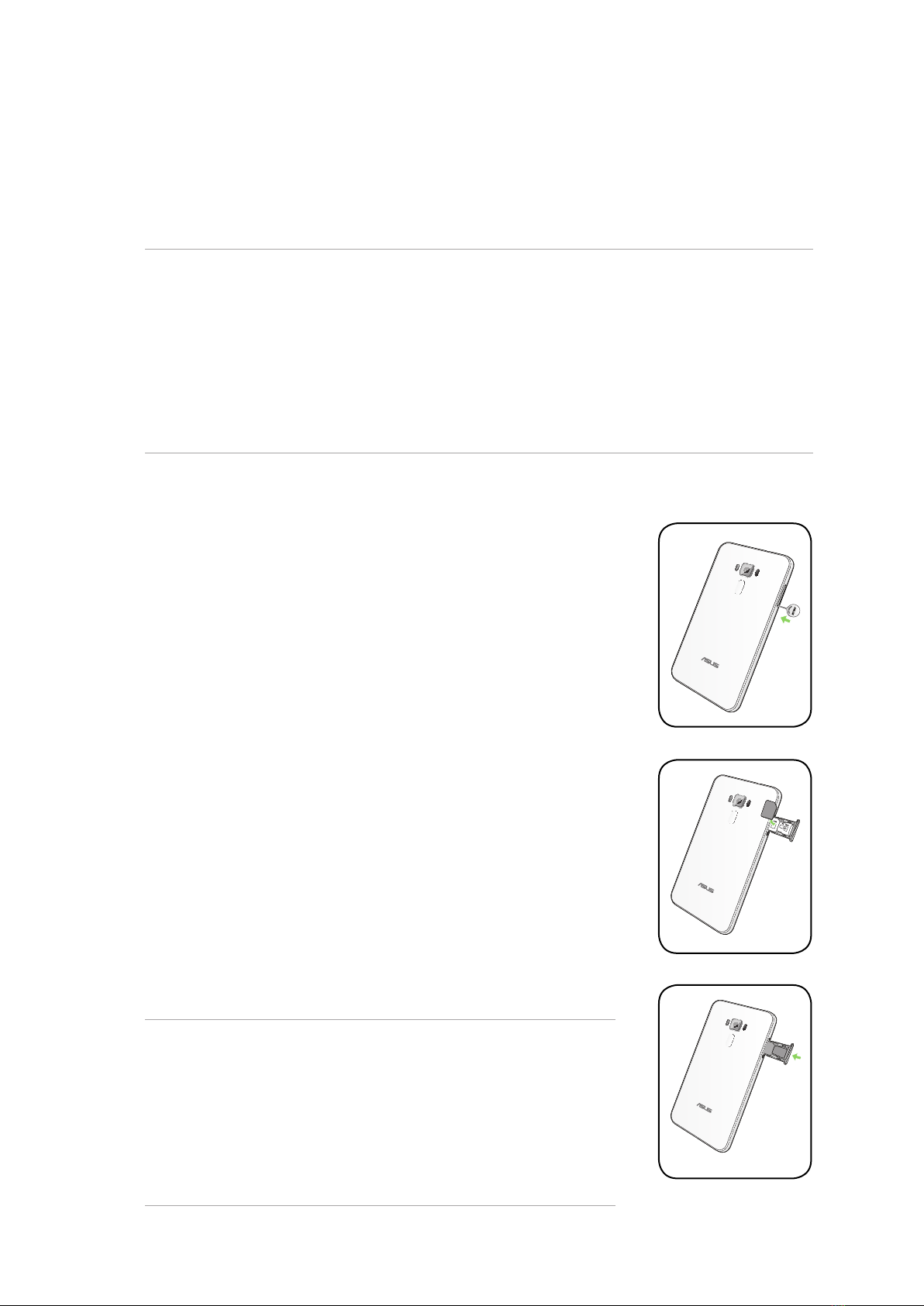
ToinstallaMicroSIMcard:
1. Turn off your device.
2. Push a pin into the hole on the Micro SIM/ Nano SIM/ MicroSD card slot
to eject the tray out.
3. Insert the Micro SIM card into the Micro SIM card slot.
4. Push the tray to close it.
CAUTION!
• Donotusesharptoolsorsolventonyourdevicetoavoidscratches
on it.
• UseonlyastandardMicroSIMcardonyourASUSPhone.ANanoto
Micro SIM adapter or a trimmed SIM card may not properly fit into
and may not be detected by your ASUS Phone.
• DONOTinstallanemptyNanotoMicroSIMadapterintothe
Micro SIM card slot to avoid irreversible damage.

10
Chapter 1: Basics
Removing a Micro SIM card
CAUTION: Be extra careful when handling a Micro SIM card. ASUS is not responsible for any loss or
damage incurred to your Micro SIM card.
ToremoveaMicroSIMcard:
1. Turn off your device.
2. Push a pin into the hole on the Micro SIM/ Nano SIM/ MicroSD card slot
to eject the tray out.
3. Remove the Micro SIM card from the Micro SIM card slot.
4. Push the tray to close it.
Indice
Altri manuali Asus Smartphone

Asus
Asus ZS570KL Manuale utente

Asus
Asus Zenfone 2 Laser ZE550KL Manuale utente

Asus
Asus Zenfone Max ZC550KL Manuale utente

Asus
Asus ZenFone Selfie ZD551KL Manuale utente

Asus
Asus Zenfone 2 Laser ZE601KL Manuale utente

Asus
Asus ZenFone 3 Manuale utente

Asus
Asus ZenFone E9154 Guida

Asus
Asus ZenFone Live Manuale utente


