Asus WL-500gP V2 Manuale utente

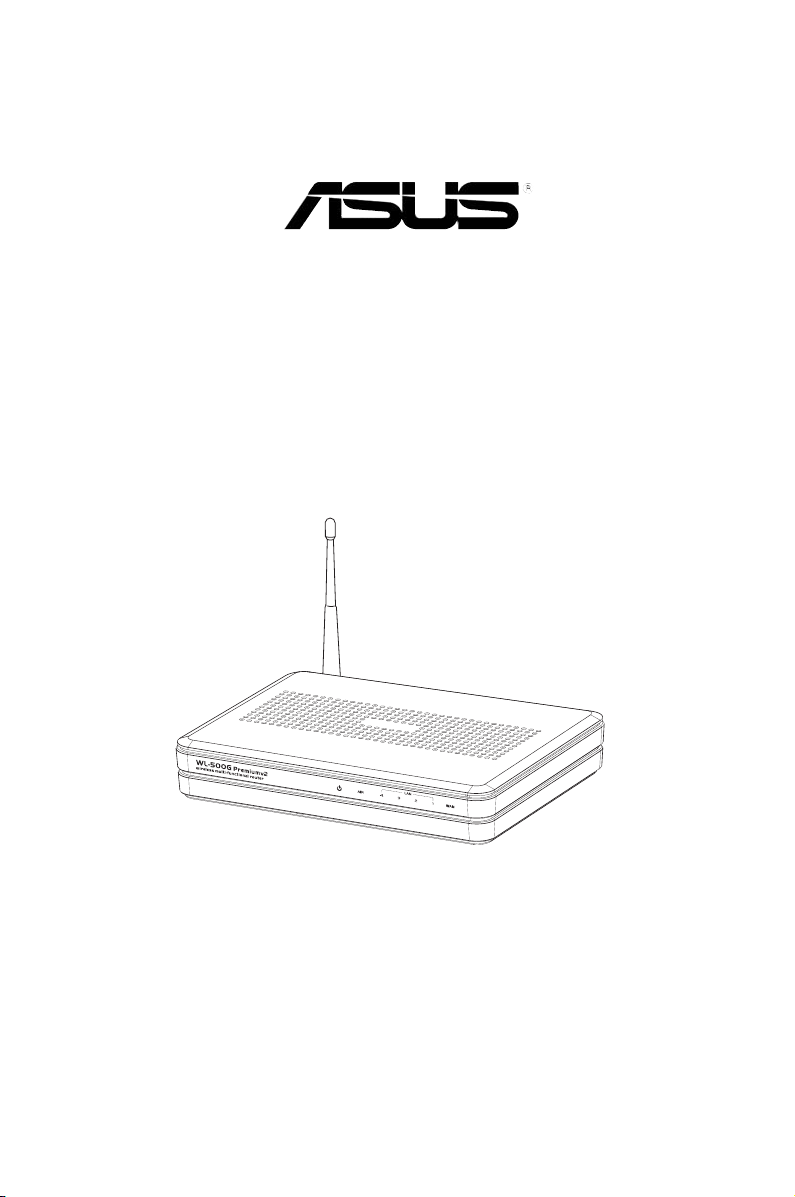
WL-500gP V2 Wireless Router
(For User Interface 2.0)
User Manual

2
Copyright © 2008 ASUSTeK Computer Inc. All Rights Reserved.
No part of this manual, including the products and software described in it, may be
reproduced, transmitted, transcribed, stored in a retrieval system, or translated into any
language in any form or by any means, except documentation kept by the purchaser for
backup purposes, without the express written permission of ASUSTeK Computer Inc.
(“ASUS”).
Product warranty or service will not be extended if: (1) the product is repaired, modied or
altered, unless such repair, modication of alteration is authorized in writing by ASUS; or (2)
the serial number of the product is defaced or missing.
ASUS PROVIDES THIS MANUAL “AS IS” WITHOUT WARRANTY OF ANY KIND, EITHER
EXPRESS OR IMPLIED, INCLUDING BUT NOT LIMITED TO THE IMPLIED WARRANTIES
OR CONDITIONS OF MERCHANTABILITY OR FITNESS FOR A PARTICULAR PURPOSE.
IN NO EVENT SHALL ASUS, ITS DIRECTORS, OFFICERS, EMPLOYEES OR AGENTS BE
LIABLE FOR ANY INDIRECT, SPECIAL, INCIDENTAL, OR CONSEQUENTIAL DAMAGES
(INCLUDING DAMAGES FOR LOSS OF PROFITS, LOSS OF BUSINESS, LOSS OF USE
OR DATA, INTERRUPTION OF BUSINESS AND THE LIKE), EVEN IF ASUS HAS BEEN
ADVISED OF THE POSSIBILITY OF SUCH DAMAGES ARISING FROM ANY DEFECT OR
ERROR IN THIS MANUAL OR PRODUCT.
SPECIFICATIONS AND INFORMATION CONTAINED IN THIS MANUAL ARE FURNISHED
FOR INFORMATIONAL USE ONLY, AND ARE SUBJECT TO CHANGE AT ANY TIME
WITHOUT NOTICE, AND SHOULD NOT BE CONSTRUED AS A COMMITMENT BY
ASUS. ASUS ASSUMES NO RESPONSIBILITY OR LIABILITY FOR ANY ERRORS OR
INACCURACIES THAT MAY APPEAR IN THIS MANUAL, INCLUDING THE PRODUCTS
AND SOFTWARE DESCRIBED IN IT.
Products and corporate names appearing in this manual may or may not be registered
trademarks or copyrights of their respective companies, and are used only for identication or
explanation and to the owners’ benet, without intent to infringe.
E3904
First Edition
October 2008

3
Table of contents
About this guide .................................................................................... 4
How this guide is organized .............................................................. 4
Conventions used in this guide ......................................................... 5
Chapter 1: Knowing your wireless router
Package contents .................................................................................. 6
System requirements ............................................................................ 6
Before you proceed............................................................................... 6
Hardware features ................................................................................. 7
Front panel ........................................................................................ 7
Rear panel......................................................................................... 8
Bottom panel ..................................................................................... 9
Mounting options................................................................................. 10
Chapter 2: Setting up the hardware
Setting up the wireless router .............................................................11
Setting up a wired connection..........................................................11
Setting up a wireless connection..................................................... 12
Conguring the wireless router ......................................................... 12
Using the web GUI.......................................................................... 12
Chapter 3: Conguring the network clients
Accessing the wireless router............................................................ 14
Setting an IP address for wired or wireless client ........................... 14
Chapter 4: Conguring via the web GUI
Conguring via the web GUI............................................................... 21
Using the Network Map....................................................................... 22
Setting up WAN using the Quick Internet Setup (QIS).................... 23
Using the router as a UPnP Media Server...................................... 24
Using AiDisk......................................................................................... 27
Managing EzQoS bandwidth .............................................................. 29
Upgrading the rmware ...................................................................... 30
Restoring/Saving/Uploading settings................................................ 31
Using the USB application.................................................................. 32
Creating a user account.................................................................. 32

4
Table of contents
About this guide
This user guide contains information that you need to install and congure the
ASUS Wireless Router.
How this guide is organized
This guide contains the following parts:
• Chapter 1: Knowing your wireless router
This chapter provides information on the package contents, system
requirements, hardware features, and LED indicators of the ASUS Wireless
Router.
Setting up an FTP site..................................................................... 34
Connecting a USB printer................................................................... 35
Chapter 5: Installing the utilities
Installing the utilities........................................................................... 40
Device Discovery ................................................................................. 42
Firmware Restoration.......................................................................... 42
EZSetup ................................................................................................ 43
Using EZSetup ................................................................................ 43
Download Master ................................................................................. 49
Using the Download Master............................................................ 49
Chapter 6: Troubleshooting
Troubleshooting................................................................................... 51
ASUS DDNS Service............................................................................ 54
Frequently Asked Questions (FAQs)............................................... 54
Appendices
Notices.................................................................................................. 56
GNU General Public License .............................................................. 58
ASUS Contact information.................................................................. 64

5
• Chapter 2: Setting up the hardware
This chapter provides instructions on setting up, accessing, and conguring the
ASUS Wireless Router.
• Chapter 3: Conguring the network clients
This chapter provides instructions on setting up the clients in your network to
work with your ASUS Wireless Router.
• Chapter 4: Conguring via the web GUI
This chapter provides instructions on conguring the ASUS Wireless Router
using its web graphics user interface (web GUI).
• Chapter 5: Installing the utilities
This chapter provides information on the utilities that are available from the
support CD.
• Chapter 6: Troubleshooting
This chapter provides you with a troubleshooting guide for solving common
problems you may encounter when using the ASUS Wireless Router.
• Appendices
This chapter provides you with the regulatory Notices and Safety Statements.
Conventions used in this guide
WARNING: Information to prevent injury to yourself when trying to
complete a task.
CAUTION: Information to prevent damage to the components when
trying to complete a task.
IMPORTANT: Instructions that you MUST follow to complete a task.
NOTE: Tips and additional information to aid in completing a task.

6WL-500gP V2 Chapter 1: Knowing your wireless router
1
Knowing your
wireless router
Package contents
Check the following items in your ASUS Wireless Router package.
WL-500gP V2 Wireless Router
Power adapter
Support CD (manual, utilities)
RJ45 cable
Quick Start Guide
Note: If any of the items is damaged or missing, contact your retailer.
System requirements
Before installing the ASUS Wireless Router, ensure that your system/network
meets the following requirements:
• An Ethernet RJ-45 port (10Base-T/100Base-TX)
• At least one IEEE 802.11b/g device with wireless capability
• An installed TCP/IP and Internet browser
Before you proceed
Take note of the following guidelines before installing the ASUS Wireless Router:
• The length of the Ethernet cable that connects the device to the network (hub,
ADSL/cable modem, router, wall patch) must not exceed 100 meters.
• Place the device on a at, stable surface as far from the ground as possible.
• Keep the device clear from metal obstructions and away from direct sunlight.
• Keep the device away from transformers, heavy-duty motors, uorescent lights,
microwave ovens, refrigerators, and other industrial equipment to prevent
signal loss.
• Install the device in a central area to provide ideal coverage for all wireless
mobile devices.

7
Chapter 1: Knowing your wireless router WL-500gP V2
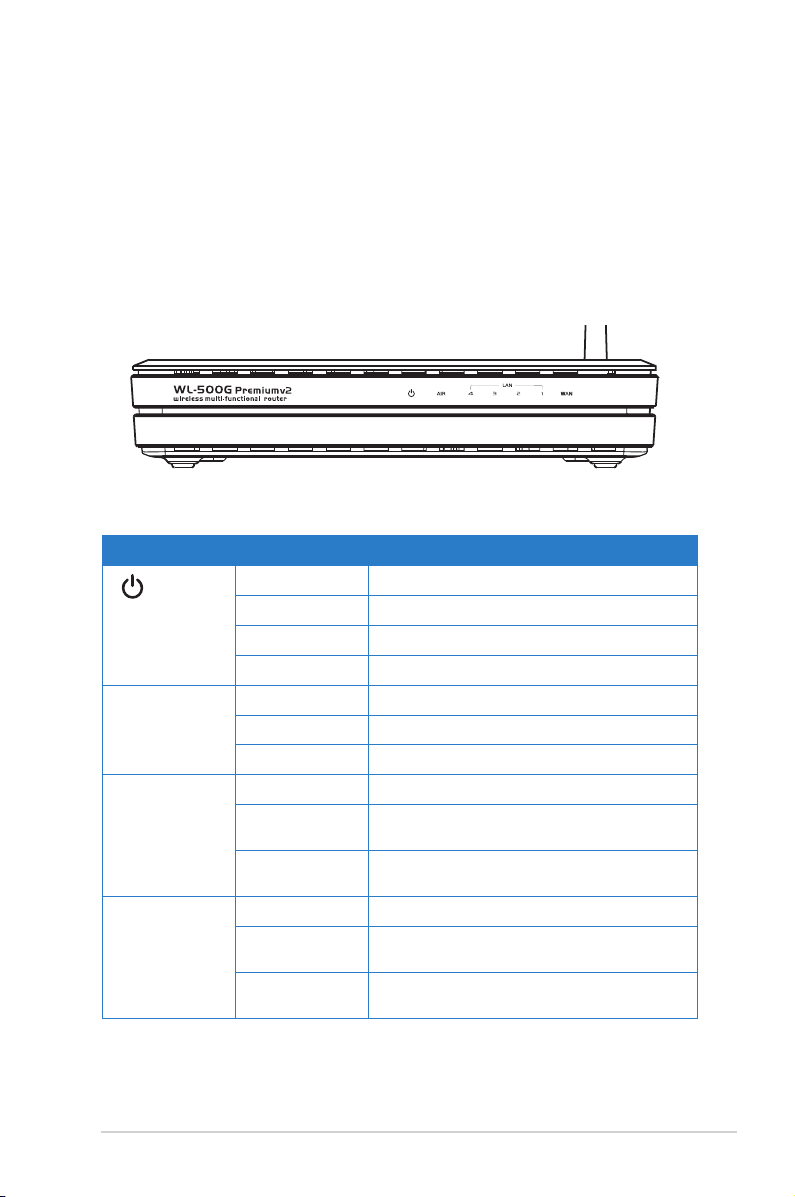
Status indicators
LED Status Indication
(Power) Off No power
On System ready
Flashing-slow Firmware upgrade failed
Flashing-quick EZSetup processing
AIR (Wireless
Network)
Off No power
On Wireless system ready
Flashing Transmitting or receiving data (wireless)
LAN 1-4
(Local Area
Network)
Off No power or no physical connection
On Has physical connection to an Ethernet
network
Flashing Transmitting or receiving data (through
Ethernet cable)
WAN
(Wide Area
Network)
Off No power or no physical connectio
On Has physical connection to an Ethernet
network
Flashing Transmitting or receiving data (through
Ethernet cable)
• Install the device at least 20cms from a person to insure that the product is
operated in accordance with the RF Guidelines for Human Exposure adopted
by the Federal Communications Commission.
Hardware features
Front panel

8WL-500gP V2 Chapter 1: Knowing your wireless router
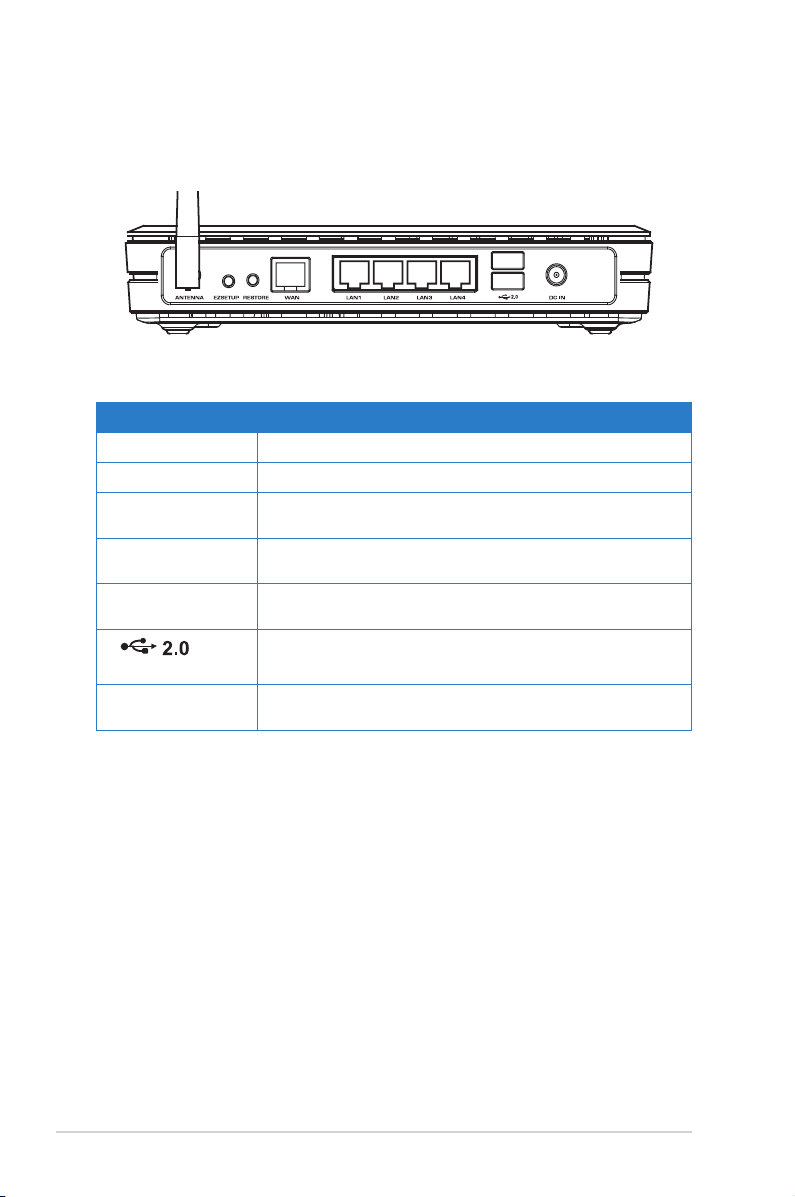
Rear panel
Label Description
ANTENNA Connect the antenna to this port.
EZSETUP This button launches the EZSetup utility.
RESTORE This button restores the system to its factory default
settings.
WAN Connect an RJ-45 Ethernet cable to this port to establish
WAN connection.
LAN1-LAN4 Connect RJ-45 Ethernet cables to these ports to
establish LAN connection.
(USB 2.0)
Insert USB2.0 devices such as USB ash drives into
these ports.
DC IN Insert the AC adapter into this port to connect your
router to a power source.

9
Chapter 1: Knowing your wireless router WL-500gP V2
1
2
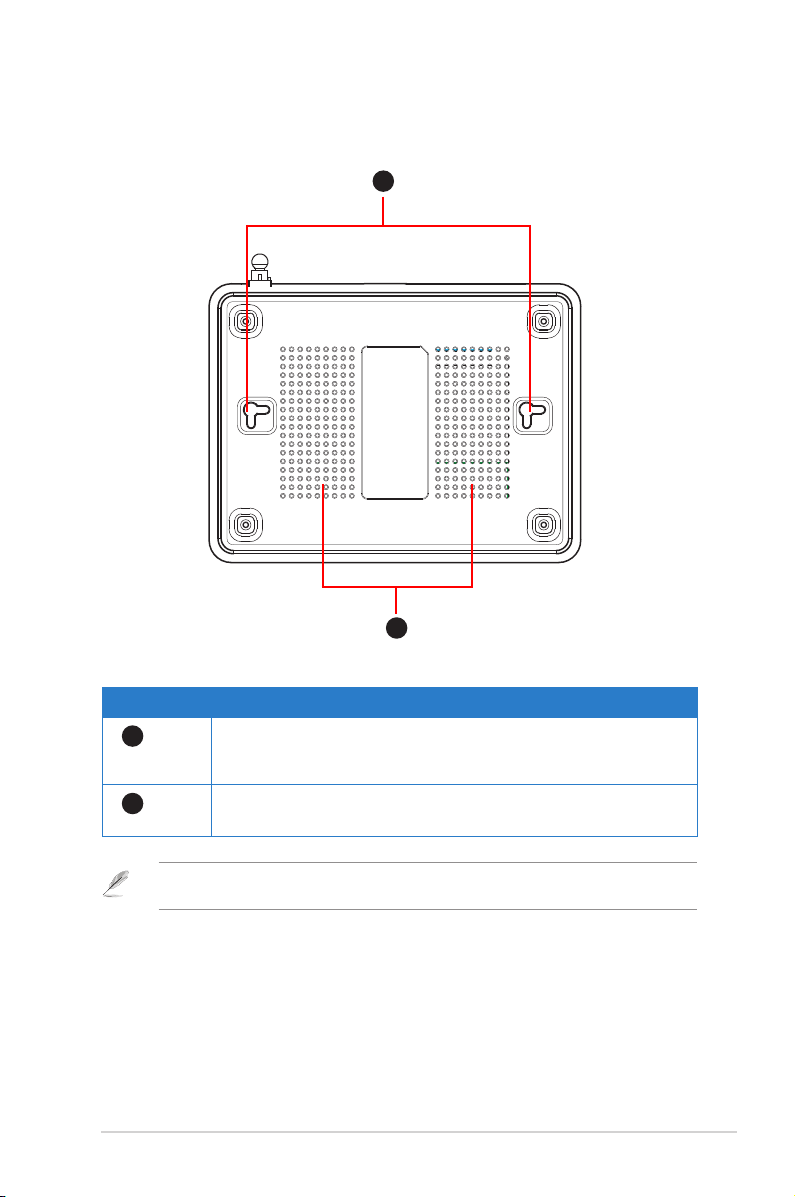
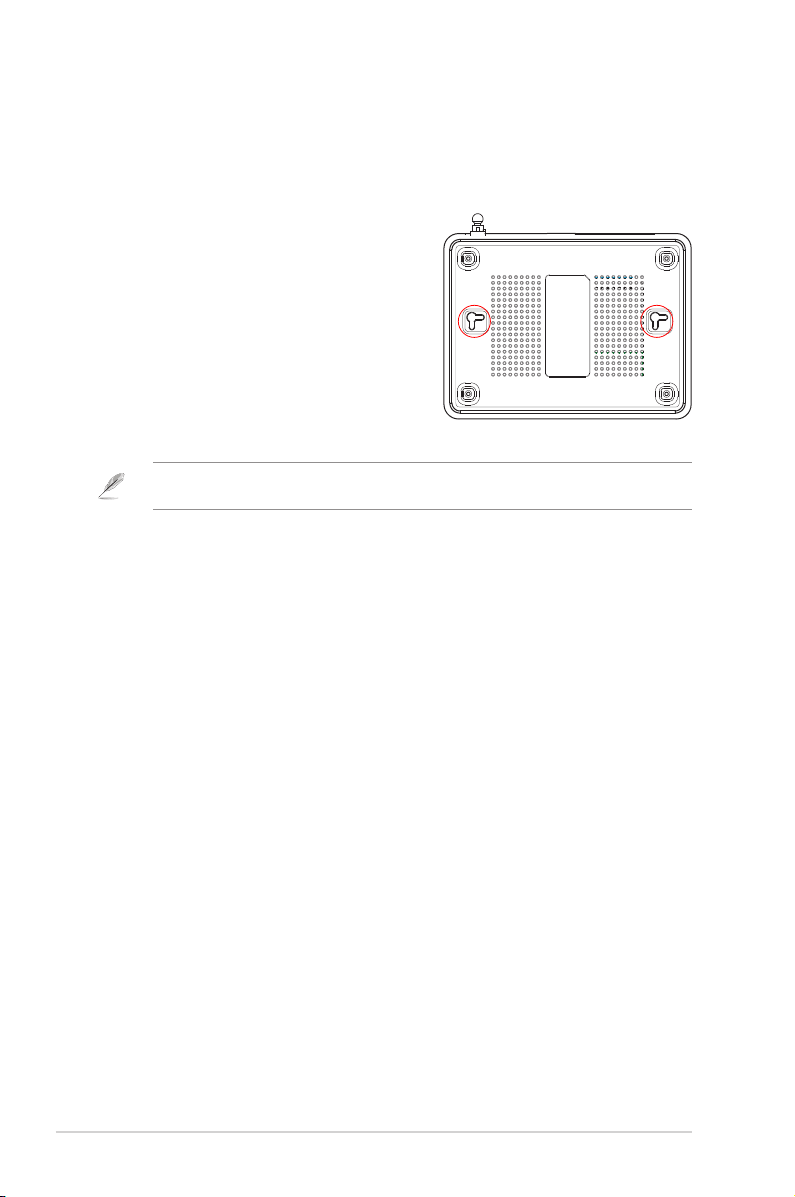
Bottom panel
Item Description
1Mounting hooks
Use the mounting hooks to mount your router on concrete or
wooden surfaces using two roundhead screws.
2Air vents
These vents provide ventilation to your router.
Note: For details on mounting your router on a wall or ceiling, refer to the section Mounting
options on the next page of this user manual.

10 WL-500gP V2 Chapter 1: Knowing your wireless router
Mounting options
Out of the box, the ASUS Wireless Router is designed to sit on a raised at surface
like a le cabinet or book shelf. The unit may also be converted for mounting to a
wall or ceiling.
To mount the ASUS Wireless Router:
1. Look on the underside for the two
mounting hooks.
2. Mark two upper holes in a at surface.
3. Tighten two screws until only 1/4'' is
showing.
4. Latch the hooks of the ASUS Wireless
Router onto the screws.
Note: Re-adjust the screws if you cannot latch the ASUS Wireless Router onto the screws or if
it is too loose.
Altri manuali per WL-500gP V2
3
Indice
Altri manuali Asus Router wireless

Asus
Asus ROG Strix GS-AX5400 Manuale utente

Asus
Asus ZenWiFi XT9 Manuale utente

Asus
Asus AX6100 Ai Mesh Manuale utente

Asus
Asus DSL-AC68U Manuale utente

Asus
Asus RX3041 Manuale utente

Asus
Asus ExpertWiFi EBR63 Manuale utente

Asus
Asus RT-AC56U Manuale utente

Asus
Asus RT-N65R Manuale utente

Asus
Asus V-M.2 PCIE Manuale utente

Asus
Asus 90IG05Z0-MO3A20 Manuale utente

Asus
Asus OPTUS DSL-AX5400 Manuale utente

Asus
Asus RT-N53 Manuale utente

Asus
Asus RT-AX58U Manuale utente

Asus
Asus TM-AC1900 Guida

Asus
Asus DSL-N11 Manuale utente

Asus
Asus RT-AX82U Manuale utente

Asus
Asus RT-AC66U B1 Manuale utente

Asus
Asus AX3000 Manuale utente

Asus
Asus TM-AC1900 Manuale

Asus
Asus RT-AX82U Manuale utente