Atlantic British iLAND Manuale utente

Android User Guide V2.0

1
Table of Contents
Introduction ....................................................................................................... 2
Cautions ........................................................................................................................................... 2
Online Only....................................................................................................................................... 2
Operating Precautions...................................................................................................................... 2
Product Introduction ......................................................................................................................... 3
Features ........................................................................................................................................... 3
Kit Contents...................................................................................................................................... 4
Diagnostic Tool Overview................................................................................................................. 4
iLAND App: iOS versus Android....................................................................................................... 5
Getting Started .................................................................................................. 6
Installing the Diagnostic Tool ........................................................................................................... 6
iLAND App Setup for Android .......................................................................................................... 7
User Registration............................................................................................................................ 11
Activating the Diagnostic Tool ........................................................................................................ 14
Using the iLAND App...................................................................................... 15
Logging in to the App ..................................................................................................................... 15
Navigating the App......................................................................................................................... 16
Reports and Settings...................................................................................................................... 18
Support and Coverage ................................................................................................................... 24
Diagnostic Tool Firmware Updates ................................................................................................ 25
App Software Updates ................................................................................................................... 27
Closing the App .............................................................................................................................. 28
Software Subscriptions................................................................................................................... 29
Starting Diagnostics ....................................................................................................................... 33
Running a Health Report................................................................................................................ 39
System Selection............................................................................................................................ 42
Special Functions ........................................................................................................................... 49
Troubleshooting.............................................................................................. 51
Logging Into the App ...................................................................................................................... 51
Communicating with the Vehicle .................................................................................................... 51
Frequently Asked Questions .......................................................................................................... 54
Contact Information ........................................................................................................................ 57
Specifications.................................................................................................. 58
Diagnostic Tool............................................................................................................................... 58

2
Introduction
IntroductionIntroduction
Cautions
Please read this manual carefully before operating your device.
Please keep this manual safe for future use.
App updates may change the look or text of the iLAND app. The illustrations and
instructions within this manual are for reference purposes only.
Online Only
This app requires an internet connection to use. Always ensure that your device has an
internet connection before opening the app.
Operating Precautions
Regarding the Diagnostic Tool:
Ensure that the battery health of your vehicle is enough to support any electrical demands
while the engine is not running. If you are unsure, it is advisable to connect a battery
charger while performing any lengthy operations. Refer to your vehicle's owner manual on
charging the battery.
Always turn the ignition switch OFF before connecting or disconnect the Diagnostic Tool.
Disconnecting the Diagnostic Tool during a voltage spike or surge could damage it.
Do not place magnetic objects near the Diagnostic Tool.
Do not leave the Diagnostic Tool loose in the vehicle when not in use. Store the Diagnostic
Tool in its box in a safe place to avoid loss or damage.
Keep the Diagnostic Tool clean and dry. If necessary, clean the outside casing with a static-
free microfiber cloth suitable for electronics. NEVER use liquids, chemicals, or a laundered
cloth to clean the Diagnostic Tool.
Regarding work safety:
WARNING: The engine compartment contains electrical connections and hot or
moving parts.
WARNING: Keep yourself, test leads, clothing, and other objects clear of electrical
connections and hot or moving parts.
WARNING: Do not wear watches, rings, or loose clothing when working on a
vehicle.
WARNING: Do not place tools or equipment on fenders or other places in the
engine compartment.
WARNING: Barriers are recommended to help identify danger zones in testing
areas. Contact with electrical connections and hot or moving parts can cause death
or serious injury.

3
Introduction
Product Introduction
The iLAND diagnostic app for North American Land Rover vehicles provides advanced,
dealer-level wireless diagnostics powered from your own smartphone or mobile device.
With iLAND, you can easily leverage in-depth vehicle diagnostic capabilities with a swipe of
your device. iLAND supports all Land Rover models from 1987 to present, with many functions
and capabilities available for late-model Land Rovers (2003 and newer).
iLAND is compatible with iOS and Android mobile devices via the free iLAND app, available for
download from the Apple App Store and Google Play Store.
Paired via Bluetooth® with the Diagnostic Tool, the iLAND app connects wirelessly to your
Land Rover's diagnostic port and requires no batteries, providing seamless communication
between the iLAND app on your mobile device and your Land Rover vehicle. The Diagnostic
Tool is small enough to store in your glove box, offering anywhere, anytime functionality.
Features
Supports all North American Land Rover models from 1987 to present
Bluetooth® communication
In-depth ECU-based functions by vehicle system
Read and clear Diagnostic Trouble Codes (DTCs)
Read and display live dynamic data
Operate actuators where supported by the vehicle
Reports
Graphing
Test results
Popular special functions
Service interval reset
Oil service counter reset
Brake bleeding
Tire pressure sensor replacement
Engine and transmission adaption reset
Air suspension calibration
Key programming
Many more special functions available

4
Introduction
Kit Contents
Diagnostic Tool
Quick Start Guide
Activation Card
Box
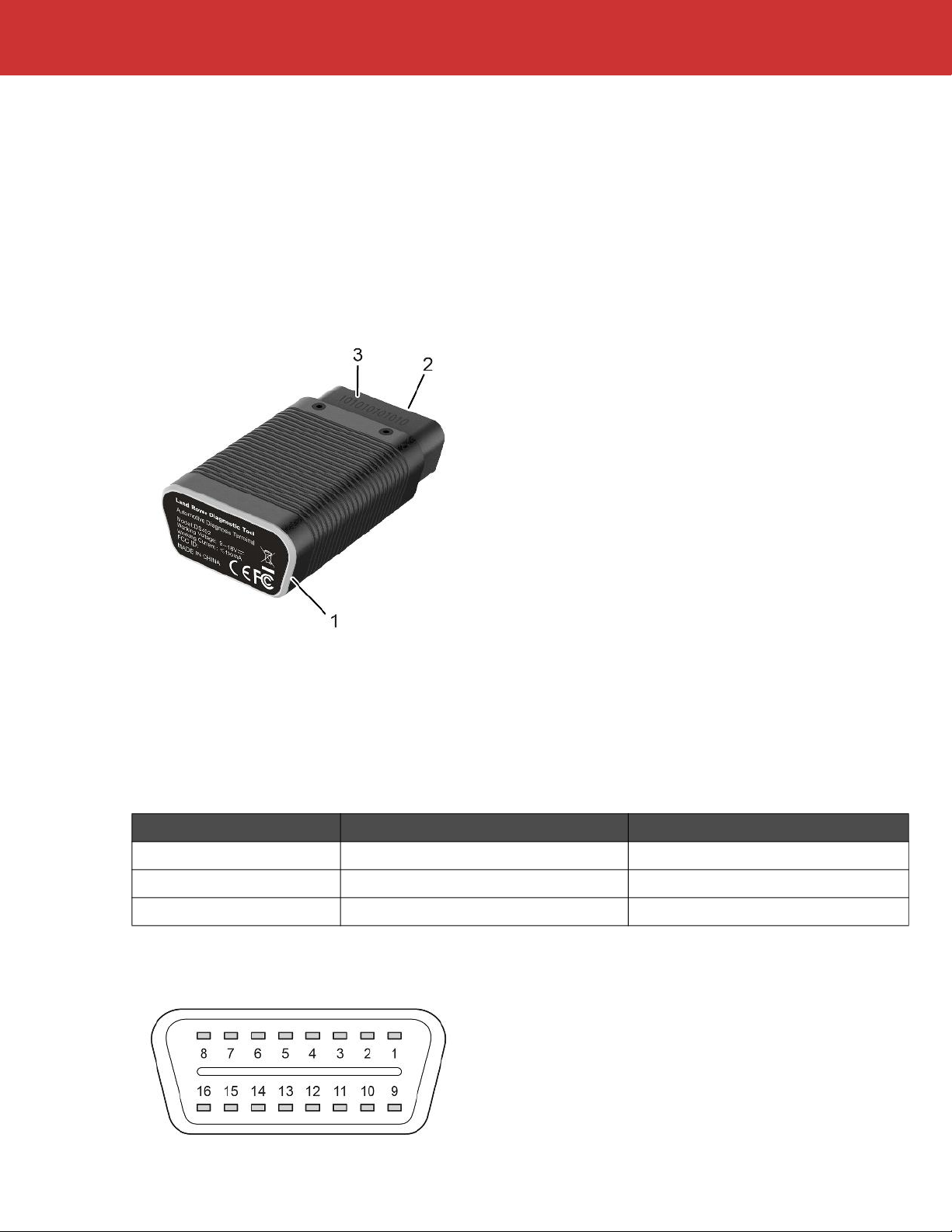
Diagnostic Tool Overview
1. LED status ring
2. OBD diagnostic connector
3. Device serial number
LED status ring colors
Diagnostic connector pin-out
COLOR SOLID FLASHING
Green Power Connected -
Blue Bluetooth® Connected Transmitting Data
Red Firmware Update Failed Updating Firmware

5
Introduction
iLAND App: iOS versus Android
When using the iLAND diagnostic app, please note that there are some differences when
using it on devices running iOS versus Android operating systems:
While most menu options are similar, there are some instances where you will have slightly
different options (e.g. buttons may have different phrasing). Refer to the iOS version of this
manual when using the app on an Apple device.
The availability of vehicle models and diagnostic functions WILL NOT differ between the
iOS and Android versions of the app. However, due to the update review process, software
updates may not become available at the same time. To ensure your app is up to the latest
version, see “App Software Updates”, page 27.

6
Getting Started
Getting StartedGetting Started
Installing the Diagnostic Tool
CAUTION: Always turn the ignition switch OFF before connecting or disconnecting the
Diagnostic Tool.
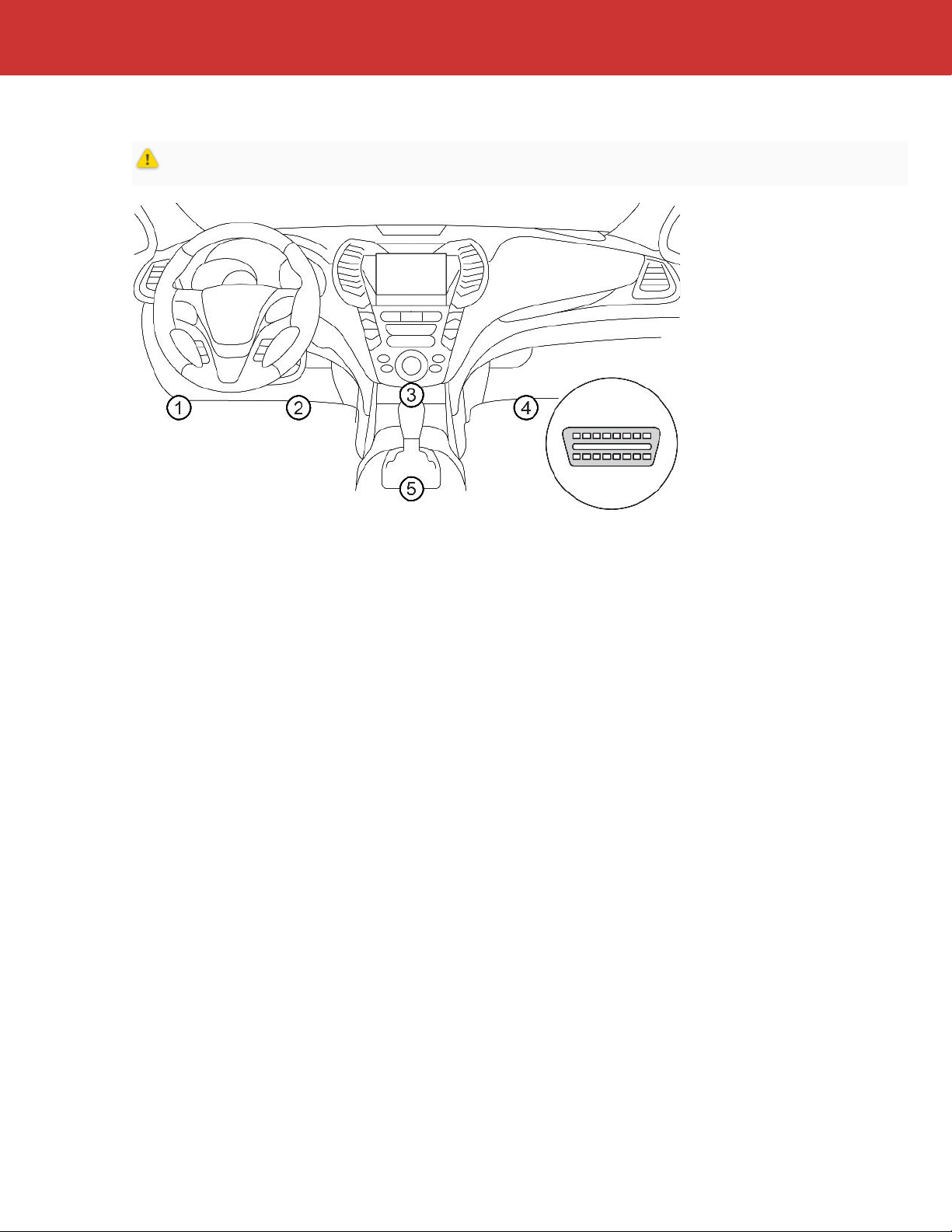
Locate your vehicle’s diagnostic port. Depending upon the model of the vehicle, this port is
normally located under the dashboard or near the center console. The above illustration notes
the five possible locations of the diagnostic port.
Plug the Diagnostic Tool into the diagnostic port. Once the Diagnostic Tool is connected
successfully, the LED status ring will illuminate Green and you will hear an audible beep.

7
Getting Started
iLAND App Setup for Android
1. Install the iLAND App
Search for and download iLAND Diagnostics from the Google Play Store.
2. User Registration
If you do not have an iLAND app account, you will need to create one. See “User Registration”,
page 11.
If you have an existing iLAND app account, sign in with your email address and password. See
“Logging in to the App”, page 26.
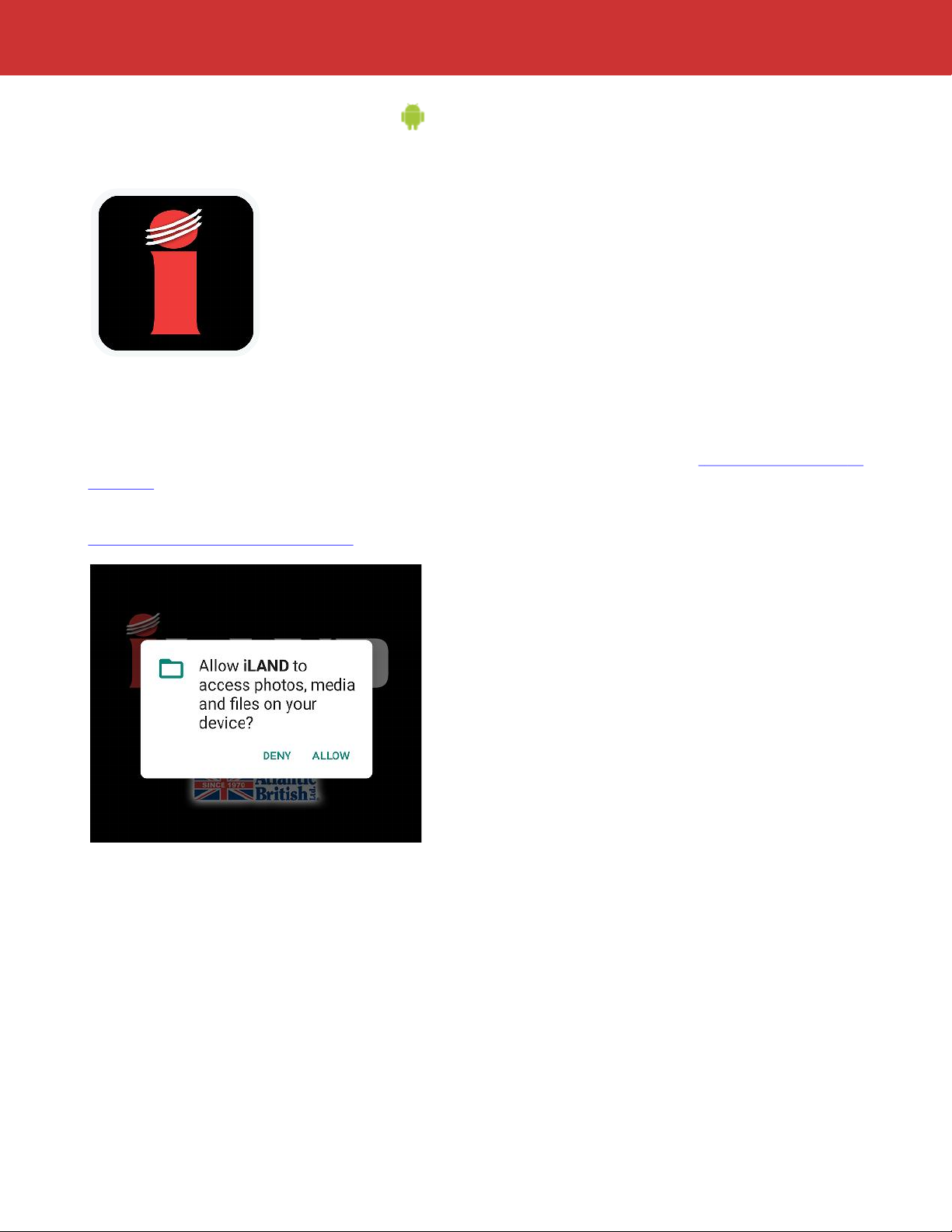
NOTE: The first time the app is opened on your device, you will be prompted for access
permissions. Press ALLOW to continue.

8
Getting Started
3. Activate the Diagnostic Tool
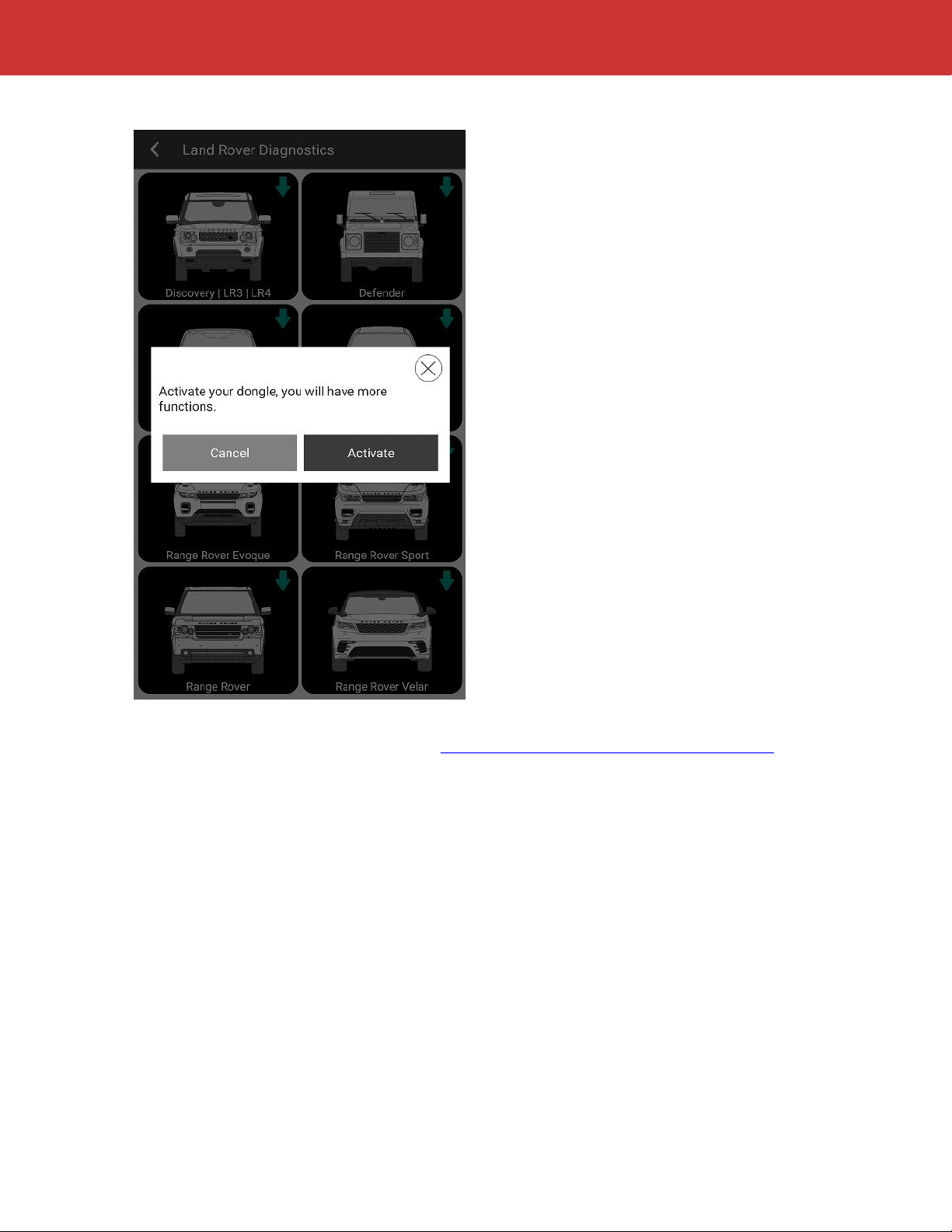
You will receive a prompt to activate the Diagnostic Tool. If you have not yet activated the
Diagnostic Tool, press Activate. See “Activating the Diagnostic Tool”, page 14 for instructions.
If you wish to activate at a later time, press Cancel and continue to the next step.

9
Getting Started
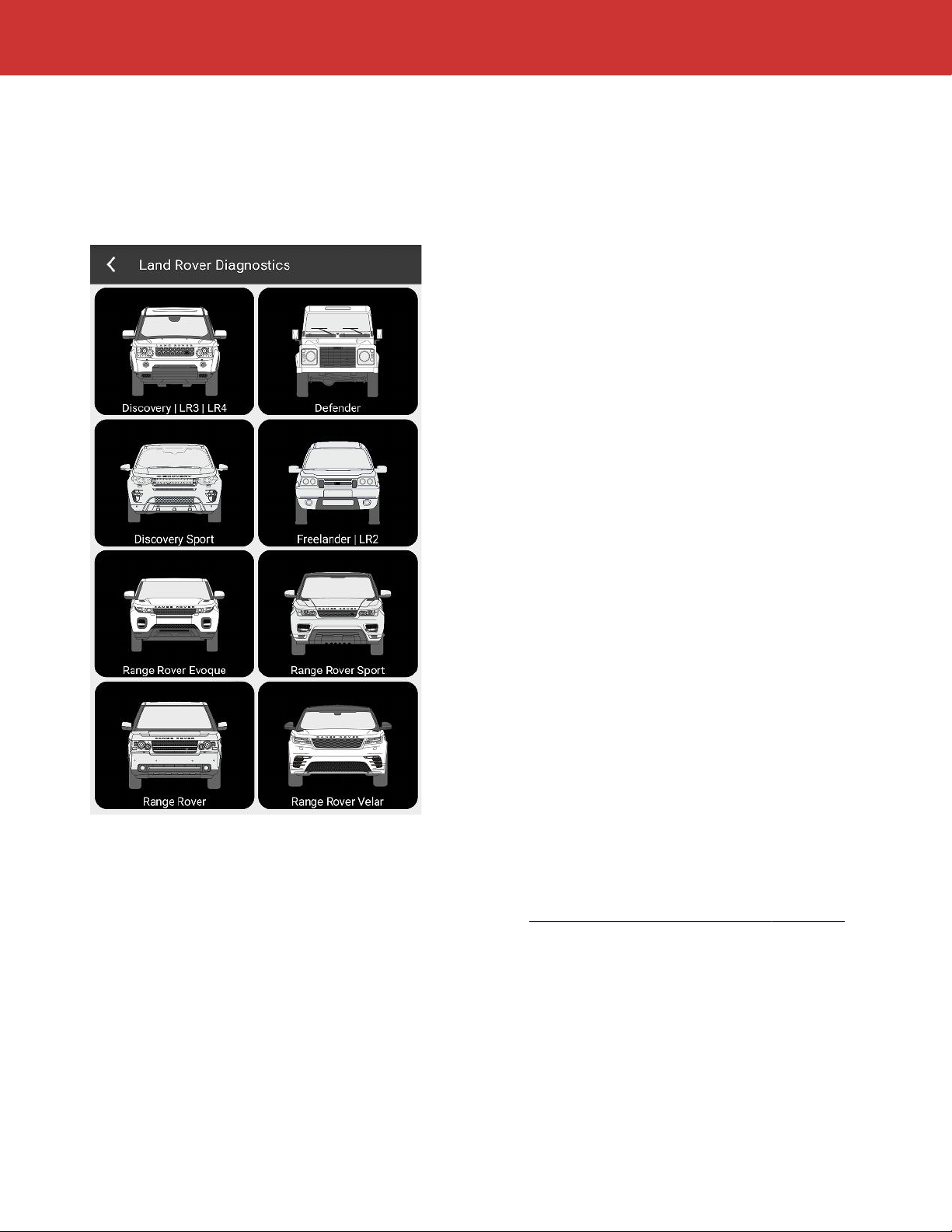
4. Model Selection
NOTE: If you have not purchased iLAND Pro, you will only be able to activate one model. This
selection cannot be changed once it is made.
NOTE: If you have purchased iLAND Pro, you will be able to download vehicle software for all
models after initial setup of the app.
Choose a model to activate. Follow the prompts to install the software for your selected model.
5. Install the Diagnostic Tool
Plug the Diagnostic Tool into the diagnostic port. See “Installing the Diagnostic Tool”, page 6.
Altri manuali per iLAND
1
Indice
Altri manuali Atlantic British Apparecchiature diagnostiche