
Audio enhancement MS-700 Manuale utente

MS-700 OPTIMUM
AMPLIFIER
QUICK START GUIDE
Link Button
Link Light
Microphone 2 Status
System Power Status
Microphone 1 Status
Power/Sttus
Indictor LEDs
IP Address
LCD Screen
Line Input
Line Output Remote Control Ports
Line Input
Speker
Connections
WPA-70x Input/Output XD Link Reboot/Fctory Defult
USB Port PoE+ Network
Port
PA
Mute

2
DESCRIPTION
The MS-700 Optimum Amplifier is a fully integrated networked classroom amplifier and wireless
microphone receiver. This amplifier has network-based intercom, paging and emergency notifications,
and provides full-duplex audio. It is easy-to-use, easy-to-install, and has a simple user interface software.
The entire unit utilizes Power over Ethernet (PoE+). Intercom and paging functionalities† are built-in.
When used in conjunction with an Uninterruptable Power Supply (UPS), during emergencies, paging can
still be heard, even when the power goes out. This unit can be installed as part of the SAFE (Signal Alert
For Education) System®.
FUNCTIONAL SUMMARY
GENERAL PURPOSE IO
• (4) Discrete Inputs
• (4) Discrete Outputs
SERIAL COMMUNICATION
• (4) RS232 Connections
AUDIO
• (2) Unbalanced Audio In
• (3) Balanced Audio In
• () Unbalanced Audio Out
• (3) Balanced Audio Out
• (2) Amplified Audio Out with minimum
load of 2
REMOTE POWER
• (4) 24V Out Ports
WALL PLATE ACCESSORY
• (1) Port

3
INTERFACES
4 REMOTE PORTS RMTCTRL
• Audio Out (Balanced)
• Audio In (Balanced)
• RS232
• 24VDC
WALL PLATE AUDIO WPA PORT
• Connects to the ICT2
IO PORT GPIO 3 & 4
• (2) Input
• (2) Output
SERIAL + XD PAIR RS232 4
XD LINK
• RS232
• 24VDC
• XD Link
USB PORT FOR SERVICE ONLY
DISPLAY
• PoE+ Warning
• IP Address
• Firmware Version
LEDS
Power LED
• Red while booting
• Green when operational
• Yellow when a recording from a classroom
camera is happening.
Status LED
• Red while booting and getting an IP address.
• Green blink when operational and there is
activity on the ethernet port.
3.5MM AUDIO
• (2) Line In (Unbalanced)
• (1) Line Out (Unbalanced)
SPEAKER CONNECTION X2 2
MIN LOAD
• (2) Line In 2 Min Load
PA MUTE
• Audio is muted when 5-70VAC is present
PoE+ ETHERNET
RESET BUTTON

4
PROCESS
1. Physically install components in the room such as speakers and/or AV Touch Wall Control
to MS-700.
2. Confirm BLE (Bluetooth Low Energy) dongle is connected to USB port.
3. Apply Power by connecting the MS-700 to the POE Switch.
a. Monitor the display during power up and note the firmware version, PoE LLDP Detection
and IP Address
4. Install the Device Configuration App (For Apple and Android phones search for the Device
Configuration App by Audio Enhancement.) For more information on the Device Configuration
please view the Device Configuration Guide document.
5. The app is available on iOS and Android app stores under the name Device Configuration.
6. Start the Device Configuration App. (Figure 1)
7. Select the BLE dongle for the MS-700 you are configuring. If Multiple BLE dongles are found,
select the dongle with the largest signal strength. Note that all MS-700s with a BLE dongle
in range of the cell phone will be displayed. Give the application time to gather data before
selecting a system to connect to. (Figure 2)
8. Set up school information. (Figure 3)
9. Input and/or confirm network configuration information. Note the values for your system will be
dierent than those shown in the example. (Figure 4)
Android iOS

5
10. Set default audio input levels. (Figure 5)
11. Set audio output levels. (Figure 6)
12. Set up the equalizer. In most cases the default settings work best in the classroom. (Figure 7)
13. Link classroom microphones.
14. Remove the Bluetooth Dongle (recommended, but not required).
15. Start EPIC, update the firmware, and continue the setup using the EPIC software.
Figure 1 Figure 2 Figure 3 Figure 4
Figure 5 Figure 6 Figure 7

6
XD TEACHER MICROPHONE
LINKING
1. With the microphone o, press the Link
button on the front of the amplifier or side of
the BEAM (Look for the blinking yellow LED).
2. With the microphone o, press
and hold REC button. Then
promptly press and hold PWR until
microphone is linked.
3. Successful microphone linking will produce a beep through the system, and on the front of the
amplifier you will see an additional green LED.

7
XD STUDENT MICROPHONE
LINKING
2. Press and hold the PWR LINK
button on the back of the XD
Student Microphone.
3. While holding use your thumb to slide the TALK button up into to the on position. Successful
linking will produce an audible beep as well as an additional green LED.
1. With the microphone o, press the Link
button on the front of the XD Receiver.
(Look for the blinking yellow LED)

8
CHARGING YOUR
XD MICROPHONE
1. Charge the microphone at the end of each day.
2. Connect the USB-C plug of the charger to the DC input terminal of the microphone.
After connecting the microphone to the charger, the charge indicator red indicates the
charging status.
3. When the charge indicator stops blinking, the microphone is fully charged. If the charge indicator
is blinking rapidly it means that the USB-C isn’t fully inserted.
LINKING THE MEDIA CHANNEL
1. The microphone cannot be linked to the Media channel unless MIC 1 and MIC 2 channels are on.
2. Make sure the microphone needing to be linked, either the Teacher or Student, is turned o.
3. Confirm that both Channel 1 and Channel 2 mics are on and connected to the amplifier.
. Follow XD Teacher or XD Student Microphone Linking section instructions.
5. In around 10 seconds you should hear a beep and the amplifier LINK LED will be solid yellow.

9
1. Press SELECT to choose the desired source to control. An LED will illuminate to indicate the
selected source. OWN will control the level of the microphone currently in use. CH3 will control
the other microphone if a second microphone has been linked.
2. Press the up arrow to increase the level of the selected source or the down arrow to decrease
the level.
XD TEACHER MICROPHONE
VOLUME CONTROL
10
SER + XD LINK
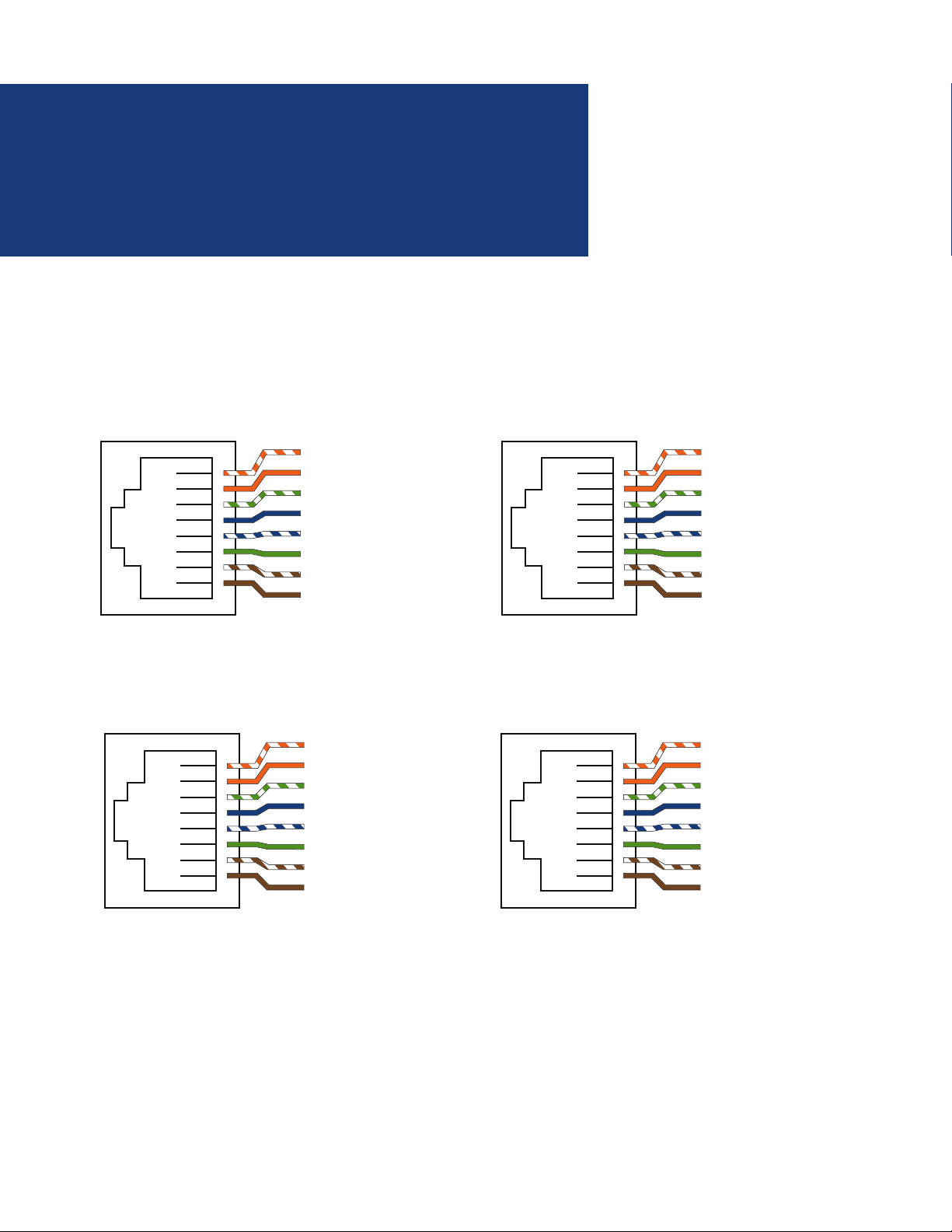
WALL PLATE AUDIORMTCTRL PORTS
CONNECTOR DETAILS
Note that some Pin outs for the MS-700 are dierent than the MS-600.
GPIO 3 & 4
Remote Control
+Line Level Output
-Line Level Output
RS232 - TXD
+24V dc
GND
RS232 - RXD
+Line Level Input
-Line Level Input
1
2
3
4
5
6
7
8
WPA
+Mic
-Mic
I/O In #1 (Call)
+24V dc
GND
I/O In #2 (Emergency)
I/O IOut #1
I/O IOut #2
1
2
3
4
5
6
7
8
SER + XD Pairing
NC
NC
RS232 TxD
+24V dc
GND
RS232 RxD
XD Pairing Line 1
XD Pairing Line 2
1
2
3
4
5
6
7
8
GPIO 3 & 4
NC
NC
Input3 (I/O)
+24V dc
GND
Input 4 (I/O)
Output 3 (I/O)
Output 4 (I/O)
1
2
3
4
5
6
7
8
Indice
Altri manuali Audio enhancement Amplificatore

Audio enhancement
Audio enhancement GL-300 Manuale di istruzioni

Audio enhancement
Audio enhancement CA-60 Manuale di istruzioni

Audio enhancement
Audio enhancement CA-30 Manuale di istruzioni

Audio enhancement
Audio enhancement Achiever Manuale

Audio enhancement
Audio enhancement CA-30A Guida

Audio enhancement
Audio enhancement CA-30 Manuale di istruzioni

Audio enhancement
Audio enhancement XD CA-60 Manuale di istruzioni

Audio enhancement
Audio enhancement XD CA-60A Manuale utente


