
Auvi PCIP05 Manuale utente
www.auvivoip.comwww.auvivoip.com
®®
PCIP05
Instruction Manual
USB Phone

Section 1: Notices
Regulatory compliance notice 01
Modifications 01
Trademarks 02
Overview 03
Section 2: Introduction
PCIP05 diagram 04
Package contents 05
System requirements 05
Section 3: Hardware Connection
Connect the PCIP05 06
Section 4: Software Installation
Install Skype™ 07
Create a Skype™ username 08
Add a Skype™ contact 09
Install the PCIP05 driver 10
Test the PCIP05 11
Section 5: Operations
Make a Skype™ call 12
Receive a Skype™ call 12
End a call 12
Mute the PCIP05 12
Make a SkypeOut™ call 12
Section 6: Troubleshooting
Troubleshooting 13
Device manager 16
Updating the PCIP05 driver 18
Section 6: Safety
Safety Instructions 19
Table of Contents

Regulatory Compliance Notice
This equipment has been tested and found to comply with the limits
for a Class B digital device, pursuant to Part 15 of the FCC Rules.
These limits are designed to provide reasonable protection against
harmful interference in a residential installation. This equipment
generates, uses, and can radiate radio frequency energy and, if not
installed and used in accordance with the instructions, may cause
harmful interference to radio communications. However, there is no
guarantee that interference will not occur in a particular installation. If
this equipment does cause harmful interference to radio or television
reception, which can be determined by turning the equipment off and
on, the user is encouraged to try to correct the interference by one or
more of the following measures:
• Re-orient or relocate the receiving antenna;
• Increase the separation between the equipment and receiver;
• Connect the equipment into an outlet on a circuit different from
that to which the receiver is connected;
• Consult the dealer or an experienced radio/TV
technician for help.
Modifications
The FCC requires the users to be notified that any changes or modi-
fications made to this device, that are not expressly approved by the
party responsible for compliance, may void the user’s authority to
operate this device.
This device complies with Part 15 of the FCC Rules. Operation is
subject to the following two conditions:
(1) This device may not cause harmful interference;
(2) This device must accept any interference received, including
interference that may cause undesired operation.
Notices Section 1
01

Section 1
Trademarks
© 2006 Auvi Electronics N.A., LLC. All rights reserved.
Auvi Electronics N.A. “Auvi” shall not be liable for any errors contained
herein, or for any damages arising out of, or related to, this document
or the information contained herein, even if Auvi has been advised of
the possibility of such damages. This document is intended for infor-
mational and instructional purposes only. Auvi reserves the right to
make changes in the specifications and other information contained in
this document, without prior notification. Auvi disclaims any obligation
to update the information contained herein.
Auvi Technologies, Auvi logo, and Vision Beyond Sound are trade-
marks or registered trademarks of Auvi Technologies, LLC in the
United States and/or other countries. Windows is a trademark or
registered trademark of Microsoft Corporation in the United States
and/or other countries. Skype, SkypeOut, SkypeIn, Skype logo
and the “S” logo are all trademarks of Skype Limited in the United
States and/or other countries. All other product names may be
trademarks of the companies with which they are associated.
Technical Support
For more information regarding the PCIP05, please visit our online
technical support site at http://www.auviusa.com or contact us
directly at:
Auvi Electronics N.A.
5988 Mid Rivers Mall Drive
Saint Charles, MO 63304
Telephone: 636-447-4005
02

03
Section 1
Overview
The PCIP05 is a high-quality USB hand phone with 4-polyphonic ring
tones. Its fashionable appearance, easy-to-use design, and euphoni-
ous melody will set any user apart from others. Just plug it into the
PC or laptop, and enjoy the full features of Skype™.
Features:
• 12-classical and 4-polyphonic ring tones catering to different tastes
• Rings loudly on an incoming call
• Fully-functional keypad enables users to easily make/receive calls
• Power LED and status LED
• Microphone mute button to protect users privacy
• Supplied earpiece for hands-free operation
• Acoustically isolated earpiece and microphone to eliminate echo
• Full-duplex communication with crystal clear sound
• USB interface Plug and Play. No external power/sound needed
04
Introduction Section 2
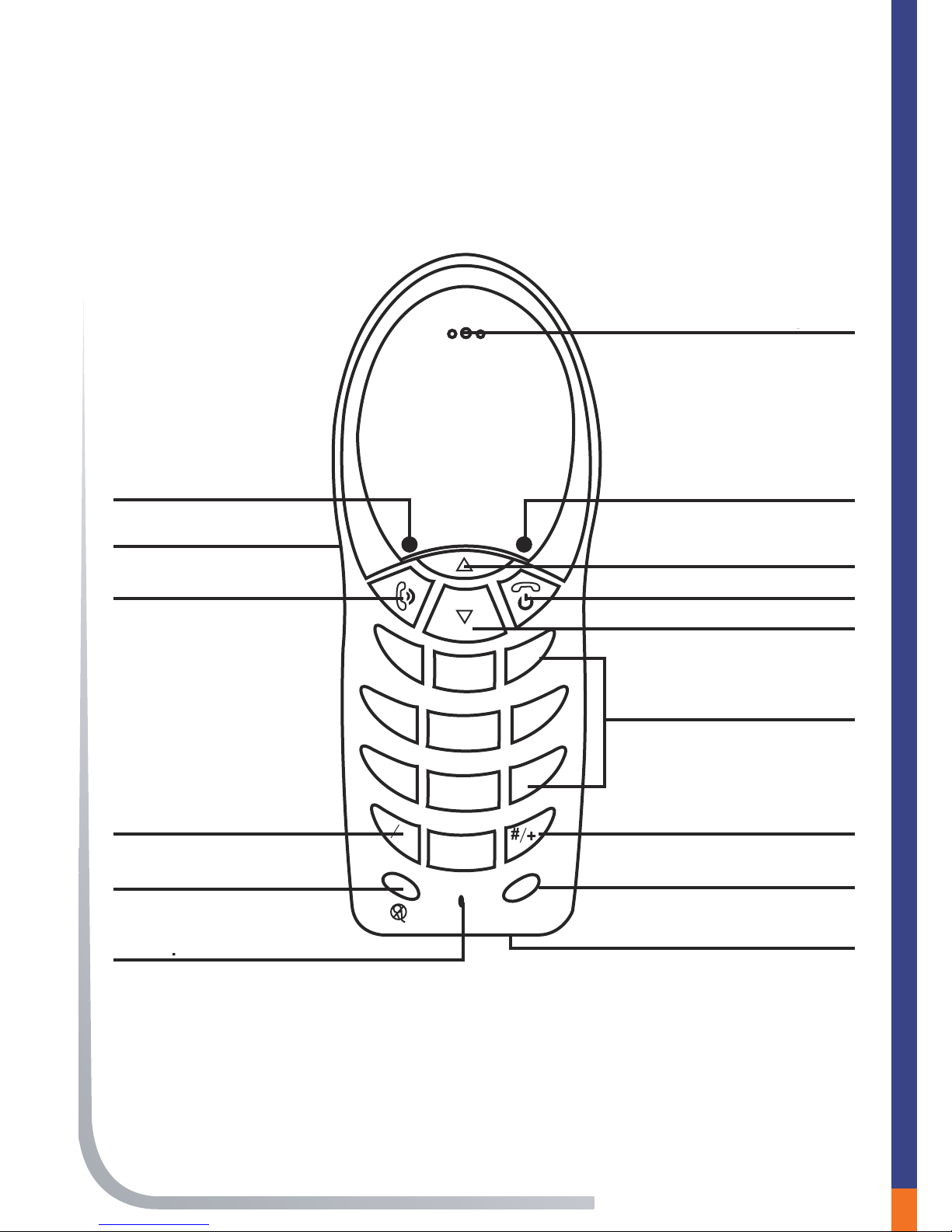
PCIP05 diagram
C
1 3
2
46
5
79
8
0
*Tab
Earphone
Green LED
Menu Scroll Up Button
End Call Button
Menu Scroll Down Button
Numbered Keypad
#/+ Button
Clear Button
USB Jack
Red LED
Headphone Jack
Answer/Dial Button
*/Tab Button
Mute Button
Microphone
Earphone
Green LED Indicator
Menu Scroll Up Button
End Call Button
Menu Scroll Down Button
Fully-Functional Key Pad
#/+ Button
Clear Button
USB Jack
Red LED Indicator
Earphone Jack
Answer/Dial Button
*/Tab Button
Mute Button
Microphone

05
Package contents
System requirements
Microsoft Windows® 2000/XP
Pentium 400MHz or above processor
128MB RAM
16MB RAM available hard disk space
One USB port available
Section 2
C
1 3
2
46
5
79
8
0
*Tab
#
C
1 3
2
46
5
79
8
0
*
Tab
#
C
1 3
2
46
5
79
8
0
*
Tab
#
PCIP05
Software CD Earbud
Quickstart guideMini USB cable
06
Connect the PCIP05 to the PC
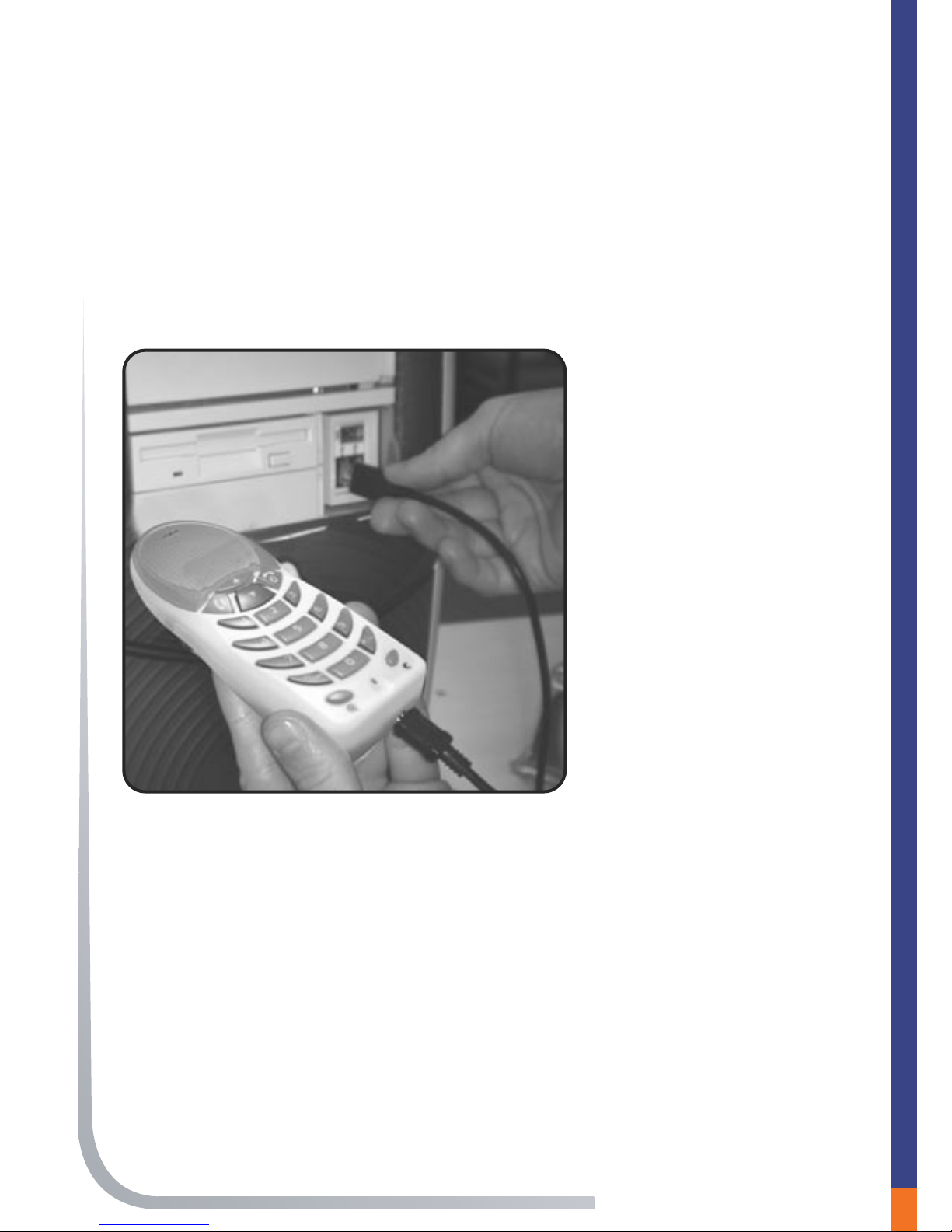
This section explains how to correctly connect the PCIP05 to any
PC. Follow the steps provided below to correctly connect your new
PCIP05 to your computer.
1)
2)
Hardware Connection Section 3
Plug the mini-USB cable
(included) into an open
USB port on your
computer.
Plug the other en
into the bottom of the
PCIP05.
07
Section 4
Install Skype™
If you already have the latest version of Skype™ on your computer,
go to the next section. If you don’t have the latest version, please
follow the steps below.
Note: You must have Skype™ Version 1.3.0.55 or later to use
the PCIP05.
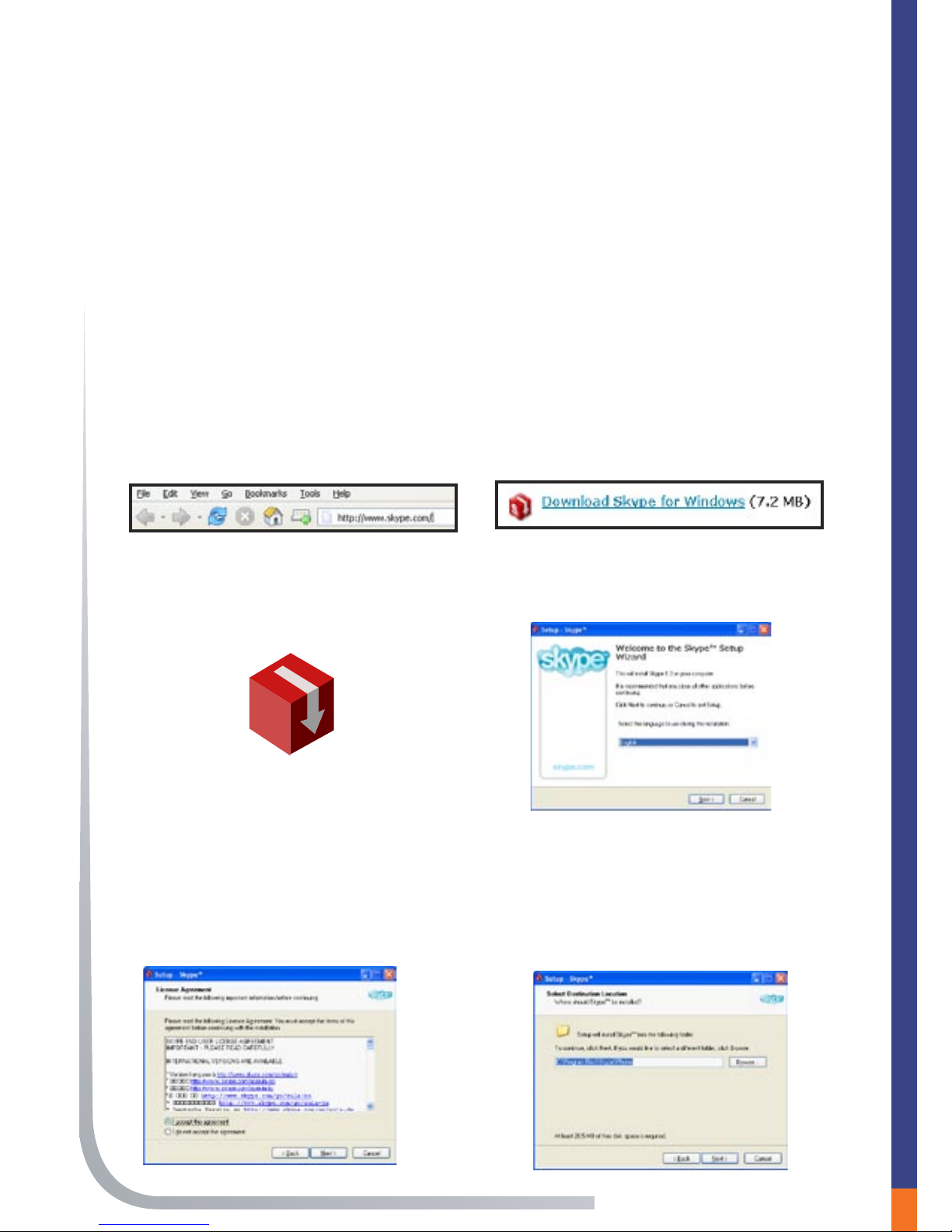
1) Access the web and go to
http://www.skype.com.
2) Double-click the download
button for Windows®.
3) Once downloaded, double-click
the icon to start the installation.
Skype Setup
4) Choose a language.
5) If you agree to the License
Agreement, click in the circle next
to “I accept the agreement”, then
click NEXT.
6) Save Skype™ on your hard
drive.
Software Installation

08
Create a Skype™ username
Section 4
Install Skype™
(Continued)
7) In the next window, set up
additional tasks, if needed,
then click NEXT.
8) Click FINISH in the last
window to complete the
installation.
1) In the New Users Create a Skype
Account tab, enter the required
information. Click NEXT.
2) Your Skype™ Personal
Profile window will appear.
ENTER the information in
the appropriate text boxes.
Click UPDATE.
Altri manuali per PCIP05
2
Indice
Altri manuali Auvi Telefono


