Avaya PARTNER Phone Manuale utente

518-100-701
Issue 2
May 2003
PARTNER®Messaging System
User's Guide
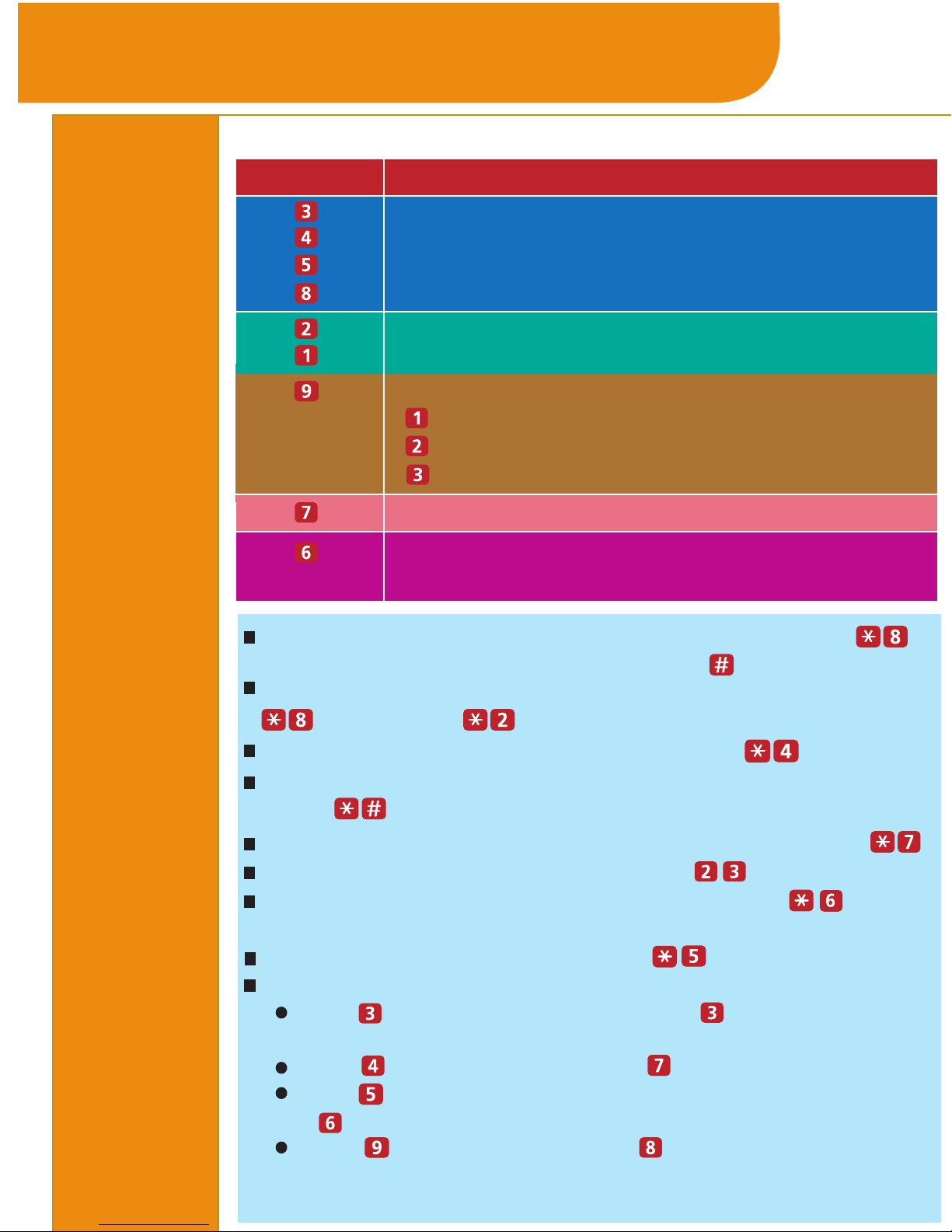
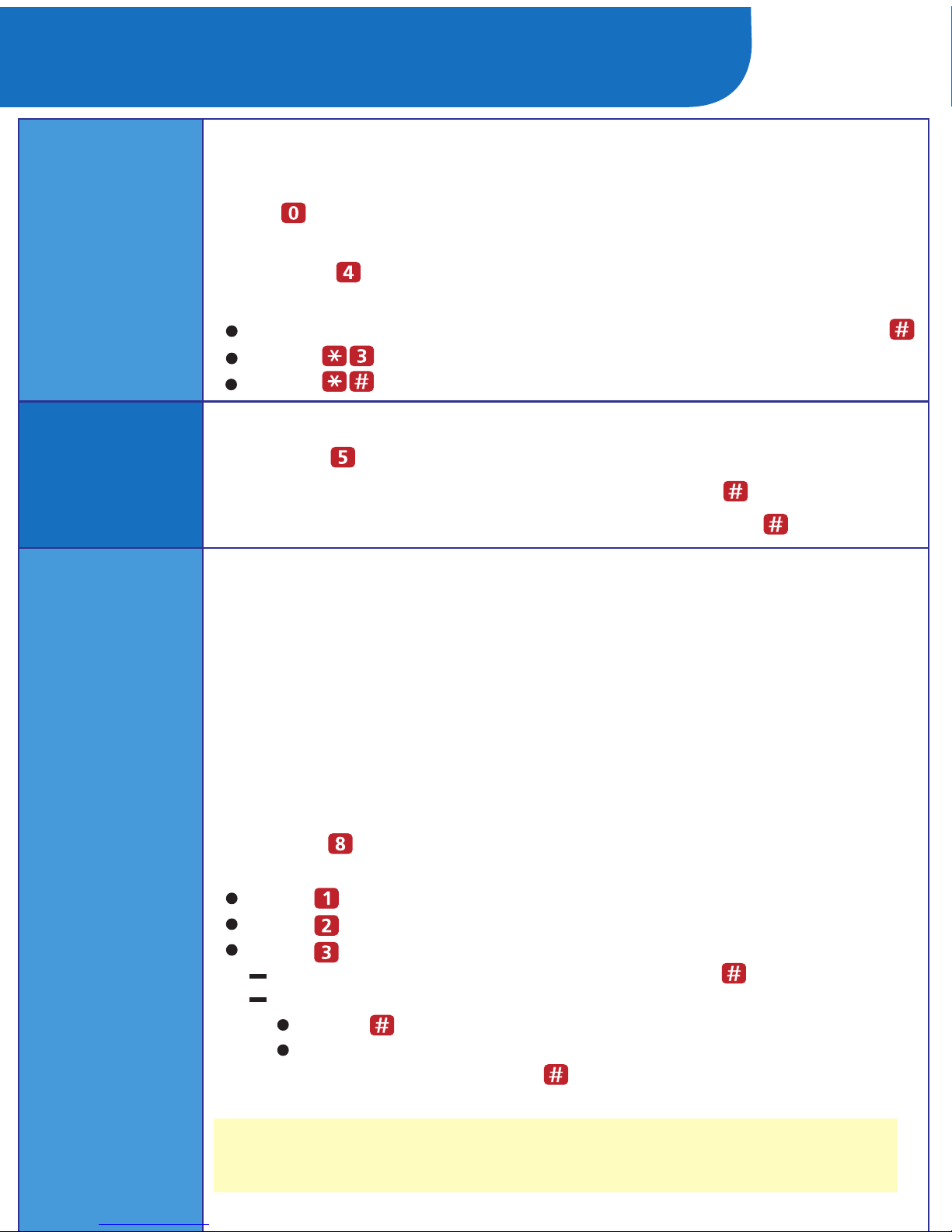
If you are at an internal extension, go to Step 2.
If you are at an external telephone, call in on a line
answered by PARTNER Messaging Automated Attendant or
Call Answer Service, and press when you hear the
menu or greeting. Skip to Step 3.
If you are at your own extension, press .
If you are at another telephone, enter your extension
number, then press .
4:Enter your Password, then press .
Logging
In
2:Dial the PARTNER Messaging extension, , to
access the Voice Messaging system.
The first time you log in, your Password is not set. Press #
for Step 4, then follow the system prompts to enter your new
Password and record your name.
The system announces the number of new and old
messages in your mailbox.
1:Choose an option:
3:Choose an option:

Getting Started
Options
Listen to messages.
Program Personal Group Lists.
Change your Personal Operator.
Change your name or Personal Greeting.
Change Call Answer Mode.
Change your Password.
Press... To...
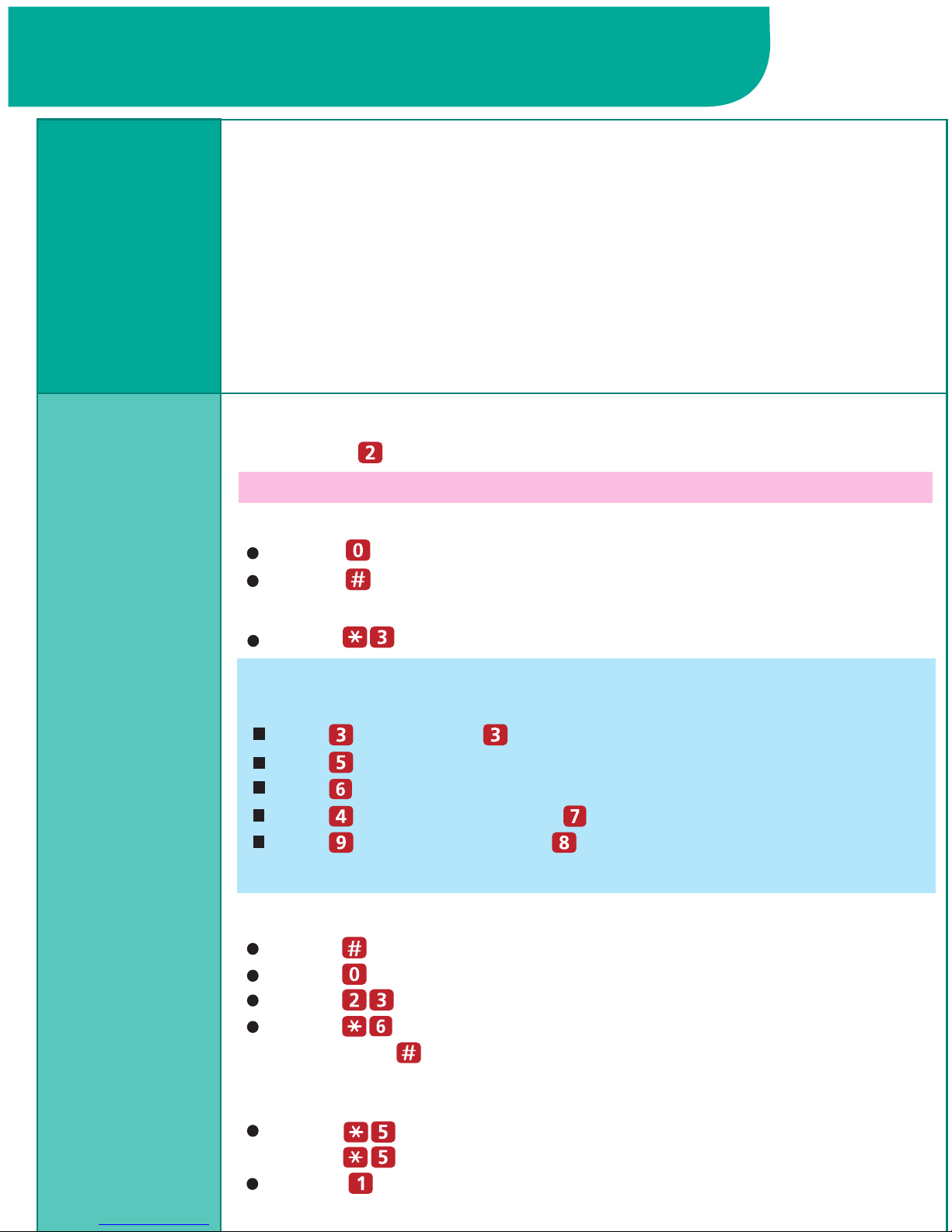
Hints To transfer to another extension at any time, press ,
then the extension number followed by .
To replay a Voice Messaging menu, press .
To go back to the previous Voice Messaging menu,
press .
To return to the Voice Messaging Activity Menu, press .
While a message is playing you can:
Press to pause the playback and again to resume
playback.
Press to raise the volume or to lower it.
Press to rewind the message four seconds and play,
or to skip forward four seconds and play.
Press to increase speed or to decrease.
(Release 6.0 or later.)
To transfer to another extension using the Directory, press
, then press .
Access more mailbox options:
(Release 6.0 or later.)
Message retrieval order
New message preview
Last heard message
Record and send messages.
To replay message header only, press .
To change message status back to new, press .
(Release 6.0 or later)
Program Outcalling (if Outcalling
permission is activated for your mailbox).
To return to previous message, press .
(Release 6.0 or later)
After you log in, choose an option.

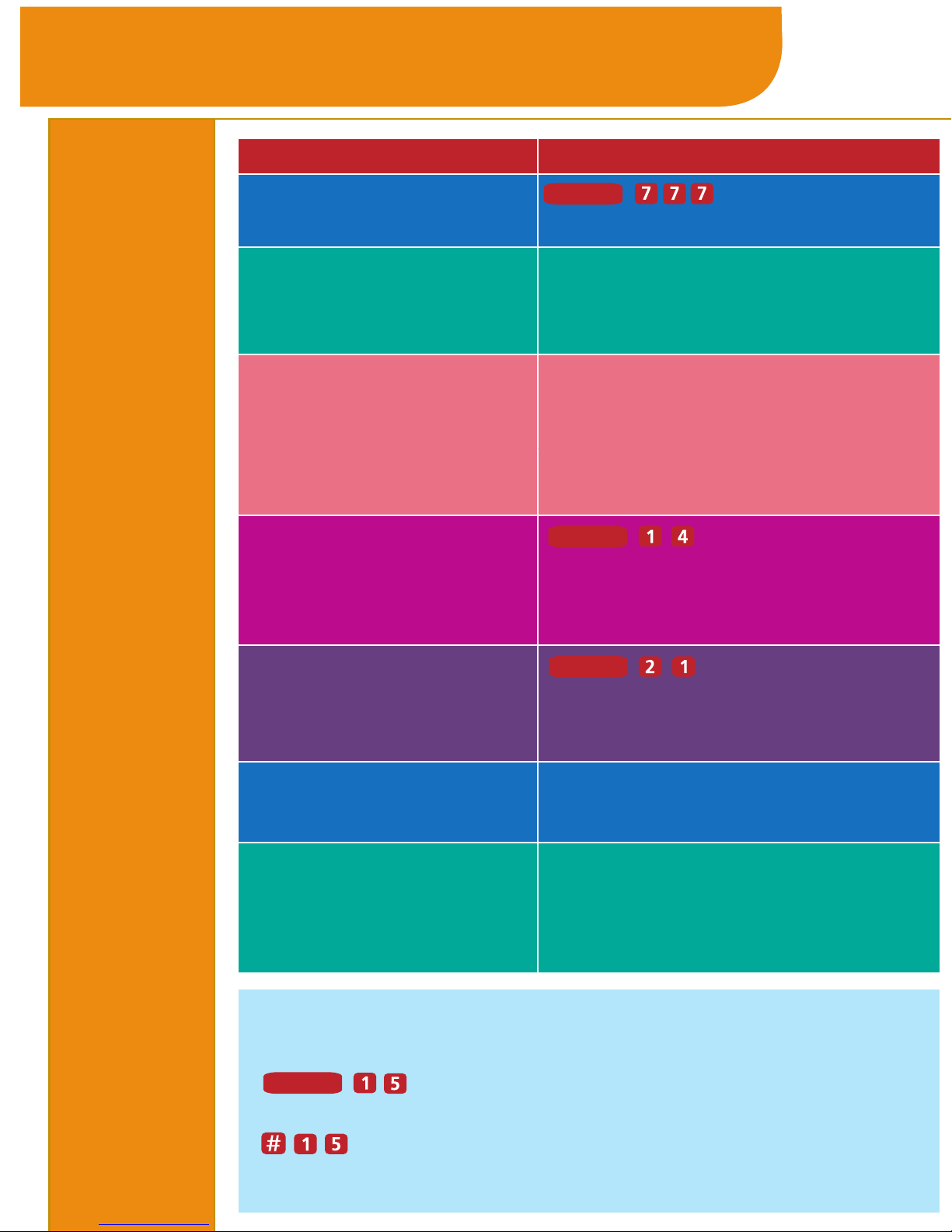
To... Press...
Call Voice Mail Service or programmed
Voice Mail Auto Dial button.
Turn voice mail
coverage on and off
Programmed VMS Cover button.
VMS Coverage is on when the
light is on.
NOTE:
In some countries, the Voice Mailbox Transfer code is
. Also, some systems allow you to use Voice
Mailbox Transfer form a standard phone by pressing
then the extension number. Check with your
System Manager.
Send calls to your
mailbox without ringing
your extension first
Programmed DND button to turn
it on (and VMS Cover button if
present). If no VMS Cover button
is programmed, Automatic VMS
must be on.
Transfer outside callers
to another user's
mailbox
or programmed
Voice Mailbox Transfer (VMBox)
button, then dial the extension
number.
Lock your telephone
or programmed
Station Lock button, then dial
the four-digit code. Reenter the
code.
Record an active call
Programmed Record-a-Call
(RAC) button.
Programmed Call Screening
button before the call is
answered by the PARTNER
Messaging System.
Listen to a caller
leaving a message in
your voice mailbox
Getting Started
Using
Dial Code/
Button
Features
Intercom
Feature
Feature
Feature

Personalizing Your Mailbox
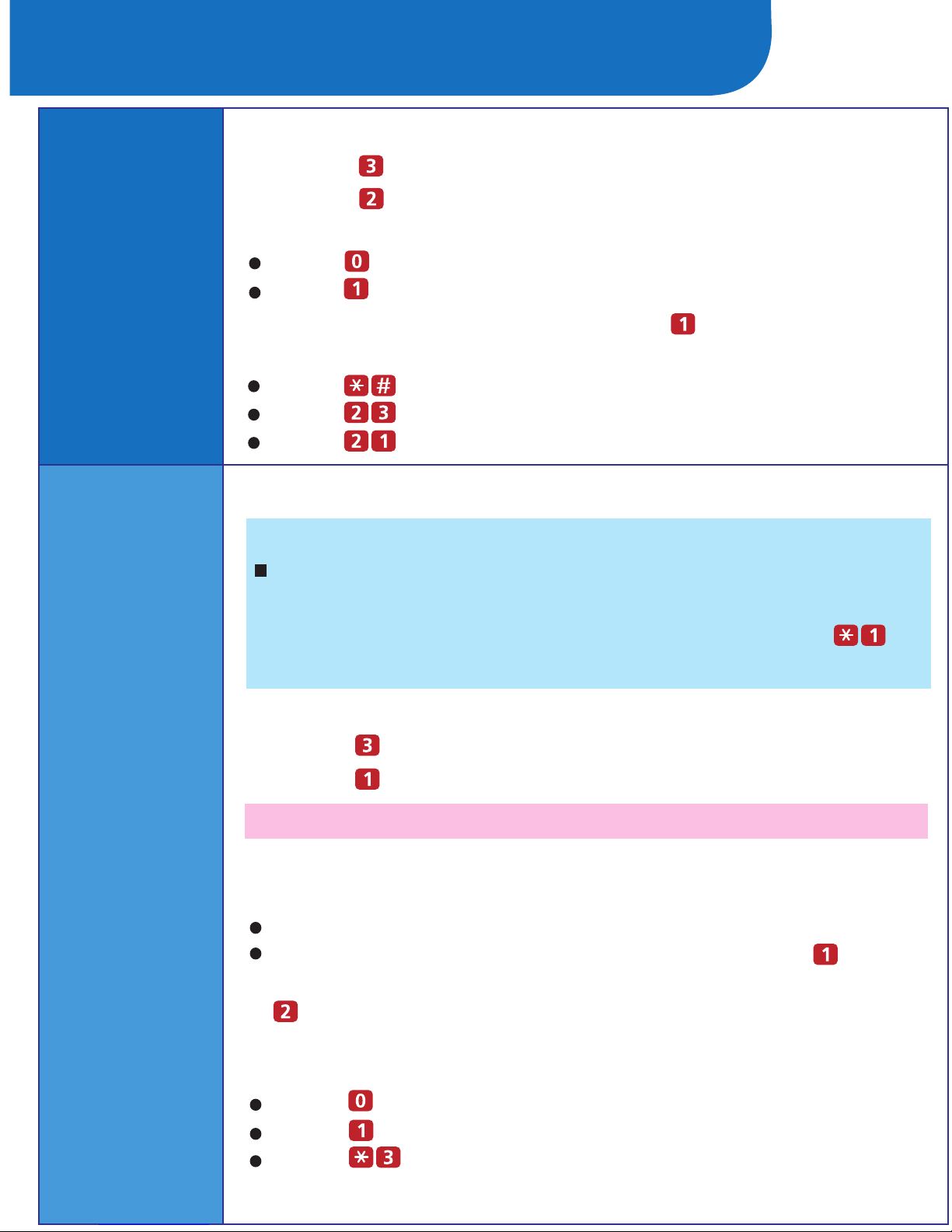
4:Enter the greeting number [1
–
6].
Recording
Your
Name
Recording
or Deleting
a Personal
Greeting
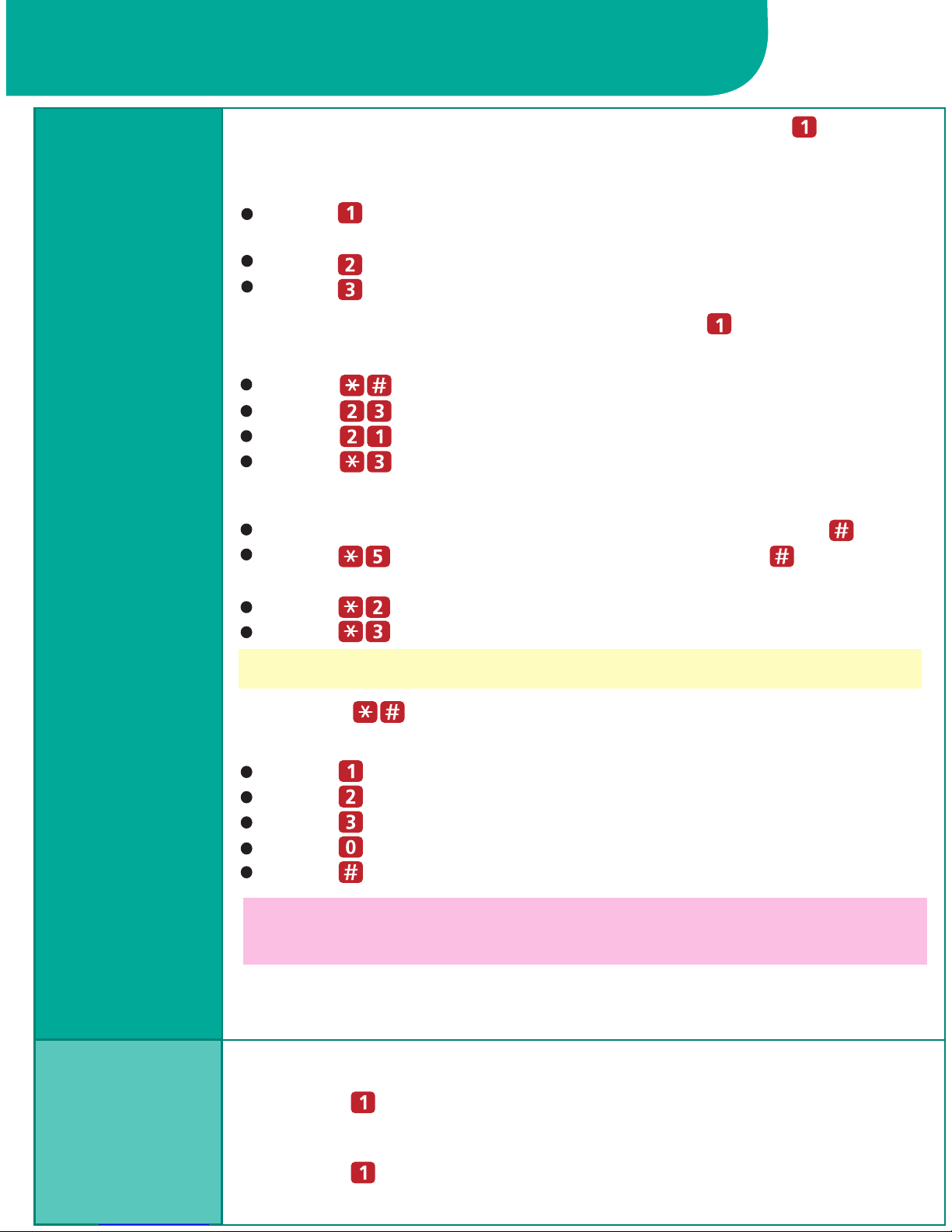
3:Press to change your name recording.
3:Press to change your greeting.
5:Record your name, then press .
2:Press to change your name recording or greeting.
1:Log in to Voice Messaging.
2:Press to change your name recording or greeting.
1:Log in to Voice Messaging.
Press to listen to your greeting.
Press to record your greeting.
Press to delete your greeting.
6:Choose an option:
You can have up to 6 different Personal Greetings.
4:Choose an option:
Press to listen to the current name.
Press to record your name.
Press to approve your name.
Press to play back your name.
Press to re-record your name.
6:Choose an option:
HINT:
If the system is set for Bilingual Mode, you can record
your Personal Greeting(s) in both languages. Your
greeting(s) should tell the callers they can press
to hear the Personal Greeting in an alternate language.
5:Choose an option:
If the system is set for Monolingual Mode, go to Step 6.
If the system is set for Bilingual Mode, press to
record your greeting in the Primary Language, or press
to record your greeting in the Secondary Language.
Then go to Step 6.
continued...
The system announces the current setting(s).

Personalizing Your Mailbox
Activating
a Personal
Greeting
Recording
or Deleting
a Personal
Greeting
(continued)
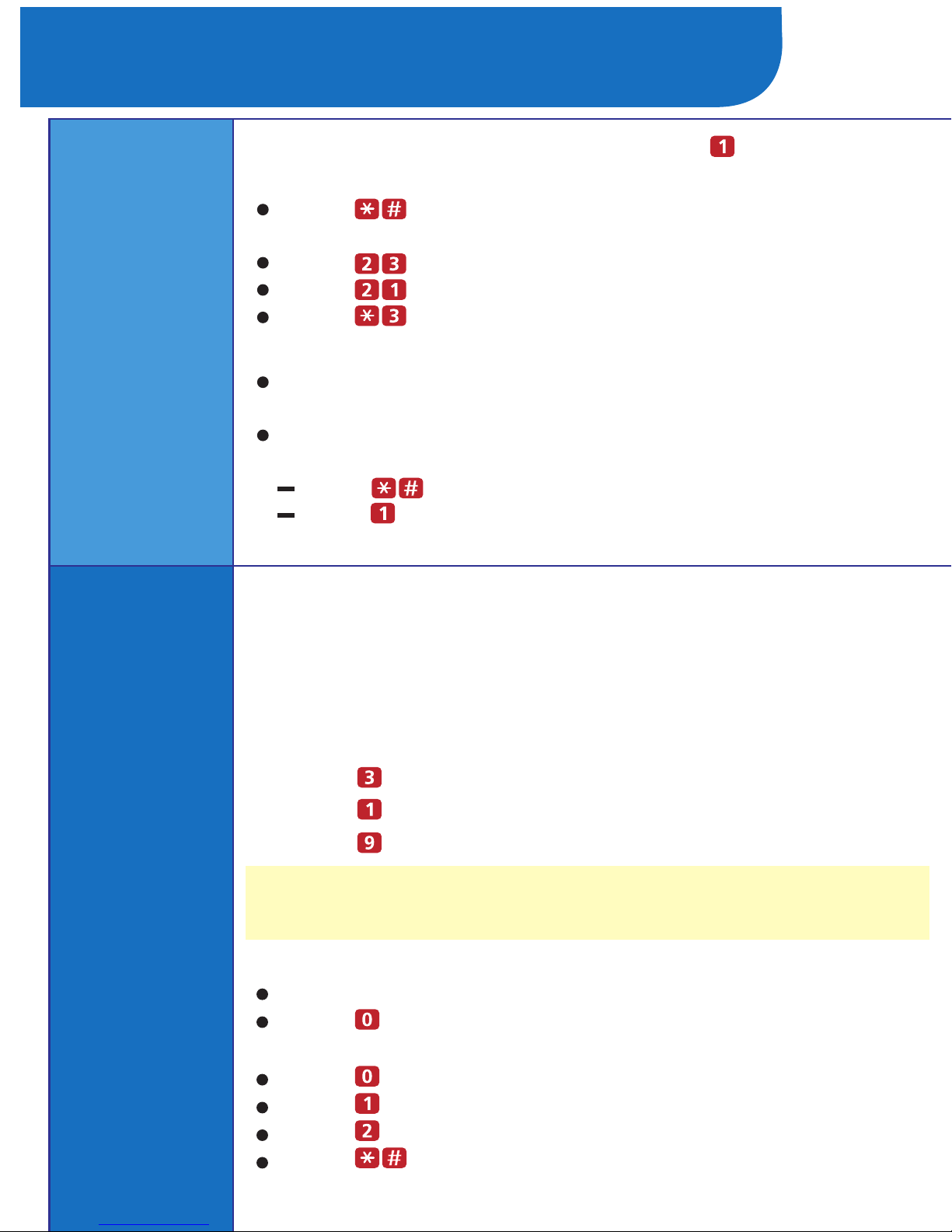
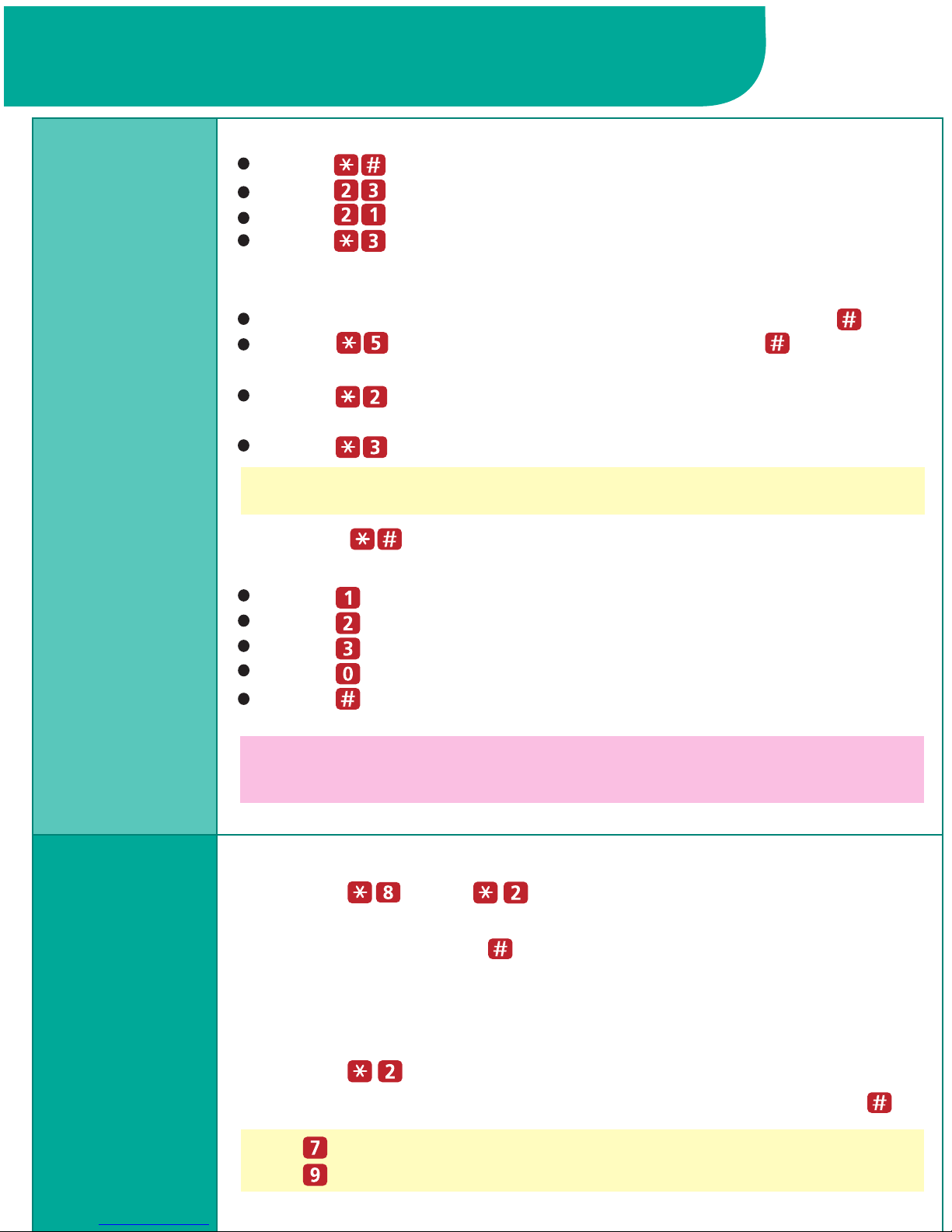
7:Record your greeting, then press
.
2:Press to change your name or greeting.
1:Log in to Voice Messaging.
8:Choose an option:
Press to approve your greeting.
Go to Step 6 of Activating a Personal Greeting.
Press to play back your greeting.
Press to re-record your greeting.
Press to delete the greeting just recorded.
5:Choose an option:
Enter the number of the greeting you want to activate.
Press to activate the system default greeting.
You can record up to 6 Personal Greetings. Activate the Personal
Greeting you want a caller to hear. You can activate up to 2
Personal Greetings. You can have 1 greeting for internal calls and
1 greeting for external calls, or you can use the same greeting for
both internal and external calls.
3: Press to change your greeting.
Press to use this greeting for all calls.
Press to use this greeting for internal calls only.
Press to use this greeting for external calls only.
Press if finished.
6:Choose an option:
4: Press to activate a greeting.
Press to keep current activation setting.
Press to change, then go to Step 6 of
Activating a Personal Greeting.
9:Do one of the following:
If greeting is not already active, go to Step 6 of
Activating a Personal Greeting.
If greeting is currently active, choose one of the
following:
If a Personal Greeting is not active, the system greeting is
used.

Personalizing Your Mailbox
Changing
Your
Password
Choosing
Call
Answer
Mode
Changing
Your
Personal
Operator
3: Enter the new Password, then press .
4: Re-enter the new Password, then press .
2:Press to change your Password.
1:Log in to Voice Messaging.
2:Press to change your Personal Operator.
1: Log in to Voice Messaging.
Your Personal Operator is the person you want to handle
your calls when the caller needs immediate assistance and you are
not available. In your greeting, be sure to mention that callers can
press to reach your Personal Operator or the System Operator.
Call Answer Mode determines whether or not the system allows
callers to leave a message after listening to your Personal Greeting.
When your mailbox is in Record Mode, callers can leave a message;
when it is in Answer-Only Mode, they cannot. Auto-Copy Mode
(Release 6.0 or later) allows you to designate that a copy of all
messages left in your mailbox also be left in another mailbox. The
caller leaving the message is not aware of this unless you explain
it in your Personal Greeting. Private messages are not copied to
the other mailbox.
2:Press to change Call Answer Mode.
1:Log in to Voice Messaging.
3:Choose an option:
Press for Record Mode.
Press for Answer-Only Mode.
Press for Auto-Copy Mode. Then do one of the following:
Enter destination extension, then press .
If mailbox is already in Auto-Copy Mode, do one of the following:
Press to keep current destination.
To change current destination, enter new destination
extension, then press .
3:Choose an option:
Enter your Personal Operator's extension, then press .
Press to delete your Personal Operator.
Press
if finished.
The Call Answer Mode of the destination mailbox must be set to
Record Mode in order for Auto-Copy to work.

2: Press to get messages.
1:
Log in to Voice Messaging.
Press to listen to the message body.
Press to skip the message. (The message will
remain as "new" until you listen to the body.)
3:Choose an option:
4:After the message plays, choose an option:
Press to save (skip) the message.
Press to replay the message.
Press to replay the header only.
Press to change the message status back to new,
then press to go to the next message.
The next time you
log in for messages, you will hear this as a new message.
(Release 6.0 or later.)
Press to return to the previous message. Repeatedly
press to
backup to the desired message.
(Release 6.0 or later.)
Press to respond to the message (see next section).
You can assign Priority, Private, and/or Return Receipt categories to
messages you send. New Priority messages are heard first when
listening to new messages. Private messages cannot be forwarded.
Return Receipt messages notify you when the message is listened
to by the recipient. You can assign one, two, or all three categories
to a message. In Release 6.0 or later, you can receive an Auto-Copy
message, which is sent to you by an originating mailbox that has
designated your mailbox as an Auto-Copy destination. The message
header indicates the mailbox where the message originated and that
the message is an Auto-Copy.
The system plays the message header.
HINTS:
While the message plays, you can choose additional options:
Press to pause and again to resume.
Press to rewind four seconds and play.
Press to skip forward four seconds and play.
Press to increase volume or to decrease volume.
Press to increase speed or to decrease. Change in speed lasts
for current Voice Messaging connection. (Release 6.0 or later.)
Press to delete the message.
Listening
to
Messages
About
Message
Categories
Your Messages

Enter the extension of an individual, then press .
Press and a Group List number, then . Use
Personal Group Lists 1–10 or System Group Lists 50–59.
Press to use the Directory. (See Using the Directory.)
Press to delete the last entry.
3:Record your message, then press again.
4:Choose an option:
Press to approve. (if replaying, skip to step 7.)
Press to play back your comments.
Press to re-record your comments.
Press to cancel replying or forwarding.
8:Return to Step 4 of Listening to Messages.
2:Press to record a message.
1:Log in to Voice Messaging.
4: Press when finished recording.
5:If forwarding,do one of the following:
Repeat Step 5 to address the message to others.
continued...
6:Press when finished addressing.
After you assign a category to a message, the system
gives you the options to assign the other two categories.
7: Choose an option:
Press to make this a Private message.
Press to make this a Priority message.
Press to request a Return Receipt.
Press to cancel the category.
Press to send the recorded message.
3:Record your message.
1: After the recorded message plays, press to
respond to the recorded message.
Press to reply to the sender. (In order to reply, the
sender must have a mailbox in the system.)
Press to forward the recorded message.
Press to return the call to an internal sender.
2:Choose an option:
Sending
a Message
Your Messages
Responding
to a Message

Repeat Step 6 to address the recorded message to others.
After you assign a category to a message, the system
gives you the options to assign the other two categories.
7:Press when finished addressing.
5:Choose an option:
Press to approve the recorded message. (Go to Step 6.)
Press to play back the recorded message.
Press to re-record the message. (Go to Step 3.)
Press to delete the recorded message and return
to the Voice Messaging Activity Menu.
Enter the extension of an individual, then press .
Press and a Group List number, then . Use
Personal Group Lists 1–10 or System Group Lists 50–59.
Press to use the Directory. (See Using the
Directory.)
Press to delete the last entry.
6:Choose an option:
1:
Press then to transfer to a user’s extension.
2:
Enter up to the first ten letters
of the name,then .
(Ask your System Manager if
users are listed by first or last name.)
Use for the letter Q.
Use for the letter Z.
To use the Directory to transfer to an extension:
8:Choose an option:
Press to make this a Private message.
Press to make this a Priority message.
Press to request a Return Receipt.
Press to cancel the category.
Press to send the recorded message.
To use the Directory to address a message, or to add
entries to a Group List:
1:
Press to access the Directory.
2:
Enter up to the first ten letters
of the name,then .
Using the
Directory
Sending
a Message
(continued)
Your Messages

2:Press for more mailbox options.
1:
Log in to Voice Messaging.
3:Press to change the message retrieval order.
Change the Message Retrieval Order _you can
listen to your messages in First-In First-Out order
or Last-In First-Out order.
Use Message Preview Mode _you can listen to the
message body of all new messages and keep the
message status marked as new. This feature is
particularly helpful when accessing your new
messages remotely from a cell phone. Minimal
button presses are required to listen to all your new
messages.
Listen to Last Heard Message _you can listen to
the last message you heard during your previous
message retrieval session.
4:Choose an option:
Options
More Mailbox Options
In Release 6.0 or later, additional mailbox options are
available.
Changing
Message
Retrieval
Order
Press to listen to messages in First-In First-Out order.
Press to listen to messages in Last-In First-Out order.
Press when finished.
Listening
to New
Messages
in Preview
Mode
2:Press for more mailbox options.
1:
Log in to Voice Messaging.
3:Press to preview new messages.
4: Choose an option:
Press to immediately begin listening to the first
new message.
Press for options to use while a message is
playing.
See
Listening to Messages.
Press to exit Preview Mode.
HINT:
To quickly listen to new messages when you log in to
your mailbox, set your message retrieval order to Last-In
First-Out and listen to your messages in Preview Mode.
continued...
Altri manuali per PARTNER Phone
12
Indice
Altri manuali Avaya Segreteria telefonica