Axis M7001 Manuale utente

ENGLISH DEUTSCH ITALIANO ESPAÑOL
INSTALLATION GUIDE
FRANÇAIS
AXIS M7001 Video Encoder

About this Document
This document includes instructions for installing the
AXIS M7001 on your network. Previous experience of
networking will be beneficial when installing the
product.
Legal Considerations
Video and audio surveillance can be prohibited by laws
that vary from country to country. Check the laws in
your local region before using this product for
surveillance purposes.
This product includes one (1) H.264 decoder license. To
purchase further licenses, contact your reseller.
Electromagnetic Compatibility (EMC)
This equipment generates, uses and can radiate radio
frequency energy and, if not installed and used in
accordance with the instructions, may cause harmful
interference to radio communications. However, there is
no guarantee that interference will not occur in a
particular installation.
If this equipment does cause harmful interference to
radio or television reception, which can be determined
by turning the equipment off and on, the user is
encouraged to try to correct the interference by one or
more of the following measures: Re-orient or relocate
the receiving antenna. Increase the separation between
the equipment and receiver. Connect the equipment to
an outlet on a different circuit to the receiver. Consult
your dealer or an experienced radio/TV technician for
help. Shielded (STP) network cables must be used with
this unit to ensure compliance with EMC standards.
USA - This equipment has been tested and found to
comply with the limits for a Class B computing device
pursuant to Subpart B of Part 15 of FCC rules, which are
designed to provide reasonable protection against such
interference when operated in a commercial
environment. Operation of this equipment in a
residential area is likely to cause interference, in which
case the user at his/her own expense will be required to
take whatever measures may be required to correct the
interference.
Canada - This Class B digital apparatus complies with
Canadian ICES-003.
Europe - This digital equipment fulfills the
requirements for radiated emission according to limit B
of EN55022, and the requirements for immunity
according to EN55024 residential and commercial
industry.
Japan - This is a class B product based on the standard
of the Voluntary Control Council for Interference from
Information Technology Equipment (VCCI). If this is used
near a radio or television receiver in a domestic
environment, it may cause radio interference. Install and
use the equipment according to the instruction manual.
Australia - This electronic device meets the
requirements of the Radio communications
(Electromagnetic Compatibility) Standard AS/NZS
CISPR22.
Equipment Modifications
This equipment must be installed and used in strict
accordance with the instructions given in the user
documentation. This equipment contains no
user-serviceable components. Unauthorized equipment
changes or modifications will invalidate all applicable
regulatory certifications and approvals.
Liability
Every care has been taken in the preparation of this
document. Please inform your local Axis office of any
inaccuracies or omissions. Axis Communications AB
cannot be held responsible for any technical or
typographical errors and reserves the right to make
changes to the product and documentation without
prior notice. Axis Communications AB makes no
warranty of any kind with regard to the material
contained within this document, including, but not
limited to, the implied warranties of merchantability
and fitness for a particular purpose. Axis
Communications AB shall not be liable nor responsible
for incidental or consequential damages in connection
with the furnishing, performance or use of this material.
RoHS
This product complies with both the European
RoHS directive, 2002/95/EC, and the Chinese
RoHS regulations, ACPEIP.
WEEE Directive
The European Union has enacted a Directive
2002/96/EC on Waste Electrical and Electronic
Equipment (WEEE Directive). This directive is
applicable in the European Union member
states.
The WEEE marking on this product (see right) or its
documentation indicates that the product must not be
disposed of together with household waste. To prevent
possible harm to human health and/or the environment,
the product must be disposed of in an approved and
environmentally safe recycling process. For further
information on how to dispose of this product correctly,
contact the product supplier, or the local authority
responsible for waste disposal in your area.
Business users should contact the product supplier for
information on how to dispose of this product correctly.
This product should not be mixed with other commercial
waste.
Support
Should you require any technical assistance, please
contact your Axis reseller. If your questions cannot be
answered immediately, your reseller will forward your
queries through the appropriate channels to ensure a
rapid response. If you are connected to the Internet, you
can:
• download user documentation and firmware updates
• find answers to resolved problems in the FAQ
database. Search by product, category, or phrases
• report problems to Axis support by logging in to your
private support area.

ENGLISH
Safeguards
Please read through this Installation Guide carefully before installing the Axis product. Keep the
Installation Guide for further reference.
• Store the Axis product in a dry and ventilated environment.
• Avoid exposing the Axis product to vibration, shocks or heavy pressure. Do not install the
product on unstable brackets, unstable or vibrating surfaces or walls, since this could cause
damage to the product.
• Only use applicable tools when installing the Axis product; excessive force could cause
damage to the product.
• Do not use chemicals, caustic agents, or aerosol cleaners. Use a damp cloth for cleaning.
• Use only accessories that comply with technical specification of the product. These can be
provided by Axis or a third party.
• Use only spare parts provided by or recommended by Axis.
• Do not attempt to repair the product by yourself, contact Axis or your Axis reseller for ser-
vice matters.
• This Axis product shall be used in compliance with local laws and regulations.
Transportation
• When transporting the Axis product, use the original packaging or equivalent to prevent
damage to the product.


AXIS M7001 Installation Guide Page 5
ENGLISH
AXIS M7001 Video Encoder
Installation Guide
This installation guide provides instructions for installing a AXIS M7001 Video Encoder on your
network. For all other aspects of using the product, please see the product User’s Manual, available
on the CD included in this package, or from www.axis.com
Installation steps
Follow these steps to install the AXIS M7001 Video Encoder on your local network (LAN):
1. Check the package contents against the list below.
2. Hardware overview. See page page 6.
3. Install the hardware. See page 7.
4. Assign an IP address. See page 8.
5. Set the password. See page 11.
Package contents
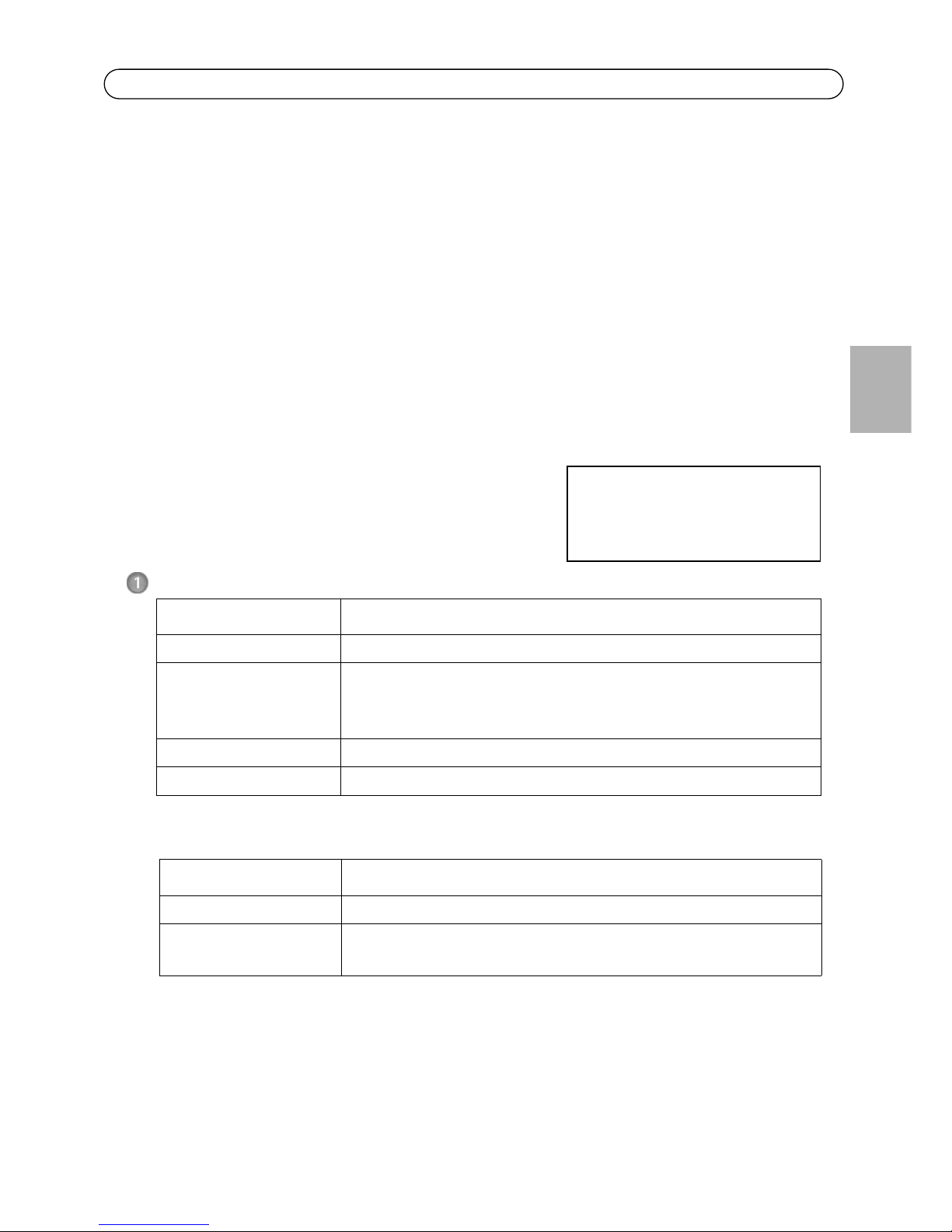
If a covert camera was purchased together with the AXIS M7001 Video Encoder, the package
should also contain:
See Covert camera, on page 17 for more information.
Item Models/variants/notes
Video encoder AXIS M7001
Mounting kit • Metal bracket for wall/ceiling mounting
• 2 screws and plugs for concrete walls
• Terminal block connector (RS-485/422: 2x 2-pin connector)
CD Installation and Management Software CD
Printed materials AXIS M7001 Installation Guide (this document)
Item Models/variants/notes
Covert camera Analog camera
Mounting kit • Metal bracket for wall/ceiling mounting
• 2 screws and plugs for concrete walls
Important!
This product must be used in
compliance with local laws and
regulations.

Page 6 AXIS M7001 Installation Guide
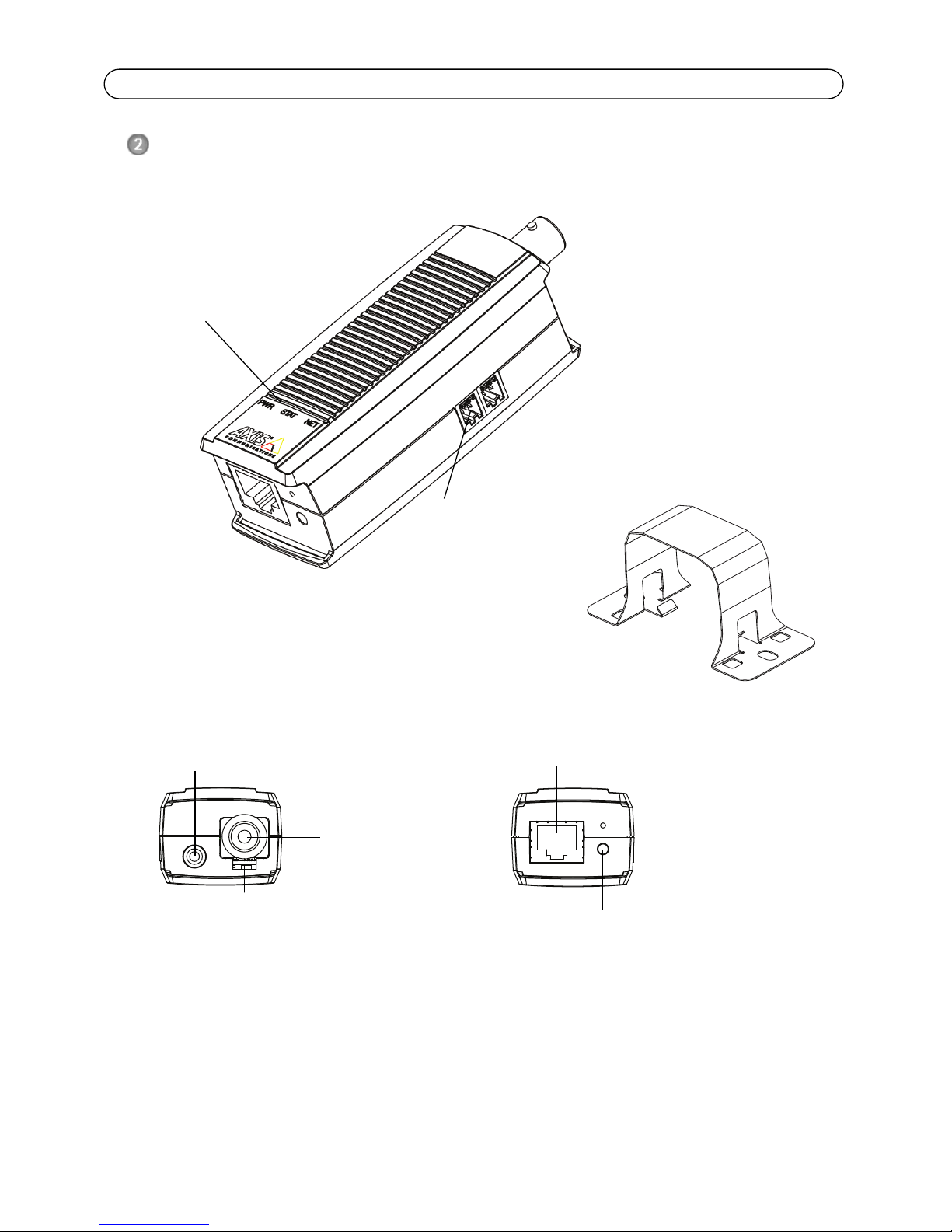
Hardware overview
Top view
Dimensions
HxWxD = 30 x 37 x 101 mm (1.2" x 1.5" x 4.0")
Weight = 82 g (0.2 lb)
Front view Rear view
RS-422/RS-485
connector
LED indicators for
power, status and
network
Mounting bracket
2.5 mm tele plug connector
BNC connector
75 Ohm
termination switch Control button
Network connector (PoE class 2)

AXIS M7001 Installation Guide Page 7
ENGLISH
Install the hardware
Mount the video encoder to a wall/ceiling
The video encoder is supplied with a mounting kit containing a metal bracket, screws and plugs for
mounting the video encoder to a concrete wall/ceiling:
1. Make sure that the screws and plugs are appropriate for the wall/ceiling material.
2. Attach and secure the video encoder to the bracket.
3. Place the video encoder against the wall/ceiling, and mark the location of the two mounting
holes through which the bracket will be attached.
4. Remove the video encoder and drill the two mounting holes.
5. Insert the plugs, position the video encoder and secure it to the wall/ceiling using the screws.
Note: The bracket can also be mounted on a pole using a cable tie.
Connect the cables
The video encoder uses Power over Ethernet (PoE) and must be connected to a PoE-enabled
network.
1. Connect the encoder to the network using a shielded network cable. This cable is also used to
power the unit.
2. Connect a camera to the BNC port, or connect the covert camera to the tele plug port.
3. Check that the indicator LED:s indicate the correct conditions. See the table on page 15.
!IMPORTANT! - The casing of the AXIS M7001 is not approved for outdoor use - the
product may only be installed in indoor environments.

Page 8 AXIS M7001 Installation Guide
Assign an IP address
Most networks today have a DHCP server that automatically assigns IP addresses to connected
devices. If your network does not have a DHCP server the AXIS M7001 will use 192.168.0.90 as the
default IP address.
AXIS IP Utility and AXIS Camera Management are recommended methods for setting an IP
address in Windows. These free applications are available on the Axis Network Video Product CD
supplied with this product, or they can be downloaded from www.axis.com/techsup. Depending on
the number of cameras you wish to install, use the method that suits you best.
Notes:
• If assigning the IP address fails, check that there is no firewall blocking the operation.
• For other methods of assigning or discovering the IP address of the AXIS M7001, e.g. in other operating
systems, see page 13.
Method Recommended for Operating system
AXIS IP Utility
See page 9
Single video encoder
Small installations
Windows
AXIS Camera Management
See page 10
Multiple video encoders
Large installations
Installation on a different subnet
Windows 2000
Windows XP Pro
Windows 2003 Server
Windows Vista

AXIS M7001 Installation Guide Page 9
ENGLISH
AXIS IP Utility - single camera/small installation
AXIS IP Utility automatically discovers and displays Axis devices on your network. The application
can also be used to manually assign a static IP address.
Note that the computer running AXIS IP Utility must be on the same network segment (physical
subnet) as the AXIS M7001.
Automatic discovery
1. Check that the AXIS M7001 is connected to the network.
2. Start AXIS IP Utility.
3. When the AXIS M7001 appears in the window, double-click it to open its home page.
4. See page 11 for instructions on how to assign the password.
Set the IP address manually (optional)
1. Acquire an unused IP address on the same network segment as your computer.
2. Select the AXIS M7001 in the list.
3. Click the button Assign new IP address to selected device and enter the IP address.
4. Click the Assign button and follow the instructions.
5. Click the Home Page button to access the video encoder’s web pages.
6. See page 11 for instructions on how to set the password.

Page 10 AXIS M7001 Installation Guide
AXIS Camera Management - multiple cameras/large installations
AXIS Camera Management can automatically find and set IP addresses, show connection status,
and manage firmware upgrades for multiple Axis video products.
Automatic discovery
1. Check that the encoder is connected to the network.
2. Start AXIS Camera Management. When the video encoder appears in the window, right-click
the link and select Live View Home Page.
3. See page 11 for instructions on how to set the password.
Assign an IP address in a single device
1. Select AXIS M7001 in AXIS Camera Management and click the
Assign IP button.
2. Select Assign the following IP address and enter the IP
address, the subnet mask and default router the device will
use.
3. Click the OK button.
Assign IP addresses in multiple devices
AXIS Camera Management speeds up the process of
assigning IP addresses to multiple devices, by
suggesting IP addresses from a specified range.
1. Select the devices you wish to configure (different
models can be selected) and click the Assign IP
button.
2. Select Assign the following IP address range and
enter the range of IP addresses, the subnet mask
and default router the devices will use.
3. Click Update. Suggested IP addresses are listed
under New IP Addresses and can be edited by
selecting a device and clicking the Edit button.
4. Click the OK button.
Altri manuali per M7001
3
Indice
Lingue:
Altri manuali Axis Convertitore multimediale

Axis
Axis Q7424-R Manuale utente

Axis
Axis P7214 Manuale utente

Axis
Axis T8705 Guida rapida alla configurazione

Axis
Axis T8123 High PoE 30 W Manuale utente

Axis
Axis Q7404 Manuale utente

Axis
Axis M7016 Manuale utente

Axis
Axis M7116 Manuale utente

Axis
Axis P7216 Manuale utente

Axis
Axis AXIS Q7401 Manuale utente

Axis
Axis 292 Manuale utente