Aydin Displays IP67 SERIES Manuale utente

CAMBRIDGE
USERS MANUAL
ALL WEATHER 8.4” - 15.0”
IP67 SEALED SERIES
PANEL MOUNT
VESA MOUNT
LCD Monitor User Guide
Part No. 150-7000-001

Table of Contents
Safety.............................................................................................................................................. 1
Product Care and Maintenance ............................................................................................3
System Set-up........................................................................................................................... 5
Installation................................................................................................................................. 6
Cable Connections.................................................................................................................. 8
Computer Hook-up ................................................................................................................10
Operator Controls ...................................................................................................................12
On-Screen Display (OSD)......................................................................................................13
Appendix...................................................................................................................................24

150-7000-001 1
SAFETY
General Safety Instructions
• Before operating this Monitor, read this User Manual thoroughly
• Retain this User Manual for future use
• Verify the computer system capability (see System Set-up) to insure operation of
the Monitor
• For expeditious installation, follow these User Manual instructions in the
sequence presented
• Adhere to all Caution and Warnings on system parts and as stated in this User
Manual
• All User Manual instructions for installation and operation must be followed
precisely
• Adjust only those controls covered by the User Manual’s operating instructions;
improper adjustment of other controls voids the unit’s warranty and may result in
unit damage, and
• Adhere to local installation codes.
General Unit Safety
• Always disconnect the unit from the power source before cleaning
• Do not operate the unit with a damaged cord
• Do not operate if the unit has been dropped or damaged. The unit needs inspected
by qualied Aydin Service Personnel
• Position the power cord so it shall not be in contact with hot surfaces
• Do not allow anything to rest on the power cord, and
• Do not place the power cord where there shall be foot trac.
General Safety Precautions
• Power connections must be connected to a properly wired and grounded power source
• Any equipment to which the unit shall be attached must also be connected to properly
wired and grounded power sources
• Do not connect or disconnect the unit during an electrical storm
• Do not remove the unit covers – there are no user serviceable parts in the unit
• Do not disassemble or modify the unit to avoid the possibility of electrical shock,
damage to electrical components or scratching the Display surface, and
• Disassembly of the unit voids the warranty.
warning!
caution!
Warning! Shock Hazards
This icon is intended to tell you of a potential risk of electrical shock.
Caution! Instructional
This icon is intended to tell you of important operating and/or
maintenance instructions.
Safety Icons
warning!
1

2150-7000-001
Electrical SAFETY
Connecting Cables
• Disconnect the power to the computer when the Monitor is being installed, and
• Upon installation, verify the power connector is securely seated on the unit.
Ratings and Grounding
This unit may be operated from an 8-30 VDC power source (external AC optional).
• Use the supplied power cable, and
• Always connect to a properly grounded power source.
Protection on Servicing
Servicing - User
• User care is limited to cleaning the unit
• Do not disassemble or modify the unit to avoid the possibility of an electrical shock,
damage to electrical components or scratching the Display surface, and
• Disassembly voids the warranty.
Servicing
Aydin Displays Qualied Service Personnel may be required if the unit:
• Does not operate normally when installation instructions are followed
• Does not operate normally when operating instructions are followed
• Has been dropped or damaged, or
• Exhibits a distinct change in performance, indicating a need for service.
Shipping
If the unit should need to be shipped to the Aydin Displays Service Center, the original
packing material should be used to insure safety in shipping. Repack the unit as it
would have originally been received from Aydin Displays.
Fluids from LCD Display
• If the Monitor should ever become shattered, do not touch uids from an LCD Display
• If uid should get on hands or clothing, immediately wipe o with liquid soap or rubbing
alcohol; wash with water; consult with a doctor, and
• If uid gets in the eyes, ush eyes immediately with water for a minimum of 15 minutes;
consult with a doctor.
This equipment generates, uses and can radiate radio frequency energy. If not
installed with the unit’s accompanying cables, it may cause harmful interference
to radio communications.
Radio Frequency Interterence
caution!
caution!
2

150-7000-001 3
This Monitor has been designed to provide optimum performance and
service without any required scheduled maintenance other than occasional cleaning.
Display Screen Cleaning
• A vinegar-based cleaner is preferred to prevent streaking and degradation of the
coatings, or
• A non-abrasive glass cleaner such as a professional foam glass cleaner
• Apply the cleaning solution to a soft clean cloth, dampening slightly
• Keep a fresh side of the cleaning cloth towards the screen surface to avoid
scratching it with accumulated grit, and
• To minimize the risk of abrasion to the screen, air drying is recommended.
Disconnect cabling from the Touch Screen Display before cleaning. A Touch Screen
Display will be activated by cleaning the Display. This may create a potentially
dangerous condition.
Optional Touch Screen Cleaning
• Use a special screen cleaning tissue or a solution specically formulated for
antistatic coatings. Follow the manufacturer’s instructions, or
• Lightly dampen a soft clean cloth with water or a general purpose mild detergent
solution
• Keep a fresh side of the cleaning cloth towards the screen surface to avoid
scratching it with accumulated grit, and
• To minimize the risk of abrasion to the screen, air drying is recommended.
Monitor Enclosure
• Clean the unit enclosure with a soft clean cloth lightly dampened with a
general purpose mild detergent solution
• To rinse, wipe down with clean water, and
• Dry with a soft clean cloth.
Optional Touch Screen
PRODUCT CARE AND MAINTENANCE
Product Care
• Do not use abrasive cleaners or solvent-based (ammable) cleaners on the
Flat Panel or Touch Screen Display, its enclosure or any other electrical de-
vice (cables, power cord, etc)
• Do not use paper products as they may scratch the Display screen, and
• Do not directly apply cleaning solutions to the Display screen.
Turn o the Monitor power before cleaning the Monitor, optional Touch Screen
or unit’s enclosure.
warning!
caution!
warning!
In marine or similar environments,
an added benet of a vinegar-based
cleaner is its eectiveness in
dissolving salt deposits.
3

4150-7000-001
To avoid risk of electrical shock, do not disassemble the unit’s enclosure. Users
cannot service the Monitor. User maintenance is restricted to cleaning, as ex-
plained. Disassembling the unit voids the warranty.
Long-term Storage
• For long-term storage, it is suggested the unit be stored in a normal indoor environ-
ment and the Display glass be protected from accidental damage
• For pedestal mount units, disconnect the cable(s) and loosen the arm adjustment to
a point where the ball can be removed from the arm, or
• For Flush or Panel Mount units, cover the product with a protective covering that
shall not scratch or transfer any dyes to the Display screen.
warning!
4

150-7000-001 5
SYSTEM SETUP
System Requirements
The computer must have this capability:
• Video card setting with a minimum native resolution of:
8.4 = 800 x 600 (SVGA)
10.4 = 1024 X 768 (XGA)
12.1 = 1024 x 768 (XGA)
15.0 = 1024 x 768 (XGA
• If the optional Touch Screen Display is ordered, an available COM port for the
connector is required.
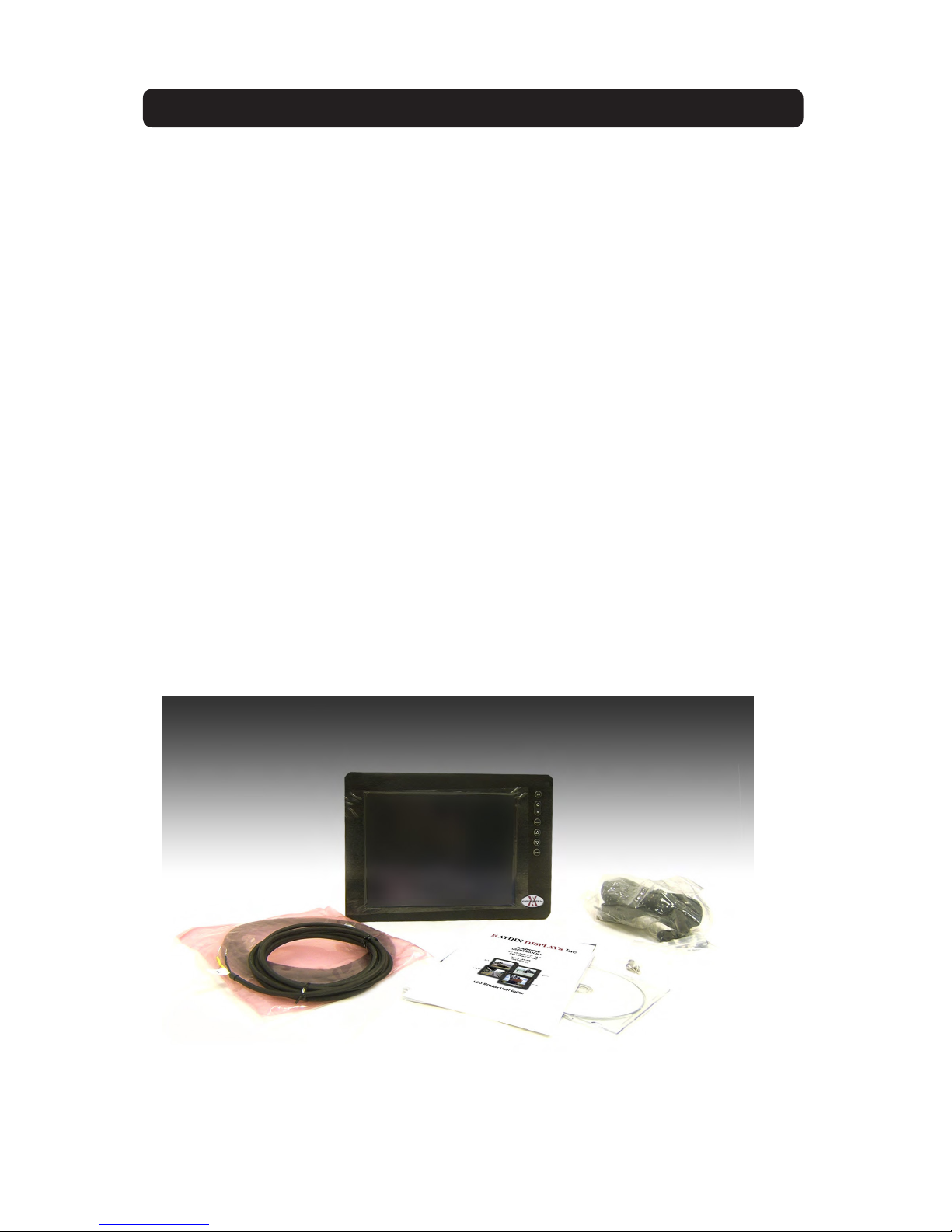
Shipping Box Contents
The display is shipped in a custom box with custom foam packaging. We
recommend you save the box and all packaging materials in case the unit would
need to be returned to the Aydin Displays Service Center.
In the shipping box you shall nd:
• CFP 8.4, 10.4, 12.1 or 15.0
• Custom Power Cable
• Custom VGA Cable
• Mounting System and Hardware
• Touch Screen Cable if the optional Touch Screen is ordered
• USB Cable if the optional USB Pass-through is ordered, and
• User CD with contents:
• Optional Touch Screen Drivers
5

6150-7000-001
INSTALLATION
The display is designed to be mounted with a universal ball-and-socket mounting
kit, in a Flat Panel or optional Flush Mount conguration.
Optional Pedestal Mount
The display can be supplied with a RAM® universal ball-and-socket system mounting
kit (Figure 2). By installing the Monitor with this kit, the user can quickly adjust the
viewing angle to improve viewability in changing environments. This ball-and-socket
system has proven to be successful in supporting an extreme amount of weight in
high vibration and dicult-mount applications.
Locate the ball-and-socket system in the shipping box. The kit consists of two RAM
balls on mounting plates and a RAM arm, with an adjustable T-knob and a packet of
three (3) M4x 10 counter-sunk stainless screws for mounting to the display.
Figure 2
Figure 3 Figure 4
Mounting Holes
6

150-7000-001 7
There are three mounting holes in the back of the Monitor for the ball mounting plate.
Take care not to strip the screw holes or over tighten. (Figure 4)
• Line up one of the ball mounting plates on these three holes (Figure 4)
• With three (3) M4x 10 counter-sunk stainless screws attach this mounting plate to
the back of the display.
• Mount the second ball mounting plate where the Monitor shall be installed
• Insert each ball into the RAM arm
• Lightly tighten the arm around the balls using the T-knob on the arm (Figure 2, 4)
• Adjust the Monitor to the viewing preference, and
• Tighten the T-knob to hold the Monitor in position.
It is recommended the remaining ball be mounted on a at surface. Because of the
various surface substrates the Monitor shall be mounted on, the installer shall provide
the screws to mount the other ball.
Panel Mount
The mounting hardware packet is included with the unit accessories in the shipping
box. This packet includes four (4) threaded screws (approximately 7.6 cm [3”] long),
four (4) Nylock nuts and four (4) at washers. For installation, there are four tapped
mounting holes on the four corners of the unit’s rear panel.
7

8150-7000-001
CABLE CONNECTIONS
Cables
• The display is packaged with two cables:
VGA and DC Power
• The AC Power Adapter is optional. (Figure 6)
Connectors are located on the bottom of the unit housing, from left to right:
VGA, S-Video, Optional USB Pass-through, Optional Touch, Power and BNC.
(Figure 7)
Connectors are physically unique to insure the installer makes the proper connections.
caution!
Use care when inserting or
removing connectors.
Connectors
1 VGA Input
2 DC Power Input
Figure 5
Figure 6
1
2
3
4
1 Optional USB Input
2 Optional Touch Input
3 Power Input
4 VGA Input
Figure 7
VGA Connector
• The IP68 sealed VGA Cable, 3 m (10 ft), is in the product accessory box
• Line up the red dots on the connectors
• Push the cable connector into the Monitor’s back panel connector,
#4 in Figure 7, and
• Plug the standard DB-15 (video) female connector to the computer’s
video source; secure.
8
Altri manuali per IP67 SERIES
1
Indice
Altri manuali Aydin Displays Monitor

Aydin Displays
Aydin Displays IP67 SERIES Manuale utente

Aydin Displays
Aydin Displays CFP32W1 Large Screen Series Manuale utente

Aydin Displays
Aydin Displays VFP19R2-000-602 Manuale utente

Aydin Displays
Aydin Displays Cambridge CFP42W1 Manuale utente

Aydin Displays
Aydin Displays VFP20 series Manuale utente

Aydin Displays
Aydin Displays Cambridge Manuale utente

Aydin Displays
Aydin Displays PROFORMANCE 4418 Manuale utente

Aydin Displays
Aydin Displays 356-7040-501 (model 4424S) Manuale utente

Aydin Displays
Aydin Displays VFP20 series Manuale utente

Aydin Displays
Aydin Displays CAMBRIDGE CFP19 Series Manuale utente