
B & G Vulcan Series Manuale utente
ENGLISH
Vulcan Series
Getting Started
bandg.com


Contents
7 Introduction
7 The Home page
8 Application pages
10 Basic operation
10 System Controls dialog
10 Turning the system on and off
11 Selecting pages and panels
11 Adjusting panel size
12 Adding new favorite pages
12 Creating a Man Overboard waypoint
14 Charts
14 The Chart panel
15 Showing dual chart types
15 Panning the chart
15 Using the cursor on the panel
16 Positioning the vessel on the chart panel
17 Displaying information about chart items
18 Find objects on chart panels
18 3D charts
19 Waypoints, Routes, and Tracks
19 Waypoints
20 Routes
21 Tracks
22 Navigating
22 Navigate to cursor position
22 Navigate a route
22 Navigating with the autopilot
23 SailSteer panel
24 Selecting data fields for the SailSteer panel
24 Sail Time calculations
Contents | Vulcan Series Getting Started 3

25 Time and Wind plots
25 The Time plot panel
25 Wind Plot panel
26 Autopilot
26 Safe operation with the autopilot
26 Activating the autopilot
27 Switching from automatic mode to manual steering
27 Autopilot indication on the pages
28 The Autopilot panel
29 Echosounder
29 The Echosounder image
30 Viewing Echosounder history
30 Setting up the image
31 StructureScan
31 The StructureScan image
32 Setting up the image
33 ForwardScan
33 The ForwardScan image
34 Setting up the image
34 Heading extension
36 Instrument panels
36 Dashboards
37 Wireless connection
37 Connect and disconnect from a wireless hotspot
38 Audio
38 Enabling audio
39 The Audio panel
39 Operating the audio system
40 Alarms
40 Alarm system
4Contents | Vulcan Series Getting Started

40 Alarms dialog
41 Tools
41 Waypoints/routes/tracks
41 Tides
41 Alarms
41 Settings
41 Vessels
42 Sun, Moon
42 Trip calculator
42 Files
42 Find
42 GoFree Shop
Contents | Vulcan Series Getting Started 5

6Contents | Vulcan Series Getting Started
Introduction
This manual provides an overview of the product and its features.
For more detailed information about the features, functions and
options, refer to the Operator manual. You can access the Operator
manual from the Files option in the Tools panel, refer to "Files" on
page 42.
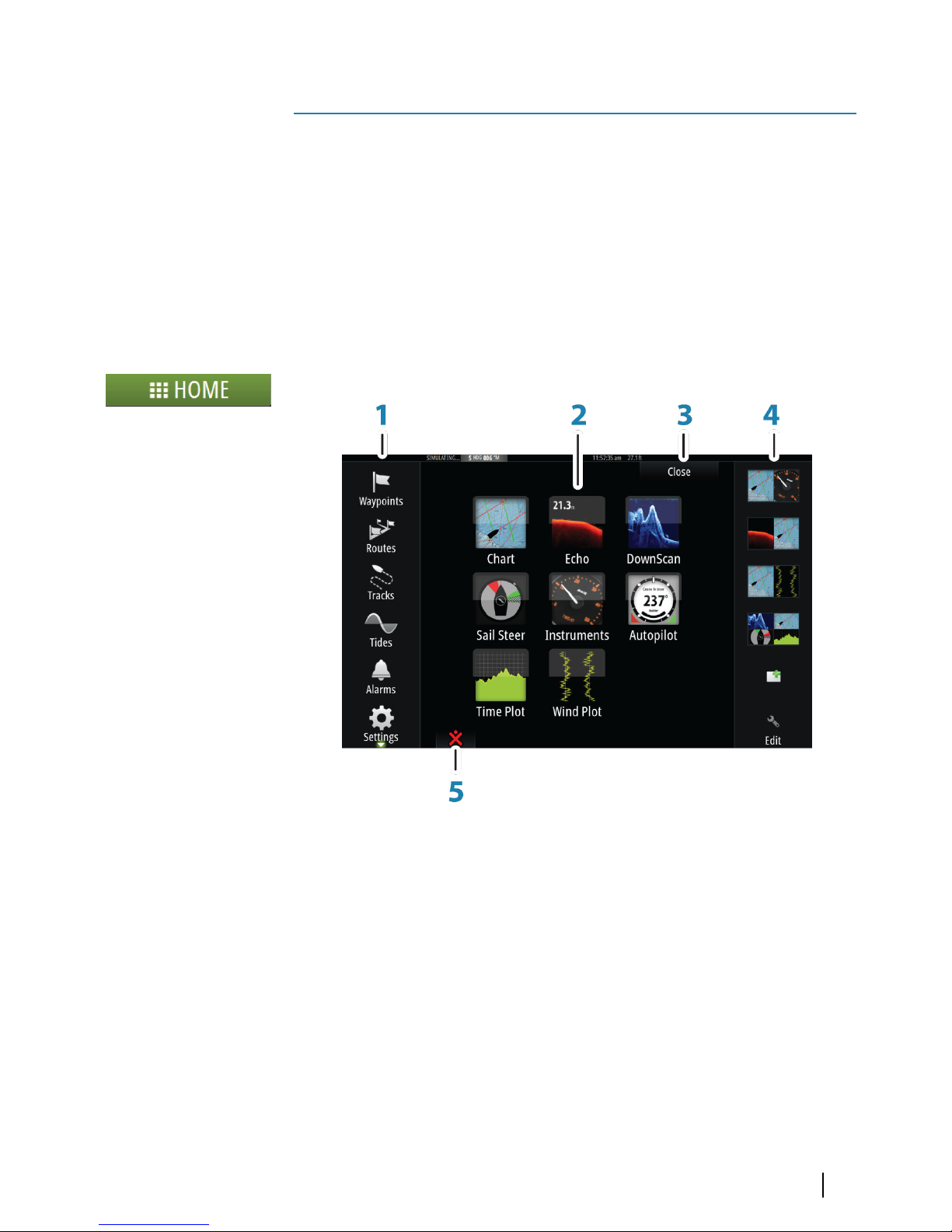
The Home page
The Home page is accessed from any operation by selecting the
Home button in the upper left corner of a panel.
1 Tools
Select a button to access dialogs used for carrying out a task,
or for browsing stored information.
2 Applications
Select a button to display the application as a full page
panel. Press and hold a button to display pre-configured
split page options for the application.
3 Close button
Select to exit the Home page and return to the previous
active page.
1
Introduction | Vulcan Series Getting Started 7
4 Favorites
Select a button to display the panel combination.
Press and hold a favorite button to enter edit mode for the
Favorites panel.
5 Man Over Board (MOB) button
Select to save a Man Over Board (MOB) waypoint at the
current vessel position.
Application pages
Each application connected to the system is presented on panels.
The application can be presented as a full page, or in combination
with other panels in a multiple panel page.
All application pages are accessed from the Home page.
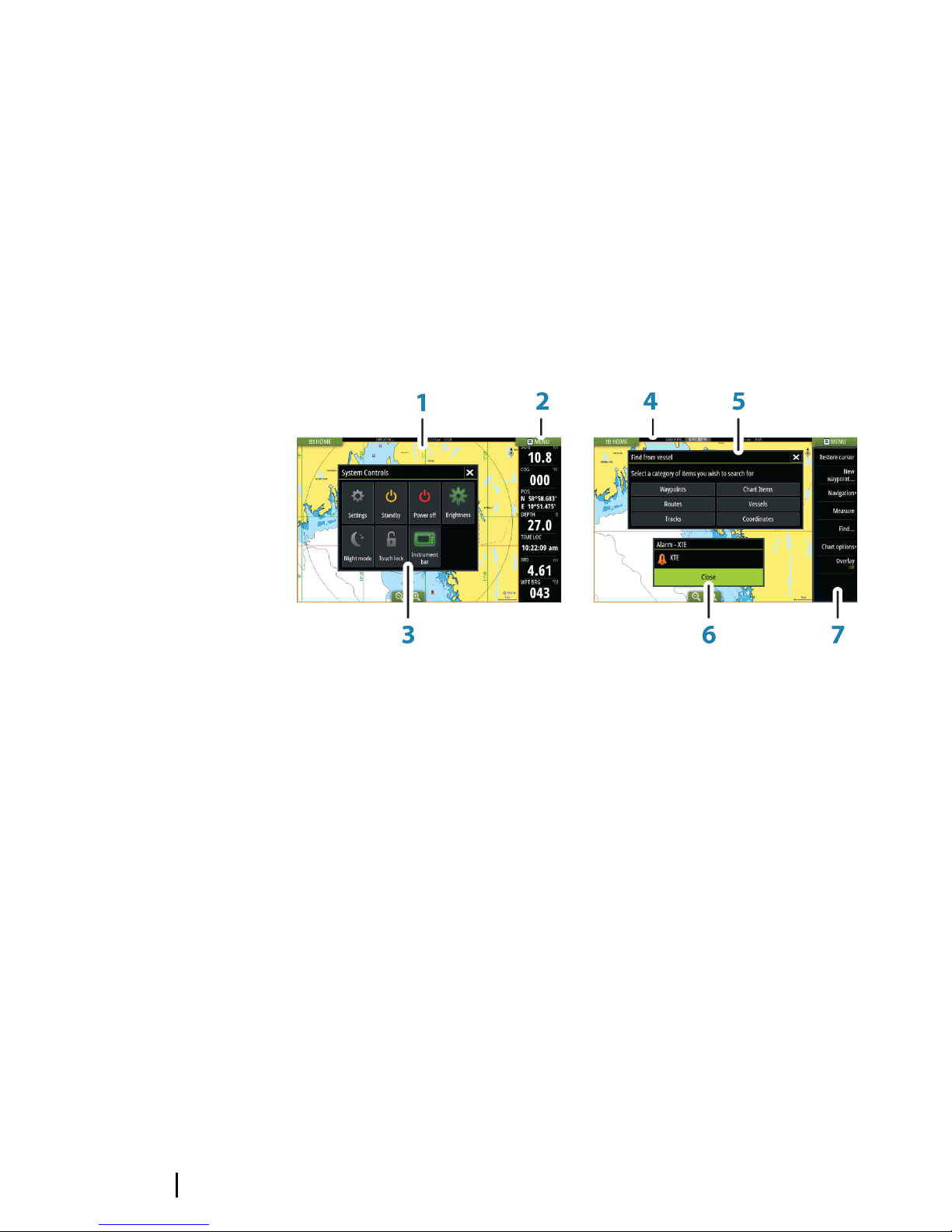
1 Application panel
2 Instrument bar
Navigation and sensor information. The bar can be turned
off and it can be configured by the user.
3 System controls dialog
Quick access to basic system settings.
Display the dialog by a short press on the Power key or by
swiping down from top of the screen.
4 Status bar
5 Dialog
Information to or input from the user.
8Introduction | Vulcan Series Getting Started
6 Alarm message
Displayed if dangerous situations or system faults occur.
7 Menu
Panel specific menu.
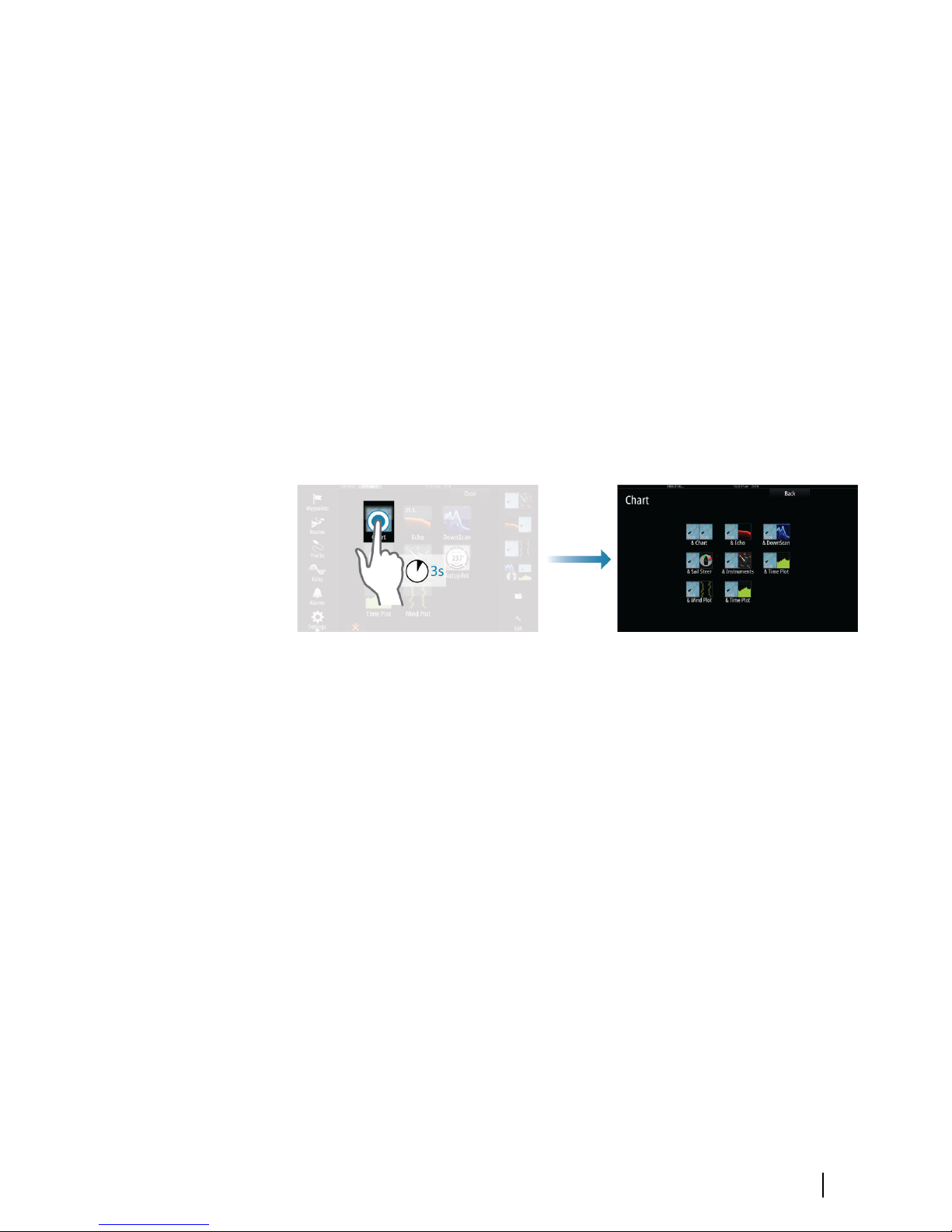
Pre-configured split pages
Each full screen application has several pre-configured split pages,
featuring the selected application combined with each of the other
panels.
ÚNote: The number of pre-configured split pages cannot be
changed, and the pages cannot be customized or deleted.
Access a pre-configured split page by pressing and holding the
main panel button.
Introduction | Vulcan Series Getting Started 9
Basic operation
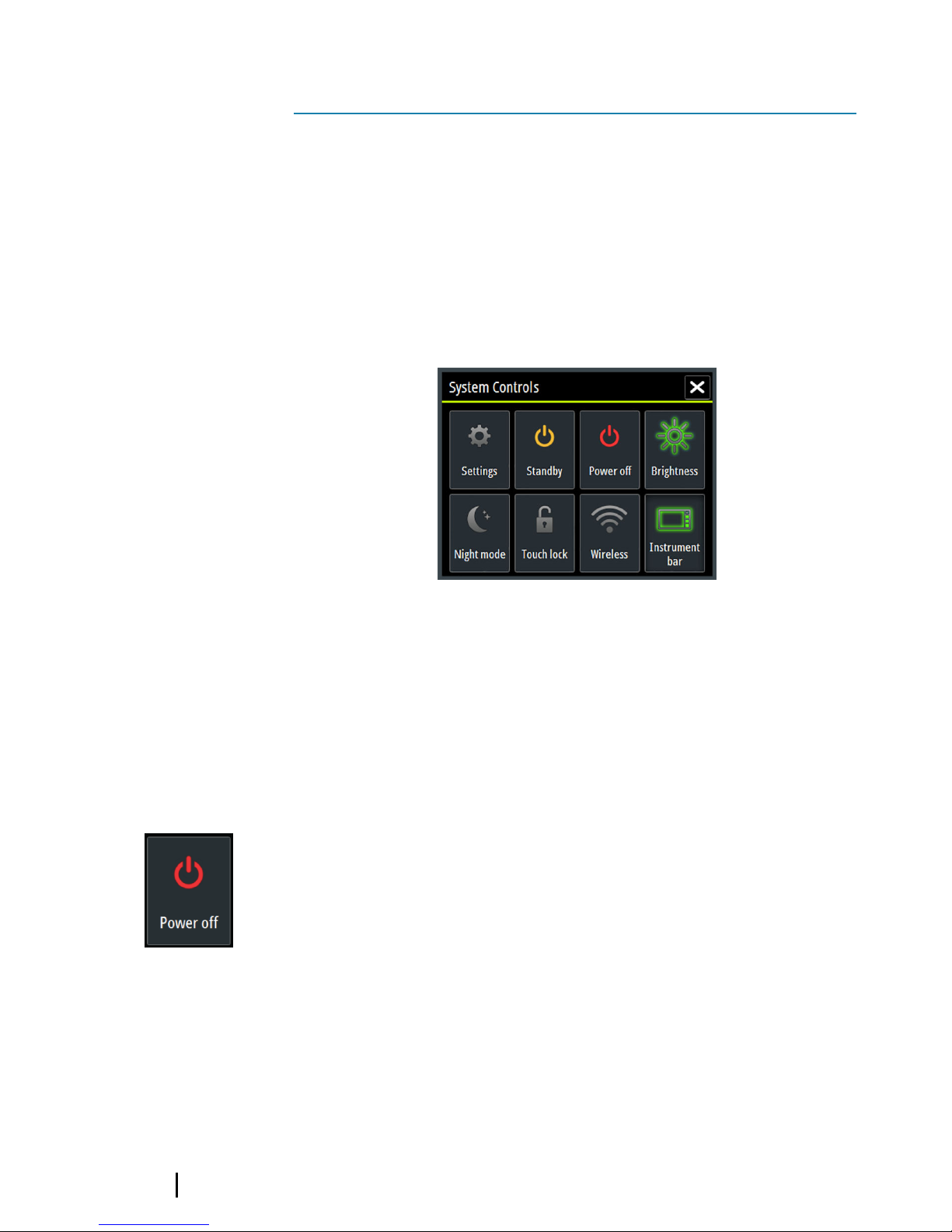
System Controls dialog
The System Controls dialog provides quick access to basic system
settings. You display the dialog by making a short press on the
Power key or by swiping down from the top of the screen.
The icons displayed on the dialog can vary. For example, the adjust
splits option is only available if you are viewing a split page when
you open the System Controls dialog.
Activating functions
Select the icon of the function you want to set or toggle on or off.
For those functions that toggle on and off, a highlighted icon
indicates the function is activated, as shown in the Instrument bar
icon above.
Turning the system on and off
You turn the system on and off by pressing and holding the Power
key. You can also turn the unit off from the System Controls
dialog.
If the Power key is released before the shut-down is completed, the
power off process is cancelled.
2
10 Basic operation | Vulcan Series Getting Started
Indice


