
Bancolini Uniterminal B32 Manuale utente
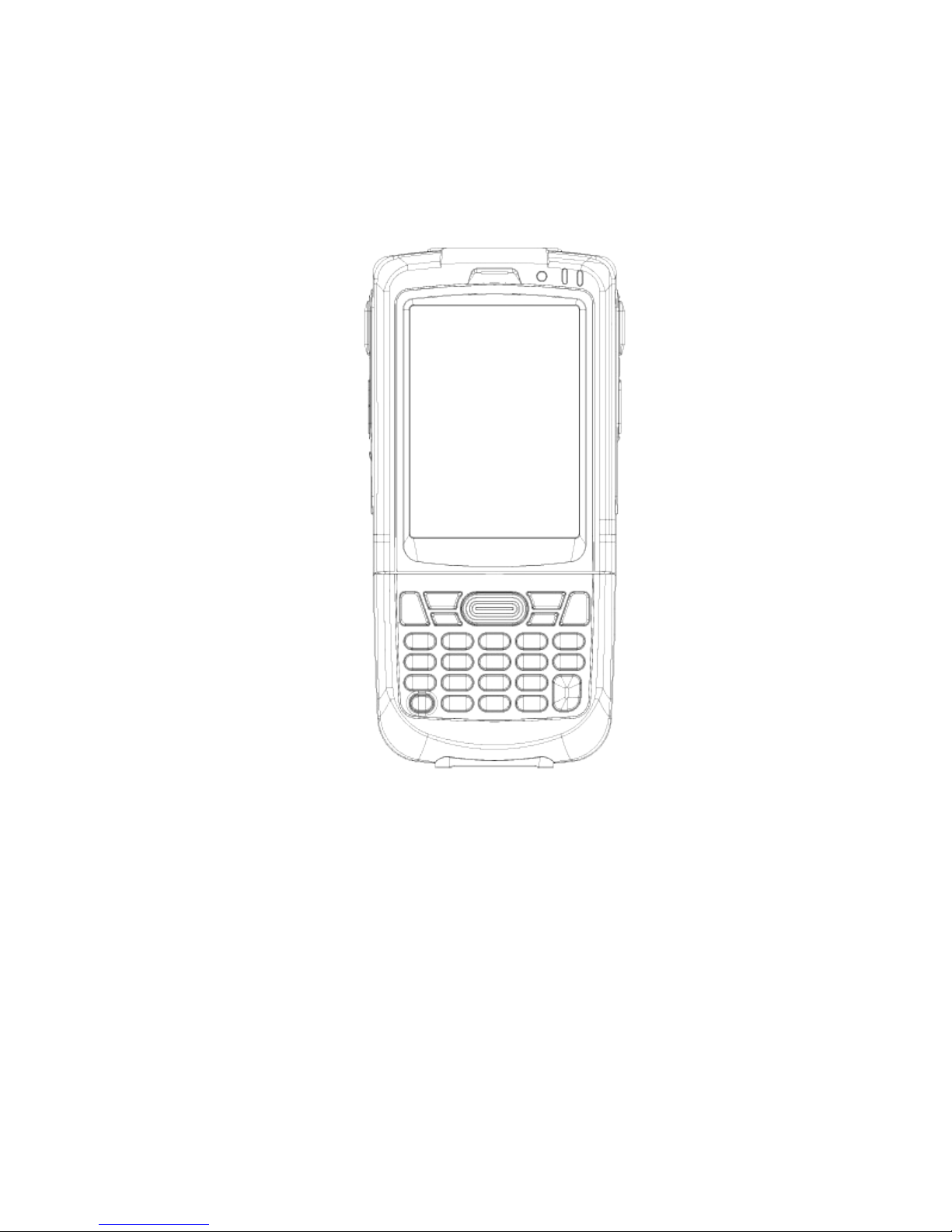
Uniterminal B32 User Guide
Gennaio 2013
Version 1.0

Uniterminal B32 User Guide
Content
Content 2
1. Introduction.......................................................................................................................4
Get Started............................................................................................................................7
Set Up Your Device............................................................................................................12
Reset Your Device...............................................................................................................23
Barcode Scanning................................................................................................................24
Enter Data............................................................................................................................2
Using ActiveSync to Transfer Data.....................................................................................28
802.11 Wireless Configuration............................................................................................3
GPRS Settings.....................................................................................................................39
Bluetooth42
Regulatory and Warning .....................................................................................................48

Uniterminal B32 User Guide
1. Introduction
About the Mobile Device
If you are looking for a mobile computer that you can collect data for a hole day, your search is over. This series
Uniterminal B32 - mobile computers is the ans er to your request. It is just about 275g (normal battery), long battery life
(10+ hours operation), big screen (3.2” diagonal) and yet comfortably to hold.
This series mobile computers is a neat package that packs ith functions your customers needed in a major industries,
namely retail, health care, arehouse tracking and logistics. It is rugged (IP64 and 1.2 meters drop), fully connected
(Bluetooth, WiFi b/g, GPRS) and has various options that you can customize for your customers' needs (multiple scan
engines and OS support).
Feature Summar
Microsoft Windo s CE 6.0
Small and light
Full 3.2" color display
High performance barcode scanning
WLAN 802.11b/g and SUMMIT b/g options
Bluetooth
128MB RAM / 128MB FLASH (256MB RAM / 256MB FLASH) memory
User-accessible microSD card slot
Sculpted to fit in the hand - truly pocketable
Withstands multiple 4'/1.2m drops to concrete across a ide temperature range
Sealed to IP64 standards
Ten-layer PCB ith grounding planes
Hi-Speed USB 2.0 and serial output
Full system of accessories
4
Uniterminal B32 User Guide
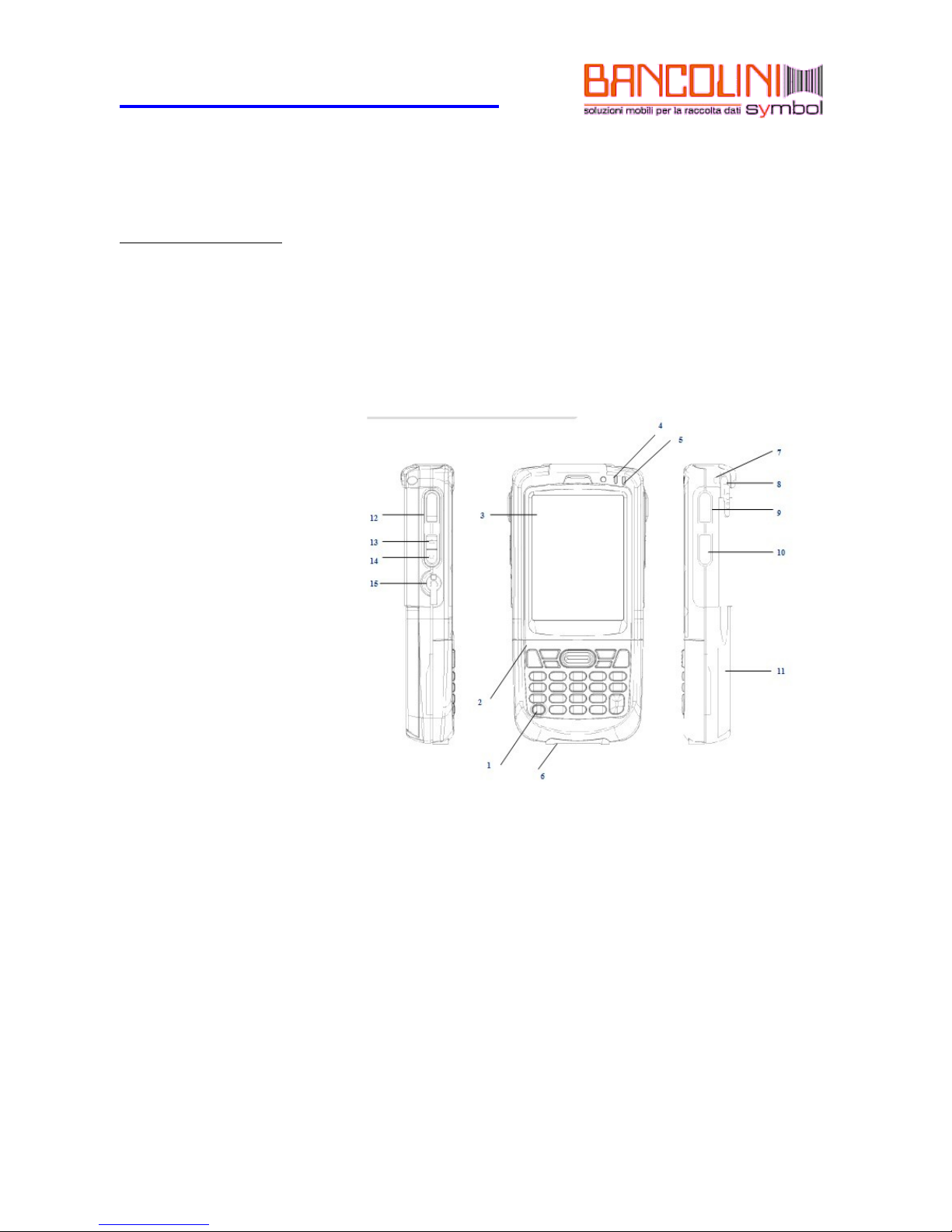
Hardware Overview
Front view numeric ke pad
1. Power Button
2. Ke pad
3. LCD displa
4. Charging LCD
5. Status LED
6. I/O Connector / Mini USB Port
7. Lan ard hole
8. St lus
9. Scan / action button
10. Action button
11. Batter cover
12. Scan / action button
13. Up button
14. Down button
15. Headset plug
Uniterminal B32 User Guide
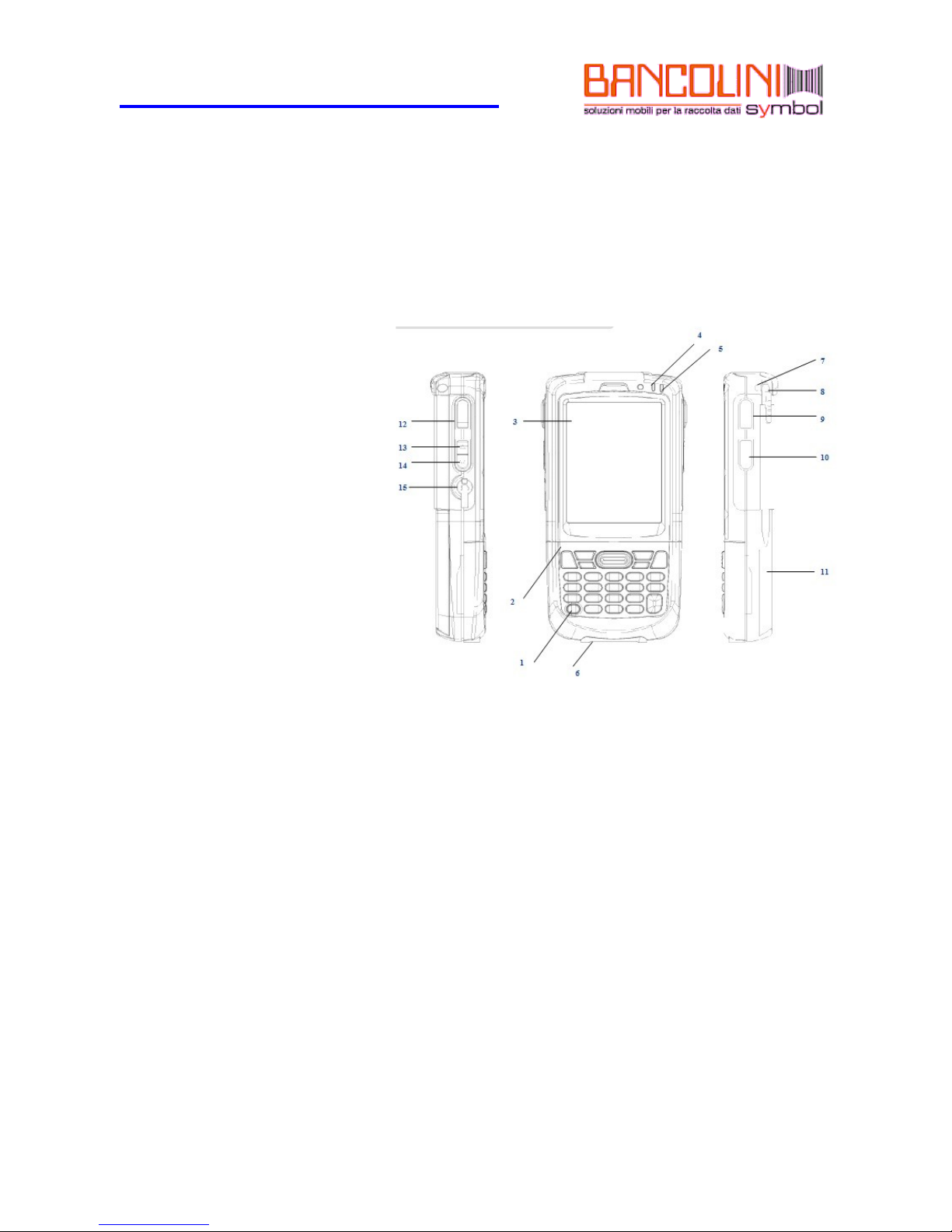
Rear, top & bottom views
1. Data capture window
2. St lus
3. Speaker
4. Label recess
5. Batter cover latch
6. Batter cover
7. Handstrap clip
8. I/O connector lock guide pin
9. I/O Connector / Mini USB Port
10. Handstrap bar
11. Rest Ke
12. Batter cover switch
6

Uniterminal B32 User Guide
Get Started
Unpack Y our D evice
Make sure you have the follo ing:
Handheld computer
Authorized battery
Handstrap
Charging accessory (ordered/packed separately) ith one of the follo ing kits:
Single-slot cradle kit
USB cable ith AC adapter
Recommended H ost C omputer C onfiguration/ R equirements
The Development Kit assists programmers ith the development of applications for rugged barcode scanners running the
Microsoft Windo s CE 6.0 operating system.
It contains all necessary details and instructions for developing applications that use libraries, including scanning, imaging
and hard are utilities.
The development kit is designed for use ith Microsoft eMbedded Visual C++ 4.0 (SP4 or above) or Microsoft Visual Studio
2005.
IBM-compatible host computer ith Pentium 450 MHz processor or higher
Microsoft Windo s XP Service Pack 2, Microsoft Windo s 2000 Service Pack 4, Windo s Server 2003
Service Pack 1 or Windo s Vista
192 MB RAM (Recommended: 256 MB)
Hard disk space:
Without Microsoft Developer Net ork (MSDN): 1 GB on system drive and 2 GB on installation drive
With MSDN: 1 GB on system drive; 3.8 GB on installation drive ith a full installation of MSDN; and
2 GB on installation drive ith a default installation of MSDN
CD-ROM or DVD-ROM drive
One available serial port
Video minimum 800 x 600, 256 colors (Recommended: 1024 x 768, high color 16-bit)
Mouse or compatible pointing device
7
Uniterminal B32 User Guide
Update Y our D esktop S oftware
Microsoft ActiveSync soft are is available at the Microsoft eb site at http:// .microsoft.com.
Attach the H andstrap
1. Separate the velcro of the handstrap.
2. Feed the loose end of the extended handstrap through the handstrap holder.
3. Wrap the handstrap around the holder and fasten together to close the strap.
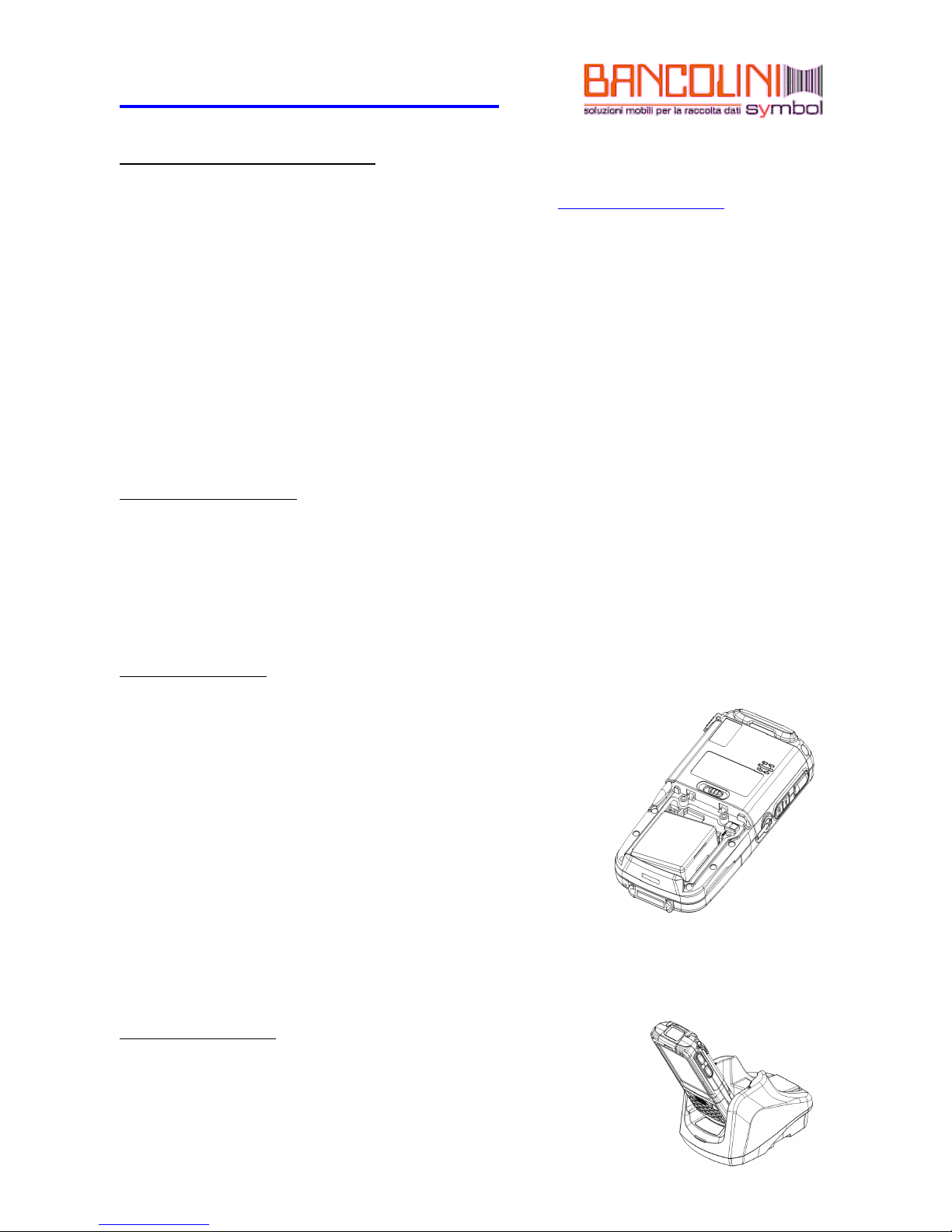
Install the B atter
1. If battery cover is installed on the device, slide the battery latch to
the left.
2. The battery cover ill lift up slightly, grasp the battery cover and
remove it.
3. Insert the battery, left side ( ith golden contacts) first, into the
battery compartment.
4. Press the battery do n until the battery fully rests on the bottom of
battery compartment.
5. Put the battery cover back, tab first, and press do n until the latch
secure the battery cover.
C harge the B atter
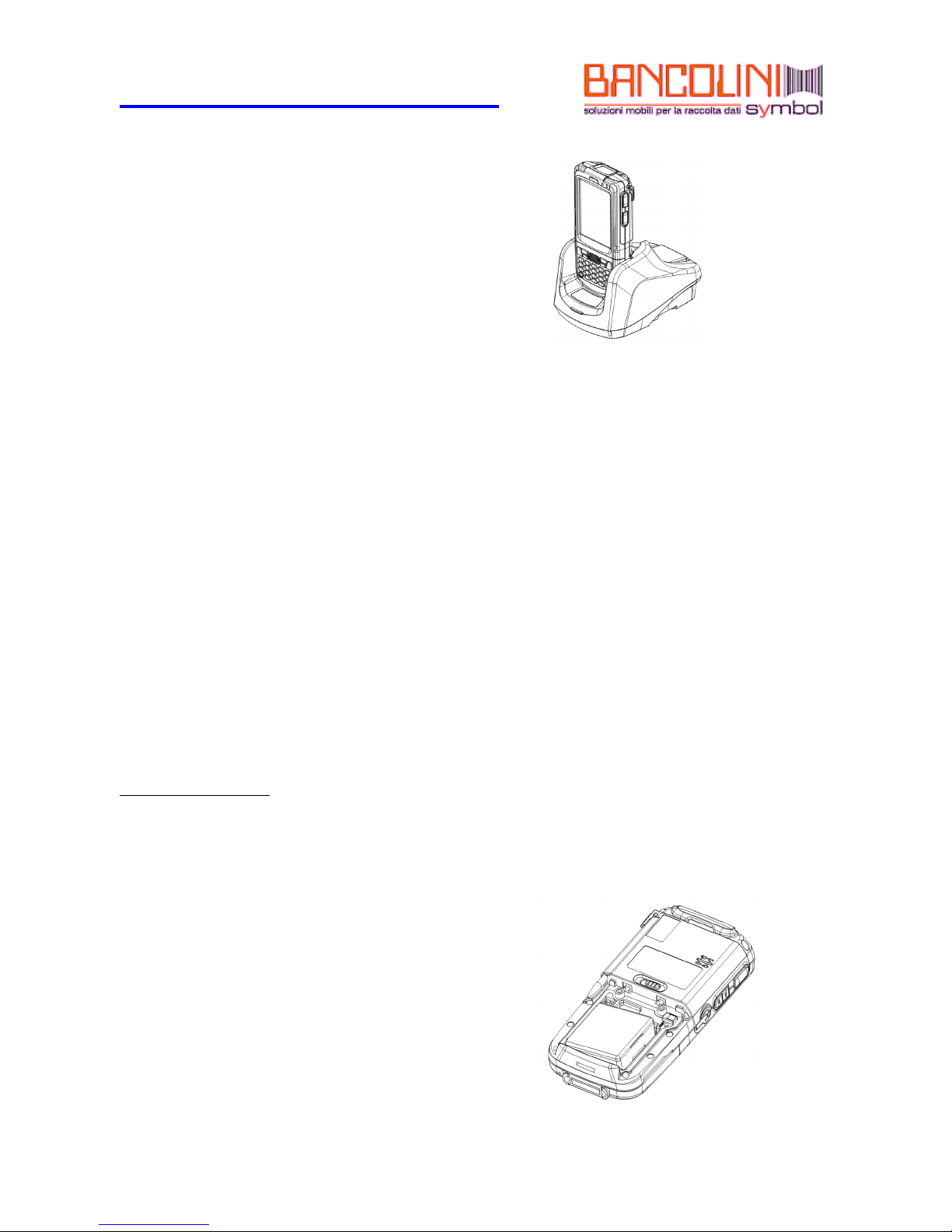
Cradling the device
1. Sliding the device into the cradle ith slight angle.
8
Uniterminal B32 User Guide
2. Slightly push the device back.
3. The device is sitting on the cradle in a secure mode.
To charge the device using the Single-Slot Cradle
1. Connect the po er supply to the cradle. Make sure the cradle
LED is green.
2. Put the device on the cradle.
3. Charging status LED on device.
4. The LED ill illuminate to confirm connection (off indicates not
charging, orange indicates charging, green indicates fully charged and
red indicates fault).
To charge the device using the USB / Charging Cable
1. Connect the po er supply to the USB or charging cable.
2. Connect USB / charging cable to the bottom of the device.
3. Insert appropriate AC adapter and plug in the po er supply.
Removing B atter
1. Slide the battery latch to the left.
2. The battery cover ill lift up slightly, grasp the battery cover and remove it.
3. Remove the battery, right side first, from the battery compartment.
9
Uniterminal B32 User Guide
Turn the D evice O n
After installing the battery in the device, press the po er button
at the top of the device.
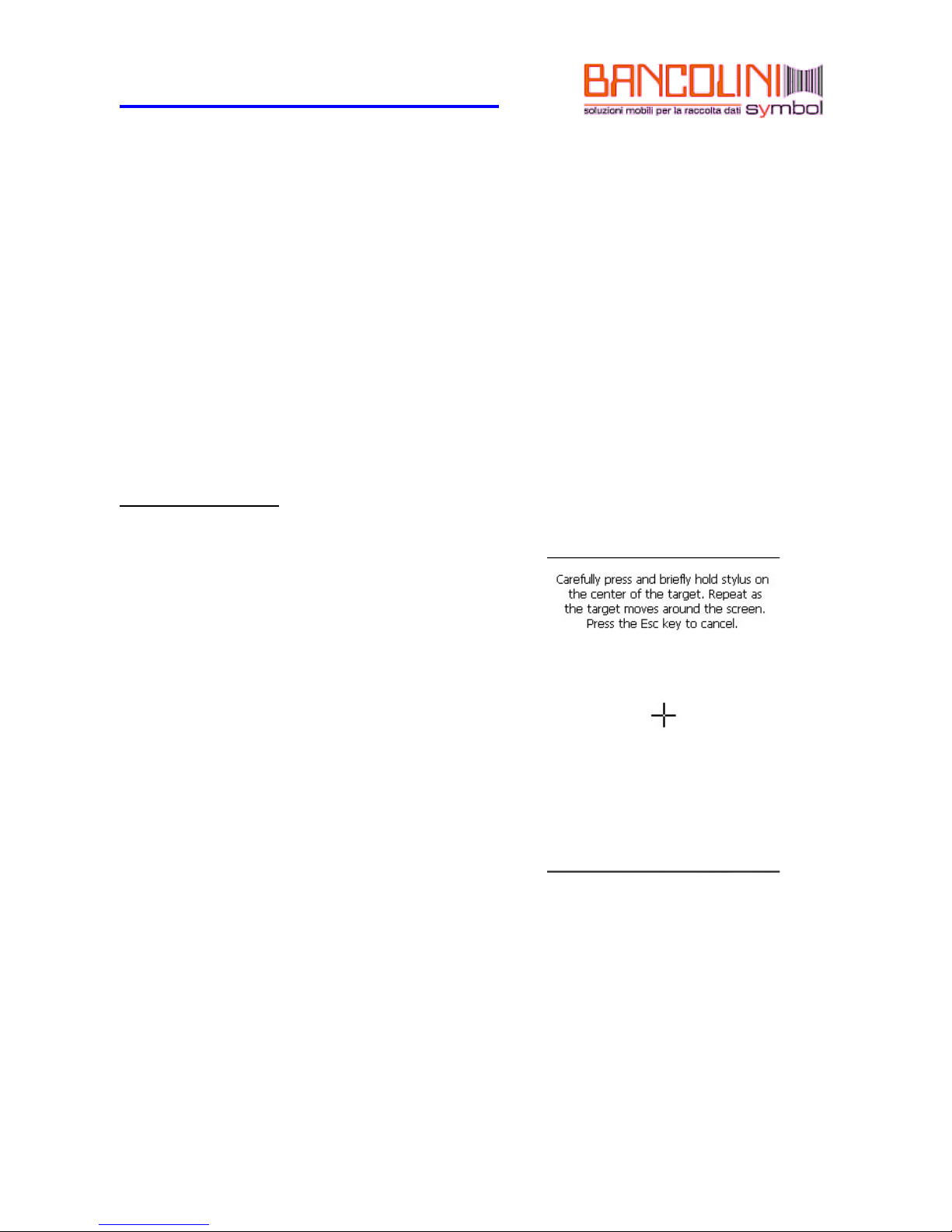
The first time the device is turned on, calibrate the screen using
the stylus.
The stylus is located on the back of the device. To calibrate,
simply follo the onscreen instructions and remember to save
your settings.
--NOTE--:
If our device came pre-loaded with a custom software
application, a welcome utilit ma not appear. Follow the
onscreen instructions.
1
Uniterminal B32 User Guide
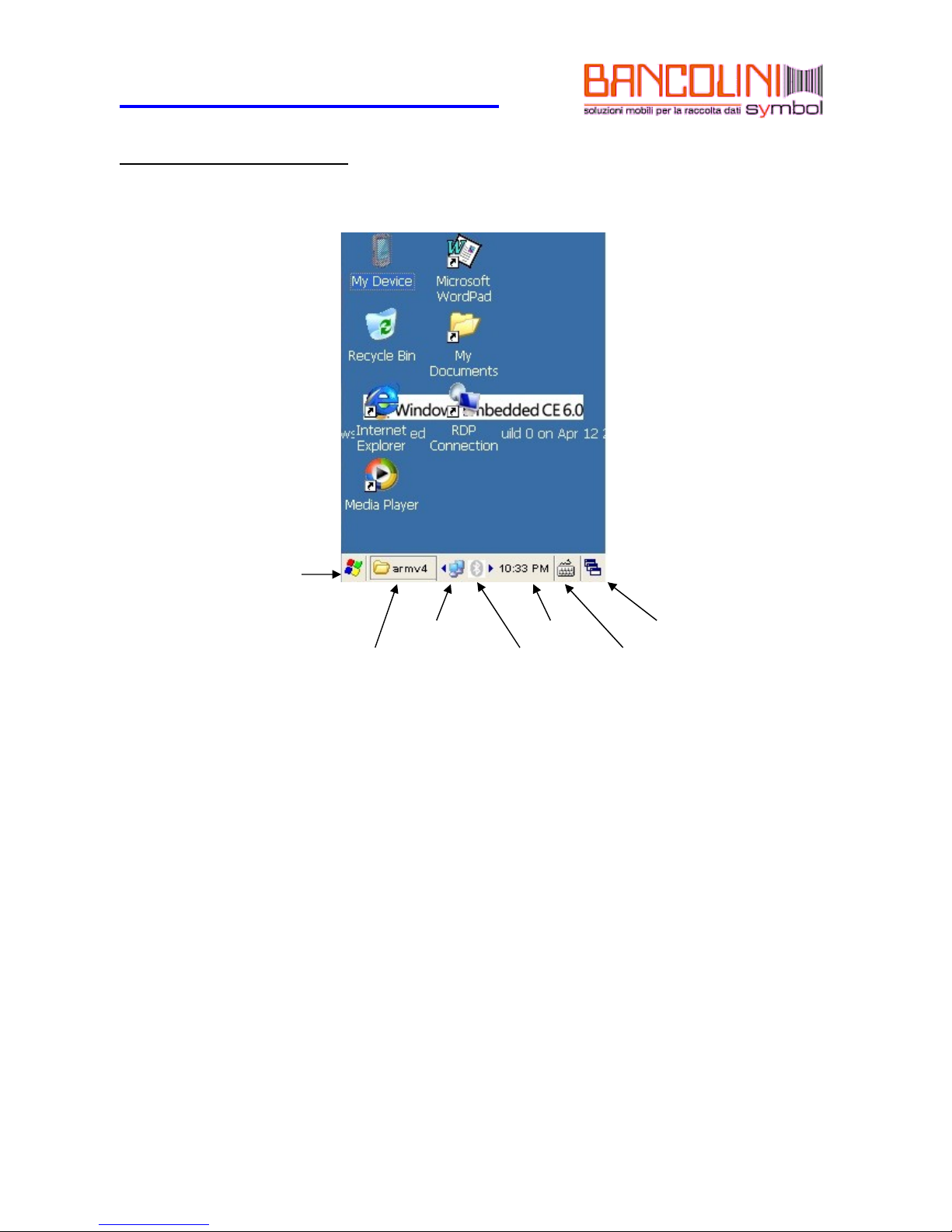
Understanding the Desktop
Start
Wireless Lan Status Time/Date Toogle bet een desktop and applications
Current Application Bluetooth Icon Keypad/Input Panel
11
Indice


