
baqueano Pro Manuale utente


Introduction
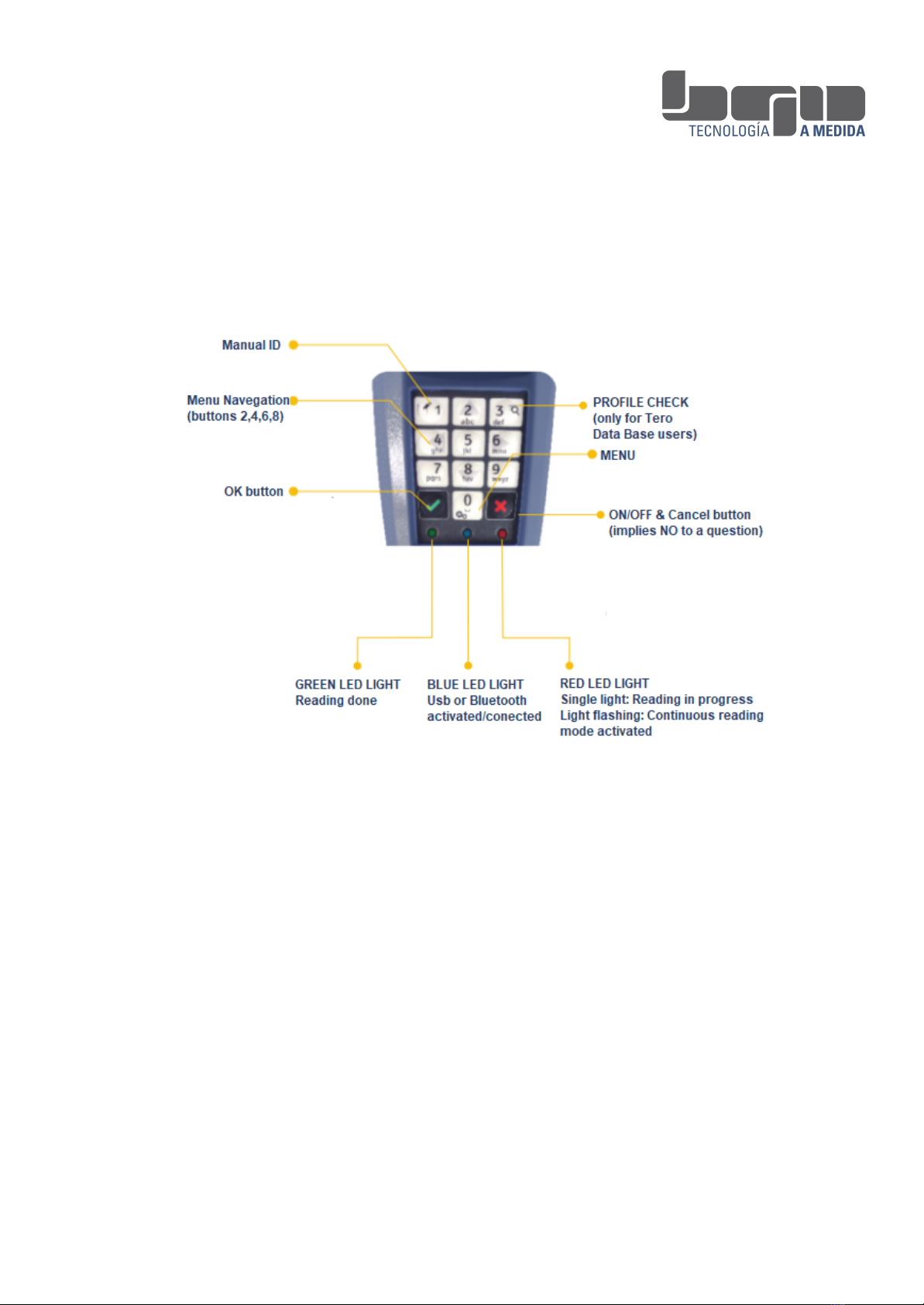
Keyboard and functions
Battery Recharge
To recharge the battery of the Baqueano reader you should only use the chargers (USB
or 220V) that come in the case.
The USB charger is used to charge the reader from a computer, from a car, or from any
other USB device.
In both cases when the device is charging you will see a red light on the charger. When
the battery charge is complete the light will be green.
Fully charging the battery may take approximately 4 hours.
With a full battery charge you can take approximately 10,000 readings.
3
Micro tarjeta SD
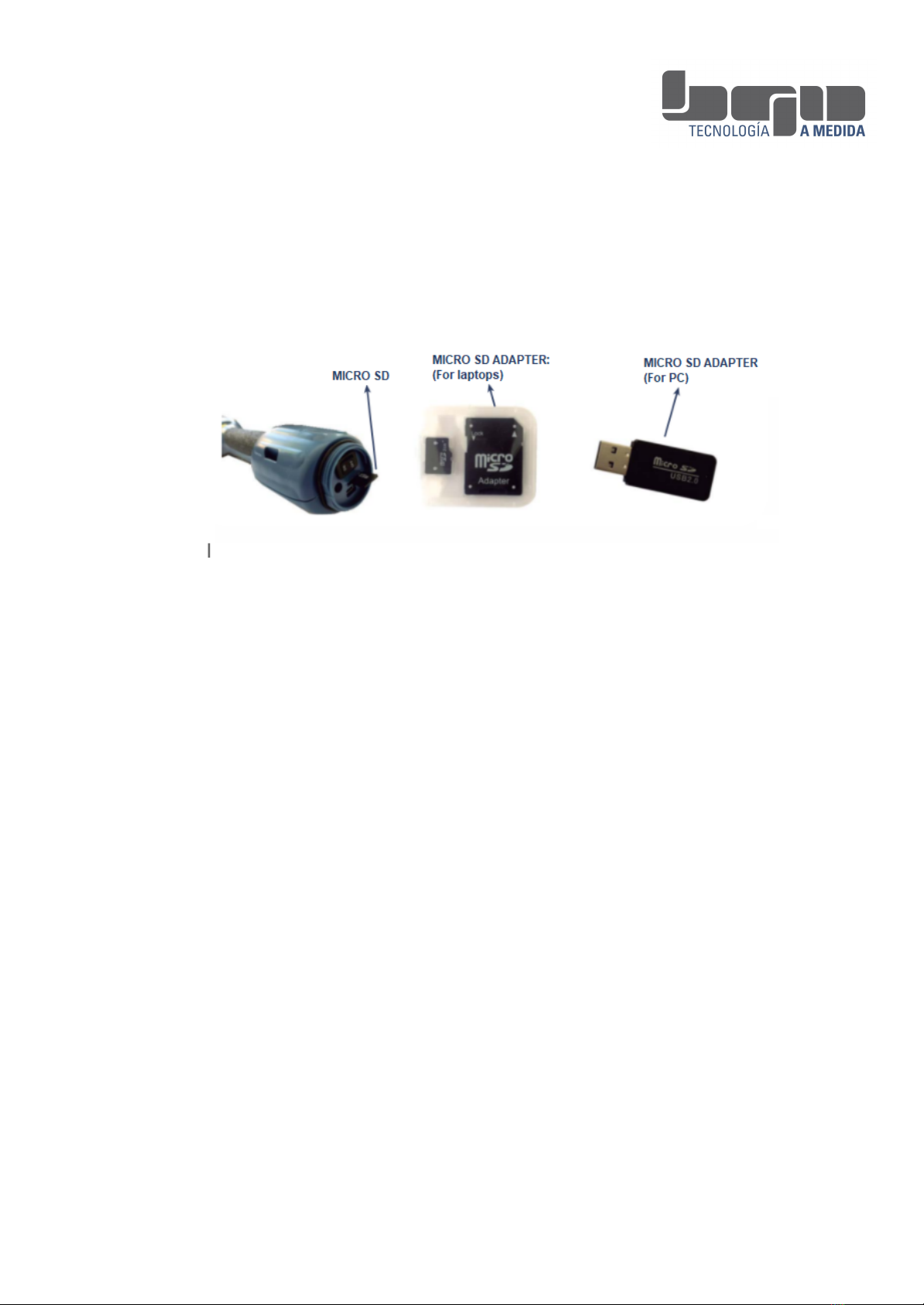
Do not remove the SD card from the reader
Safety and maintenance instructions
●Read this manual carefully, it contains all the instructions for the correct
installation and use of the Baqueano Pro and Pro S reader.
●Keep this manual for future reference
●The reader does not need maintenance
●Do not open the equipment. It has no user serviceable parts
●The equipment should not be charged with cables other than the original
ones.
●If a cable is damaged, do not try to repair it, contact us for a
4

replacement.
●In the event of any malfunction, contact the Technical Support Service.
Initial setup
1. Power on and off
The reader is turned on and off by pressing the ON/OFF-Cancel
button
When starting the reader for the first time, you must indicate the
language and the country of use
Note: In the Settings menu, the language and country of use can be changed at any
time.
2. Reader Display
When you turn on the equipment, after indicating the language and country of use, the
reader goes to the starting point and you will see the following screen:
5

From this starting point you can access:
1. If you press the OK key, you access the reader's
status query.
The display will indicate the following information:
●The Establishment where you are working
(if applicable)
●The current session
●The number of Readings you did in that
Session
3. Reader menu
If you press the 0 key, you access the Reader Menu.
In the menu you will see the following functions:
Readings
Settings
To move between the options you must use the keys 2,4,6,8.
6

Reader’s Menu
READINGS
TASKS
New Task / Close Task
Starts a predefined task
in the reader
SESSIONS
New Session
Creates a new session
Re Open Session
Open a session that was
closed
Readings/Session
Shows readings per
session
NOTES
Edit List
Creates de notes
whatever you want
Name List
Name the list whatever
you want
Continuous Mode
Start this reading mode
Manual Inputs
Enter an ID Tag manually
Backup
Backup all your readings
on the SD card
Rows
Activate mode (Settings)
New Row
Creates a new row
Re open
Open a previous row
Readings/Row
Shows readings per row
Disable
It disable row mode
7

SETTINGS
BLUETOOTH
Search
Search nearby devices
to connect
Paired devices
Shows the list of devices
that have already been
previously found by the
reader
Delete devices
Open a session that was
closed
ROWS
Activate menu
Enable the Rows menu
in the Readings menu
COUNTRY
Select the country of use
CONTROLS
Country Control
(Country Code number
in ID tag)
YES / NO
Animal Control (Animal
species Code number in
ID tag)
YES / NO
LANGUAGE
Select the Language
SOUND
Turn sound on or off
DATE & TIME
Shows the set date &
time
ABOUT BAQUEANO
Indicates serial number,
firmware version,
hardware components
version
ADMINISTRATOR
Scanner Config
Select different configs
Change Date & Time
Set Date & Time
PIN
1111 - Change and
confirm
RESET
MASTER FACTORY
RESET
8

Work sessions
Work sessions with livestock are numbered by default as Session 1,
Session 2, Session 3, etc. It admits up to a maximum of 50, without
downloading the reader. However, they can be named at the time of their
creation, or in the sessions menu.
Once you have selected the Establishment (if applicable) in which you are going to
work, the reader allows reading in different Work Sessions.
"Session 1" is created automatically. All the readings you take will be saved in Session
1, until you select or create a new session.
● New Session
In menu Readings> Session> New Session, you can create Session 2, and so on.
If you have a Task started (see Tasks chapter) when creating a new Session you will
have to start the Task again, so you will be asked if you want to keep the task started
or if you prefer to close it.
● Reopen Sessions
In the menu Reading> Sessions> Reopen session, you can reopen any session that
you have used previously to add new readings to it.
● Naming Sessions
By default the sessions are numbered (1,2,3 ...), but in this option of the
Reading menu> Sessions> Rename you can name them as your wish.
●View readings from a Session
In the menu Readings> Sessions> Readings made, you can see the amount of
readings made in each work session.
You can also see each reading, with all its information.
9
Readings
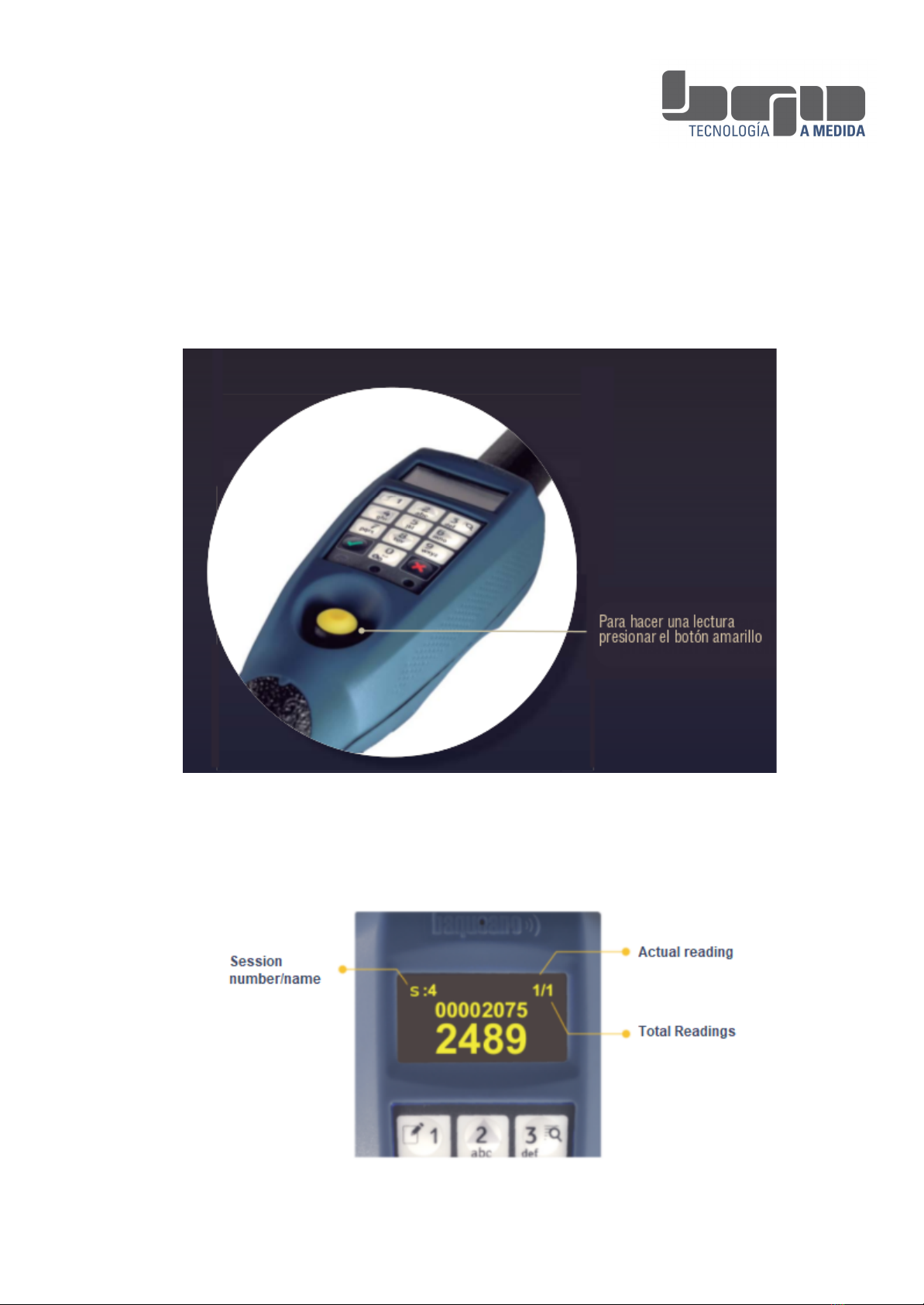
It is not necessary to press and hold the read button (YELLOW BUTTON). By
pressing it once, the reader tries to read a tag for 10 seconds. As it tries, the red light
on the keyboard turns on.
When the reader identifies a tag, the red light turns off and the green light turns on
10
Questo manuale è adatto per i seguenti modelli
1
Indice


