
BarcodeYes PD-590 Manuale utente

PD-590W TT_E
Document reversion V2.0 2015-10-21
PD-590
Windows Mobile 6.5
Product Guide

PD-590W TT_E
PD590
Hardware
CPU TI AM3715 1GH
Memory 512M FLASH, 512M SDRAM
OS Windows Mobile 6.5 Professional
Wireless
1.Bluetooth
2.WIFI Short distance wireless transmission module
WLAN802.11
3. WCDMA 3G Modem and CDMA2000 1X EV- DO 3G
Modem option
GPS Ublox The6th Generation (option)
Wire Transmission USB2.0
Displa
Display 4.3” TFT LCD
Resolution 480×800
Touch screen type Touch Screen
Backlight Resistive
Camera
Megapixel 5Mp
Focus Auto-Focus
Extensibilit
Newland : EM1300 (1D Lin Img.)
Honeywell: N4310 (1D Laser)
Motorola : SE4500(2D Barcode Engine)
Barcode Module
1D/2D
option
RFID
option
1. 13.56MH Read and write, 14443A/B,15693
2. UHF900MH Ultra High Frequency read and write
3. LF Low Frequency 125KH 134.2KH
Ph sical
Si e 175mm*76mm*27mm
Battery 4500 mAh 3.7V or 2250 mAh 7.4 V
Weight
Work Environment
Temperature range: -20 ~ +50
Humidity range: +5% ~ +95%
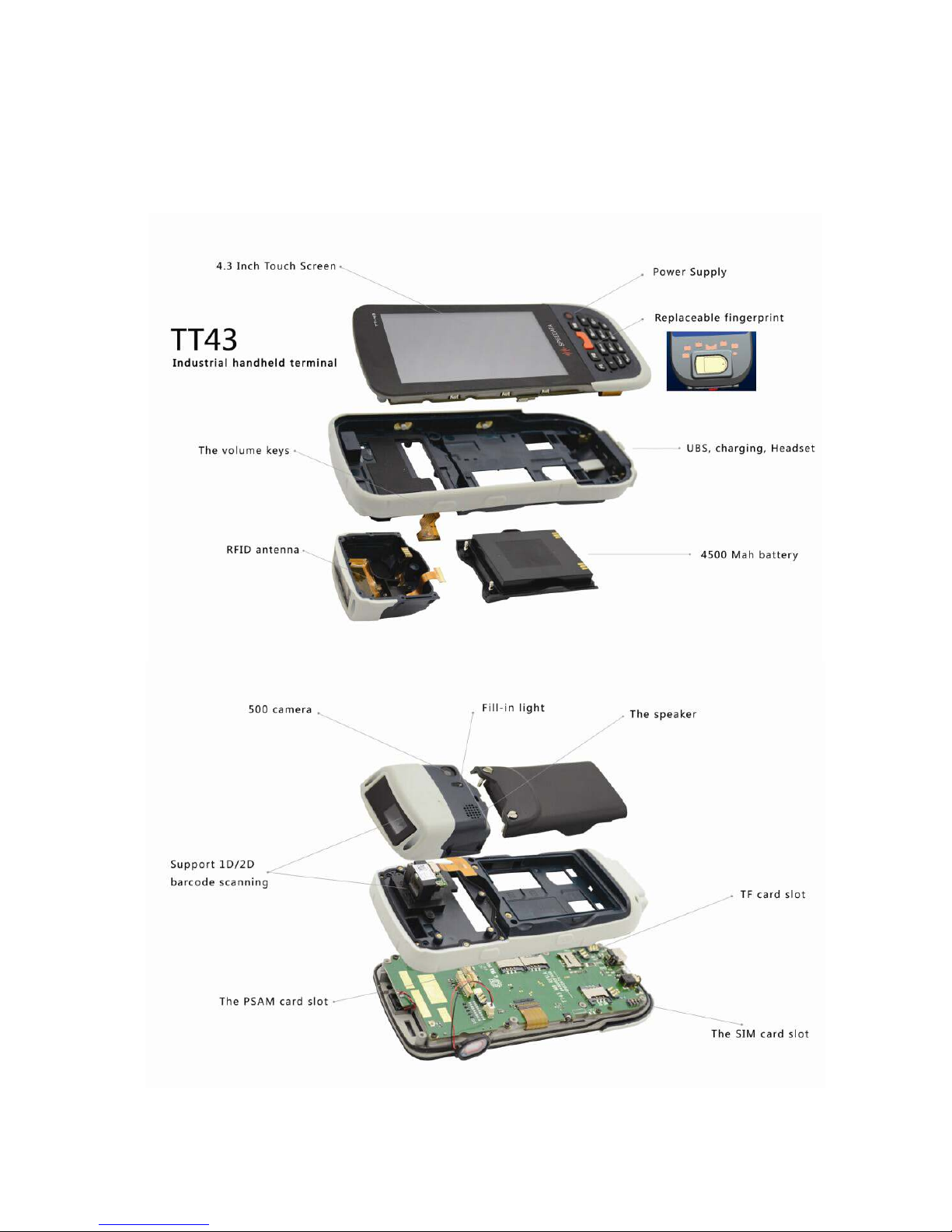
Appearance

Product Guide
2
Keypad use
The keypad may send numeric, alphanumeric and special signs, changing the status by using “shift” key.
1) The Shift Key allow to change 4 keypad status as follows, Apha Upper case Alpha Lower case,
Numeric, Arrows key (the blu signs on 2, 4, 6, 8 keys)
2) When in Alpha mode the key “1” allow to type special signs as “$, : ; ? !) etc…
3) When in Alpha mode they key “0” become “Space”
4) Scan Key, used to start a barcode scanning operation
5) Enter Key
6) Power Key

Product Guide
3
Today Screen
The Today screen of the Windows Mobile 6.5 system shows some important messages such as Time,
Status bar, Start menu, Settings, Music, and Email etc (The TT43 device does not support calling and
messaging function). Users can open an app or set system by simply touch the screen.

Product Guide
4
Basics
Status Bar
The quick control menu can be opened by press the top
Status bar. And the device Wireless connection, Sync,
Volume, Sound, Battery level, and time status are shown in
the status bar. It is very convenient that users can manage
the wireless connection, volume, battery, date and time by
pressing the items.
Start Menu
Press the Start button on the phone to open the Start
menu. The start menu provides the access to the
essential features and programs of the device includes
IE, Camera, File Explorer, Settings, and Windows Media
etc.

Product Guide
5
Settings
Press the Start button then Settings on the phone to open
the Settings screen. The Settings screen gives the user the
access to setup Bluetooth, Time, Home, Lock, Power,
Connections, and Personal etc.
The following setups are related to:
A. System and Connections include Device Info, Remove
Programs, Backlights and some function settings.
B. Connections include Wi-Fi, and USB to PC
etc.
Backlights
Press the Start- Settings-System- Backlights on the phone to open the Backlights screen. Users can
setup the time to turn off the backlight if device is not used, when Battery Power is used or External
Power is plugged in.

Product Guide
6
Modem Connection
Press the Start- Settings-Connections- Connections on
the phone to open the Connections screen.
Select add a new modem connection, select COM5 as
the modem, then press next. Use your provider
settings, or leave user name and password blank (if
provider allows) then press finish. In the connections
screen, select
‘Manage existing connections, long press the
existing connection more options.

Product Guide
7
Wi-Fi
Press the Start- Settings-Connections- Wireless Manager on the phone to open the
Wireless manager screen. Select the Wi-Fi check box to turn Wi-Fi on. The phone will scan for
available wireless networks automatically. Tap Wi-Fi on Connections screen, the network names
and settings (Open network or secured with WEP) of detected Wi-Fi network are displayed in the
Wi-Fi network section. Tap a network to connect. If it is an open network, you will be connected
automatically. If it is a secured network with WEP, you can follow the steps to enter the key to
access the network.
Product Guide
PD-590W_E
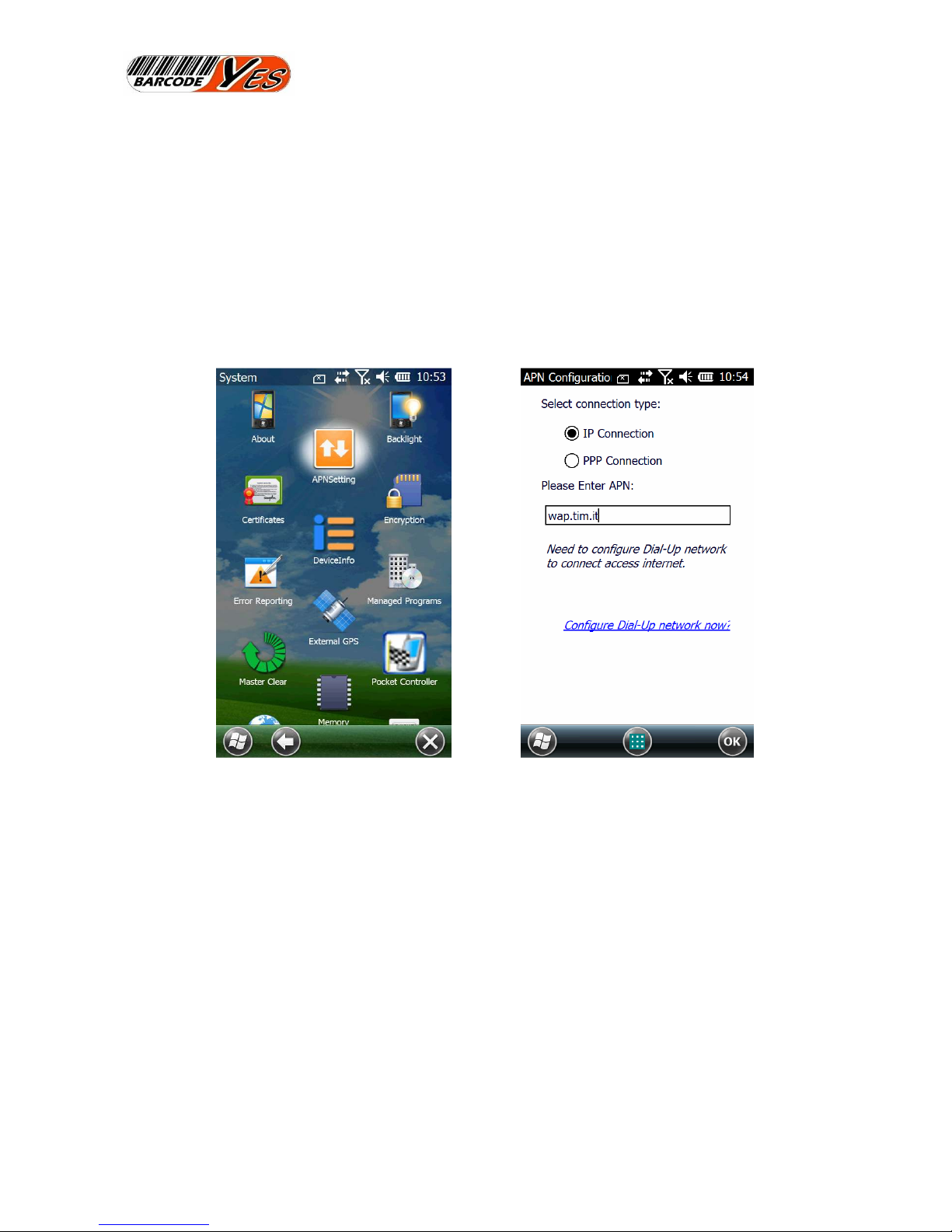
APN selection
To have a 3G data connection the APN name have to indicated.
In the Setting > System folder you can find the APN setting utility, this will let you choose what kind of
connection you are going to use (IP or PPP) and you can input the correct AP Name for you Internet
provider.
Indice


