BCP SKY1036 Manuale utente

SKY1036
Ver. 2
INSTRUCTION
MANUAL
61-Key Electronic Keyboard

Pg. 2
Thank you for choosing us! Since 2002, Best
Choice Products has been bringing customers
high-quality products at the absolute lowest
price. With everything ranging from instruments
and toys to furniture and outdoor, we’ve got
your everyday living essentials covered. We’re
centered around a customer-first philosophy –
with free shipping, exceptional customer
service, and a catalog sourced with you in mind.

Pg. 3
1 PC
FRAME
1 PC
LEFT FOOT
1 PC
RIGHT FOOT
D
1 PC
LEFT ARM
PARTS
1
4 PCS
HARDWARE
APPROXIMATELY
15 MIN.
ASSEMBLY
1 PERSON
ASSEMBLY
AB C
ERIGHT ARM
1 PC
TOOLS REQUIRED
ALLEN WRENCH
(PROVIDED)
FMUSIC STAND
1 PC
GKEYBOARD
1 PC

1
PRODUCT ASSEMBLY Please retain these instructions for future reference.
C
B
1
D
E
A
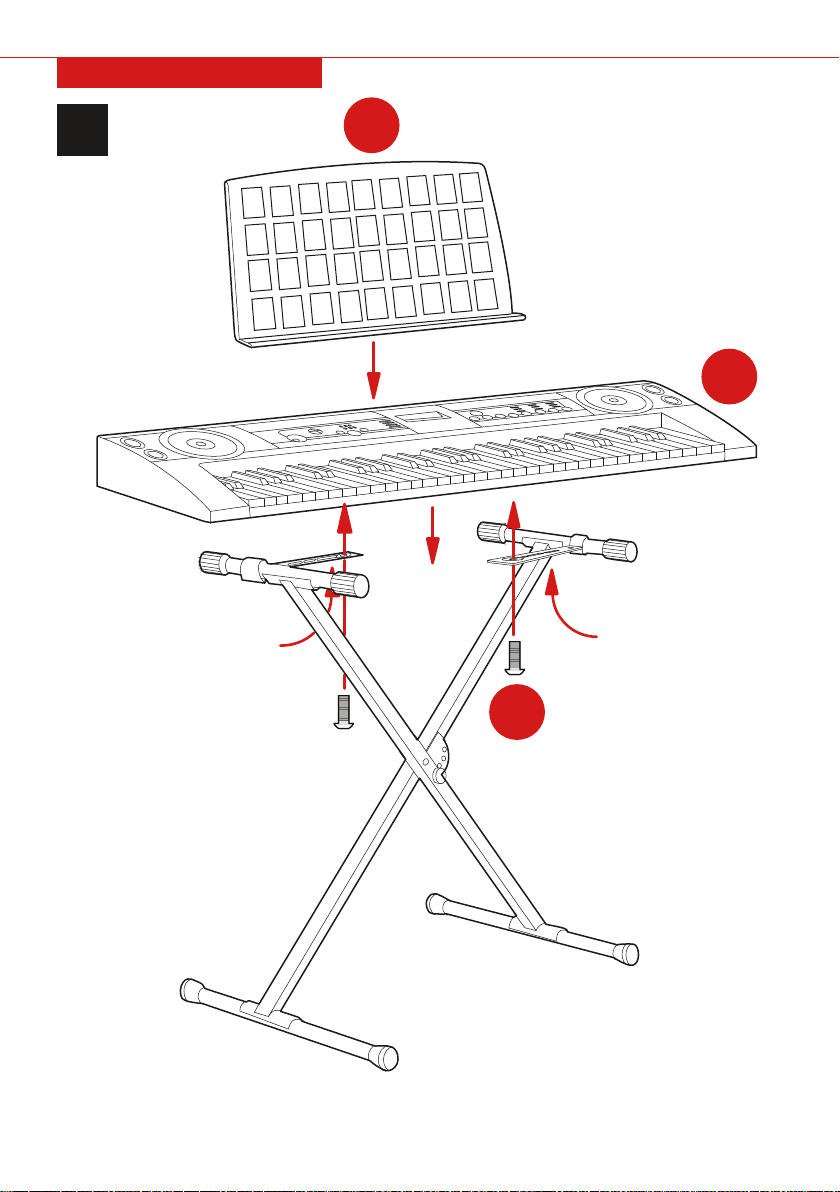
Assemble the frame.
Pg. 4

Attach the keyboard.
2
PRODUCT ASSEMBLY
Pg. 5
1
F
G

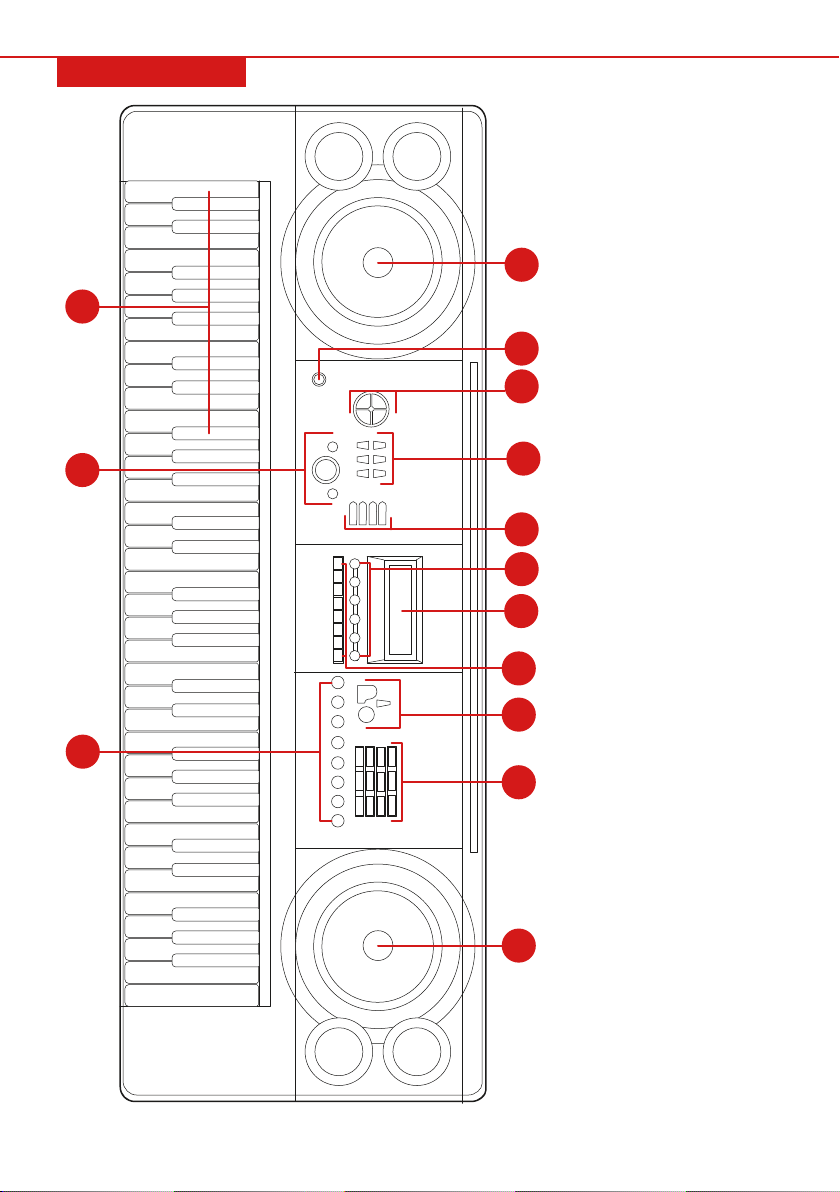
FRONT PANEL
9
1
2
3
4
5
6
7
9
10
1
12
13
11
8
Pg. 6
1. Speaker
2. Power Switch
3. Master Volume
Accompaniment Volume
4. Tempo
Transpose
Tune
5. Single
Fingered
Chord Timbre
Chord O
6. Metronome
One Key
Follow Me
Ensemble
Demo One
Demo All
7. LCD Display
8. Record
Play-back
Program
Null Play
Sustain
Vibrato
Split
Keyboard Percussion
9. Rhythm
Timbre
Song
10. Numbers
11. Chord Keyboard (See:
Auto-Bass Chord pg. 9)
12. Fill in
Start Stop
Sync
13. Panel Percussion

• Only use the provided power adapter.
• Do not disassemble the instrument or modify internal parts. If it malfunctions, discontinue use until repairs
have been made.
• Turn o power before connecting this instrument to other devices.
• Do not play the instrument at maximum volume or at an uncomfortable level for an extended period of
time.
• Be aware that excessive sound pressure from headphones can cause hearing loss.
• Overheating the instrument may cause damage; keep all parts of the instrument o heat sources.
• Prevent liquid, dust, particles, and other foreign matter from entering the instrument because it may cause
corrosion or short-circuit the components.
• Unplug the instrument before cleaning it. Do not insert or pull the plug out with wet hands.
• Use dry, soft cloth to clean the instrument. Do not use alcohol or other chemical solvents to wipe the
instrument. Using these substances may damage the instrument surface.
• Turn o the power supply and unplug the instrument when not in use or if instrument breaks.
• To reduce risk of fire or electric shock, do not expose instrument to rain or humidity.
• Do not expose instrument to dripping or splashing liquid. Do not place objects filled with liquid on the
instrument.
• Maximum Operating Temperature: 104° F
• Do not install this instrument in a confined space such as a book case or similar unit. Keep instrument in
a well-ventilated area.
• To prevent possible harm to the environment, recycle this responsibly to promote the sustainable reuse of
material resources.
WARNING
Using AC/DC Power Supply Adaptor
• Do not use any other AC/DC power supply adaptor other than the one supplied with this unit. Please
connect one side to the power supply socket on the back-panel and the other side to an outlet. Note: the
input voltage should be the same as the outlet power.
Headphone Input
• Insert headphones (not included) into the “PHONES” jack on the back of the instrument. The speaker will
automatically turn o when headphones are in use. WARNING: Hearing loss can occur if headphones are
used at too high of a volume.
Connection with Amplifiers or Acoustics
• The instrument can be connected to external amplifiers or speakers. To do so, first shut o the instrument.
Then, insert the stereo frequency cable into the “OUT L/R” on the back-panel and the other end into the
“LINE IN” or “AUX IN” input jack of external speakers.
PREPERATION FOR PERFORMANCE
REAR PANEL
36 37 38
36 L/R Output
37 Headphone Input
38 DC 12V Input
R OUT L PHONES
12V
Pg. 7

To turn on, plug-in the unit. Then, press the “POWER” button.
Master Volume Adjustment
• Press the “MASTER VOL↑” or “MASTER VOL↓” to increase or decrease the master volume. To turn the
volume back to the preset “12,” press both buttons at once.
Selection of Timbre
• There are 100 timbre choices in the system, ranging from "00" to "99." When powered on, the instrument
will automatically start timbre selection with "TONE" appearing on the LCD display. To select timbre at
any time, press the “TIMBRE” button. “TONE” will display on the LCD screen.
• The preset timbre is "00" – this is the piano. The target timbre can be picked out by the number buttons
or the “+/-“ buttons.
Panel and Keyboard Percussions
There are 8 kinds of panel percussions and keyboard percussions.
• Press the “PANEL PERCUSSION” button to select desired percussion.
• Press the “KEYBOARD PERCUSSION” button to turn keyboard keys into a percussion instrument, where
each key corresponds to a percussion noise. Press the button again to turn the function o.
Demonstration Songs
There are 10 demonstration songs programmed in the system, ranging from "00" to "09."
• Press the “DEMO ONE” button. The first demo song will play repeatedly. To select the next demo song,
press the button once to turn o the song and again to play the next song. The songs can also be selected
by pressing the “SONG” button and then pressing the [+/-] buttons.
• Press the “DEMO ALL” button to play all the demo songs successively.
• The timbre of the demo songs can be changed while they are playing.
BASIC USE
Rhythm Selection
• The instrument is programmed with 100 rhythms, ranging from "00" to "99." Press the “RHYTHM”
button. The desired rhythm can be picked out by the number buttons or the [+/-] buttons.
Rhythm Control
1. Start Rhythm
• Press the “START/STOP” button to start the accompaniment rhythm.
• Before starting the rhythm, press the “SYNC” button so "SYN" appears on the LCD display. Any
keystroke on the chord keyboard (the 19 keys on the left part of the keyboard) will make the
performance and the accompaniment rhythm play at the same time.
2. Fill In
• Press the “FILL IN” button, and a piece of intermezzo can be filled in automatically.
3. Stop the Accompaniment
• Press the “START/STOP” button to stop the accompaniment.
Auto-Metronome
• There are 4 metronomes programmed: 1/4 beat, 2/4 beat, 3/4 beat, and 4/4 beat. Press the
“METRONOME” button. One press will set the metronome to 1/4 beat, two will set 2/4 beat, three will
set 3/4 beat, and four will set 4/4 beat. Five presses of the button will stop the metronome.
• This function can also be stopped by pressing the “START/STOP” button.
Tempo Adjustment
• The preset tempo is 120 beats/min. Press the “TEMPO↑”/”TEMPO↓” button to speed up or slow down
the tempo. Press both at the same time to set the tempo back to the preset.
Accompaniment Volume Adjustment
• The accompaniment volume is controlled by the master volume buttons.
AUTO-RHYTHM
Pg. 8

AUTO-BASS CHORD
Single-Finger Chord
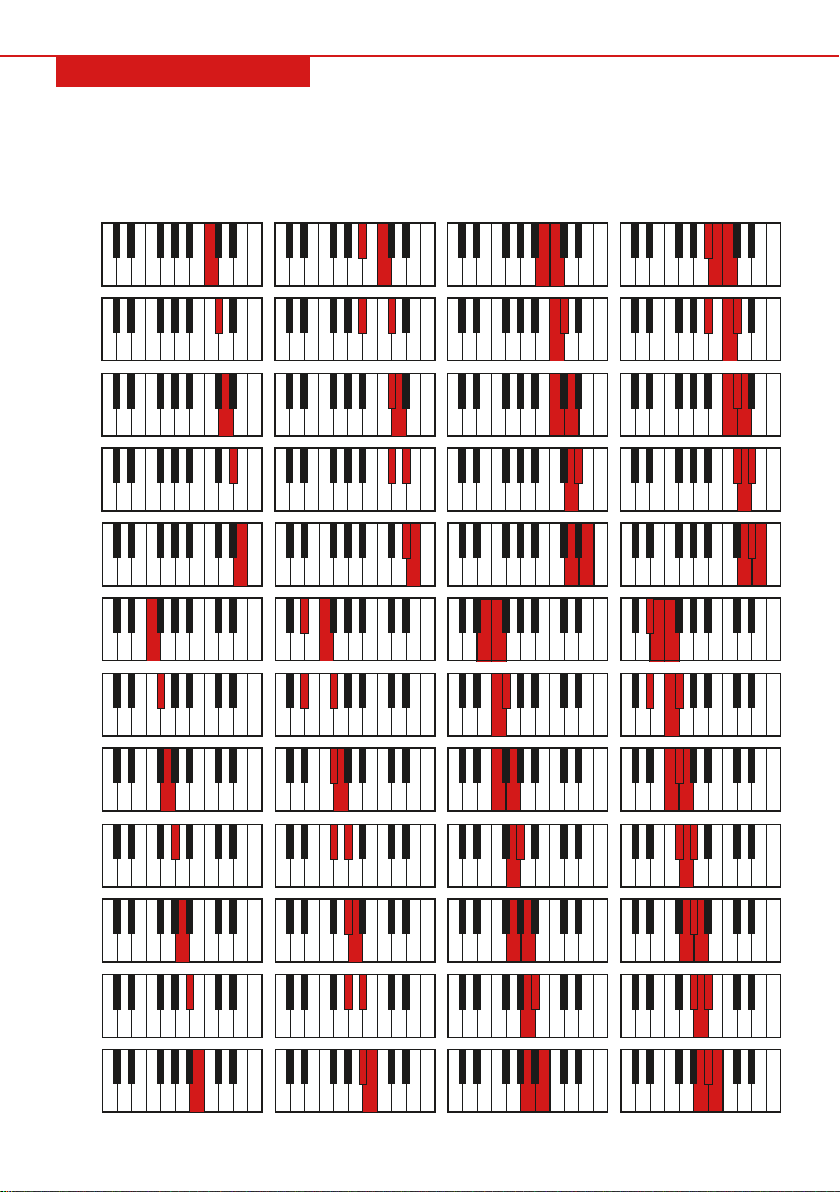
While the rhythm is playing, press the “SINGLE” button, "SIN" will appear on the LCD display. Single-finger
chords can be performed on the chord keyboard (the 19 keys on the left part of the keyboard).
C
C#
D
D#
E
F
F#
G
G#
A
A#
B
Major Minor 7
th
Minor 7
th
Pg. 9

EFFECT CONTROL
Sustain
Press the “SUSTAIN” button, "SUS" will appear on the display. The keystrokes will have a sustain eect.
Press the button again to stop.
Vibrato
Press the “VIBRATO” button, "VIB" will appear on the display. The keystrokes will have a vibrato eect.
Press the button again to stop.
Transpose
Press the “TRANSPOSE ↑” and “TRANSPOSE ↓” button to transpose the tone of the notes. The
transpose may be adjusted from "-6" to "+6." Press both buttons at the same time to revert to the preset
stage "0."
Tune
Press the “TUNE ↑” and “TUNE ↓” buttons to change the pitch from anywhere from "-99" to "+99." Press
both buttons at the same time to revert the pitch to the preset stage of “0.”
Double Keyboard
Press the “SPLIT” button, "SPLIT" will appear on the display. The keyboard will divide into two
sections—the 24 keys on the left and the rest of the keys—to form a double keyboard. The timbre of the
two sections can be dierent; the left section keeps the primary timbre while the right section uses a
secondary timbre. Meanwhile, the pitch of the left section will rise by 8 while the right section will lower
by 8 to dierentiate the two sections from each other. Press the “SPLIT” button again to stop this
function. This function will exit when using auto-chord.
Major (M) Minor (m) Seventh (7) Diminished 7th (m7)Minor 7th (m7)
Major 7th (M7) Minor 7 flat (m7♭5) Diminished (dim) Suspended 4th (sus4)Augment (aug)
7th suspended 4th (7sus4) Minor 9th (m9) Minor Major 7th (mM7) 9th (9)7th flat 5th (7♭5)
Fingered Chord
When the rhythm is playing, press the “FINGERED” button, "FIN" will appear on the display. The fingered
chord can be performed on the chord keyboard.
Chord O
Press the “CHORD OFF” button to stop the chords.
Chord Timbre Selection
While chord accompaniment is in use, the timbre of chord can be changed by pressing the “CHORD
TIMBRE” button. Press the button again to return to the original timbre.
Pg. 10
Indice
Altri manuali BCP Tastiera elettronica