
Bell Turbo Stick Manuale utente
Getting started guide
Turbo Stick
4G LTE®Sierra Wireless™ U330

Welcome
Thank you for purchasing a Turbo Stick from Bell. This guide provides an
overview of your new Turbo Stick and details on how to configure your
computer for use with this Turbo Stick.
Account Requirements ................................................2
System Requirements ................................................3
Inserting your Bell SIM card ...........................................4
Preparing your computer for installation ...............................5
•InstallingMobileConnectforWindows ............................6
•InstallingMobileConnectforMacintosh .......................... 8
StartingMobileConnect ..............................................9
Using your Turbo Stick ..............................................10
How much data do I need?............................................11
Using your Turbo Stick on another computer ...........................12
Hardware overview ................................................. 13
Inserting and removing your Turbo Stick from your computer........... 15
Unblocking a SIM card................................................17
Troubleshooting..................................................... 18

2
Account Requirements
Before installing your Turbo Stick, please ensure you have the following:
•ABellwirelessaccountwithaMobileInternetplan.(Ifyoudon’t
have an account or a Mobile Internet plan, speak with a Bell account
representative to get set up.)
•AnactiveBellSIMcard.
•YourMobileDirectoryNumber(MDN),
or phone number __________________________________.

3
System Requirements
To install and operate your Turbo Stick, ensure your computer has the
following system resources:
For more information visit www.bell.ca/mobileconnect
WINDOWS
Operating system Windows®XP(32-Bit);Windows®Vista(32/64-Bit);
Windows®7(32/64-Bit)
USB port TypeA,v1.1supported;v2.0high-speedrecommended
COMports 4freeCOMports
I/OResources 1IRQ,4096bytesofI/Ospace
RAM Memory 128 MB
Diskspace 150 MB
MACINTOSH
Operating system Mac OS®X 10.5, 10.6, 10.7
USB port TypeA,v1.1supported;v2.0high-speedrecommended
RAM Memory 128 MB
Diskspace 150 MB
4
Inserting your Bell SIM card
YourTurboStickrequiresanactivatedBellSIMcardtofunction.IftheSIM
card was not inserted at the time of purchase, please insert it now, as
described below.
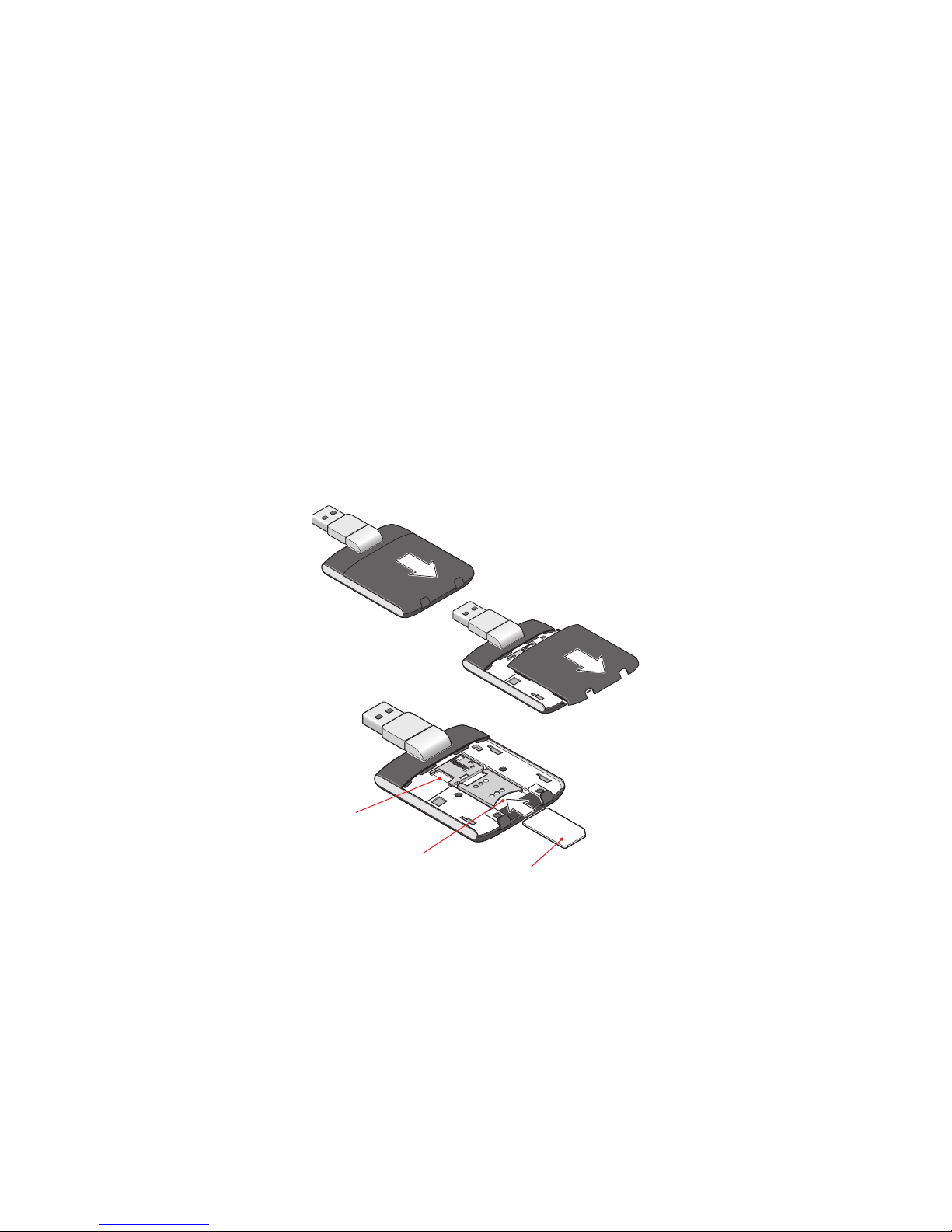
1. Remove the back cover and insert the SIM card as shown in the
illustrations.
2.InserttheSIMcard,withthecontactpoints(typicallygold-coloured)
facing toward the device, as shown in the illustrations.
3. When the card remains securely in the slot, replace the back cover.
4
microSD slot
SIM card slot
SIM card

PreparingYourComputerforInstallation
MobileConnectfromBellisaprogramthatallowsyoutosetupand
manage your wireless connections over the Bell network.
MobileConnectforWindowsandMacintoshispreloadedontoyour
Turbo Stick and can be installed directly from it to your computer
–noCDrequired.
Before inserting your Turbo Stick into the computer:
1.Ifyouarealreadyusingawirelessconnectionmanager(suchas
Watcher), or have it installed on your computer, you should uninstall the
program and restart before inserting your new Turbo Stick.
2.Ensurethatyourcomputer’ssecuritysoftware(antivirusandfirewall
programs) are set to allow software installation.
3. Ensure that you have Administrator Rights and the login user name and
passwordbeforeattemptingtoinstall–checkyourcomputer’shelpfiles
for details.
5

InstallingMobileConnectforWindows
Insert your Turbo Stick into an available USB port on your computer.
DonotforciblyinsertyourTurboStickasthismaydamageboththe
deviceandtheport.YourTurboStickpowersonwheninserted,andyour
computer may beep.
Note: Yourcomputermaydisplayasecuritywarningstating
thatMobileConnectisnotatrustedapplication.Youmaysafely
dismiss this warning and continue with the installation.
Installation should automatically begin. However, you may be prompted to
installMobileConnect.SelectInstall/Run Mobile Connect.
If the auto install fails to start, remove your Turbo Stick and use an
alternate Internet connection to download and install the software from
our website at bell.ca/mobileconnect before inserting your Turbo Stick, or
you can manually install the software from your Turbo Stick by:
1. Selecting Start > Run > Browse...
2.Lookin“MyComputer”tofindyourTurboStickdiskdrive
3.Runthefile“WIN\MobileConnect\MobileConnect.exe”
Note:ThedriveletterassignedtoyourTurboStickbyyourcomputer’s
operatingsystemwillbethenextavailabledriveletter(e:\,f:\,g:\,etc.).
6
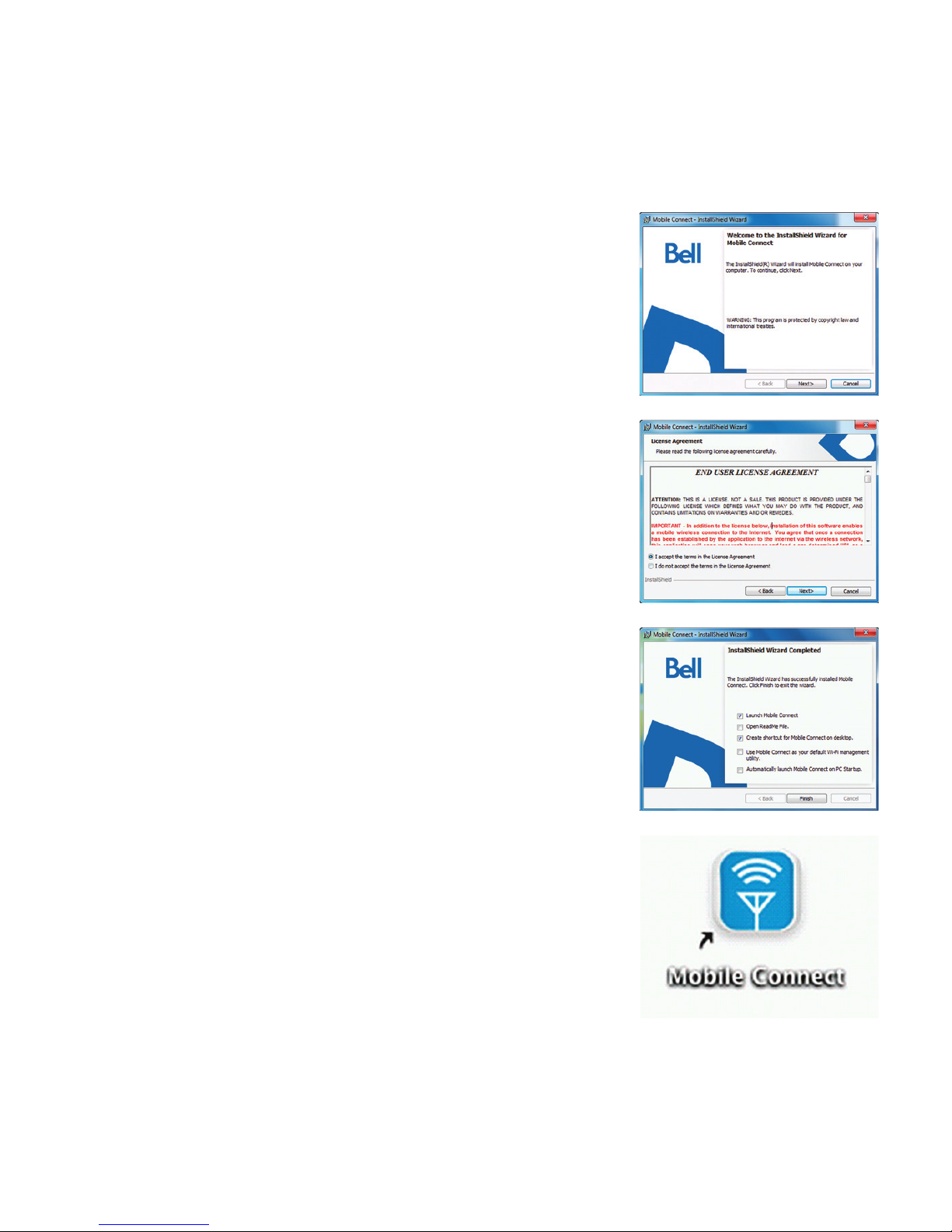
Follow the InstallShield®Wizard, it will guide
you through the process of installing the
MobileConnectapplication.
Usethe“Next”and“Back”buttonstonavigate
through the installation steps.
To continue the installation, you must read and
accept the terms of the License Agreement.
The installation process may take several minutes
to complete with no progress shown on the
progress bar – please be patient.
Select“Finish”tocompletetheinstallation.
Once the installation is complete, you may
need to restart your computer. If a restart
isnotrequired,MobileConnectwilllaunch
automatically. If your computer restarts,
launchMobileConnectbydouble-clicking
ontheMobileConnecticon.
7
InstallingMobileConnectforMacintosh
Insert your Turbo Stick into an available USB port on your computer.
Donotforciblyinsertthedeviceasthismaydamageboththedevice
andtheport.YourTurboStickautomaticallypowersonwheninserted.
YourTurboStickwillappearasaCD-ROMdriveonyourdesktop.
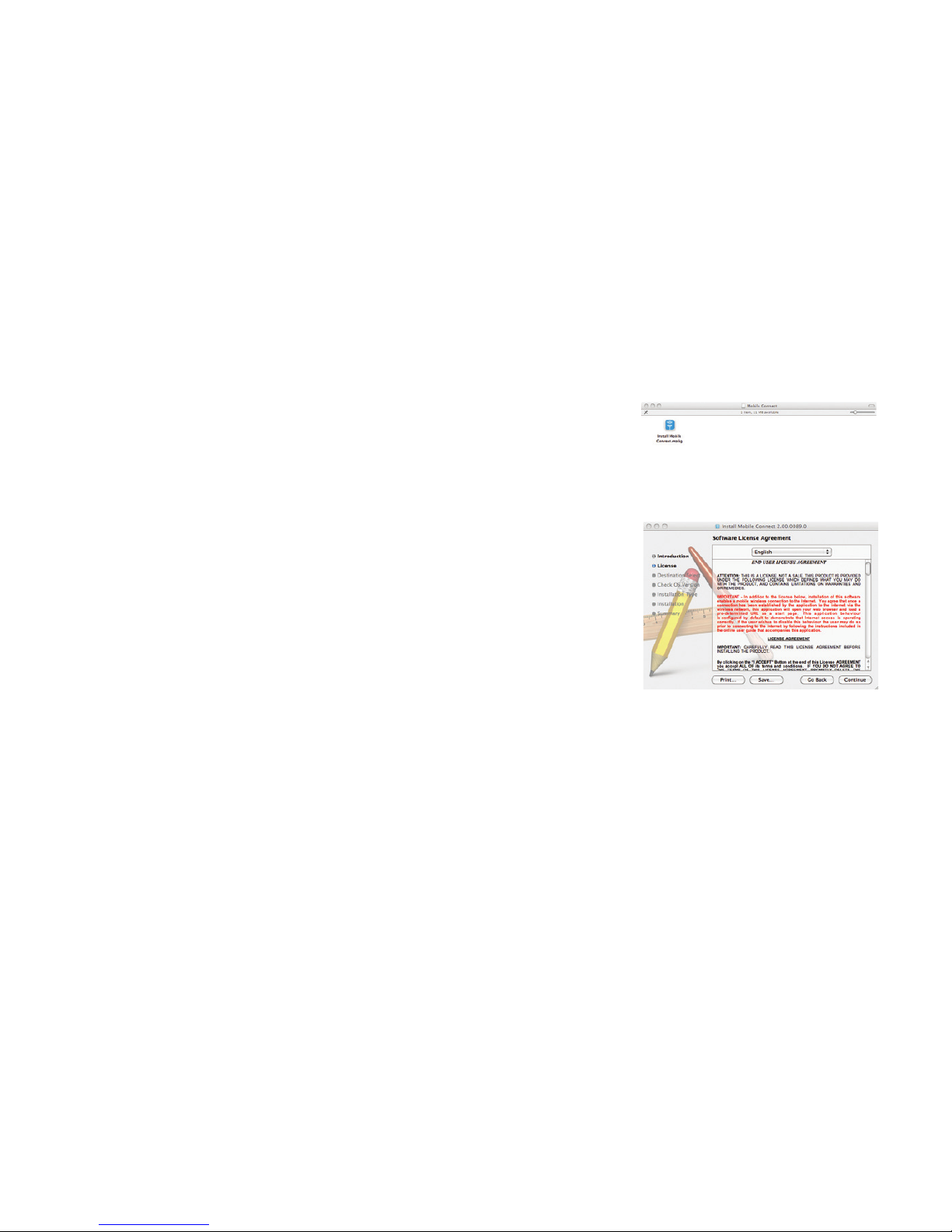
Double-clicktheCD-ROMicon,thenfindand
double-clickthe“InstallMobileConnect.mpkg”
file to launch the installation program.
Followthestep-by-stepinstructionstoinstallthe
software drivers for your Turbo Stick, you must
readandclick“Agree”toacceptthetermsofthe
License Agreement to continue the installation.
Youmayneedtoenteryournameandpassword,and
restart your computer, during the installation process.
If your Turbo Stick was removed during installation,
reinsert.Donotforciblyinsertthedeviceasthismay
damage both the device and the USB port.
Youmaybepromptedtosetyournetworkpreferences
forthisnewnetworkinterface.Click“NetworkPreferences”
andthenselect“Apply”tocontinuetofinishtheinstallation.
8
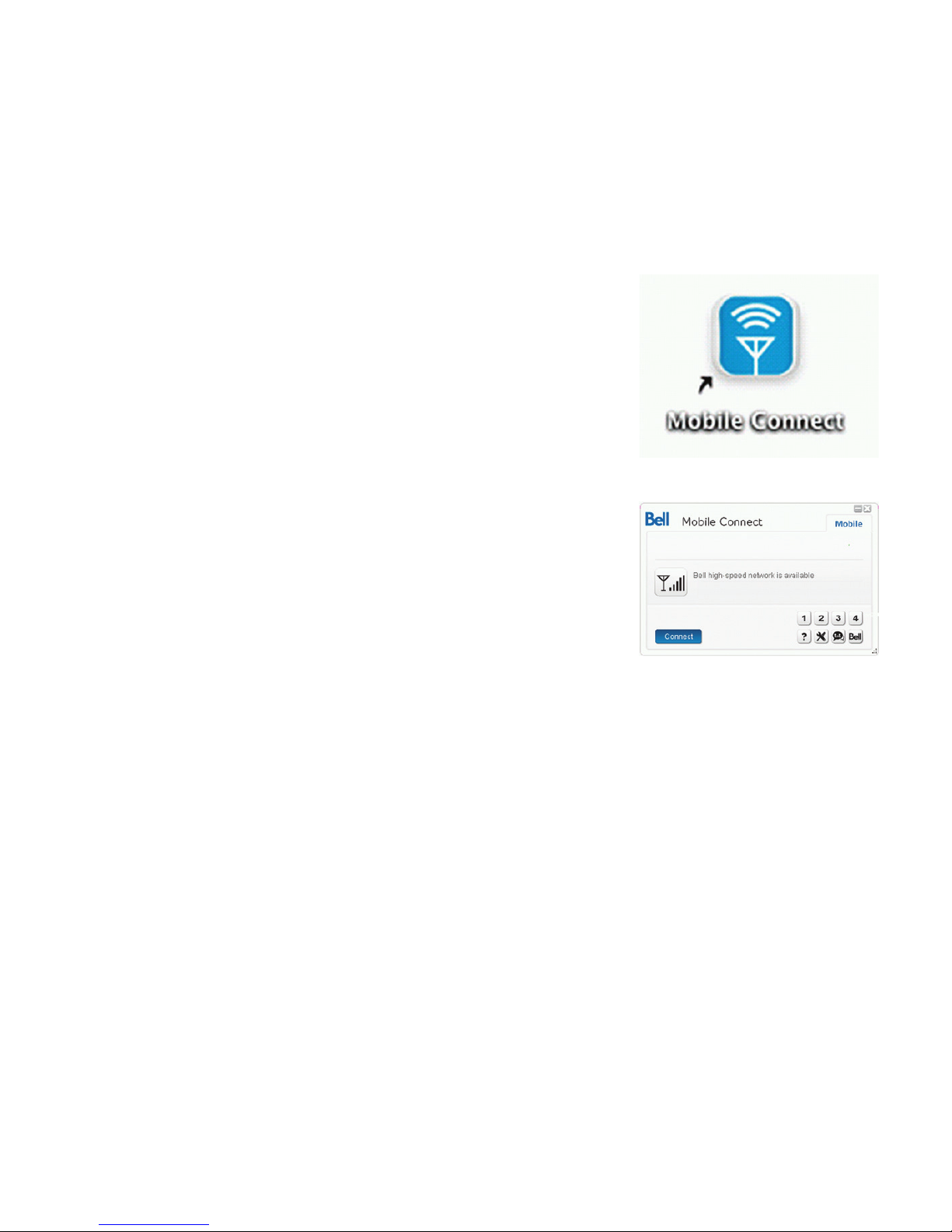
StartingMobileConnect
WithyourTurboStickinserted,double-clickon
theMobileConnecticonfromyourdesktop.
MobileConnectwillinitialize,scanforyour
Turbo Stick, and the main program window
willappearwith“Bellhigh-speednetwork
isavailable.”Click“Connect.”
YoumayconfigurethesettingsusingtheToolsMenu,orclick“Connect”
toconnecttotheInternet.WhenMobileConnectruns,itwillcheckifyour
Turbo Stick and account have been activated on the Bell network.
YourTurboStickmustbeactivated,andinanareawithnetworkcoverage,
tooperateontheBellMobilityhigh-speeddatanetwork.
ForadditionalinformationonMobileConnect,visitbell.ca/mobileconnect
9
Altri manuali per Turbo Stick
1
Questo manuale è adatto per i seguenti modelli
1
Indice
Altri manuali Bell Modem


