BenQ WDRT8192 Manuale utente

WDRT8192
Wireless Dongle
Quick Start Guide

English 2
Table of contents
English...............................................................................................4
Français ......................................................................................... 12
Deutsch......................................................................................... 20
Italiano........................................................................................... 28
Español .......................................................................................... 36
Portuguê ....................................................................................... 44
Svenska.......................................................................................... 52
Русский ....................................................................................... 60
Nederlands................................................................................... 68
Polski ............................................................................................. 76
Türkçe........................................................................................... 84
Čeština......................................................................................... 92
ä·Â................................................................................................ 100
繁體中文.................................................................................... 108
简体中文.................................................................................... 116
日本語 ........................................................................................ 124
한국어 ........................................................................................ 132
..................................................................................... 140

English 3
BenQ Wireless Dongle Quick Start Guide
Connection and EZ QPresenter Installation
This Quick Start Guide provides you with a basic overview of how to
connect the projector to your computer wirelessly.
Follow the steps below to get it all set up in just a few minutes.
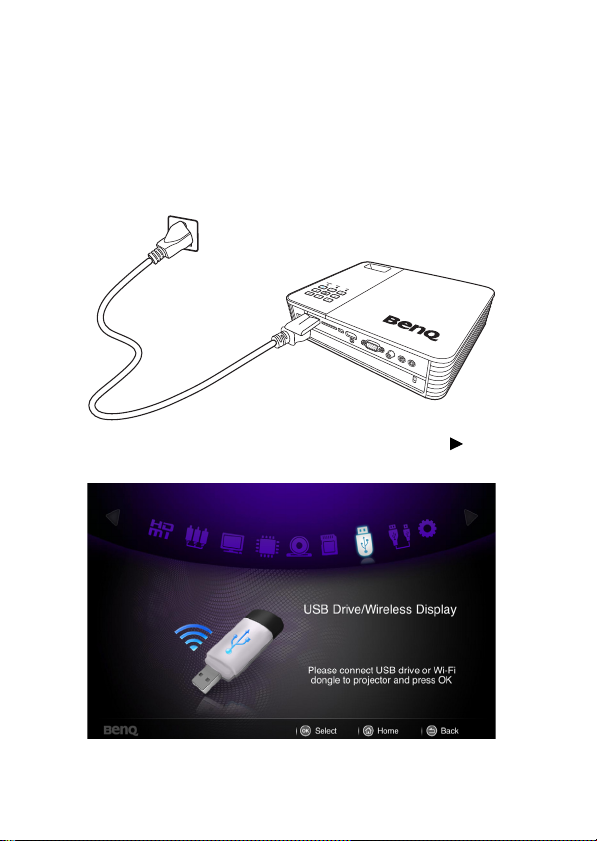
1. Connect the wireless dongle to the USB jack of the projector.
2. Select “USB Drive/Wireless Display” by pressing and press
“OK” on your projector.

English4
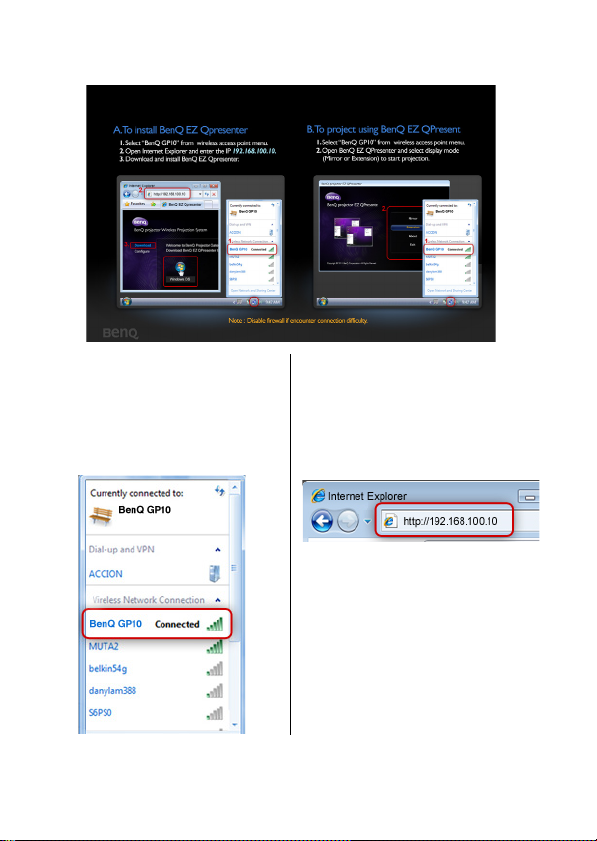
3. You will be prompted to the “To install BenQ EZ QPresenter”
page and follow the steps as instructed.
4. Select “BenQ GP10” as
your WLAN connection on
your computer (make sure
your computer is equipped
with wireless network card).
5. Start a web browser and key
in IP address
192.168.100.10 into the
address bar and press
“Enter”.

English 5
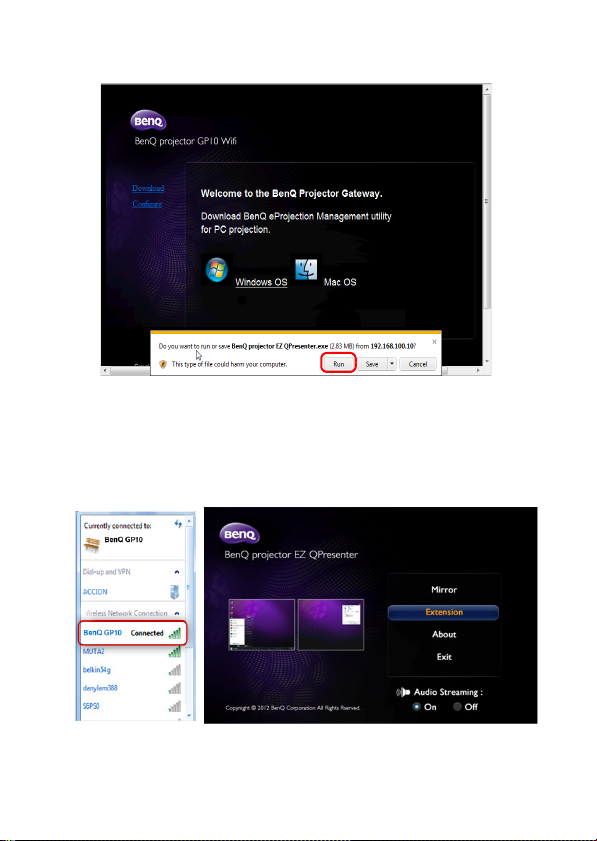
6. Select OS version and start downloading and installing BenQ EZ
QPresenter by following the on-screen instructions on you PC.
7. Open BenQ EZ QPresenter to start wireless projection
i. Select “BenQ GP10” from wireless access point menu of your
PC/NB.
ii. Open BenQ EZ QPresenter to start projection in mirror mode
(default).

English6
Tips:
• If you have installed BenQ EZ QPrensenter prior to step i., it
will be connected to GP10 automatically.
• You can disable or enable audio streaming baed on your
preferences.

English 7
Frequently Asked Questions
• Q: Why does my CPU become busier after launching the
BenQ EZ QPrensenter?
• A: BenQ EZ QPresenter counts on your PC CPU to encode the
screen images to reduce the data that needs to be transferred to the
receiver. Hence there will be some overhead to your PC. In general,
for a 4+ ranking PCs, it would need up to 30% of CPU overhead to
perform wireless display.
• Q: Why can’t I project my screen?
• A: BenQ EZ QPresenter needs to access the network connection at
some point. As a result, when your Anti-virus or network security
software prompts you for permission to allow the sender software to
access the network, please grant access to proceed, or choose “add
rule” to the fire wall settings.
• Q: Why does my display frame rate slow down?
• A: BenQ EZ QPresenter needs to encode display content while
sending massive real-time data to the projector.
i. PC: A dual core PC (excluding Atom processors) or Mac is
required to encode the screen images at 30FPS (Frame Per
Second) speed. However, if you would like to increase the FPS
speed, you can:
a. Use better media players, such as GOM player
b. Close all unused apps
c. Use a faster PC with Windows Experience Score higher than 4
(4+ recommended)
ii. Network:
Using 802.11n WiFi
a. Move your laptop closer to the projector
b. Disable the “Minimum Power Consumption” option from the
“Advanced Tab” in your WiFi network Adopter Property setting
c. Lower PC screen resolution

English8
System Requirements for Wireless Display
** Mac OS version will be available in Nov. 2012.
Windows
CPU Intel/AMD Dual core 2 GHz or higher
(ATOM not supported)
Graphic card Intel, NVIDIA or AMD graphic card with
64MB VRAM or above
OS Windows XP Professional SP3, Vista SP3,
Windows 7 SP2
Wi-Fi 802.11n
Mac
CPU Intel Dual core 1.4 GHz or higher
(PowerPC not supported)
Graphic card Intel, NVIDIA or AMD graphic card with
64MB VRAM or above
OS Mac OS X 10.6.5 and above
Recommend
ed Models
MacBook after 2009-01-21
All series of Macbook Pro
Macbook Air after 2010-06-08
Wi-Fi 802.11n

English 9
Wi-Fi Dongle Specifications
Model Name WDRT8192
Wireless Standard IEEE 802.11 b/g/n
Interface USB 2.0
Data Transfer Rate up to 300Mbps
Frequency Band 2.4GHz ISM Band
Security 64 bit/128 bit WEP, TKIP, AES, WPA,
WPA2
Supported OS Windows 2000/XP/Vista/7
Minimum PC System
Requirement
CPU: 200MHz or above
RAM: 64MB RAM or above, 128MB
recommended

1
Regulatory Statements
Battery Caution (if product includes remote control)
Do not put the remote control in the direct heat, humidity & Avoid fire.
Do not drop the remote control.
Do not expose the remote control to water or moisture, this could result in malfunction.
Confirm there is no object between the remote control and the remote sensor of the product.
When the remote control will not be used for an extended period, remove the batteries.
Battery safety notice (if product includes remote control)
The use of the wrong type of batteries may cause chemical leaks or explosion. Please note the following:
Always ensure that the batteries are inserted with the positive and negative terminals in the correct
direction as shown in the battery compartment.
Different types of batteries have different characteristics. Do not mix different types.
Do not mix old and new batteries. Mixing old and new batteries will shorten battery life or cause chemical
leaks from the old batteries.
When batteries fail to function, replace them immediately.
Chemicals which leak from batteries may cause skin irritation. If any chemical matter seeps out of the
batteries, wipe it up immediately using a dry cloth, and replace the batteries as soon as possible.
Due to varying storage conditions, the battery life for the batteries included with your product may be
shortened. Replace them within 3 months or as soon as you can after initial use.
There may be local restrictions on the disposal or recycling of batteries. Consult your local regulations or
waste disposal provider.
Altri manuali per WDRT8192
1
Indice