bit ELD Manuale utente

BIT ELD
Blue Ink
Technology
Electronic Logging Device
User Manual
MODELS: BIT17001, BIT17002, BIT17003, BIT17004

Table of Contents
ELD Mandate Overview
Setting up a BIT Account
Installing a BIT ELD Adapter
Connecting to a BIT ELD Adapter
BIT ELD Adapter and App Lights
Home Page
Unresolved Issues
Current Load Out
Certifying Logs
Unidentified Drive Time
Suggested Edits
Available Hours
Sleeper Split Calculation
Recap Calculation
Hours of Service
Adding a Duty Status
Editing a Duty Status
Automatic Duty Status Changes
Co-Driving
Roadside Inspection
Daily Vehicle Inspection
Documents
BIT ELD App Settings
Help in the BIT App
BIT ELD Adapter Specifications
BIT ELD App Device Requirements
3
4
5
6
7
9
11
12
12
13
14
15
16
17
18
22
23
24
2

ELD Mandate Overview
It is important to know that electronic logging devices do not
fully automate driver logs, but are a tool to simplify the
process of data collection for a driver's logs. For example,
you still have to manually set your duty statuses to Off Duty,
Sleeper Berth, and so on. You also have to manually certify
your records.
The BIT ELD adapter allows your vehicle to communicate
with the Blue Ink Tech app over a wireless connection. To
support compliance with the FMCSA's ELD mandate, it
automates the collection of the following data items:
•Vehicle Identification Number (VIN)
•Odometer mileage
•Engine hours
•Engine on/off status
•Vehicle in-motion status
These are the only data items from the vehicle's database
that are used to support compliance with the ELD mandate.
Automatically Recorded Driving
When a vehicle's wheel speed exceeds five miles per hour,
a duty status of Driving will be automatically recorded. This
automatically recorded Driving event cannot be shortened
or edited to any other duty status.
Personal Use or Yard Move, if applicable to the driving
event, must be indicated manually by the driver before the
BIT ELD adapter detects that the vehicle is in motion.
When the vehicle is no longer in motion, the BIT ELD
adapter will automatically record a duty status change to
On Duty Not Driving after six minutes if the driver does not
manually change their duty status.
Recordkeeping
Your records are collected and stored on your smartphone
or tablet with the Blue Ink Tech app. Records are stored
online for at least six months and can be accessed through
the web portal at blueinktech.com
Required Paperwork
Blue Ink Tech provides all of the
ELD instructions that drivers are
required to keep in the vehicle.
Keep physical copies of these
documents in the vehicle to
comply with the ELD mandate.
DOT Inspection Sheet
Instructions for using BIT ELD
during a safety inspection, and what
to do in case of an ELD malfunction.
BIT ELD Quick Start Guide
This guide is in the box with your
BIT ELD adapter, and has all of the
instructions for how to set up and
use your ELD.
Electronic versions can be
accessed in the BIT app:
Under "Help" in the main menu,
select "Knowledge Base". You can
search for the document you need
and view or download a pdf version.
3
Setting up a BIT Account
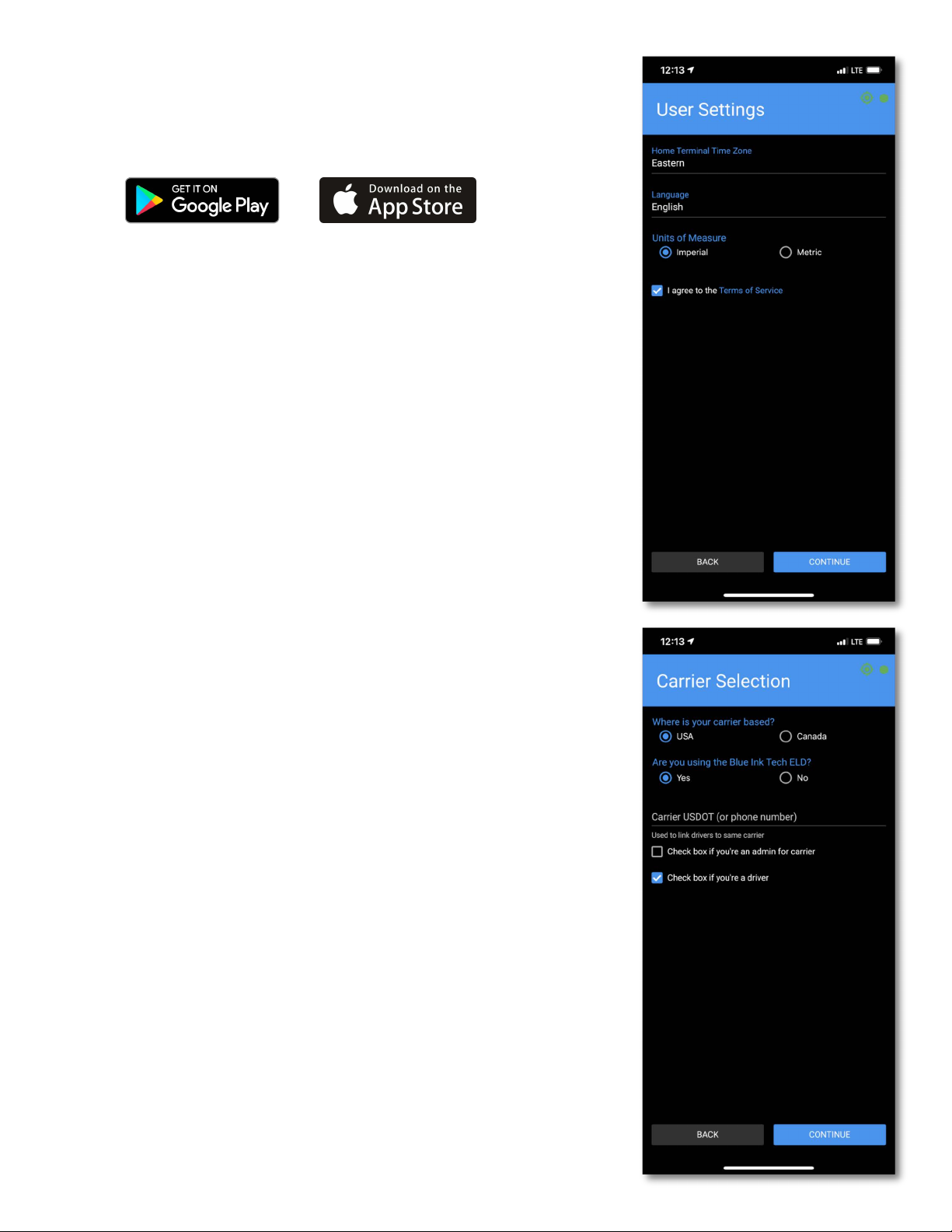
When you open the Blue Ink Tech app the first time, you will
receive pop-up messages to set permissions for Location,
Camera access, and Notifications. For the app to function
properly you will need to select "Allow" or "Yes" for all of these
permissions.
If you have already created an account online, tap the blue
"Existing User" button to log in to your account. Otherwise,
follow the Sign Up steps to create your account.
User Settings
Home Terminal Timezone is where your carrier is located, and
will be the timezone used for your logbook.
Units of Measure affect your logs, fuel receipts, and Air Scale
readings if you have those installed. Imperial will display miles,
gallons, and pounds. Metric will display kilometers, liters, and
kilograms.
Carrier Selection
Select whether your carrier is located in the US or Canada.
Select "Yes" that you are using the Blue Ink Tech ELD.
Enter your carrier's authorized USDOT number (or your carrier's
phone number if you are in Canada).
This will automatically connect your account to your carrier. If
your carrier has an Administrator, they will need to accept your
request to join the carrier before you have access to the carrier's
equipment and hardware.
Carrier Role
Check the "Check box if you're an admin for carrier" box if you
need administrative privileges to set permissions for drivers or
view BIT Full Service data. Administrators will have to approve
new users who request to join the carrier.
Check the "Check box if you're a driver" box if you will be
keeping your logbook with BIT ELD.
Download the Blue Ink Tech App
The Blue Ink Tech app is available for iOS and Android
devices. Download the app from Google Play or the App
Store and create your account to get started with BIT ELD.
4

Before you install your BIT ELD adapter for the first time:
•Install the Blue Ink Tech app on the smartphone or tablet
you wish to use for your logs.
•Have your vehicle's engine running. Communication to the
diagnostic port may be disabled even with the ignition
turned on.
Installation and Initial Testing
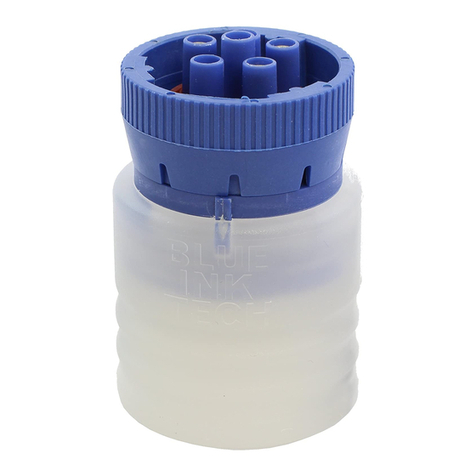
Plug in the BIT ELD adapter to your vehicle's diagnostic port.
For heavy duty 6-pin or 9-pin adapters, turn the locking ring
clockwise to secure it to the port.
When the ELD adapter receives power it will go through initial
self checks and boot up light sequences.
All BIT ELD models end their boot up sequence with the LED
lighting up red-white-blue. At this point the ELD is ready to
connect to your app through wireless Bluetooth.
Splitter and Adapter Cables
If your port is in the way or hard to reach, or if you need to
connect two devices at one time, Blue Ink Tech offers a variety
of splitter and adapter cables to use with your BIT ELD. You can
find them at our website blueinktech.com/cart or contact your
account manager for more information.
9-Pin J1939 Port
In most heavy duty vehicles
later than 2005
6-Pin J1708 Port
In most heavy duty vehicles
manufactured before 2006
OBD-II Port
In medium duty vehicles. Heavy
Duty OBD-II ports need a 9-pin
ELD and adapter cable.
Installing a BIT ELD Adapter
Locate your vehicle's diagnostic port in one of these three
places:
1. Under the steering wheel or under the dashboard
2. On the left side of the kick panel
3. Behind the driver's seat
5

Connecting to a BIT ELD Adapter
Once the BIT ELD has completed its installation sequence and
the LED light is blue, you can log in to the Blue Ink Tech app and
connect to the ELD adapter.
The Blue Ink Tech app will automatically search for and connect
to powered BIT ELDs within its wireless range. The circle in the
top-right corner of the app screen will turn gray while searching
for ELD adapters, light green when it's found one, and bright
green when it has connected.
If there are multiple powered BIT ELDs within range, the app will
let you choose which one to pair. The ELD adapters will be listed
in order of proximity, from near to far, so your ELD adapter is
most likely the first on on this list.
You can check that you are connecting to the correct BIT ELD by
watching for the LED light on your ELD adapter to turn green.
Check Your ELD Adapter Settings
You can also check the ELD Adapter page to ensure you are
connected to the correct adapter. Tap the three stacked lines to
open the main menu, select Settings, then select ELD Adapter.
This screen will show the serial number of the ELD adapter you
are connected to, as well as the VIN of the vehicle in which the
ELD is installed.
If you are connected to the wrong ELD adapter, tap the scan
button to disconnect and scan for other ELDs in range.
Set Favorite ELD
While connected to your ELD adapter, you can set it as your
favorite device. In ELD Settings, tap the Favorite ELD toggle so
it is blue and to the right.
With this setting on, your app will only connect to your ELD
adapter, which will speed up connection time and ensure you
never connect to the wrong device.
Do not turn on this setting if you will be driving multiple trucks
and connecting to multiple ELD adapters.
6
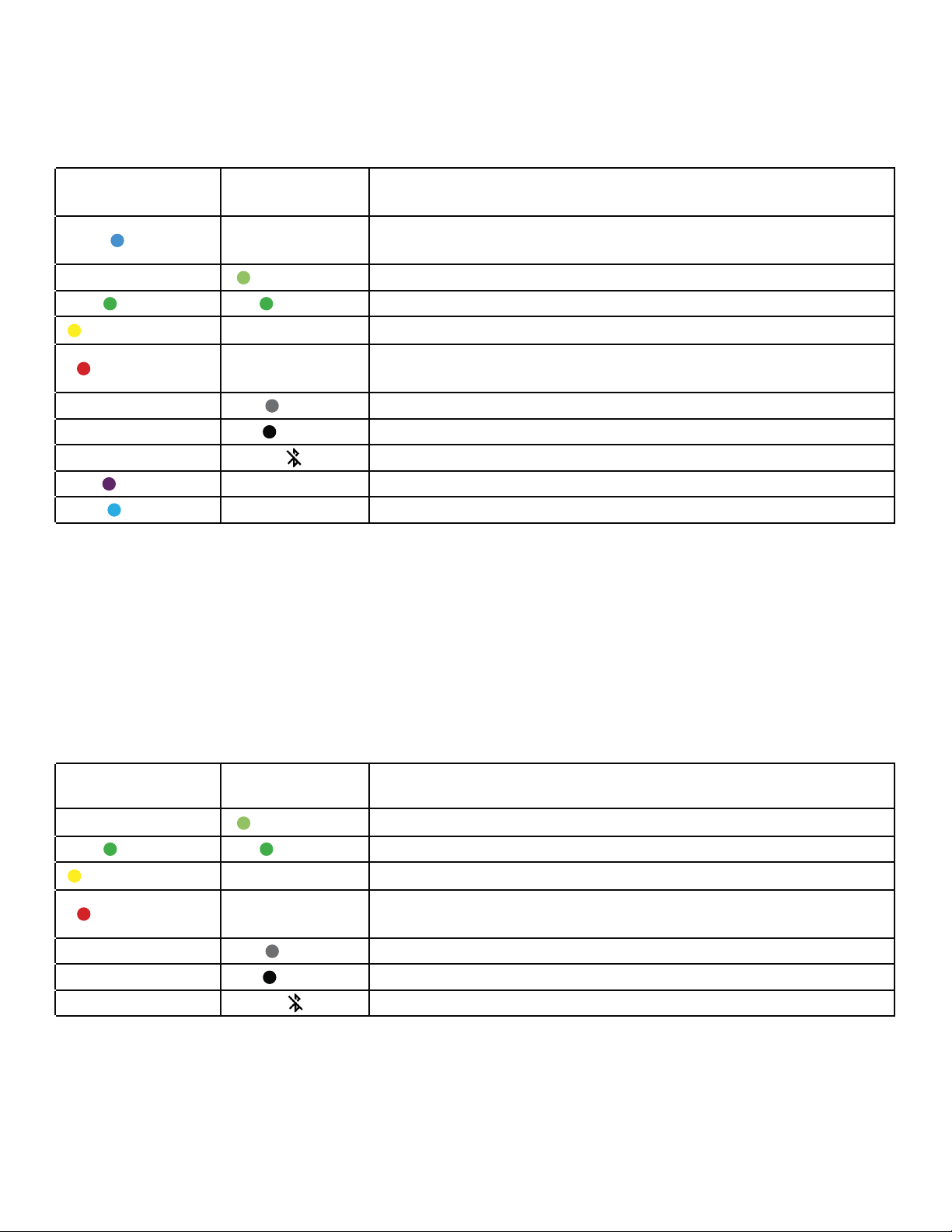
BIT ELD Adapter Blue Ink Tech
App Meaning
Blue The BIT ELD adapter is ready to connect to the
Blue Ink Tech app
Light Green The BIT ELD adapter is connecting to the Blue Ink Tech app
Green Green The BIT ELD adapter is connected to the Blue Ink Tech app
Blinking Yellow The engine is on, but the driver has not logged in
Blinking Red The vehicle is moving, but the BIT ELD adapter is not
connected to the app
Gray The Blue Ink Tech app is searching for BIT ELD adapters
Black 7KH%OXH,QN7HFKDSSGLGQRW¿QGDQ\%,7(/'DGDSWHUV
Bluetooth has been disabled on the smartphone/tablet
Purple 7KH%,7(/'DGDSWHUKDVXQLGHQWL¿HGGULYHUUHFRUGV
Cyan BIT ELD adapter needs to be unplugged and plugged back in
%,7(/'$dapter and App/LJKWV
%,7DQG%,7
BIT ELD
Adapter Blue Ink Tech
App Meaning
Light Green The BIT ELD adapter is connecting to the Blue Ink Tech app
Green Green The BIT ELD adapter is connected to the Blue Ink Tech app
Blinking Yellow The engine is on, but the driver has not logged in
Blinking Red The vehicle is moving, but the BIT ELD adapter is not
connected to the app
Gray The Blue Ink Tech app is searching for BIT ELD adapters
Black 7KH%OXH,QN7HFKDSSGLGQRW¿QGDQ\%,7(/'DGDSWHUV
Bluetooth has been disabled on the smartphone/tablet
By default, the light on the BIT ELD adapter will turn off 60 seconds after a status change.
%,7 and BIT17004
When powered, the ELD will blink purple-red-white-blue. It may blink green at the end if it passes all
checks, but not always, and this doesn't indicate anything about connection. It will turn green later when
connected.
LED will stay green for 30 seconds after connection, or if user changes brightness setting.
If never connected: Indicator will remain blinking (yellow/red)
If loses connection: After 90 seconds with no reconnection, indicator will blink for 30 seconds,
then stop.
7

Navigating the Blue Ink Tech App
The main menu of the app is represented by three white lines in
the upper left hand corner of the app. Tap this icon to navigate to
different app features.
Each of these features will be explained in more detail in the
following sections.
Blue Ink Tech Support
Tap "Help" in the menu to access support resources any time.
Search the Knowledge base for answers and how-to articles for
the BIT app.
Tap the phone number or email for the BIT Support Team to get
in touch with our tech support representatives.
8

The Home Screen
The Home screen shows basic information about your current
load, as well as any issues with the app and logs that require
your attention. You will have to swipe up on the screen to see all
of the information.
Unresolved Issues
At the top of the screen you may see alerts from your BIT ELD
adapter or other BIT sensors, a setting on your phone or tablet
that needs to be changed, or a message if you haven't updated
to the latest version of the Blue Ink Tech app or BIT ELD
firmware.
Tap "MORE" to see details about any of these issues.
Current Load Out
The Current Load Out displays the following information:
•Your current duty status in a blue circle
•Your name in the Driver field
•Name of your Co-Driver if you have one
•Name of the carrier with which you are sharing data
•Selected vehicle for your shift
•Up to three trailers selected for your shift
•Shipping document number or Job name
•Driver settings for personal use, yard move, or ELD
exemption
If you drive for multiple carriers, tap the "EDIT" icon to select
which carrier you are driving for currently.
Selecting a Vehicle
While connected to a BIT ELD adapter, the ELD will select the
vehicle listed in your Current Load Out. If you have connected to
a vehicle not yet created, the app will prompt you to give the
vehicle a name.
If the vehicle listed is not the vehicle you're driving, you'll want to
navigate to ELD Adapter Settings to scan for other ELD adapters
in range.
While not connected to a BIT ELD adapter, you can tap the
"EDIT" icon to select any vehicle in your carrier's fleet. Tap "Add
New Truck" to add a new vehicle to the fleet.
You can add up to three trailers at one time for your Current Load
Out. Tap "Add New Trailer" to add a new trailer to the fleet.
9
The Home Screen Cont'd
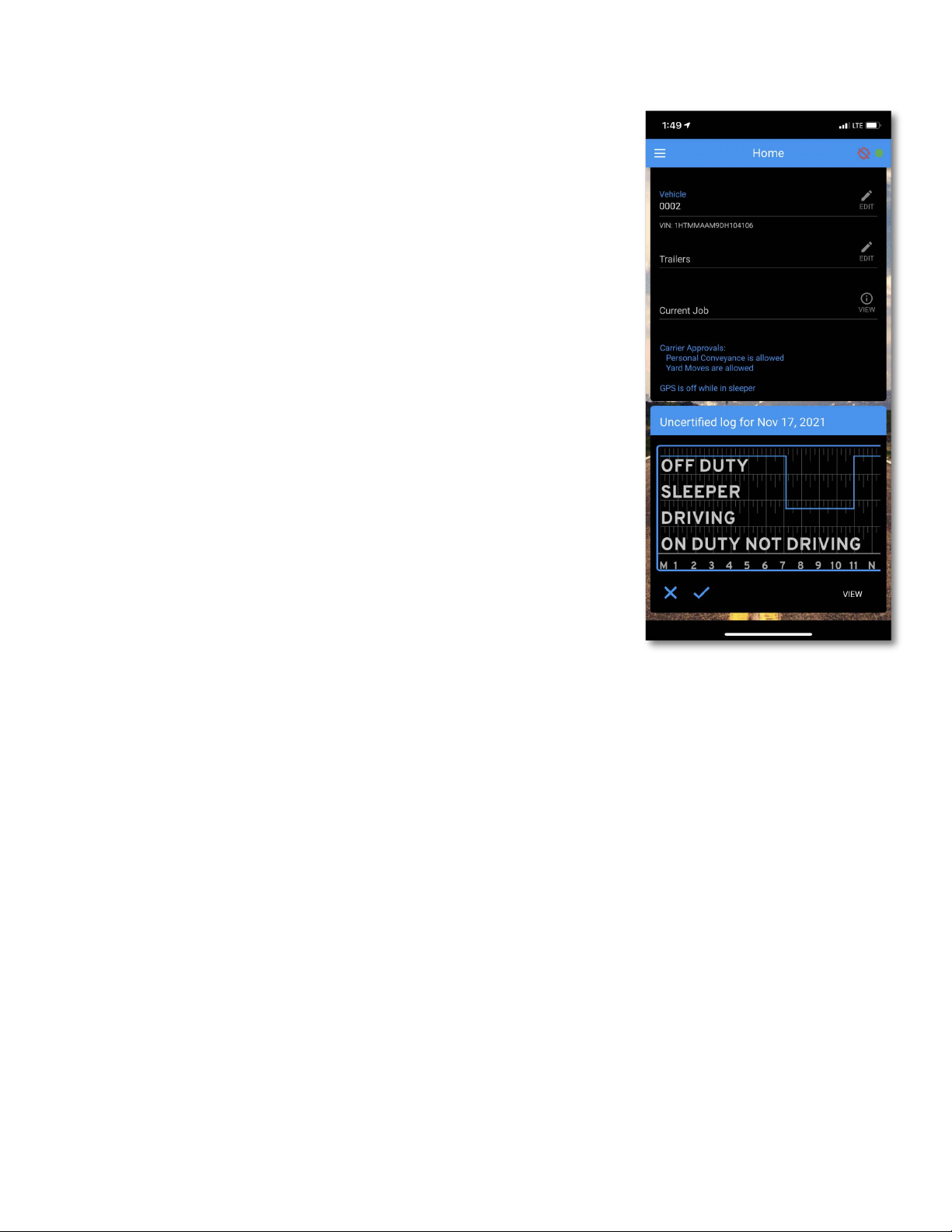
At the bottom of the Home screen alerts regarding your logbook
will appear. These include uncertified logs, unidentified drive
time, and suggested log edits sent by an Administrator.
For each of these records, you can tap the X to reject the
changes or certification, tap the check mark to accept the
changes or certification, or tap "VIEW" to see the record in more
detail on the Hours of Service screen.
Uncertified Logs
You must certify logs within 24 hours after the end of that shift.
Any logs left uncertified after that will be shown on the Home
screen, and the app will alert you to them when you log out of
the app.
Unidentified Drive Time
These are driving events recorded by the BIT ELD adapter when
no driver was logged in to the Blue Ink Tech app. Your carrier
administrator can also assign these events to you. You can
accept the driving event to have it added to your logs, or you can
reject the driving event if you were not the driver at the time.
Suggested Log Edits
Your carrier administrator can't directly edit your logs, but they
can suggest edits and notes. You can accept or reject these
suggestions.
10
Altri manuali per ELD
1
Questo manuale è adatto per i seguenti modelli
4
Indice
Altri manuali bit Adattatore