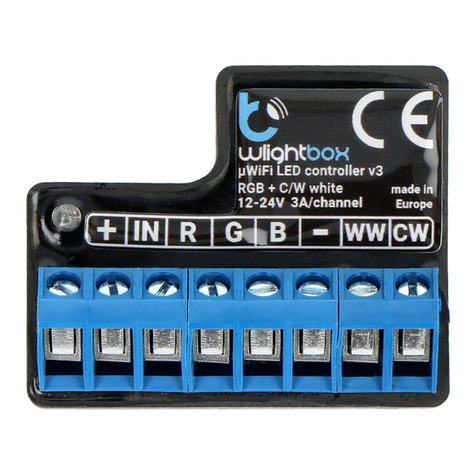
Read the diagram and then proceed to install the controller. Pay parcular
aenon to the designaon of the controller connectors. Start with power
wires - phase L (usually brown) and neutral N (blue). Then, connect the load.
If you only want a local control with a wall switch, connect the wall push-
buon according to the diagram. To control using only your phone or Tablet,
it is not necessary to install the wall push-buon.
The controller supports double monostable (bell) switches without backlight.
The order of connecng the S1/S2 input to the right/le switch buon
does not maer at the installaon stage - it can be set at a later stage of the
controller conguraon.
Aer making sure that the device is connected in accordance with the
diagram and that there are no metal components near the controller which
may accidentally cause short-circuit, start the device by turning on the power
(turning on the mains fuse or connecng the power cord to the power outlet).
2
Download the free wBox applicaon. If you have an Android mobile device,
you will nd the applicaon in the Play Store. For iOS devices the applicaon
is in the App Store.
By using your mobile phone or tablet, connect it to the device wireless
network. To do this, go to your smartphone or tablet sengs, then go to
seng of the WiFi network and nd the network name „shuerBox_DIN-
xxxxxxxxxx” where xxxxxxxxxx is the serial number of the device. Connect
to this network.
Turn on the wBox applicaon. You will see your device on the main screen.
In order to add it to your applicaon account, select “Add device to account”.
If you are the installer and do not want to assign the device to your account,
select “Use only once”.
Test the controller’s work by clicking on the arrow near to the area showing
the window. If the electric shuer is moving in a dierent direcon than
you suppose to go to „Sengs” (icon at the top-right corner of the screen)
and change the “Move direcon swap” opon in “Device sengs” secon.
Remember to save your sengs by clicking the “Save” buon, then go to the
main panel by clicking the arrow at the top-le corner of the screen. Check
again whether the shuer moves as expected.
If you have connected the wall push-buon, check its work. Single pressing
of the “down” buon / “up” buon will cause that the roller shuers moves
in the desired direcon to the end posion. If the electric shuer goes in the
opposite direcon to the expected, turn on the “Buons swap” opon in
“Device sengs” secon. When the electric shuer is moving, pressing any
of the wall switches causes that the shuer will stop immediately.
The next step is to select the type of roller shuer to be controlled - in sengs
under “Control type”, select one of the opons: “Roller shuer”, “Tilt shuer”,
“Window opener”, “Texle shuer”, “Awning” or “Screen”. The individual
opons dier by the control algorithm (among others, the conversion of the
set posion to the me of movement) and the icon on the control screen. If
you have an unusual engine, select the “Without posioning” opon. Specify
also the maximum me of movement which is needed for the transion
between end posions - this is the me in which the controller gives voltage
to the roller motor (it is not recommended to turn o the move meout). A
suggested value of 120 seconds is sucient for most motors.
You can also set the conguraon using the web
browser of your phone / tablet. Aer connecng to the
wireless network of the controller, turn on the browser
and go website www.blebox.eu
3
Go to the WiFi network sengs (“Sengs” icon in the top right corner of
the screen, “Connecon” secon), where you can connect the device to the
home WiFi network to be able to control the device via it or from anywhere
in the world. To do this, select the network name from the list of available
networks and press “Connect”. If required, enter your WiFi password.
When connecng the device to the home network, the phone / tablet may
disconnect from the device’s network.
Aer reconnecng the phone to the controller’s WiFi network, check the
“WiFi Client status” and “Remote access status” elds. The controller is
equipped with a network connecon supervision system which in case of
problems with connecon to the WiFi or the Internet will report the problem
and its possible causes. If the network is working properly both elds will be
set to “Connected”.
In order to communicate with the device from outside the local WiFi
network, from anywhere in the world, via the wBox applicaon, the device
automacally connects to the BleBox cloud system service by default. The
remote access system is fully encrypted and secure, the data are transmied
by European servers from reputable companies. It is possible to disable
the remote access service - aer clicking the “Congure” buon, toogle
the switch next to the “Remote access” opon. Remember that disabling
“Remote access” will result in no access to the controller from outside the
local network as well as disabling the nocaons and external integraon
systems, therefore we recommend that you leave this opon enabled (default
seng). event log
Enabling the “Event log” opon will cause the device to record events (e.g.
about sent nocaons set in the “Acons” secon) in the BleBox cloud
system. This allows the history of the events to be viewed later also when
the controller is oine.
Aer compleng the WiFi network conguraon, you can disconnect from
the device network and connect the phone / tablet directly to your home
WiFi network. Control from the wBox applicaon will work in the same way
as when the phone / tablet is connected to the device’s network. If as a
user you leave the local network, eg leaving your home or enclosing mobile
data, the wBox applicaon will signal this status as “Remote mode”. In this
case, you will have access to the device data, but for security reasons sengs
opons will not be available.
In the “Service connecon (AP)” secon, you can change the name and give
the password of the WiFi network emied by the device. Remember that
changing the network name or password can cause disconnecon with the
device immediately aer clicking the “Save” buon, so you should reconnect
to the WiFi network.
It is also possible to completely disable the access point emied by the
device. To do this move the “Access point” slider to the o posion and
conrm the selecon with the “Save” buon.
The “Tilt shuer” opon is designed for controlling lt shuers with
steerable slats rotated by a single motor. Aer selecng this opon, it is also
necessary to set an addional eld “Time of maximal rotaon of the slats in
milliseconds” (suggested value approx. 1100 ms). This is the me in which
the slats will be in the maximum angle of the rotacon before the shuer
starts rolling - thanks to this the adjustment of both the posion of the blind
and angle of the slats by the addional scrollbar can be done at the control
screen.
To move the eg. roller shuer to the specic posion, the controller should
be calibrated by clicking the “Automac calibraon” buon. To use this
feature, calibrate the controller by clicking the “Auto calibraon” buon.
Once the procedure is conrmed, the electric shuer will open to the upper
limit switch posion, then will close to the lower limit switch posion and
then will open again to the upper limit switch posion. During the calibraon,
do not perform any acon. To check the work of the control to a certain
point, go to the main panel by clicking the arrow at the top-le corner and
then by moving the nger several mes over the area showing the window
in extreme and intermediate posions, verify if the electric shuer moves to
the selected posion in the animaon. You can also set your electric shuer
posion - to do this, set the electric shuer in the desired posion and
then hold the heart icon for about 4 seconds. Then verify the funconality
- moving the electric shuer to another posion, then click on the heart icon.
The electric shuer should be placed in your favorite posion.
The motors have a dierent design, some of them are equipped with
electromechanical limit switches, others with electronic sensors. If the
automac calibraon does not work properly, evaluate the value of the
“Limit switch detecon threshold” eld in the “Device sengs” secon of
the device sengs. The threshold value is in VA and should be less than the
power drawn by the motor during its normal operaon. If, during calibraon,
the motor stops aer a few seconds from the movement start, the value of
the acon threshold should be lowered, while if the motor runs only one pass
(i.e. only up or only down) the value should be increased.