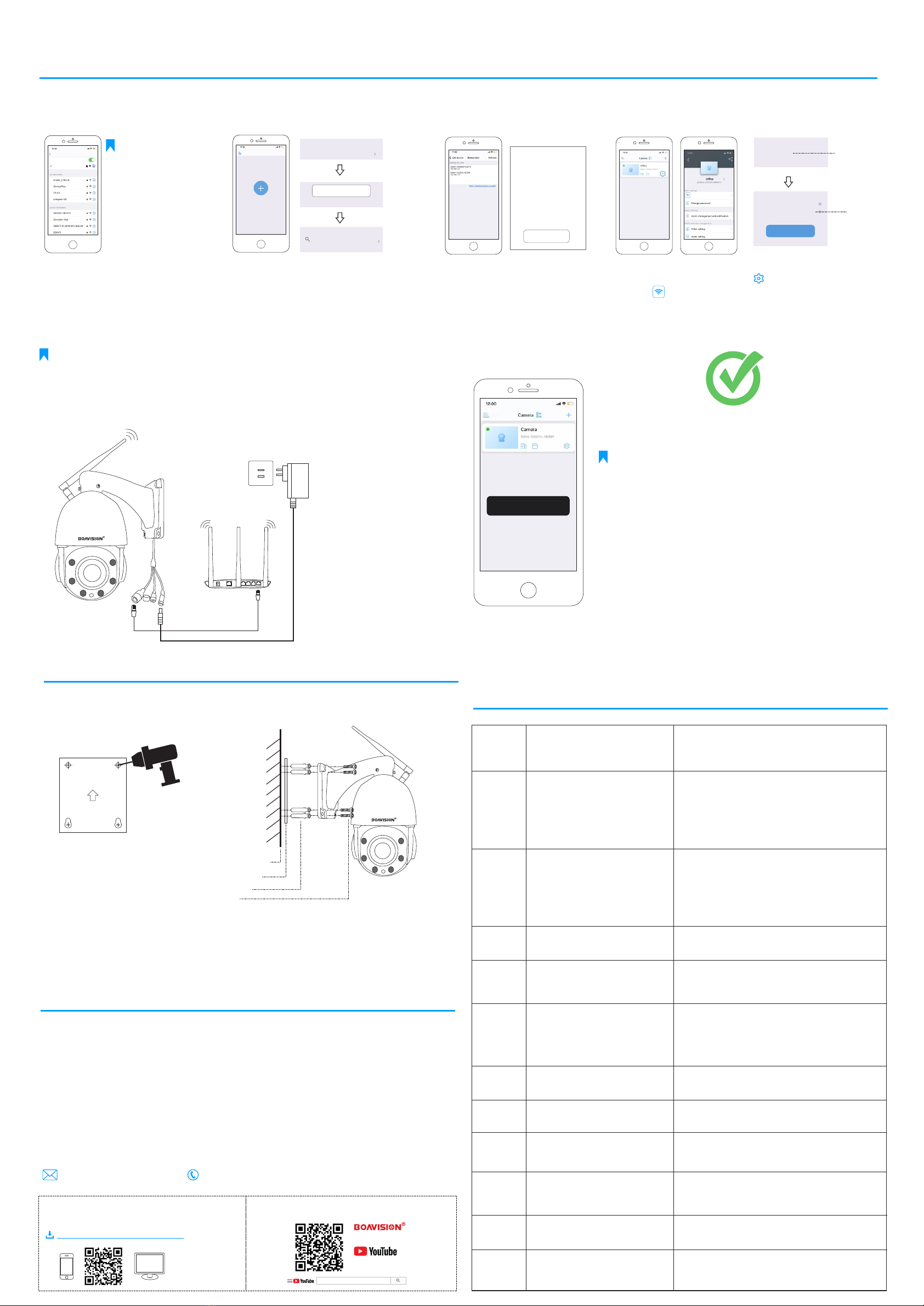
Add Camera
Please follow the steps below to find the hotspot AP of the camera and connect to it, set up the camera's WiFi, and let it connect to the WiFi router in your home wirelessly.
Step 1.
Turn On The Mobile Wlan And Look For
The Hotspot Wifi "IPCAM-XXXXX" In
Your Network List
Use The Default Password "01234567"
To Connect.
IPCAM-XXXXXX
Wi-Fi
Wi-Fi
Settings
Step 2.
Open The Camhipro App, Select --->“+”--->“IP
camera”--->“Device in Use”--->“Search nearby
devices”
Add Camera
Camera
Add device
IP camera
Step 3.
Tap On The Device Listed Under Lan. The Name
Should Be “XXXX-XXXXX-XXXXX”(Default
User"admin",Password "admin").Click“Add To”And
Setup The Device Name.
XXXX-XXXXXX-XXXXX
192.168.1.46
Step 4.
Now,Tap On The Gear Wheel Icon “ ” ---> Tap On Wireless
Setting “ ” And Select Prefered Network And Enter The Password.
Wireless setting
It is highly recommended to change password.
1. From the main screen tap the gear wheel icon and then “Change
Password” .
2. Enter the old password (if this is the first setup it will be “admin”)
then enter the new password in the next two fields. Then tap APPLY.
You can check you have done the correct password by tapping the
circle next to “show password”.
Wall Mount
Paste The Drilling Location Mark On The Wall, Then Drill The Hole According To The Mark And Insert
The anchors, Pass The Screw Through The Back Of The Bracket, And Fix The Top Of The Bracket On The
Wall.
1. Mark Position
Place the mounting template
where you want the camera.
For wall mounting, drill four
holes through four circles.
Wall
Drilling Location Mark
Anchors
Screws
2. Mount Camera
Affix the camera base using the screws. For wall mounting, insert four
anchors into the holes and use the screws to affix the camera base over
the anchors.
Warranty & Support
Dear Users:
Thank You For Purchasing Boavision Products. In Order To Protect Your Rights, Please Read The Following Carefully
After Purchasing:
1. The Following Situations Do Not Belong To The Scope Of Free Maintenance
Please Note:
* Disassemble And Repair The Product Without Permission.
* Intentional Damage To The Product, Such As The Use Of Unsuitable Adapters, Mechanical Damage, Etc.
* Product Failure Or Damage Caused By Force Majeure Such As Earthquake, Fire, Flood, Lightning, Etc.
2. Technical Support&Software Upgrade Service:
Before You Return The Product, Please Contact Our After-Sales Team To Confirm Whether The Product Is Faulty. We
Suggest That You Provide Us With Photos Or Videos Related To The Problem By Email, And We Will Reply To You
Within 24 Hours.
E-Mail: Phone: +1484-862-1346 (9AM-6PM EST Mon-Fri)Support@Boavision.com.
For More Software Download And Use Help For The
Product, Please Scan The QR Code Below Or Enter The
URL To Access:
www.boavision.com/download.html
You Can Also Follow Our Official Youtube Channel For
More Product Guidance Videos.
boavision official
Scan QR Code
Visit Quick Start Video
Trouble Shooting
No. Lssues Description Solutions
1
2
Can not see the camera’s WiFi Signal in
phone WLAN setting
Please make sure the camera is NOT connecting Ethernet
cable, press and hold the reset button on the cable for
20 seconds, wait for 30 seconds, check in your phone
WLAN settinge, there should be a WiFi signal named
IPCAM-xxxxx, if still can not find the wifi signal, quick
press the reset button and wait for 20 seconds, there
should be a wifi signal now, the format is IPCAM-XXXXX.
Connection can not be established
1) Check your Wi-Fi name and password, if there is any
special character.
2) Make sure your WiFi is 2.4G, it does not support 5G.
3) Make sure your camera and mobile phone are near the
router.
4) Email contact customer service staff to solve your
problem within 24 hours
Reset to default
3
4
1) Press and hold the reset button for 20 seconds.
2) Hear “Dong” sound, and wait for reboot
How to connect the camera to a NEW
WIFI
5
6
7
8
9
10
1) Reset camera
2) Delete the camera from Camhipro device list
3)Setup the camera as a new one
Alarm captures without a person
1) Please try to adjust the camera position or
direction,make the camera further from the monitor area
2) Some objects (Fly, Leaves, Dust) trigger the motion
sensor, please reduce the motion sensitivity, and adjust
the monitor area to avoid the false alarm area.
Alarm too frequent Please reduce the motion sensitivity, adjust the monitor
area, setup schedule alarm time in advanced setting
Cannot get alarm push Enable notification of the Camhipro app in the mobile
settings.
No alarm video recorded
Please insert the micro SD card, make sure the sd card is
readable in sd card setting page (you can see the memory
size)
Device offline
Check if the network works well, maybe the camera
location is too far from the router, move to a closer place
and try
Video delay Check the WIFI network, the distance between the
camera and the router should not be too far
In-use device that has been connected to the
LAN / Internet
Device in use
Find the UID number in the same LAN
Search nearby devices Add to
singal:95% WPA2_ TKIP
Mywifi
x
Apply
x
Wireless name: Mywifi
Password: XXXXXXXX
Your wifi
Your wifi
Password
Setup Via AP Mode
Setup With Network Cable (Optional)
1. Connect The Camera To The
Lan Port Of Your Wifi Router With
A Network Cable Temporarily.
2. Then Repeat Step 2,Step 3,
Step 4 as above.
3. Then Remove The Cable And
Wait 10 Seconds The Camera Will
Connect To Your Wifi Router
Wirelessly.
If You Can not Successfully Connect To The Camera Via Ap(Access Point Wifi), We Suggest
To Try The Optional Setup As Below:
If You Do Not Find The AP
Wifi of The Camera,Press And
Hold The Reset Button (On
The Tail Line) For 20 Seconds
to Reset the Camera and
Search Again in Your WLAN.
Wireless setup is successful
Note
:
Note
:
Note
:
Wireless setup is successful
XXXX-XXXXXX-XXXXX
UID:
admin
username:
admin
password:
11 The camera keep rebooting or crashing
Please check if your SD card is installed correctly, or
replace with another brand new memory card (Class 10)
and go through the whole set up again.


