Brookstone BKSPB-BF Manuale utente

USER MANUAL
SMART PLUG
FCC ID: 2AQNX-SP10 For more products please visit
www.smartpointco.com or www.brookstone.com

FCC Statement:
1. This device complies with Part 15 of the FCC Rules. Operation is
subject to the following two conditions: (1) this device may not cause
harmful interference, and (2) this device must accept any
interference received, including interference that may cause
undesired operation.
Caution: The user is cautioned that changes or modifications not
expressly approved by the party responsible for compliance could
void the user's authority to operate the equipment.
Note: This equipment has been tested and found to comply with the
limits for a Class B digital device, pursuant to part 15 of the FCC
Rules. These limits are designed to provide reasonable protection
against harmful interference in a residential installation. This
equipment generates uses and can radiate radio frequency energy
and, if not installed and used in accordance with the instructions,
may cause harmful interference to radio communications. However,
there is no guarantee that interference will not occur in a particular
installation. If this equipment does cause harmful interference to
radio or television reception, which can be determined by turning
the equipment off and on, the user is encouraged to try to correct
the interference by one or more of the following measures:
— Reorient or relocate the receiving antenna.
— Increase the separation between the equipment and receiver.
— Connect the equipment into an outlet on a circuit different from
that to which the receiver is connected.
— Consult the dealer or an experienced radio/TV technician for help.
2. This equipment complies with FCC radiation exposure limits set
forth for an uncontrolled environment. This equipment should be
installed and operated with a minimum distance of 20cm between
the radiator and any part of your body.
For more products please visit
www.smartpointco.com or www.brookstone.com

SPECIFICATIONS
Model: BKSPB-BF
Main Material: PC V0 Fire Retardant
Input Voltage: AC 100-240V 50/60Hz
Max Load: 10A
Max Power: 1100W (110V)
Working temperature: -4° - 140°
Size:49x31mm
Wi-Fi Standard: 2.4GHz 802.11b/g/n
System Support: Android™/iOS
WARRANTY INFORMATION
One Year Limited Warranty.
©Smartpoint LLC,
250 Liberty Street, Suite 1A
Metuchen, NJ 08840
The BROOKSTONE trademark. names and logos are owned by
BKST Brand Holdings LLC ©2021. All rights reserved.
Manufactured, marketed and distributed by Smartpoint LLC, under license.
Amazon, Alexa and all related logos are trademarks of Amazon.com, Inc. or its affiliates.
Google, Android and Google Play are trademarks of Google LLC.
App Store
®
is a registered trademark of Apple, Inc.
All trademarks and registered trademarks are property of their respective owners.
Made in China
For more products please visit
www.smartpointco.com or www.brookstone.com

FEATURES
• Wi-Fi remote controlled
• Programmable with Schedule
• App and Voice Control
• Works with Hey Google or Amazon Alexa
For more assistance on Troubleshooting,
Connecting and Tips on Using your New Device,
you can visit:
www.smartpointco.com/faq-trouble-shooting

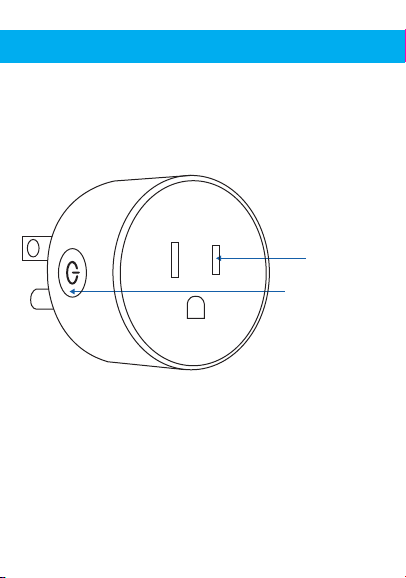
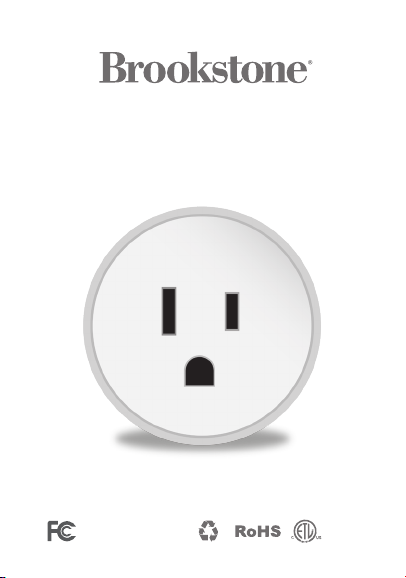
On/Off Button
(reset)
Power Socket
PRODUCT CONFIGURATION
Items included in package:
Smart Plug and User Manual.

DOWNLOAD APP
Brookstone Smart
1. Android™: download “Brookstone Smart” app
on Google Play.
2. iPhone: download “Brookstone Smart” app
from the App Store.

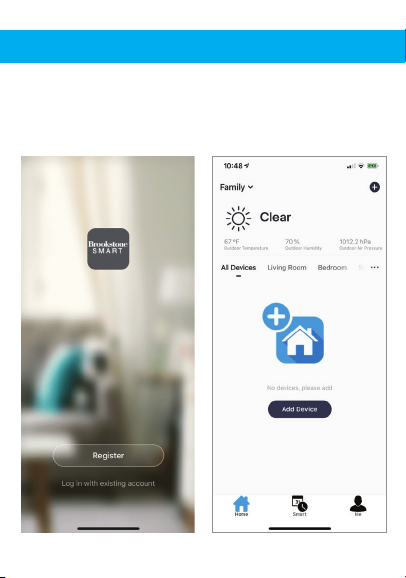
REGISTRATION AND LOGIN
1. Run the “Brookstone Smart” app from your
smart phone.
2. Register and login.
*Screenshots may slightly differ from actual app.
*

1. Plug in Smart Plug into electrical socket and
hold down on/off button until the light
blinks rapidly.
2. Make sure phone is connected to your Wi-Fi
network and that it is a 2.4GHz network.
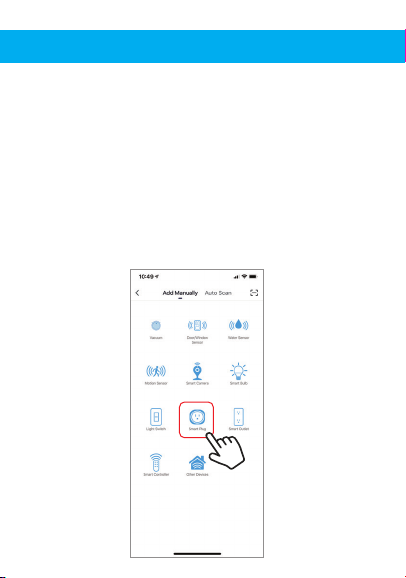
3. Press the (+) symbol in the top right corner of
the app and select the Smart Plug from
the list of devices to add.
ADD DEVICE

1. Plug in Smart Plug into electrical socket and
hold down on/off button until the light
blinks rapidly.
2. Make sure phone is connected to your Wi-Fi
network and that it is a 2.4GHz network.
3. Press the (+) symbol in the top right corner of
the app and select the Smart Plug from
the list of devices to add.
5. Make sure phone is connected to the Wi-Fi
network that the device will be connected to.
Enter your password for the Wi-Fi network.
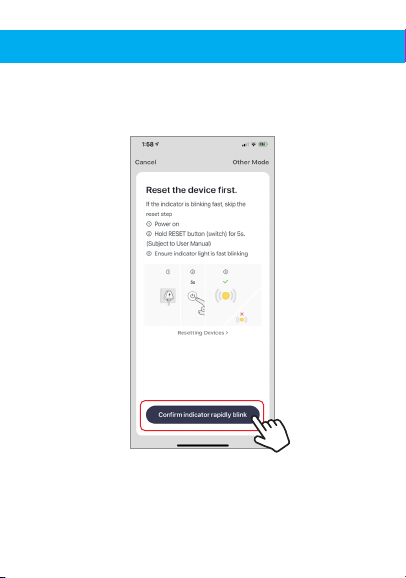
4. Confirm indicator light is blinking and press
the “confirm indicator rapidly blinks” button.

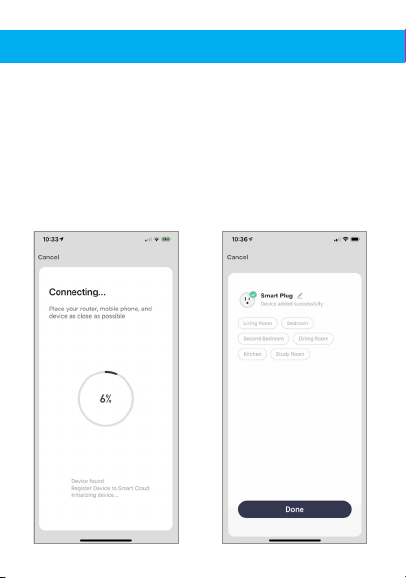
6. Connecting process will begin. Do not turn off
Smart Plug or phone while connecting. Wait for
connection process to complete.
7. Once device has been successfully added, name
the device what you would like it to be called in
the app. The Smart Plug is ready for use.
5. Make sure phone is connected to the Wi-Fi
network that the device will be connected to.
Enter your password for the Wi-Fi network.
4. Confirm indicator light is blinking and press
the “confirm indicator rapidly blinks” button.
Indice
Altri manuali Brookstone Domotica