
Browning Recon Force Elite HP5 BTC-7E-HP5 Manuale utente

PLEASE READ THIS MANUAL BEFORE USE
MODEL BTC-7E-HP5
Thank you for purchasing a Browning Trail Camera. Our
trail cameras are constructed of the finest workmanship
and materials available. As hunters ourselves, we have
designed our products to help you get the most of your
time in the field. We hope you enjoy scouting game
for years to come with your new Browning Trail Camera.
Our customer service team is here to help you with any
questions you may have operating or setting up your
new trail camera. Our representatives are available
Monday through Friday from 9am to 5pm CST.
Toll Free Customer Service: 1.888.618.4496
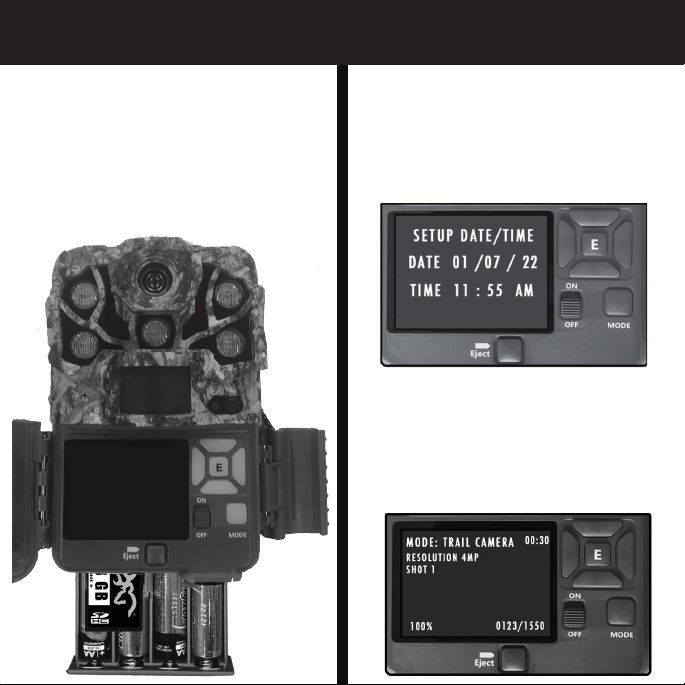
STEP 1
Insert 8 AA Alkaline Batteries
and an SD card into the camera.
Power on the camera using the
ON/OFF switch.
STEP 2
Press the MODE button to enter
the programming screen. Select
CAMERA SETUP and then set the
time and date.
STEP 3
Return to the home screen.
Camera will countdown a 30
second delay and then by ready
to capture images.
QUICK START GUIDE

TABLE OF CONTENTS
1- Package Contents
2- Batteries and SD Cards
2- Camera Diagram
3- Battery Installation
4- Main Screen
5- Time and Date
6- Capture Mode
7- Photo Quality / Video Length
8- Video Quality / Photo Delay
9- Multi Shot Modes
10-Temperature Units / Canera Name
11- Image Data Strip / Motion Test
12- Motion Detection / Battery Type / Trigger Speed
13- Timelapse Settings
14- Delete Images / IR Flash Power
15- Smart IR / SD Management
16- Language / Capture Timer / HDR / FW Upgrade
17- Image Retrieval
18- Timelapse Viewer
19- Field Installation
20- Warranty
21- Accessories
22- FCC
23- Camera Specifications / SD Card Size Chart

Getting Started
Package contents:
1- Trail Camera
1- 6’ Tree Strap
1- Instruction Manual
SD Card Selection
Install a good quality memory card. The best
brands of SD cards are Browning branded cards,
Sandisk or Kingston branded cards. Your camera
can operate on standard class 10 or higher SD
cards ranging from 8-32 GB. You can also use
higher capacity SDXC cards ranging from 64-512GB.
Please see page 23 for a graph showing how many
photos, videos and timelapse segments can be
stored on SDHC or SDXC cards from 8-32GB. Based
on your intended camera usage, this table will
help you determine what size SD card you need
to use in your camera. 1

Camera Diagram
Camera
Lens
2
Infrared LEDs
PIR Sensor
Microphone
Light
Sensor /Aim LED
Programming
Buttons
Color
TFT
Screen
Mode Button
Power Switch
12 Volt Ext Power Port
Battery Eject
Button
SD Card Slot

Battery Installation
Release the battery tray
by pressing the Battery
Eject button. The tray will
eject about 1/2”. With a
slight pull, the battery tray
will completely eject.
Slide the battery tray
into the closed position. 3
Install 8 AA Alkaline,
Lithium or Rechargeable
batteries in
the battery tray. Make
sure you install the
batteries with the correct
polarity, following the
markings on the battery tray.
For optimal performance
we recommend using
Browning branded batteries,
Energizer or Duracell.
Battery Eject Button

4
MODE: TRAIL CAM 00:30
Resolution 4MP
Shot 1
100% 102/1500
Main Screen
Turn the camera’s power on by sliding the power
switch to the ON position.
The main screen displays the
camera operation mode,
pictures or videos taken,
pictures or videos possible on
the SD card, resolution, multi shot count, camera delay
countdown and battery life percentage. The background will
show a live image from the camera. This can be used to
help position the camera in the field.
The possible camera modes displayed are Trail Cam, Video,
and Timelapse Plus.
When the delay counter counts down to 00:00. The camera is
now ready to take a picture or video.
The battery life meter shows the percentage of charge left
in your batteries.
The battery indicator changes to EXT when an external
battery is plugged into the external power port.

SETUP DATE / TIME
DATE
1/05/2022
TIME
12:21 PM
Set Time and Date
To set the time and date:
Press the ENTER button once after you have made your
selection for AM/PM. This will lock in your settings and
return you to the CAMERA SETUP SCREEN. 5
From the HOME screen, press the MODE button once. Select
the CAMERA SETUP option by pressing the Enter (E) button.
Highlight the SETUP DATE/ TIME option and press the Enter
button. This will take you to the SET TIME AND DATE screen.
The month selection is highlighted. Use the UP and DOWN
arrows to select the correct month.
When finished setting the month, press the RIGHT ARROW
key to advance to set the correct day. Continue through
all settings in this manner until the correct time
and date appear.
6
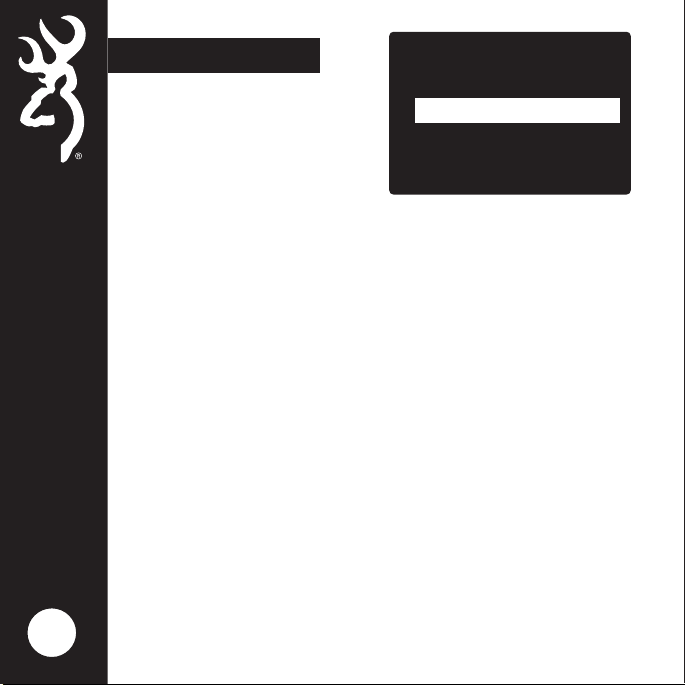
CAMERA SETUP
SETUP DATE/ TIME
OPERATION MODE
PHOTO QUALITY
VIDEO LENGTH
Operation Mode
To set the camera’s capture
Mode, Highlight the
OPERATION MODE option in
the SETUP MENU, and
press ENTER.
Using the UP or DOWN arrow keys, select the operation
mode for your camera. Press the ENTER key when finished.
CAPTURE MODE OPTIONS:
- TRAIL CAM This setting will take still pictures of game
in daytime and nightime. This is the setting
most people use for trails and feeding areas.
- TIMELAPSE This setting allows you to take timelapse
PLUS images during the day. In addition, your
camera will also take motion activated
pictures during the day and night, to make
sure you do not miss any game activity.
- VIDEO This setting will take Full HD video clips of
game in daytime and nightime.


