
BT HTC S620 Manuale utente
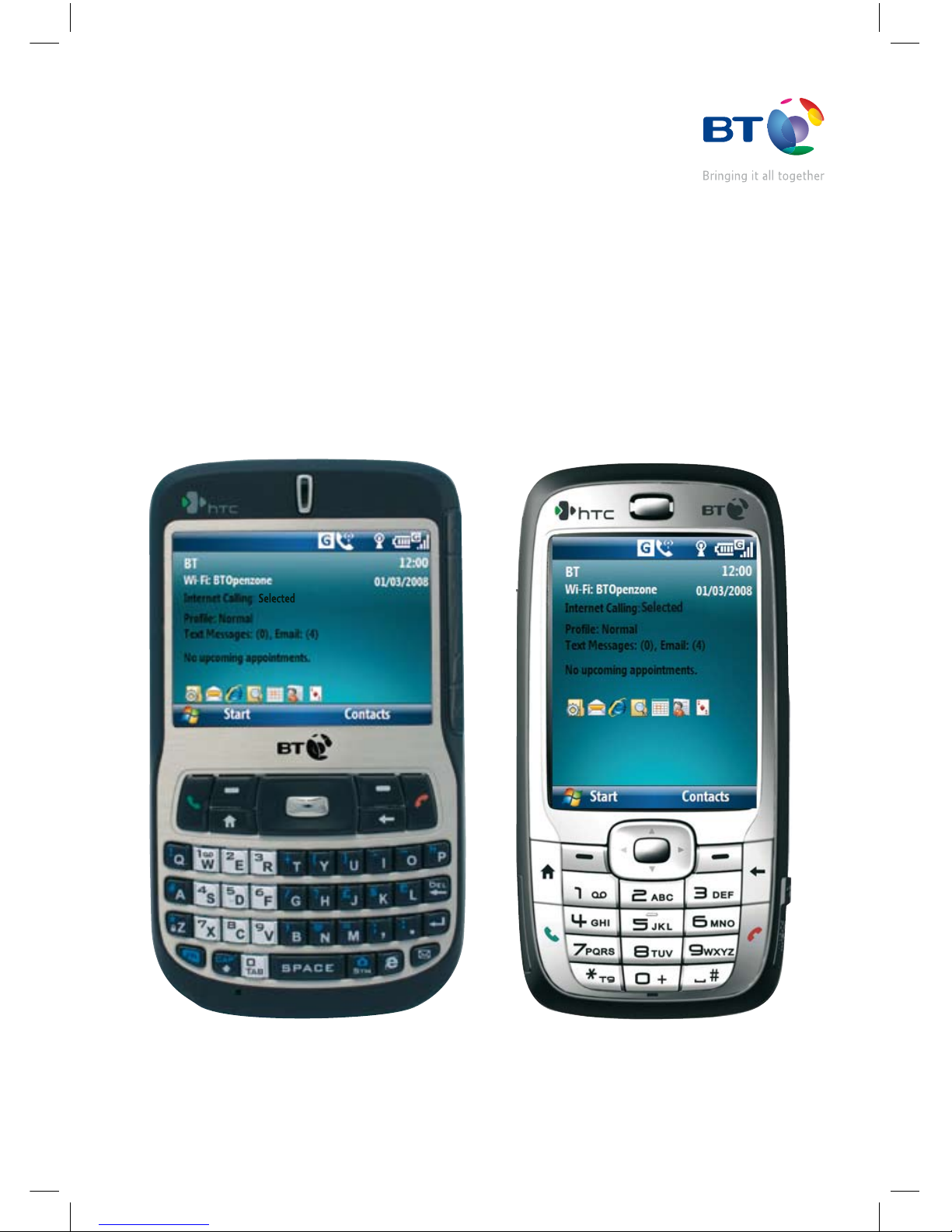
Your Guide to BT Ofce Anywhere
Your complete mobile ofce solution
for the HTC S620 or HTC S710 handset
8842 HTC S620_S710 UG [1].indd 1 4/6/08 12:57:57

Important.
Use the separate BT Ofce Anywhere Installation Guide rst, to set up your handset.
Welcome
2
8842 HTC S620_S710 UG [1].indd 2 4/6/08 12:57:57

HTC S620 and S710 handsets
Getting to know your HTC S620 4
Home screen for S620 and S710 10
Getting to know your HTC S710 12
Application and status icons 18
LED indicator lights 22
BT Openzone 24
Register and use Wi-Fi at other Hubs 26
Surf the net 28
Internet Calls 30
Send and receive emails and texts 31
Other features 32
Voicemail 1571 34
Using abroad 36
Phone security 38
Useful numbers 40
Ofce Anywhere FAQs and Troubleshooting 42
Contents
3
8842 HTC S620_S710 UG [1].indd 3 4/6/08 12:57:57
4
Your HTC S620
4
8842 HTC S620_S710 UG [1].indd 4 4/6/08 12:57:57
5
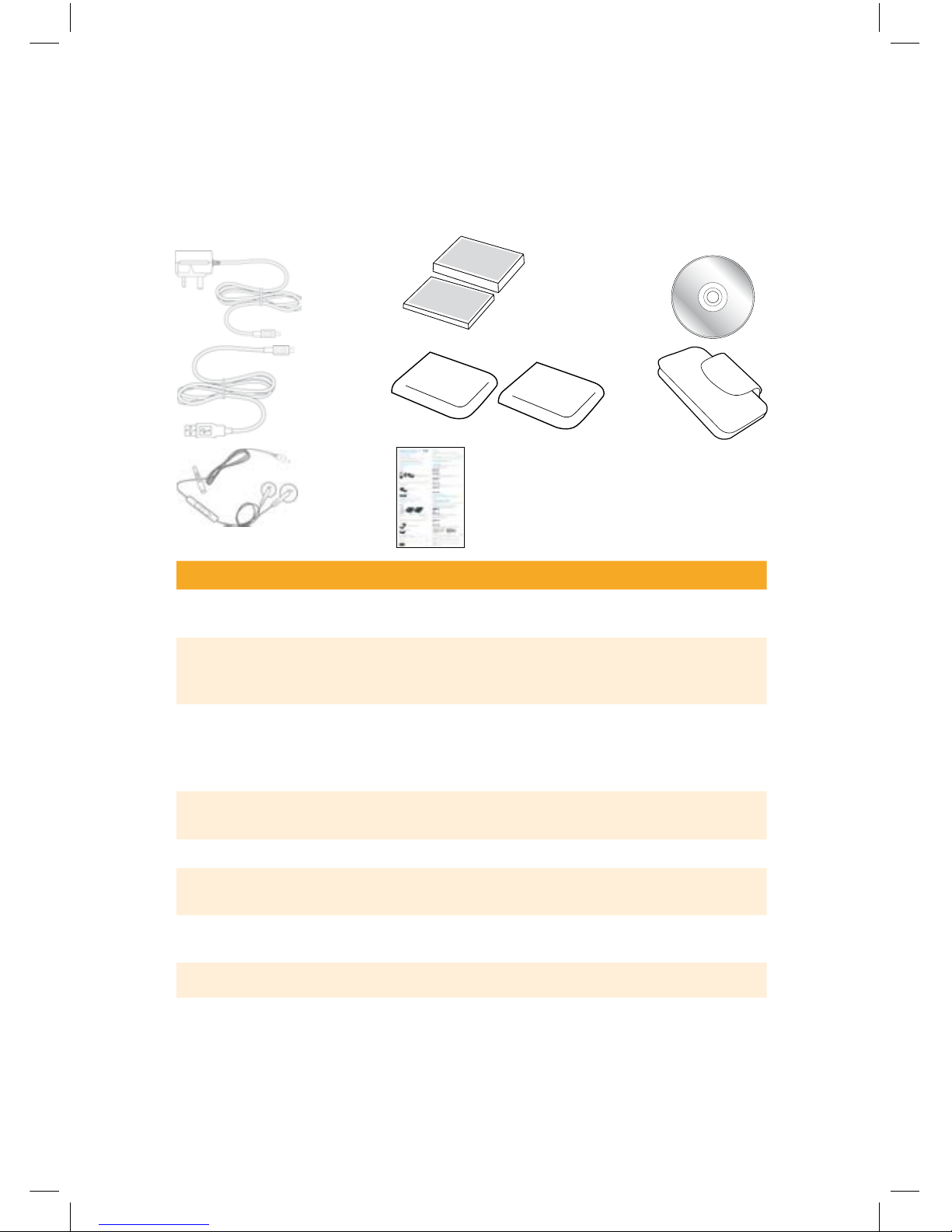
HTC S620 accessories
The following accessories are provided with the phone:
Accessory Function
1. Mains charger
(AC adaptor)
Recharge the phone battery.
2. USB cable Connect your phone to a PC, transfer files between them and
charge battery. Please read ActiveSync section (Other Features
chapter) before connecting this cable.
3.
Stereo headset
Provides a volume control slider and a Send/End button. You
can press the button to pick up a call or put a call on hold or
press and hold the button to end the call. Plug into Earphone
Jack to listen to audio files.
4. Standard and extended
life batteries
5. Battery covers
6. BT Office Anywhere
Installation Guide
Enables you to set up and use your device and its main services.
Please retain for future reference.
7. CD
CD Contains ActiveSync software. Not required to get your
phone started. For more information, see ActiveSync, page 32.
8. Leather carry case
9. HTC User Manual*
Not illustrated above – HTC User Manual.
Important
*BT has added extra services to your handset. Some of the screens and instructions
shown in this guide may differ from those in the HTC S620 User Manual.
1
2
3
7
8
4
5
6
8842 HTC S620_S710 UG [1].indd 5 4/6/08 12:57:59
66
9 10 11
12
13
14
15
16
18
17
1
2
4
5
6
8
3
7
8842 HTC S620_S710 UG [1].indd 6 4/6/08 12:58:00
7
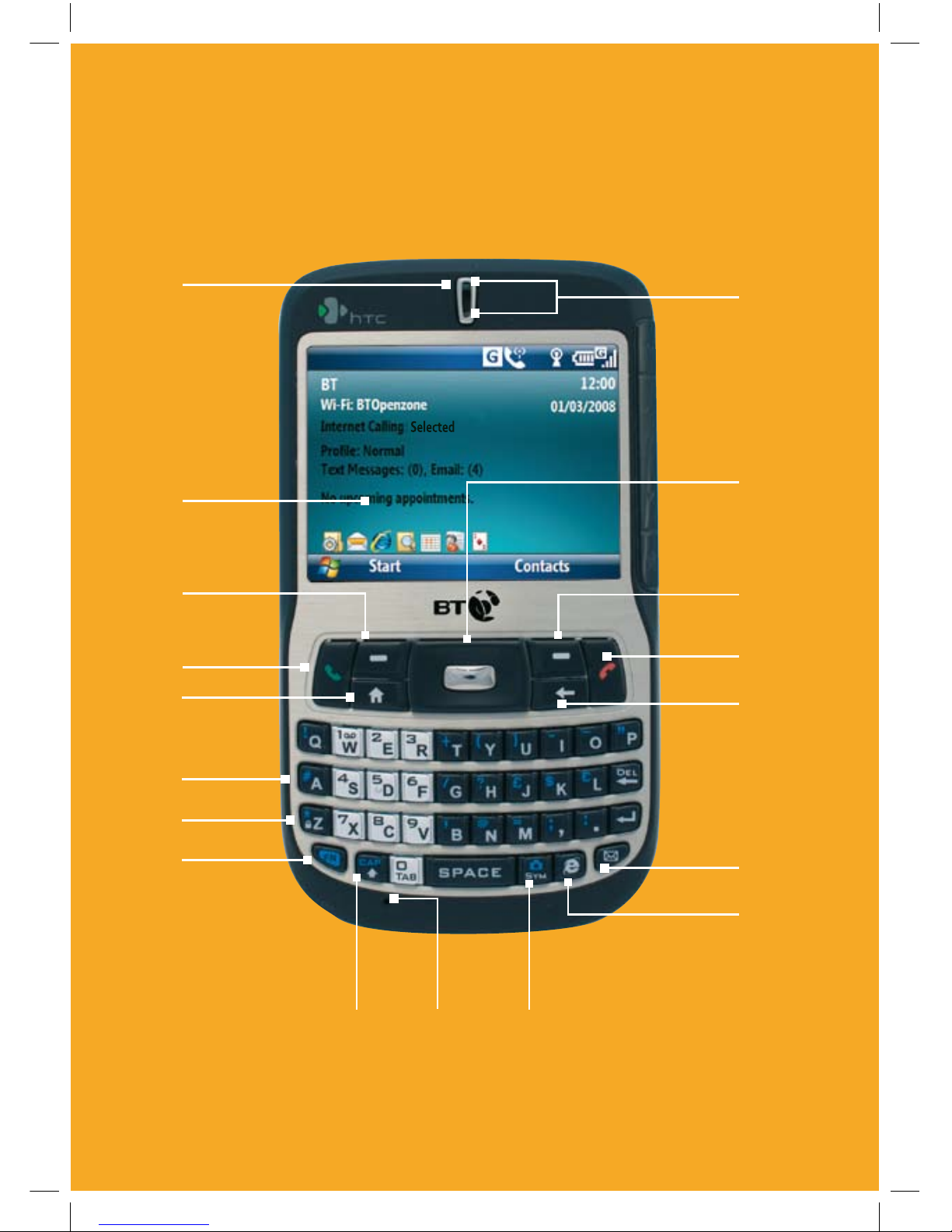
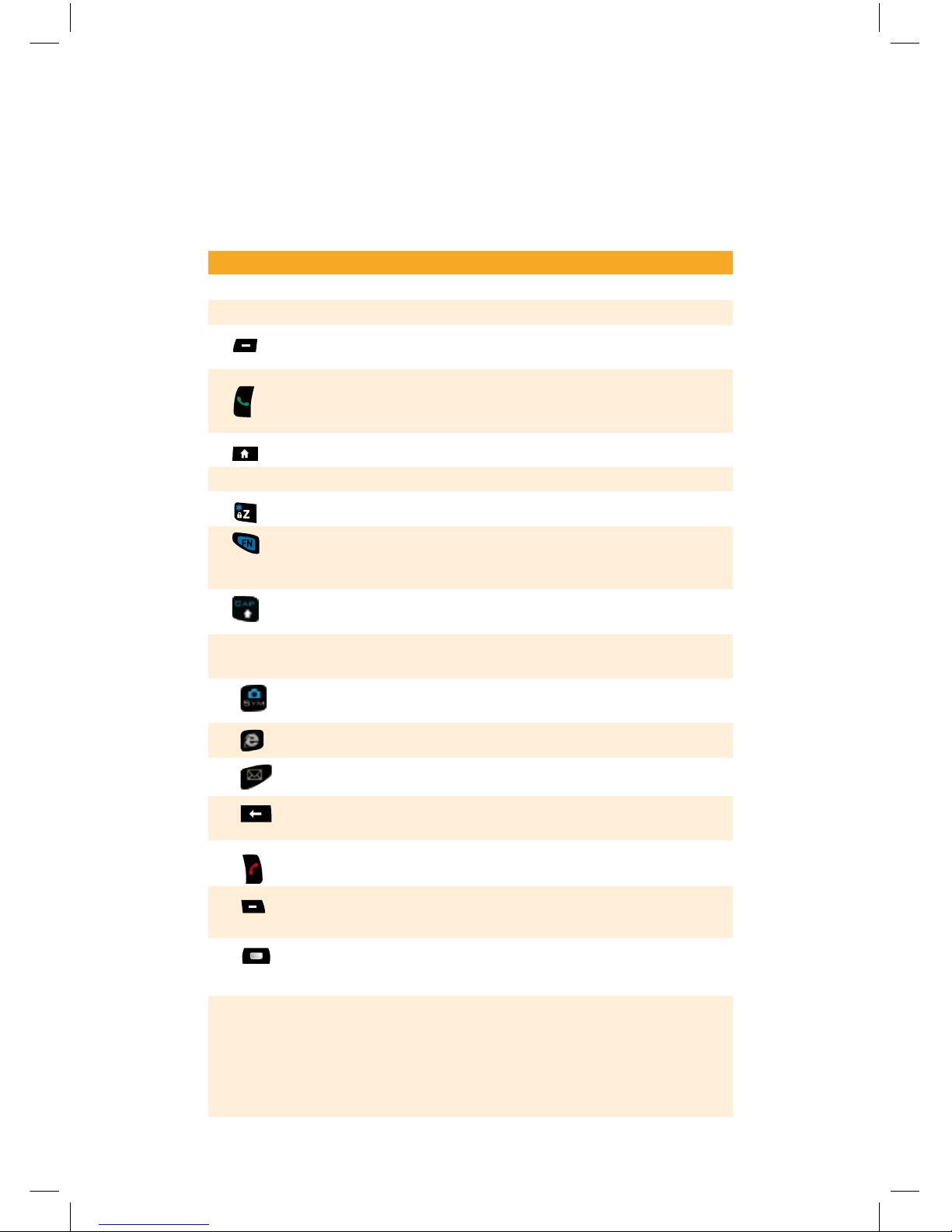
Getting to know your HTC S620 phone
Item Function
1. Earpiece Listen to a phone call.
2.
Display Screen
3. Left SOFT KEY Press to perform the command shown in the label above
the button.
4. TALK
Press to dial a phone number, answer a call, switch to
another call, or put a call on hold. Press and hold to activate/
deactivate speakerphone mode
.
5. HOME Press to go to the Home Screen.
6. QWERTY Keyboard This is similar to a standard keyboard on a PC.
7. Keypad Lock Press and hold to lock and unlock the keypad.
8. Key
Press once to type symbols (characters in blue) and enter
numbers in text fields. Press twice for continuous symbol
or number entries.
9. Key Press to type a single capital letter. Press the FN key then
this key to type in all caps.
10. Microphone Speak into the microphone when receiving or making a
phone call or during voice recording.
11. Key Press to open the Symbol table (when typing text) or the
Camera program.
12. Key Press to open Internet Explorer Mobile.
13. Key Press to open the Messaging program.
14. BACK Press to go to the previous screen, or backspace
over characters.
15. END Press to end a call, or press and hold to lock the phone.
16.
Right
SOFT KEY
Press to perform the command shown in the label above
the button.
17. NAVIGATION
CONTROL/ENTER
Use to scroll left, right, up, or down. Press the centre to
use as the ENTER button.
18. LED Indicators The top LED indicators (green/red/amber) notify you of
the battery and network status of your phone respectively,
while the bottom indicators (blue/green) notify you
of Bluetooth and Wi-Fi connectivity status. For more
information about LED Indicators, see the table at the end
of this section.
8842 HTC S620_S710 UG [1].indd 7 4/6/08 12:58:02
88
19 20 21 22 23
24
25
26
8842 HTC S620_S710 UG [1].indd 8 4/6/08 12:58:02

9
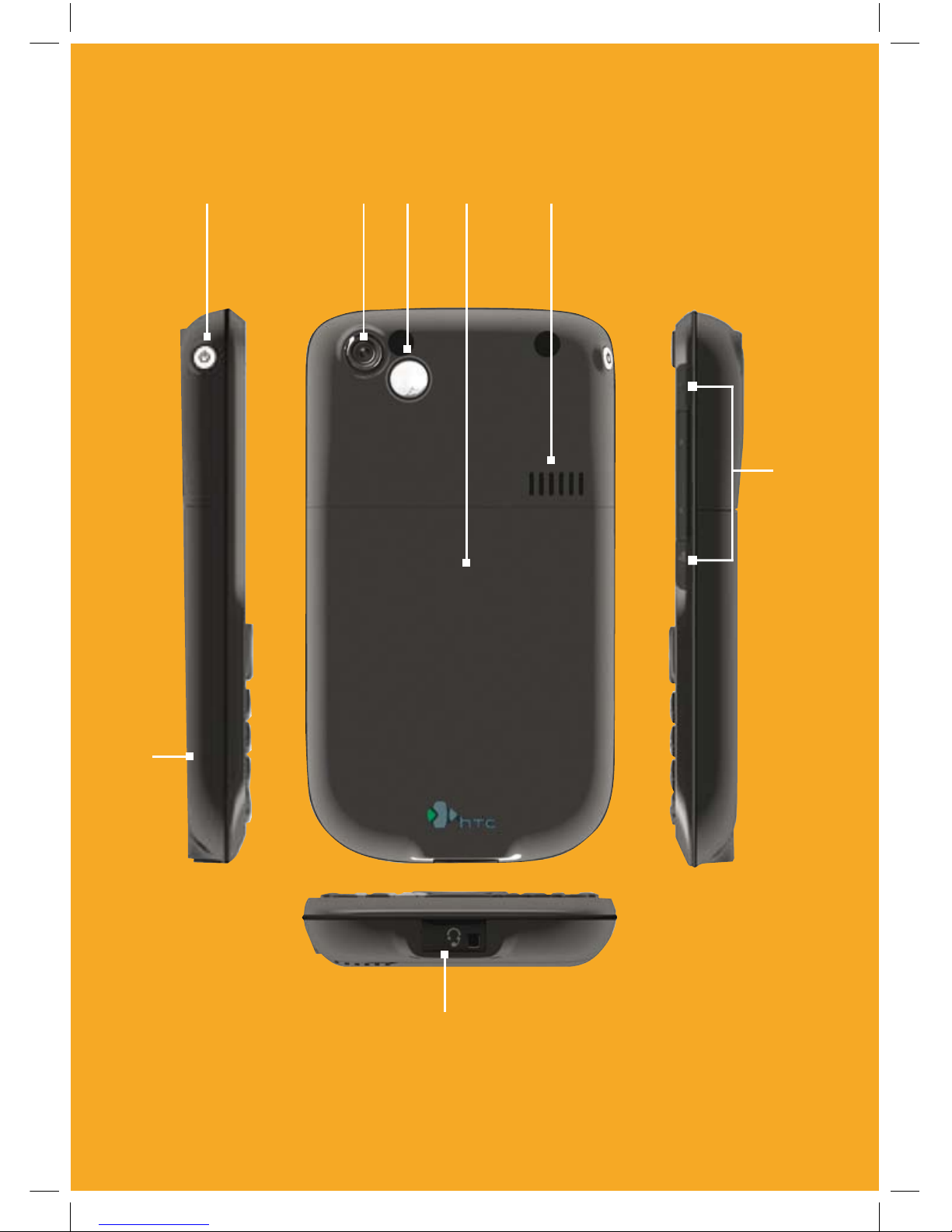
Item Function
19. POWER Press and hold to turn the phone on or off. Or press and
quickly release the POWER button to display the Quick
List, which allows you to change profiles, open Comm
Manager, and enable/disable key lock and enable/
disable device lock.
20. Camera Lens
21. Self-Portrait
Mirror
Turn the back side of your phone to face yourself so
that your image reflects on the mirror when taking
self-portrait shots.
22. Back Cover Remove to insert battery, SIM card, and Micro SD card.
23. Speakers Listen to audio media or a phone call when using
speakerphone mode (during a call press Menu then 3.
Speakerphone On).
24. JOGGR Depending on the selected JOGGR function, scroll the
middle part up or down to adjust the volume or to go
through the items on-screen.
When used as a scrollbar:
• Double-click the middle part to select an item.
• Double-click the top part to go back to the previous screen.
• Double-click the bottom part to open Outlook Mobile.
Click Start > Settings > JOGGR to set the appropriate
function the JOGGR will be used for. Clear the Enable
JOGGR box to disable the JOGGR.
25. Sync Connector/
Earphone Jack
Use for synchronizing data or recharging the battery.
Pry open the rubber cover (from the left) to connect the
earphone to listen to audio media or use the phone’s
hands-free kit.
26. Memory Card
Slot
Remove battery cover, use thumbnail to insert/
remove optional memory card.
8842 HTC S620_S710 UG [1].indd 9 4/6/08 12:58:02
10
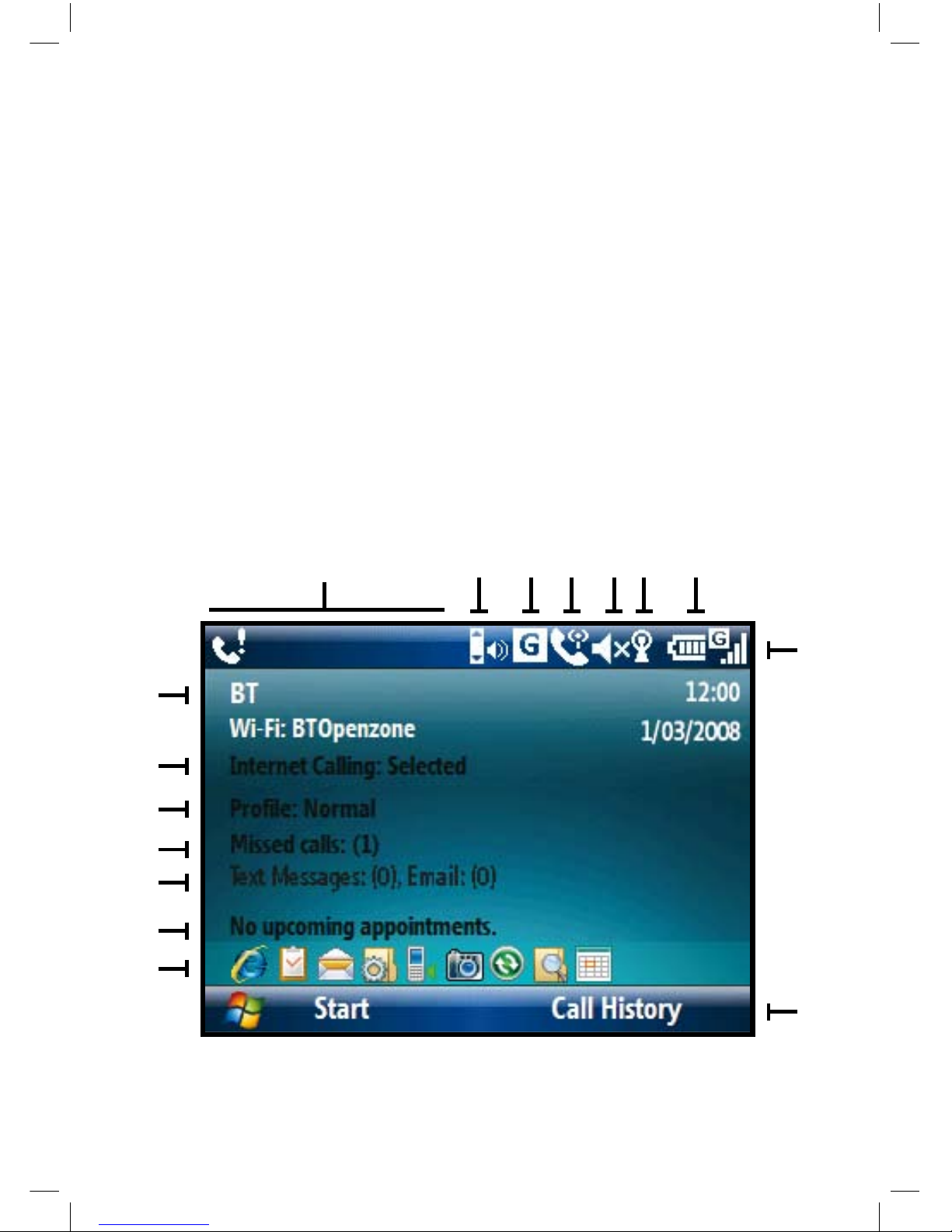
The Home screen displays important
information such as new mail messages,
appointments, icons, links to recently used
programs and the status of your handset.
• To access the Home screen from
anywhere, press HOME.
S710 Only
The image below shows the screen when
the keyboard is out. It will change from
landscape to portrait automatically when
you slide the keyboard back in.
Navigating around the screen
• Use the NAVIGATION CONTROL to scroll UP,
DOWN, LEFT or RIGHT around the screen.
When you have highlighted the
icon or information you want, press
the centre button to Select it.
• Scroll DOWN the Home screen to see
more information.
• Click the information eld to view
or change the settings.
Home screen for S620 and S710
1
2
3
4
5
6
119†
812
15
7
10
16
13 14
† S620 handset only
8842 HTC S620_S710 UG [1].indd 10 4/6/08 12:58:02
Questo manuale è adatto per i seguenti modelli
1
Indice
Altri manuali BT Telefono cellulare


