
BZB Gear BG-CJ-IPRSPRO Manuale utente
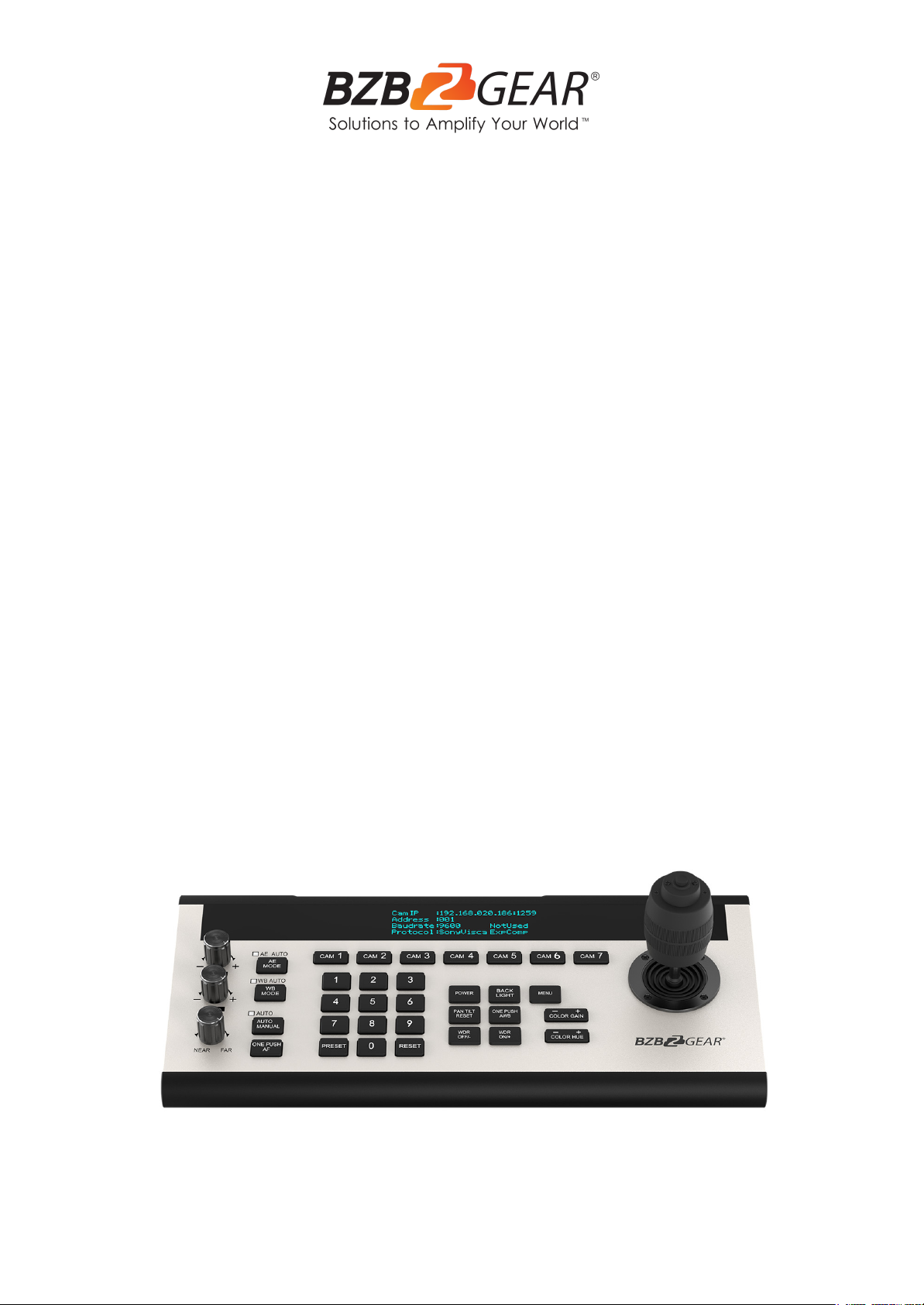
BG-CJ-IPRSPRO
Professional Serial and IP Joystick Controller (IP/RS-232/422/485)
User Manual

BZBGEAR BG-CJ-IPRSPRO PRODUCT MANUAL
Address: 830 National Drive #140, Sacramento, CA 95834, USA ·Tel: +1(888)499-9906 ·Email: support@bzbgear.com 2

BZBGEAR BG-CJ-IPRSPRO PRODUCT MANUAL
TABLE OF CONTENTS
Statement 4
Safety Precaution 4
Introduction 5
Features 5
Packing List 5
Technical Specifications 6
Operation Controls and Functions 7
Menu Introduction 11
Application Example 14
Tech Support 15
Warranty 15
Mission Statement 15
Copyright 16
Address: 830 National Drive #140, Sacramento, CA 95834, USA ·Tel: +1(888)499-9906 ·Email: support@bzbgear.com 3

BZBGEAR BG-CJ-IPRSPRO PRODUCT MANUAL
Statement
Please read these instructions carefully before connecting, operating, or configuring this
product. Please save this manual for future reference.
Safety Precaution
●Unpack the equipment carefully and save the original box and packing material for
possible future shipment.
●Follow basic safety precautions to reduce the risk of fire, electrical shock and injury to
persons.
●To prevent damaging this product, avoid heavy pressure, strong vibration, or immersion
during transportation, storage, and installation.
●Do not dismantle the housing or modify the module.
●Using supplies or parts not meeting the products’ specifications may cause damage,
deterioration or malfunction.
●Do not put any heavy items on the extension cable in case of extrusion.
●Install the device in a place with fine ventilation to avoid damage caused by overheat.
●Do not twist or pull by force ends of the optical cable. It can cause malfunction.
●The housing of this product is made of organic materials. Do not expose to any liquid,
gas, or solids which may corrode the shell.
●Unplug this device during lightning storms.
●Do not use liquid or aerosol cleaners to clean this unit. Clean only with a soft dry
microfiber cloth.
●Always unplug the power to the device before cleaning.
●If an object or liquid falls or spills on to the housing, unplug the module immediately.
●To prevent the risk of electric shock, do not open the case. Installation and maintenance
should only be carried out by qualified technicians.
●Do not use the product beyond the specified temperature, humidity, or power supply
specifications.
●This product does not contain parts that can be maintained or repaired by users.
Damage caused by dismantling the product without authorization from BZBGEAR is not
covered under the warranty policy.
●Installation and use of this product must strictly comply with local electrical safety
standards.
●Product specifications may be subject to technical upgrades without further notice.
●Unplug the power cord when left unused for a long period of time.
●Information on disposal for scrapped devices: do not burn or mix with general
household waste, please treat them as normal electrical wastes.
Address: 830 National Drive #140, Sacramento, CA 95834, USA ·Tel: +1(888)499-9906 ·Email: support@bzbgear.com 4

BZBGEAR BG-CJ-IPRSPRO PRODUCT MANUAL
Introduction
The BG-CJ-IPRSPRO is a network camera controller with several control modes. It is a
popular choice for recording studios, live production teams, and houses of worship thanks
to its professional-grade reliability, ease of use, and compatibility with many IP-capable
cameras.
Features
●Flexible: Store and recall up to 46 camera presets!
●Quick Select: Fast and easy camera selection
●High Quality Construction: Designed to handle years of use
●Control up to 7 compatible IP cameras
●Logical button layout for a quick workflow
●Adjust PTZ speed for the perfect transition
●IP VISCA, ONVIF, RS232/422/485 control modes
●Integrated OLED display
●Keypad dims without use and adjusts to ambient light
Packing List
●1x BG-CJ-IPRSPRO Controller Joystick Gen2
●1x Power Supply
●1x User Manual
●1х Quick Start Guide
Address: 830 National Drive #140, Sacramento, CA 95834, USA ·Tel: +1(888)499-9906 ·Email: support@bzbgear.com 5

BZBGEAR BG-CJ-IPRSPRO PRODUCT MANUAL
Technical Specifications
Technical
Communication
RS485, RS42, RS23, IP (VISCA OVER IP) & Micro USB (Upgrade)
Baud Rate
2400, 4800, 9600, 19200, 38400 bps
Display
OLED Display Screen
CAM Short key Channel
7
Rotation Button
3
Joystick
1
IP Address
Default IP: 192.168.1.162
UDP Port
08090
Cam ID
1~7, Others (Max 255)
Control Protocol
VISCA, SONY VISCA, PELCO P/D, UDP, IP (VISCA OVER IP)
Power adapter
Input: AC100V ~ 240V
Output: DC 12V/2A
Voltage
DC 12V
Power consumption
24W
Working Temperature
0°C ~ 40°C (32°F ~ 104°F)
Dimensions (LxWxH)
13.8 x 6.8 x 3.9 in [350 x 173 x 99 mm]
Weight
5.5 lbs
Using Environment
Indoor
Address: 830 National Drive #140, Sacramento, CA 95834, USA ·Tel: +1(888)499-9906 ·Email: support@bzbgear.com 6

BZBGEAR BG-CJ-IPRSPRO PRODUCT MANUAL
Operation Controls and Functions
Side Panel
1. Micro USB: Connect Micro USB cable to a PC to upgrade the firmware of your
controller.
2. RS-422: Use the RS-422 port to control your cameras over long distances up to
328ft.
3. RS-232: Use the RS-232 to 8-pin Mini-DIN cable to connect the 1st camera and
Mini-DIN visca cables for cascadable connections.
4. LAN: Connect to a network switch via category cable for TCP/IP control.
5. Power: Connect supplied 12V power adapter.
Address: 830 National Drive #140, Sacramento, CA 95834, USA ·Tel: +1(888)499-9906 ·Email: support@bzbgear.com 7
BZBGEAR BG-CJ-IPRSPRO PRODUCT MANUAL
Keys Function Description
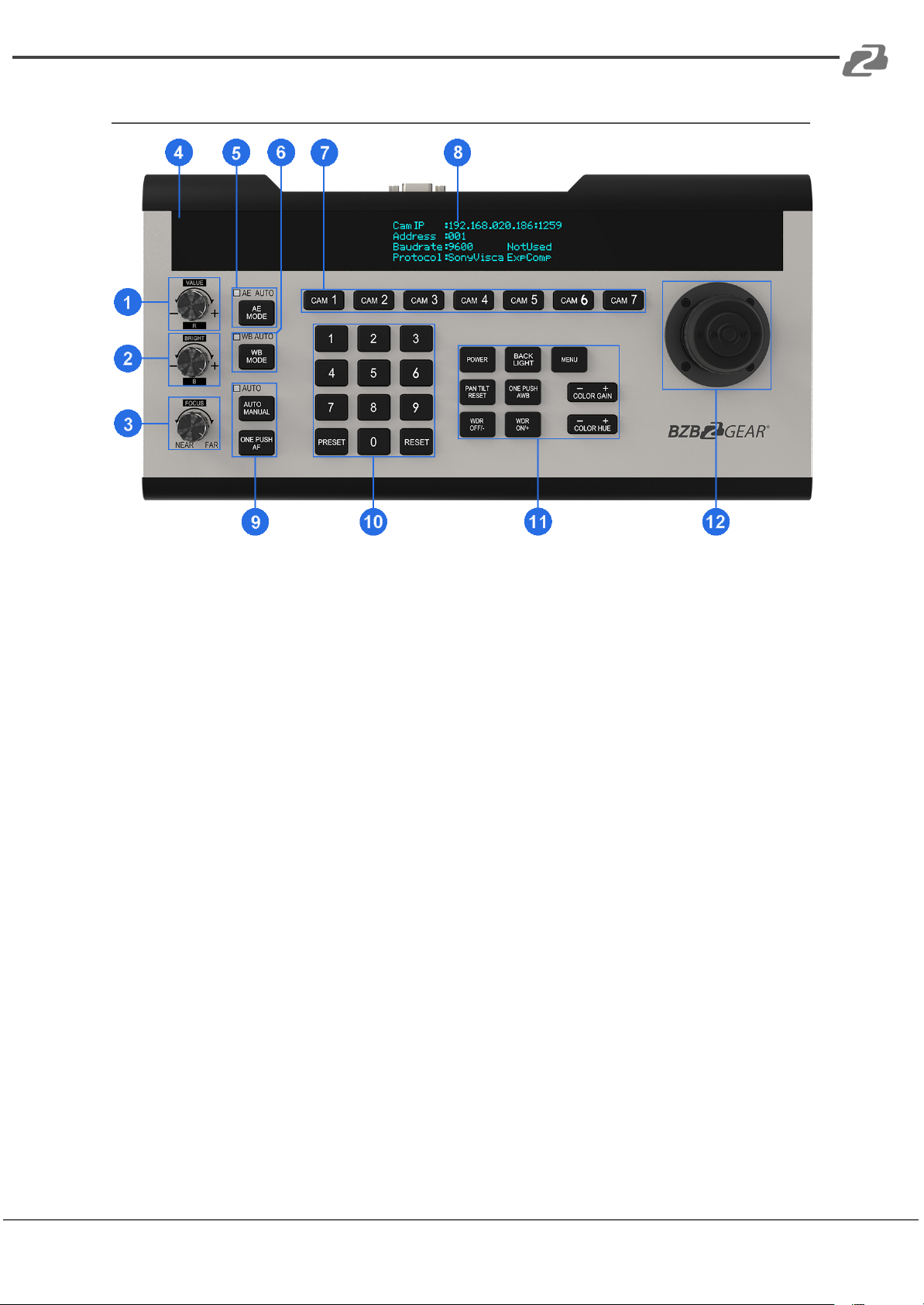
1. VALUE/R - Knob
Adjust the camera's Exposure parameters or Red Gain Value. Clockwise to increase,
counterclockwise to decrease.
2. BRIGHT/B - Knob
Adjust the camera's Exposure parameters or Blue Gain Value. Clockwise to
increase, counterclockwise to decrease.
3. FOCUS - Knob
Adjust the camera's focal length. Clockwise to focus far, counterclockwise to focus
near.
Note: When using this function, the keyboard's Focus Mode will change to
MANUAL.
4. Light Sensor
Detects the current environmental brightness. When the keyboard backlight setting
is set to AUTO, the backlight will adjust according to the environment's light level.
Address: 830 National Drive #140, Sacramento, CA 95834, USA ·Tel: +1(888)499-9906 ·Email: support@bzbgear.com 8
BZBGEAR BG-CJ-IPRSPRO PRODUCT MANUAL
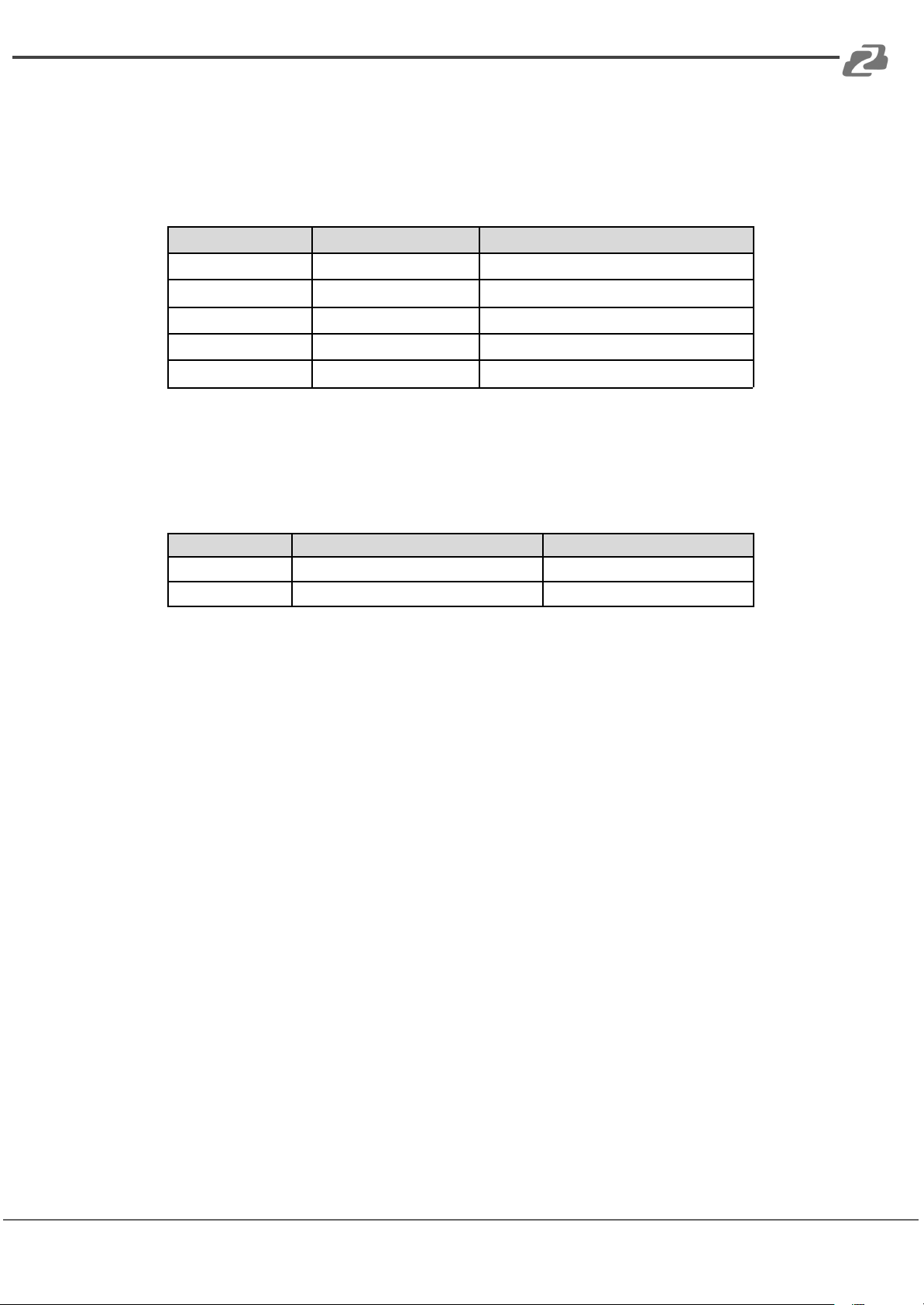
5. AE Mode Key
Modify Auto Exposure mode. Pressing the button will switch between modes. Use
the VALUE/R-Knob and BRIGHT/B-Knob to change value settings. When the AE
AUTO light indicator is on, the VALUE- and BRIGHT-Knobs will only operate in this
mode.
Exposure Mode
VALUE-Knobs Function
BRIGHT-Knobs Function
AUTO
None
Gain Compensation
MANUAL
Shutter
IRIS
Shutter Priority
Shutter
Gain Compensation
Iris Priority
IRIS
Gain Compensation
Brightness Priority
None
Brightness
6. WB Mode Key
Modify White balance mode. Pressing the button will change between auto and
manual modes. Use the VALUE/R-Knob and BRIGHT/B-Knob to change value
settings. When the WB AUTO light indicator is on, the R- and B-Knobs will only
operate in this mode.
WB Mode
R-Knob Function
B-Knob Function
Auto
None
None
Manual
Red Gain
Blue Gain
7. Channel short Keys Area
[CAM1] ~ [CAM7] is the shortcut key to switch the channel of the camera. When you
press the camera selection, the indicator light turns green. Now all the keyboard
display information is from that camera. All of the camera channels can work with
different communication protocols and COMM parameters.
8. Display Screen
Displays current real-time Keyboard status information (including IP Address, Port
Number, COMM ID, Communication Protocol, Baud Rate, etc.) and Keyboard Menu.
The display screen brightness can be set in the Keyboard Menu.
9. FOCUS Function Area
[AUTO MANUAL] Adjust camera's Focus Mode.
When AUTO indication light is ON, then the current mode is AUTO MODE
[ONE PUSH AF] Triggers one-time Auto FOCUS. Each time it is pressed, the camera
focuses once. The camera will enter AUTO FOCUS mode.
Address: 830 National Drive #140, Sacramento, CA 95834, USA ·Tel: +1(888)499-9906 ·Email: support@bzbgear.com 9

BZBGEAR BG-CJ-IPRSPRO PRODUCT MANUAL
10. PRESETS Function Area
[PRESET] Keys are used to Save and Call Presets.
Save Presets : Press the [PRESET] Button, the light of [PRESET] keys start
blinking. Next press the number of Preset position you want saved (e.g., [PRESET] +
[1] + [2] + [0] to save Preset 120).
Call Presets: Preset Number Keys + [PRESET] (e.g., Press [1] + [2] + [0], then press
[PRESET] , to call Preset 120).
Clear Presets: Press [RESET] button; the light of [RESET] keys will blink. Next
press the number of the saved preset position you want to clear (e.g., Press
[RESET] + [1] + [2] + [0] to clear Preset 120).
11. Camera function Area
[POWER] key is to check the power status of all camera channels. Press the keys
and the indication light of [CAM1] ~ [CAM7] turns on.
Green means the camera is powered on. White means the camera is in standby
mode. No light means the camera is not connected.
Pressing [POWER] + [CAM1] - [CAM7] will turn on/off the corresponding camera.
[BACKLIGHT] Turn ON/OFF Back light
[MENU] Open or close keyboard menu; long press [MENU] enter to Keyboard menu
setting:
●[PAN TILT RESET] Reset the Pan/Tilt Position of camera
●[ONE PUSH AWB] Trigger one-time white balance.
Each time you press, the camera will calibrate White balance one time.
The camera will enter to Single time White balance Mode.
[WDR OFF/-] Turn OFF WDR Function or Reduced Dynamic Grade (Only available
for Multigrade WDR Camera)
[WDR ON/+] Turn on WDR Function or Increased Dynamic Grade (Only available
forMultigrade WDR Camera)
[COLOR GAIN+] Increase the value of COLOR GAIN
[COLOR GAIN-] Reduce the value of COLOR GAIN
[COLOR HUE+] Increase the value of COLOR HUE
[COLOR HUE-] Reduce the value of COLOR HUE
12. 3-Axis Joystick
The joystick can support up/down, left/right, and clockwise/ counterclockwise
directional rotation. It can move the camera up/down, left/right and zoom in/out.
Clockwise rotation is to zoom in (TELE), counterclockwise rotation is to zoom out
(WIDE). When inside the Keyboard menu, the joystick can be used to modify the
parameters.
Address: 830 National Drive #140, Sacramento, CA 95834, USA ·Tel: +1(888)499-9906 ·Email: support@bzbgear.com 10
Altri manuali per BG-CJ-IPRSPRO
1
Indice
Altri manuali BZB Gear Controllori

BZB Gear
BZB Gear BG-UHD-VW29 Manuale utente

BZB Gear
BZB Gear BG-Commander Manuale utente

BZB Gear
BZB Gear BG-VOP-CB Manuale utente

BZB Gear
BZB Gear Mini Pro Manuale utente

BZB Gear
BZB Gear BG-Commander Manuale utente

BZB Gear
BZB Gear BG-UHD-VW2X2 Manuale utente

BZB Gear
BZB Gear BG-UHD-VWP-1X4 Manuale utente

BZB Gear
BZB Gear BG-VOP-CB Manuale utente


