
Cactus KidoPlay Manuale utente

User Manual
Interactive Smartwatch for Kids
www.cactuswatches.com
Getting Started
Charging the KidoPlay
Smartwatch
Adult operation required. To charge the battery, connect
the smartwatch to a computer with the included micro
USB cable.
Lift up the rubber cover of the micro USB port on the
left side of your watch. Insert the micro USB cable (small
end) into the micro USB port on the watch, Insert the
larger end of the micro USB cable into a spare USB port
on the computer. A USB port is usually marked with this
symbol
The battery will continuously charge whilst connected,
and you can open PC to find folder smartwatch to
transfer data at the same time.
Monitor the watch regularly throughout the charging
process. When the battery is fully charged, a full battery
symbol displays on the screen (digital clock face, not on
analogue clock face). Disconnect the watch from the
computer.
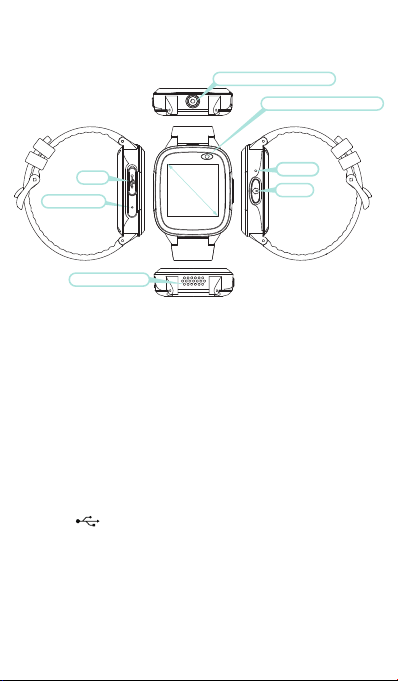
Upward-facing Camera
Forward-facing Camera
Reset
Home
USB 1.44”
Microphone
Loudspeaker
01

Note: It will take approximately 3 hours to fully charge the
battery. The actual charging time depends on the power
supply, the remaining charge and the ambient
temperature of the charging environment. The optimum
ambient temperature is 0C-40C (32°F-104° F). If your
watch needs longer than 3 hours to fully charge, please
try charging from a dierent USB power source.
Battery Life
The time the battery lasts between charges depend on
usage. Like other electronic devices, more frequent usage
will mean the battery will drain more quickly. Some
activities will be more demanding on the battery, such as
taking photos and videos. The expected battery life is
shown below. This is based on the assumption that the
screen is turned o when not in use.
How to Operate the KidoPlay
Smartwatch
Long press the Home Button to power the watch on.
Press the home button to wake the watch up. Press Home
Button for 3 seconds to wake up the watch from standby.
When the clock is displayed on screen, press the home
button to go to the home menu. When the battery level is
low, only the clock display function is available. We
recommend recharging the battery as soon as possible
before further use. Long press the Home button to turn
the Smartwatch o.
Condition Battery Time
Low Usage 2 weeks
Typical Usage 2-3 days
Heavy Usage 1 day
02

How to use the shortcut in clock faces
When in Clock Faces, swipe up the screen, tap the
mouth icon to hear the automatic voice tell the time.
When in Clock Faces, swipe down the screen, tap the
trumpet icon to mute or unmute the smartwatch.
Clock Display
When the home button is pressed, the clock will be
displayed.
Tap the center of the screen to switch the clock face
between analogue and digital. Swipe left or right on the
screen to see more clock faces.
Press the home button to display the home menu for
selecting other activities.
Digital clock faces
Analogue clock faces
Digital clock faces
Analogue clock faces
03

Functions
Home Menu
Press the home button to display the home menu, the
following functions are available:
• Games
• Basketball Shoot Master
• Bee War
• Pinball Hit
• Ultimate Racing
• Car Grab Goods
• Camera
• Photo Gallery
• Video Recorder
• Video Player
• Pedometer
• Time Tools
• Alarm
• Time
• Stopwatch
• Voice Recorder
• Calculator
• Calendar
• Time Teacher
• Sticker Camera
• Music Player
• Setting
Note: Tap the icon to enter the activity. Swipe left or right
to scroll through the menu pages .
04

Games
There are 5 built-in games on the smartwatch. Swipe the
screen to see the game icons. Then tap one to play.
Basketball Shoot Master
Game Instruction: Press the basketball to shoot. When the
backboard is going to move to the middle, control to shoot.
BeeWar
Game Instruction: Tap the screen left or right to move the
fighter to shoot. Purple enemies need to be hit twice.
Score as many points as you can! You have a total of three
opportunities.
Pinball Hit Bricks
Game Instruction: Destroy all bricks to progress to the next
level. White bricks give a special 3-ball bonus. Blue bricks
need to be hit twice. Score as many points as you can!
Ultimate Racing
Game Instruction: Hold the car to move left and right to
switch lanes. The car in front may drop gold coins. Eat as
many gold coins as possible. Avoid collision, you have
only one chance.
Car Grab Goods
Game Instruction: Collect as many coins as possible by
moving the platforms.
Camera
Press to take a photo.
Tap to view the photos.
Tap to swap between the two cameras (upward-facing
and forward-facing)
05

Photo Gallery
Tap Photo Gallery to browse the captured photos.
The latest file will be shown first, tap the arrow icons or
swipe the screen to see the previous or next file.
Tap bin on screen to delete the photo.
Video Recorder
Press the video button on the screen to begin video
recording. Tap to stop video recording. Tap to
swap between the two cameras (upward-facing and
forward-facing). Tap to view the video gallery.
Video Player
Tap the video gallery to view videos. The latest file will
be shown first. Tap the arrow icons to see the previous or
next video. To delete a file, tap Option to delete.
Pedometer
Press the icon to enter this function. Tap start step,
distance and calories counting, tap to stop or pause
counting, tap to clear.
Note: The data is updated in real time, and this function
can be run in the background.
Voice Recorder
Tap to start voice recording.
Tap to save the recording.
Tap to play the last recording.
Tap to delete the recording.
Use the arrows to select previous or next recording.
06

Time Tools
Alarm
To change the alarm setting, select the Alarm icon from
the main menu. Tap the clock icon on screen to enter
the alarm function and change the alarm time. Choose the
time you want, and then press ok.
Tap the green check mark icon on the screen to enter
the alarm function, and to turn on / o the alarm. Tap the
music icon on screen to choose the alarm music. Tap
to save.
How to set your alarm time:
Select the hour and minute by swiping up or down on the
hours and minutes. Tap icon to confirm the chosen time.
Note: when the alarm has been set, the alarm icon
appears only on the digital clock face (in order to
maintain the aesthetics of the analogue clock face).
Timer
Tap the timer icon on the screen to select timer function.
Press on screen to enter and set timer time, tap on OK to
confirm.
Tap the play icon to start the timer.
While the timer is running, tap to pause the
countdown, then tab again to resume. Tap to stop
the countdown and reset the timer.
Stopwatch
Tap the stopwatch icon on the screen to select stopwatch
function.
Tap the play icon to start the stopwatch.
While the stopwatch is running, tap to pause the
timer, tap again to resume.
Tap to stop the timer and reset the stopwatch.
07

Calculator
Use the calculator app for basic mathematical
calculations.
Calendar
Use the calendar to view the date. If the date shown is
incorrect, please go to the Settings menu to reset the
date and time information. There is a dierent wallpaper
for each month.
Time Teacher
The time teacher is a friendly Panda who can tell the time.
Tap the Hour or Min (minutes) icon to select the time you
want the Panda to say.
Tap to increase by an hour/ minute. Tap to
decrease by an hour/ minute. Tap the clock or the panda
to tell the time.
Sticker Camera
Tap to take photo.
Tap the arrows to choose cartoon frame.
Tap to view the photo gallery.
Tap to switch cameras (upward-facing or forward-
facing).
Music Player
To upload music to the watch, use the Micro USB cable to
connect your watch to a computer/laptop. Copy any MP3
music files to the watch folder “My Music”. After transfer
is complete, safely eject the watch from your computer
and unplug the USB cable.
08

Select the Music Player icon from the main menu, then
press play
Play Volume Up Next
Pause Volume Down Last Back
Parental Control
Set time-limits for how long games can be played per day.
To use, go to the Settings menu and tap the Parental
Control submenu.
Tap and hold on the screen for three seconds, you will be
asked to identify a colour on the screen and tap three
times to confirm. Once this has been completed, you will
gain access to the parental controls.
Select between a daily limit of 15, 30, 60 or 90 minutes, or
no limit. You can also choose to disable the games
completely.
Tap the icon to confirm the selection.
Note: when you reset the watch, the time limit for games
will need to be reset.
Settings
In settings, swipe left or right on the screen to scroll
through dierent setting submenus. Here you can adjust
the following items:
• Brightness
• Brightness Time
• Volume
• Wallpaper
• Date
• Time
• Time Format
• Advanced
• Language
• Storage
• Reset
• Parental Control
09
Indice
Altri manuali Cactus Orologio

Cactus
Cactus VORTEX PRO Manuale utente

Cactus
Cactus Activity Tracker Manuale utente

Cactus
Cactus X2GO Manuale utente

Cactus
Cactus Tracker Plus Manuale utente

Cactus
Cactus QUAD ID116 Manuale utente

Cactus
Cactus MAJOR Manuale utente

Cactus
Cactus BLAZE 2 Manuale utente

Cactus
Cactus KIDOCALL Manuale utente

Cactus
Cactus NEXUS Manuale utente


