Canon X Mark I Pro Istruzioni per l'installazione

Contents
ENGLISH
About Using the Manual
• This basic manual briefly introduce X Mark I Pro functions, specification
and usage precautions.
• To familiar with X Mark I Pro, you can read the Calculation Examples
for a series of examples, operation procedure’s; and the calculation
range of major functions.
Statistical Calculations
Statistical Type Selection......................................................P.16
Statistical Data Input.............................................................P.16
Editing Statistical Sample Data.............................................P.16
Statistical Calculation Screen ...............................................P.17
Statistical Menu ....................................................................P.17
Statistical Calculation Example.............................................P.18
Distribution Calculations .......................................................P.18
Advanced Scientific Calculations
Equation Calculations ..................................................... P.19-20
Solve Function ......................................................................P.20
CALC Function .....................................................................P.20
Differential Calculations ........................................................P.21
Integration Calculations ........................................................P.21
Matrix Calculations ...............................................................P.22
Vector Calculations...............................................................P.23
Inequality Calculations .........................................................P.24
Ratio Calculation ..................................................................P.25
Function (x, y) Table Calculation ..............................................P.25
Battery Replacement...................................................................P.26
Advice and Precautions .............................................................P.26
Specifications .............................................................................P.26
1
Getting Started
Power On, Off......................................................................... P.2
Display Contrast Adjustment ................................................. P.2
Mode Selection....................................................................... P.3
Application Function Menu ..................................................... P.3
Calculator Set-up Menu.......................................................... P.4
Before Using the Calculator.................................................... P.5
Inputting Expressions and Values
Input Capacity......................................................................... P.6
Input Editing ........................................................................... P.6
Inputting and Display Result in Mathematics Mode ................. P.6
Input Range and Error Messages .............................................. P.7
Order of Operations................................................................ P.7
Calculation Stacks .................................................................. P.7
Error Messages and Error Locator ......................................... P.7
Basic Calculations
Arithmetic Calculations ........................................................... P.8
Memory Calculations .............................................................. P.9
Fraction Calculations .............................................................. P.9
Percentage Calculations....................................................... P.10
Degree-Minutes-Seconds Calculations ................................ P.10
Replay & Multi-statements.................................................... P.10
Constant Value Calculations ................................................ P.11
Metric Conversions............................................................... P.11
Functional Scientific Calculations
Square, Root, Cube, Cube Root, Power, Power Root,
Reciprocal and Pi ................................................................. P.11
Logarithm, Natural Logarithm, Antilogarithm and Logab ....... P.12
Angle Unit Conversion.......................................................... P.12
Trigonometry Calculations.................................................... P.12
Permutation, Combination, Factorials and Random
Number Generation .............................................................. P.12
Least Common Multiple and Greatest Common Divisor ...... P.13
Prime Fractorization ............................................................. P.13
Quotient and Remainder Calculations.................................. P.13
Coordinate Conversion......................................................... P.14
Absolute Value Calculation................................................... P.14
Engineering Notation ............................................................ P.14
Display Values Exchange..................................................... P.14
Complex Number Calculations ............................................. P.14
Base-n Calculations and Logical Calculations...................... P.15

Display
<Status Indicators>
S : Shift key
A : Alpha key
M : Independent Memory
STO : Store Memory
RCL : Recall Memory
STAT : 1-Var & 2-Var Statistics Mode
CPLX : Complex Number Calculation Mode
MATX : Matrix Calculation Mode
VCTR : Vector Calculation Mode
EQN : Equation Calculation Mode
D : Degree Mode
R : Radian Mode
G : Gradient Mode
FIX : Fixed-decimal Setting
SCI : Scientific Notation
LINE : Line Display Mode
: Up Arrow
: Down Arrow
Disp : Multi-statements Display
Getting Started
Power On, Off
First time operation:
1. Remove the battery insulation tab to load the battery.
2. Press to initialize the calculator.
Power ON: When is pressed.
Power OFF: When are pressed.
Auto Power off Function:
When the calculator is not used for approximately 7 minutes, it
will automatically power off.
Display Contrast Adjustment
Press (6: CONT ), to enter the
Display Contrast Adjustment screen.
Press to make the display contrast darken.
Press to make the display contrast lighten.
Press or to confirm and clear the screen.
To initialize the LCD contrast, press
outside the Display Contrast Adjustment screen.
2

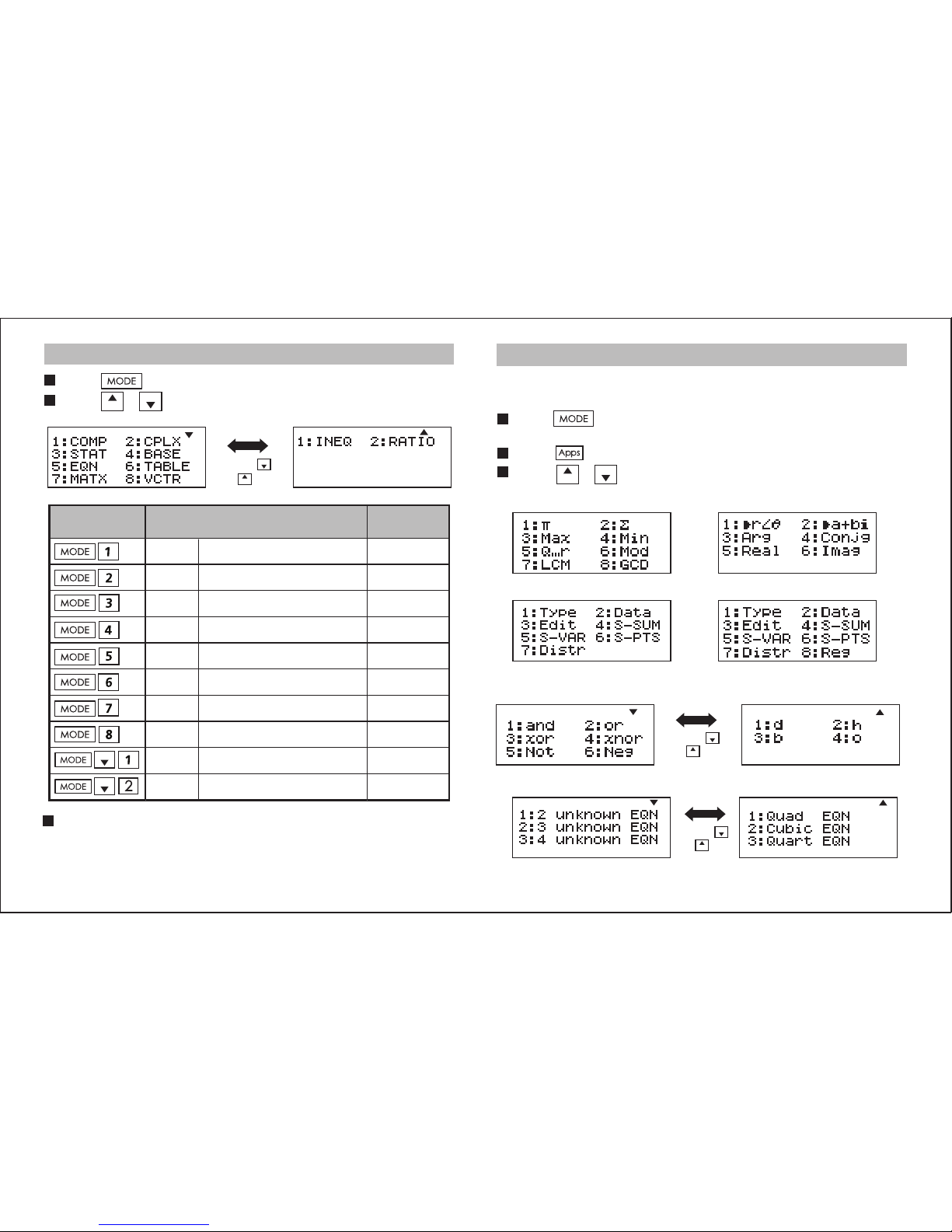
Mode Selection
Press to enter the Calculation Mode Selection screen.
Press / for next / previous pages.
The default mode is COMP mode.
Application Function Menu
The Apps menu contains mathematical functions. In each
Calculation Mode, the listed functions are different.
Press and corresponding number to enter the
Calculation Mode.
Press to enter the Apps menu.
Press / for next / previous pages.
i) COMP Mode ii) CPLX Mode
iii) STAT Mode
In SD mode In REG mode
Press [ ]
or [ ] key
iv) BASE Mode
COMP Normal calculations
CPLX
Complex number calculation
CPLX
STAT
BASE
EQN Equation solution EQN
TABLE Function table generation
MATX Matrix calculations MATX
VCTR Vector calculations VCTR
INEQ Inequality calculations
RATIO Ratio calculations
Operation
Mode LCD
Indicator
Statistical and regression
calculations
Calculations involving specific
number systems
STAT
v) EQN Mode
Press [ ]
or [ ] key
Press [ ]
or [ ] key
3

Press to exit the Apps menu.
vii) VCTR Mode
vi) MATX Mode
viii) INEQ Mode
ix) Ratio Mode
Press [ ]
or [ ] key
Calculator Set-up Menu
Press to enter the Calculator Set-up Menu;
press / for next / previous pages.
To select the calculator input & output format [1] Maths
or [2] Line
[1] Maths – (Mathematics mode):
The majority of calculation input
and output (e.g. Fraction, pi,
square root number) are shown in
Mathematics textbook format.
Mathematics mode
Press [ ]
or [ ] key
To select the angle unit [3] Deg, [4] Rad or [5] Gra
[3] Deg: Angle unit in Degree
[4] Rad: Angle unit in Radian
[5] Gra: Angle unit in Gradient
90º = radians = 100grads
To select display digit or notation [6] Fix, [7] Sci or [8] Norm
[6] Fix: Fixed Decimal, [Fix 0~9?] appears, specify the number
of decimal places by pressing [0] – [9].
Example: 220 ÷ 7 = 31.4286 (FIX 4)
= 31.43 (FIX 2)
[7] Sci: Scientific Notation, [Sci 0~9?] appears, specify the
number of significant digits by pressing [0] – [9].
Example: 220 ÷ 7 = 3.1429x101 (SCI 5)
= 3.143x101 (SCI 4)
[8] Norm: Exponential Notation, [Norm 1~2?] appears, specify
the exponential notation format by pressing [1] or [2].
Norm 1: Exponential Notation is automatically used for integer
values with more than 10 digits and decimal values with more
than TWO decimal points.
[2] Line – (Line mode): The majority
of calculation input and output are
shown in the line format. The
“LINE” icon will be shown.
For the STAT, EQN, MATX, VCTR, INEQ, RATIO mode, the
Input & Display format will switch to Line mode automatically.
Line mode
LINE
4

Before Using the Calculator
Check the current Calculation Mode
Be sure to check the status indicators that indicate the current
calculation mode (COMP, STAT, TABLE), display formats setting
and angle unit setting (Deg, Rad, Gra)
Return to initial setup
Press (YES) to return the initial calculator
setup
Calculation mode : COMP
Input/Output Format : Maths
Angle unit : Deg
Display Digits : Norm 1
Fraction Display Format : d/c
Statistical Data Input : OFF
Decimal Point format : Dot
This action will not clear the variable memories.
Initialize the calculator
When you are not sure of the current calculator setting, you are
recommended to initialize the calculator (resets calculation mode
“COMP”, angle unit “Degree”, clears reply and variable
memories), and resets LCD contrast) by performing the following
key operations:
(All) (YES) .
Norm 2: Exponential notation is automatically used for integer
values with more than 10 digits and decimal values with more
than NINE decimal places.
Example: 1 ÷ 1000 = 1x10⁻³ (Norm 1)
= 0.001 (Norm 2)
To select the fraction format [1] a b/c or [2] d/c
[1] a b/c: specify Mixed fraction display
[2] d/c: specify Improper fraction display
To select the complex number display format [3] CLPX ([1]
a+bi or [2] r< )
[1] a+bi: specify Rectangular Coordinates
[2] r< : specify Polor Coordinates
To select the statistical display format [4] STAT
([1] ON or [2] OFF)
[1] ON: Show FREQ (Frequency) Column in Statistical Data
Input Screen
[2] OFF: Hide FREQ (Frequency) Column in Statistical Data
Input Screen
To select the decimal point display format [5] Disp ([1] Dot
or [2] Comma)
[1] Dot: specify dot format for Decimal point result display
[2] Comma: specify comma format for Decimal point result
display
To Adjust Display contrast [6] CONT
Refer to the “Display Contrast Adjustment” section.
5

*1. Omit multiplication sign (x)
- Input before an open parentheses : 1 x (2+3)
- Input before scientific functions that includes parenthesis: 2 x
cos(30)
- Input before Random number function
- Input before Variable (A, B, C, D, X, Y, M), π, θ
*2. Scientific functions come with the open parenthesis. Example: sin(,
cos(, Pol(, LCM(…. You need to input the argument and the close
parenthesis .
*3. Omit the last close parenthesis before the , , ,
and .
Insert and Overwrite Input mode
In Line mode, you can use INSERT or overwrite mode for
inputting.
- In Insert mode (Default input mode), the cursor is a vertical
flashing line “ ” for inserting a new character.
- In Overwrite mode, press key to switch the cursor
to a flashing horizontal “ _ ” and replace the character at the
current cursor position.
In Mathematics mode, you can only use the insert mode.
Whenever the display format changes from Line mode to
Mathematics mode, it will automatically switch to the insert mode.
Deleting and Correcting an Expression
In Insert mode: Move the cursor to the right of the character or
function that needs to be deleted, then press .
In Overwrite mode: Move the cursor under the character or
function being deleted, then press .
X Mark I Pro allows you to input a single calculation with up to 99
bytes. When input capacity is less than 10bytes, the input cursor
will change from “ ” to “ ” signaling that the memory is running
now.
Input Editing
New Input begins on the left of display. When the input data is more
than 15 characters (Line Mode) / 16 characters (Maths mode), the
line will scroll to the right consecutively. You can scroll back to the left
by using and to review the input.
Omit the multiplication sign and final close parenthesis.
Inputting Expressions and Values
Input Capacity
EX #1
Example: 2 x log 100 x (1+3) = 16 .......
EX #5
Inputting and Display Result in Mathematics Mode
In Mathematic Mode, the Input and display result of fraction or
certain functions (log, x2, x3, x , , 3 , , x-1,10 , e , Abs) is
shown in Handwriting/Mathematics format.
6
(1) Replace an entry (1234567 1234560) ......
(2) Deletion (1234567 134567).......
(3) Insertion (889900 2889900) .......
EX #2
EX #3
EX #4
Example: 1234567 + 889900

Display of results using
Calculation results may be displayed using when in all of the
following cases:
1. When intermediate and final calculation results are displayed
in the following form:
2. When the number of terms in the intermediate and final
calculation result is one or two.
Input Range and Error Messages
• Errors are cumulative in the case of consecutive
calculations, this is also true as internal consecutive
calculation are performed in the case of ^(xy), x√y, 3√, x!,
nPr, nCr , etc. and may become large.
Calculation Precision, Input Range please refer to ... EX #6
EX #7
Order of Operations
This calculator will automatically determine the operation
priority of each individual command as
Error Messages and Error locator
The calculator is locked up while an error message is shown
on the display to indicate the cause of the error.
Press to clear the error message, then return to the initial
display of latest mode.
Press or to display input expression with the cursor
positioned next to the error.
Press to clear the error message, replay memory
history and return to the initial display of the latest mode.
Calculation Stacks
This calculator uses memory areas, called “stacks”, to
temporarily store numeric value (numbers) commands (+, –,
x…) and functions according to their precedence during
calculations.
The numeric stack has 10 levels and command stack has 128
levels. A stack error [Stack ERROR] occurs whenever you try
to perform a calculation that exceeds the capacity of stacks.
Calculations are performed in sequence according to “Order
of Operations”. After the calculation is performed, the stored
stack values will be released.
7
(1) Some input expressions cause the height of a calculation
expression to be greater than one display screen. Maximum
input capacity: 2 display screens (31 dots x 2).
(2) Calculator memory limits how many functions or
parentheses can be input in any single expression. In this
case, divide the expression into multiple parts and calculate
separately.
(3) If part of the expression you input is cut off after calculation
and in the result display screen, you can press or
to view the full expression.

• Press or to display
the location of the cause of
an error and make
required corrections.
• Press or to display
the cursor at the location
of the error, make
appropriate corrections
Error Message
Cause Action
Math ERROR • The intermediate or final
result is outside the
allowable calculation range.
• An attempt to perform a
calculation using a value
that exceeds the allowable
input range.
• An attempt to perform an
illogical operation (division
by zero, etc.)
•Check the input values and
make sure they are all
within the allowable
ranges, Pay special
attention to values in any
using memory areas
Stack ERROR • The capacity of the numeric
stack or operator stack is
exceeded.
• Simplify the calculation.
• Divide the calculation into
two or more separate
parts.
• Under Matrix and Vector
mode, the dimension (row,
column) is over three.
• An attempt to perform an
illegal matrix/vector
operation.
Syntax ERROR • An attempt to perform an
illegal mathematical
operation.
Insufficient
MEM
Can’t Solve
ERROR
(only in SOLVE
function)
• The calculation result of
Function Table mode
parameters caused more
than 30 x-values to be
generated for a table
• Narrow the table
calculation range by
changing the start, end,
and step values, and try
again.
• The calculator could not
obtain a solution.
Dimension
ERROR
(only in Matrix
or Vector)
• Check for errors in the
equation that you input.
• Input a value for the
solution variable that is
close to the expected
solution and try again.
Variable
ERROR
(only in SOLVE
function)
Time Out
ERROR
(only in
Differential or
integration
Calculations
• Press or to display
the location of the cause of
an error and make required
corrections.
Argument
ERROR • Improper use of an
argument.
• Equation is not a correct
equation.
• Equation does not include
variable X.
• The solution variable is not
similar to the specified
variable in the expression.
• Under Matrix and Vector
mode, the dimension (row,
column) is over three.
• An attempt to perform an
illegal matrix/vector
operation.
(refer to P.20)
• The current differential or
integration calculation ends
does not fulfill an ending
condition.
• The calculator could not
obtain a solution.
(refer P.21)
Error Message
Cause Action
Arithmetic Calculations
• To calculate the negative values (exclude the negative
exponent) enclose then within the parentheses.
• This calculator supports 99 levels of parenthetical expression.
......
Press to enter COMP mode.
During the busy calculation, the calculator shows the message
[PROCESSING] (without any calculation result). Press key
to interrupt the calculating operation.
Basic Calculations
EX #8
8

Memory Calculations
Memory Variables
• There are 19 memory variables (0 – 9, A – F, M, X and Y),
which store data, results, or dedicated values.
• Store values into memory by pressing + Memory
variable.
• Recall memory values by pressing + Memory variable.
• Memory content can be cleared by pressing
+ Memory variable.
Example: 23 + 7 A (30 store into A), calculate 2 sinA
and clear memory A ......
Independent Memory
• Independent memory uses the same memory area as
variable M. It is convenient for calculating cumulative totals by
pressing (add to memory) or (subtract from
memory).
• Memory contents are retained even when the calculator is
powered off.
• Clear independent memory (M) by pressing
• Clear all memory values by pressing 2(MCL)
.
EX #9
Answer Memory
• The input values or the most recent calculation result will be
automatically stored into Answer memory whenever you press
, , , , . Answer
memory can hold up to 18 digits.
• Recall and use the latest stored Answer memory by pressing
.
• Answer memory is not updated when an error operation has
been performed.
• Answer memory contents can be maintained even after
pressing , changing the calculation mode, or turning off the
calculator. ......
Fraction Calculations
The calculator supports Fraction calculation and the conversions
between Fraction, Decimal point, Mixed fraction and Improper
fraction.
• Specify the fraction calculation result display format by selecting
either mixed fraction ( ) or improper fraction
( ) in set-up menu.
• At the default setting, fractions are displayed as improper fractions
( ).
• Mixed Fraction display results are only available after selecting
( ) in the setup menu.
Maths Mode
Line Mode 3_|2_|311_|3
Mixed Fraction
(a b/c)
Improper Fraction
(d/c)
11
3
2
3
3
EX #10
9

Press to switch a calculation result between fraction and
decimal format.
Press to switch a calculation result between
improper fraction and mixed fraction format.
Result will be displayed in decimal format automatically
whenever the total digit of a fractional value (integer + numerator
+ denominator + separator marks) exceeds 10.
When a fraction calculation is mixed with decimal values, the
result will be displayed in decimal format.
Fraction Decimal point conversion ...... EX #11
Percentage Calculations
Multi-statements Function
• Use a colon to put two or more calculation expressions
together.
• The first executed statement will have “Disp” indicator; and
the “Disp” icon will disappeared after the last statement is
executed. ......
Replay & Multi-statements
Replay Memory Function
• Replay memory is only available in COMP mode.
• After the calculation is executed, the calculation input and
result will be stored in the replay memory automatically.
• Pressing (or ) can replay the performed calculation
input and result history.
• After obtaining the calculation result on the display,
press or to edit the input expression of that result.
• If the Indicator is on the right side of a calculation result
display, you need to press and then or to scroll
the calculation.
• Replay memory is cleared when you:
1. Initialize calculator setting by
2. Change from one calculation mode or display mode to
another.
3. Press key.
4. Press to power off the machine.
EX #12
Degree-Minutes-Seconds Calculations
Use degrees (hours), minutes and seconds key to perform a
sexagesimal (base-60 notational system) calculation or convert
the sexagesimal value into decimal value.
Degree-Minutes-Seconds Decimal points...... EX #13
EX #14
10
Indice
Altri manuali Canon Calcolatrice

Canon
Canon MP1211-LTSC Manuale utente

Canon
Canon Canola SX-300 series Manuale utente

Canon
Canon AS-1200 Manuale utente

Canon
Canon P200-DH Manuale utente

Canon
Canon HS-1200TS Manuale utente

Canon
Canon LS-270H Manuale utente

Canon
Canon LS-154TG Manuale utente

Canon
Canon WS-1210T Manuale utente

Canon
Canon F-603 Manuale utente

Canon
Canon MP11DX - Printing Calculator Manuale utente

Canon
Canon LS-80TCG Manuale utente

Canon
Canon MP27DII Manuale utente

Canon
Canon LS-270H Manuale utente

Canon
Canon KS-125WUC Manuale utente

Canon
Canon WS-1210Hi III Manuale utente

Canon
Canon LC-100T Manuale utente

Canon
Canon P27-DH Manuale utente

Canon
Canon F-604 Manuale utente

Canon
Canon WS-2235H Manuale utente

Canon
Canon F-73P Manuale utente